APNG vs GIF vs WebP: which animated image format should you use?
Short answer: use animated WebP for most websites, because it is usually the smallest and supports full transparency. Use APNG when you need lossless, pixel-perfect animation, such as logos, icons and interface elements. Use GIF only where compatibility matters most, such as email newsletters and upload forms that reject newer formats.
This guide compares all three formats on quality, file size, transparency and browser support, then answers the questions people ask most: GIF vs WebP, APNG vs WebP, APNG vs GIF, and how to convert between them. Last updated: October 2026.
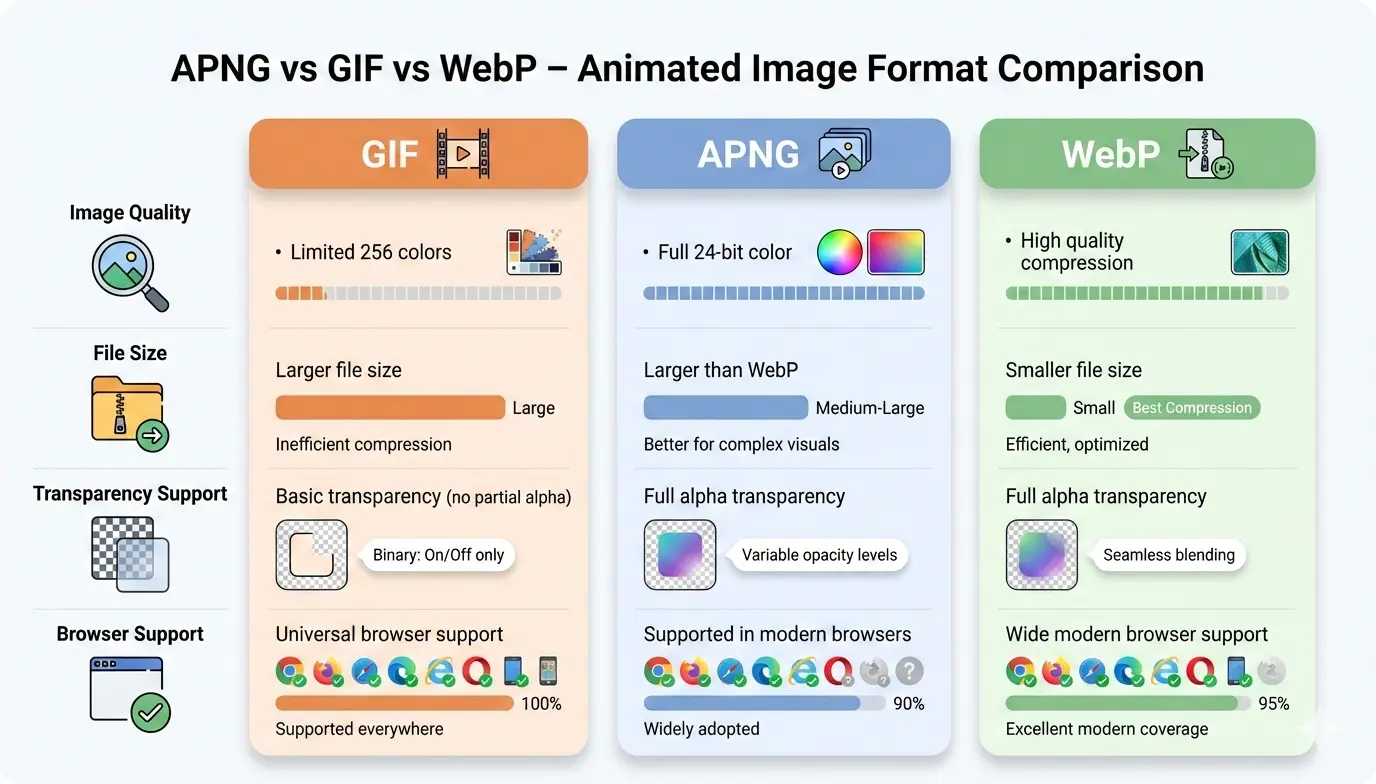
Quick comparison: APNG vs GIF vs WebP
| Feature | GIF | APNG | Animated WebP |
|---|---|---|---|
| Colors | 256 per frame | 16.7 million | 16.7 million |
| Transparency | 1-bit (on or off) | 8-bit alpha (smooth) | 8-bit alpha (smooth) |
| Compression | Lossless | Lossless | Lossy or lossless |
| File size | Baseline | Often larger than GIF for photo-like content; can be similar for flat graphics | Usually the smallest (Google test: 64% smaller lossy, 19% smaller lossless) |
| Browser support | Everywhere | All current major browsers | All current major browsers (Safari 14+) |
| Works in email | Yes | Unreliable | Unreliable |
| Best for | Maximum compatibility | Pixel-perfect icons and logos | Fast websites, demos, banners |
Internet Explorer supports neither APNG nor WebP. Support changes over time, so check a live source such as Can I Use before you decide for a large audience.
GIF vs WebP: what is the difference?
WebP is smaller and looks better than GIF in almost every case. GIF is limited to 256 colors per frame and only on-or-off transparency. Animated WebP supports millions of colors, smooth semi-transparent edges, and lossy compression that can cut file size sharply. GIF still wins on compatibility.
Is WebP better than GIF?
Yes, for websites and apps. In a Google test of roughly 7,000 animated GIFs, lossy WebP versions were 64% smaller on average, and lossless WebP versions were 19% smaller. Your own results depend on the animation: photographic, gradient-heavy clips shrink the most, while simple flat graphics shrink less.
GIF is still the better choice in email newsletters, in chat or upload systems that only accept GIF, and anywhere you cannot control the viewer’s software.
Can GIF convert to WebP?
Yes. A converter extracts the frames from the GIF and repackages them as an animated WebP. You normally choose between two modes:
- Lossless: every pixel stays identical to the GIF, and the file is somewhat smaller.
- Lossy: much smaller files. A quality setting of about 80 to 90 usually looks clean.
Conversion does not add detail. A pixelated or banded GIF will look the same, or slightly softer, as WebP.
APNG vs WebP: which one is better?
Choose WebP for smaller files, and APNG for exact, lossless frames. Both support millions of colors and smooth alpha transparency. APNG is always lossless, so every frame matches the source exactly, but the files are larger. Animated WebP can be lossy or lossless, so you can trade a little quality for a much smaller download.
APNG also has a practical advantage: it is a PNG file, so software that does not understand animation shows the first frame instead of failing. WebP is better supported by modern image tools and CDNs.
APNG vs GIF: what is the difference?
APNG looks better than GIF; GIF is more widely accepted. APNG gives you 24-bit color and smooth transparency, while GIF is limited to 256 colors and hard-edged transparency. APNG works in all current major browsers, but many email clients, chat apps and upload forms still accept only GIF.
What is the APNG format?
APNG (Animated Portable Network Graphics) is an extension of PNG. The first frame is a normal PNG image, and the following frames are stored as extra data blocks. It is lossless, supports full alpha transparency, and stays backward compatible, so a viewer without APNG support shows the first frame.
Is APNG smaller than GIF?
It depends on the content. For flat-color graphics with large solid areas, APNG can be similar in size to GIF or sometimes smaller. For photographic or gradient-heavy animation, APNG is usually larger because it keeps full color instead of reducing each frame to 256 colors. In both cases, animated WebP is typically the smallest of the three.
APNG vs GIF vs WebP file size: how to compare fairly
Size comparisons only mean something when you use the same source animation. To test your own file:
- Start with one source animation, ideally the highest quality version you have.
- Export it as GIF, APNG, lossless WebP and lossy WebP (quality 80 to 90).
- Compare the file sizes, then view all four at full size to check for banding or blur.
- Keep the smallest version that still looks right to you.
You can run these conversions with the Image Converter and compare sizes before you publish.
Which is best for mobile animations: APNG, WebP or Lottie?
For raster animation on mobile, animated WebP is usually the best balance of size and quality. APNG suits small, crisp assets like icons. Lottie suits interface animations that must scale cleanly. Lottie stores vector animation as lightweight data and needs a player library, so it is a poor fit for photographic or video-like content. Native support for APNG and animated WebP varies by platform and framework, so test on your target devices before committing.
Which format has the best transparency?
APNG and WebP both support full 8-bit alpha transparency; GIF does not. GIF pixels are either fully transparent or fully opaque, which produces jagged edges on patterned backgrounds. APNG and WebP allow soft shadows and gradual fades. WebP also supports alpha in lossy mode, which keeps transparent animations small.
Browser support for APNG, GIF and WebP
- GIF: supported everywhere.
- APNG: supported in current versions of Chrome, Firefox, Safari and Edge.
- Animated WebP: supported in current versions of Chrome, Firefox, Edge and Safari 14 or later.
The practical gap between APNG and WebP is small. The real difference is outside browsers: email clients, messaging apps and CMS upload filters often accept GIF only.
When should you use each format?
Use GIF when
- You are sending an email newsletter.
- Users upload animations and you do not want to process conversions.
- You cannot risk a broken image on any device.
Use APNG when
- You need animated logos or icons with crisp edges.
- You are showing technical diagrams that must stay artifact-free.
- Quality matters more than file size for a short animation.
Use animated WebP when
- You want product demos, banners or background animations that load fast.
- You care about page speed and Core Web Vitals.
- Your audience uses modern browsers.
Consider video instead for clips longer than a few seconds. A short MP4 or WebM file is usually smaller than any of the three formats. Read more about the main disadvantage of using GIFs for videos.
How to convert a GIF or APNG to WebP
- Upload your file. Use an online converter and choose WebP as the output. A tool that can convert images online without signup is the quickest option.
- Pick the quality. Choose lossy at 80 to 90 for the smallest size, or lossless if you need exact frames. For still images, see how to convert an image to WebP without losing quality.
- Download and test. Open the WebP in a browser to check smooth playback and transparency.
- Add a fallback. Serve WebP to modern browsers and keep the GIF for the rest:
<picture>
  <source srcset="animation.webp" type="image/webp">
  <img src="animation.gif" alt="Describe the animation" width="480" height="270">
</picture>
Do not delete your original GIFs. For a deeper look, see WebP animation vs GIF.
Is it worth converting all GIFs to WebP?
Usually yes. Smaller animations load faster, use less bandwidth, and help page speed. The exception is any place that only accepts GIF, such as email, where you should keep the original. Convert the heaviest animations first, since they give the biggest savings.
Frequently asked questions
Is WebP better than GIF?
Yes for websites and apps. WebP offers more colors, smooth transparency and usually much smaller files. GIF is better only when compatibility, such as email, matters most.
Is APNG smaller than GIF?
Not always. APNG can match or beat GIF on flat graphics, but it is usually larger on photographic or gradient-heavy animation. Animated WebP is typically smaller than both.
Which animated format is best for mobile?
Animated WebP is usually the best raster option. Use APNG for small, crisp icons, and Lottie for scalable interface animations. Test on your target devices.
Can I convert APNG to WebP?
Yes. Upload the APNG to a converter, choose WebP, and select lossless to keep exact frames or lossy for a smaller file.
Does APNG work in all browsers?
It works in all current major browsers, including Chrome, Firefox, Safari and Edge. It does not work in Internet Explorer.
Final verdict: APNG vs GIF vs WebP
GIF is the compatibility fallback. APNG is the choice for lossless, pixel-perfect animation. Animated WebP is the best default for most websites. Convert your heaviest GIFs to WebP, keep GIF where you need it, and compare real file sizes with your own animations before you publish.