How to Convert Image to Mobile Wallpaper Size
A photo that looks sharp in your gallery often turns into a stretched, cropped, or blurry mess the moment you set it as a lock screen background. That happens because your photo's pixel dimensions almost never match your phone's exact screen resolution. This guide explains how to convert image to mobile wallpaper size 100% free, why mismatched dimensions cause zooming and distortion, and exactly which numbers to target for iPhone, Samsung, and other Android devices.
The fastest way to convert any image to the correct mobile wallpaper size is by using the "Convert Image to Mobile Wallpaper Size" tool from Image Converter 24: simply upload your image, let the tool resize and crop it to perfectly match your phone's screen resolution, and download the result. There is no need for design software, manual pixel calculations, or app installations—all of this is done without creating an account and takes just seconds.
This article covers the exact pixel dimensions modern phones use, the aspect-ratio math that explains why wallpapers get cropped or zoomed, a step-by-step walkthrough of a free online tool built for this exact task, device-specific breakdowns for Samsung, iPhone, Android, and PC, and a full FAQ section answering the most common wallpaper-sizing questions.
Why Photos Don't Fit Phone Screens Automatically
A photo taken with a phone camera or downloaded from the web almost never shares the same aspect ratio as a phone's display, which is why the operating system automatically crops or stretches it when you apply it as wallpaper. Most modern phone cameras shoot in a 4:3 or 3:2 ratio, or a widescreen 16:9 ratio for video-style shots, while the actual screen the image needs to fill is usually a much taller 19.5:9 or 20:9 ratio.
The math is simple once you see it: a 19.5:9 screen means that for every 9 units of width, the screen is 19.5 units tall — a ratio of roughly 2.1667:1. A standard 3:2 camera photo, by comparison, is only 1.5:1. When the phone's wallpaper setter forces that 1.5:1 image to fill a 2.1667:1 frame, it has two choices: crop off the sides (losing part of the image) or stretch the image vertically (distorting faces and objects). Neither produces the sharp, full-frame result you actually want, which is why matching the image's pixel dimensions to the screen's native resolution before setting it as wallpaper avoids both problems.
Resizing an image to the exact width and height of your screen — not just a "close enough" size — is the only way to guarantee zero automatic cropping when you set it as wallpaper.
There's also a resolution-vs-file-size tradeoff worth understanding. A larger phone screen with a higher pixel count needs a proportionally larger source image, or the wallpaper will look soft and slightly blurry once stretched to fill every pixel. Uploading an image smaller than your screen's native resolution means the system has to upscale it, which is the single most common cause of a "zoomed in" or fuzzy-looking wallpaper.
Exact Mobile Wallpaper Sizes by Device (2026)
The table below lists the current native screen resolutions for the most common iPhone and Samsung Galaxy models, plus the standard desktop resolution for comparison, so you can pick the exact pixel dimensions your device needs before converting an image.
| Device | Resolution (px) | Aspect Ratio |
|---|---|---|
| iPhone 16 / 15 / 15 Pro (6.1") | 1179 × 2556 | 19.5:9 |
| iPhone 16 Plus / 15 Pro Max (6.7") | 1290 × 2796 | 19.5:9 |
| iPhone 16 Pro Max (6.9") | 1320 × 2868 | 19.5:9 |
| iPhone SE (4.7") | 750 × 1334 | 16:9 |
| Samsung Galaxy S24 (6.2") | 1080 × 2340 | 19.5:9 |
| Samsung Galaxy S25 Ultra (6.9") | 1440 × 3120 | 19.5:9 |
| Standard Desktop / PC (Full HD) | 1920 × 1080 | 16:9 |
According to GSMArena's Samsung Galaxy S24 specification page, the S24 uses a 2340 x 1080 pixel display at 416 PPI, while iOS Ref's device resolution reference confirms that every current iPhone from the 14 Pro through the 17 Pro shares the same 19.5:9 aspect ratio, even though the exact pixel counts differ by model. Because most current-generation phones cluster around that same 19.5:9 ratio, cropping a wide desktop photo (16:9) to fit a phone screen almost always means trimming the left and right edges rather than the top and bottom.
The Fastest Way to Resize an Image to Wallpaper Size
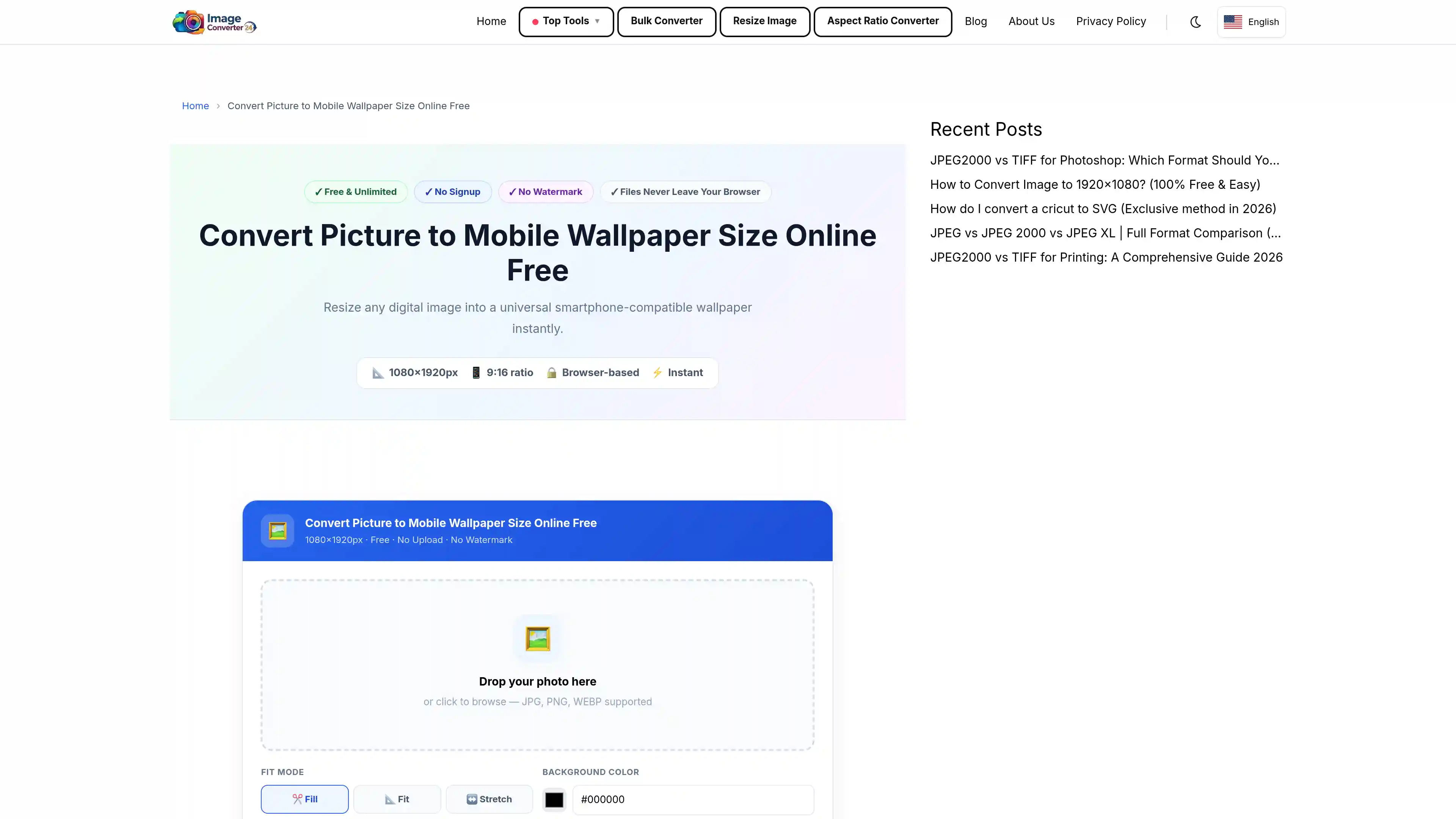
Manually calculating crop coordinates, opening a desktop editor, and exporting at the right pixel dimensions works, but it's slow and easy to get wrong by a few pixels. The most direct way to get an exact, screen-ready wallpaper is Convert image to mobile wallpaper size, a free browser-based tool built specifically to resize and crop any photo to phone screen dimensions.
Here's the actual process on the page:
- Open Convert image to mobile wallpaper size in your browser.
- Upload the photo you want to turn into a wallpaper.
- Click Convert to resize and crop it to mobile wallpaper dimensions.
- Click Download to save the finished image to your device.
Because this page is built specifically for wallpaper sizing rather than as a general-purpose converter, there's no separate format-selection step to get wrong — the conversion pair is already fixed by the tool itself, so you go straight from upload to a correctly proportioned result. This matters specifically for wallpapers because a generic resize tool that only scales an image (without cropping to match the target aspect ratio) will still leave black bars or a distorted stretch on a phone screen; a tool built around the target aspect ratio avoids that entirely.
Honest limitation: like most browser-based image tools, very large source files (extremely high-resolution camera RAW exports or images well above typical phone camera output) may take longer to process or may need to be compressed first, since the conversion runs in the browser rather than on installed desktop software.
If your uploaded photo has a very different aspect ratio from your target screen — for example, a wide panorama — the crop step will need to remove a larger portion of the image than a standard 4:3 or 3:2 photo would. The practical fix is to start with a photo where the subject sits centered, since edge content is the first thing a wallpaper crop removes.
Convert Image to Mobile Wallpaper Size for Samsung
Samsung Galaxy phones use a taller 19.5:9 aspect ratio across almost the entire current lineup, so an image needs to be resized to a portrait dimension like 1080 x 2340 (Galaxy S24) or 1440 x 3120 (Galaxy S25 Ultra) rather than a standard photo ratio to fill the screen edge-to-edge.
One Samsung-specific detail worth knowing: One UI's wallpaper setter includes its own preview crop step after you apply an image, which lets you nudge the position before confirming — but that step only repositions the crop within the image you provide, it can't add missing pixels back if the source photo is too small for the screen. Starting with an image already sized to your exact model's resolution removes the need to fine-tune that preview at all. For phone-specific results, Convert image to mobile wallpaper size samsung resizes directly to Samsung's display proportions.
Convert Image to Mobile Wallpaper Size for iPhone
Every current iPhone, from the SE up through the 17 Pro Max, uses portrait resolutions built around the same 19.5:9 ratio (the SE is the one exception, at 16:9), which means the safest target dimension depends on which exact model you own rather than a single universal iPhone size.
iOS also renders both a "Perspective" wallpaper mode (which adds a subtle zoom/parallax effect as you tilt the phone) and a "Still" mode. Perspective mode crops in slightly more than Still mode to leave room for that parallax movement, so an image that looks perfectly framed in Still mode can lose a bit more of its edges once Perspective is turned on — worth checking both modes in the iOS wallpaper picker after setting your resized image. For a resize matched to iPhone's exact display proportions, Convert image to mobile wallpaper size iphone handles this directly.
Convert Image to Mobile Wallpaper Size for Android
Android wallpaper sizing works the same way across brands beyond Samsung — Pixel, OnePlus, Xiaomi, and other Android phones each use their own native screen resolution, but nearly all current flagships fall into the same 19.5:9 to 20:9 family of portrait aspect ratios.
Because Android is an open platform, launcher apps handle wallpaper cropping differently from manufacturer to manufacturer — some stock Android launchers apply a fixed center crop with no preview step at all, unlike Samsung's One UI or iOS. That makes starting with a correctly sized image even more important on Android generally, since you may not get a chance to manually adjust the crop after the fact. Checking your specific phone's display resolution in its settings menu before resizing avoids a mismatch.
Convert Image to PC Wallpaper Size
Desktop and laptop wallpapers use landscape orientation rather than portrait, with 1920 x 1080 (Full HD, 16:9) remaining the most common desktop resolution, though many newer laptops and external monitors now use 2560 x 1440 or 3840 x 2160 (4K).
The same cropping logic applies in reverse here: a tall portrait phone photo forced into a wide 16:9 desktop frame will lose its top and bottom, not its sides. If you're preparing one image for both a phone lock screen and a desktop background, it's generally faster to resize two separate crops from the same source photo rather than trying to force a single crop to satisfy both aspect ratios. A dedicated resize tool for this exact orientation is available at convert image to pc wallpaper size.
Frequently Asked Questions
How to convert image to phone wallpaper size?
Upload the photo to a browser-based image resizing tool, let it crop and resize to your phone's native screen resolution, and download the finished file directly to your device or photo library.
How to resize an image to fit phone wallpaper?
Resizing to fit means scaling the image to match your screen's exact width-to-height ratio (commonly 19.5:9 on current phones), then cropping any excess rather than stretching the original proportions, which is what a wallpaper-specific resizer does automatically.
What is the size of an image for mobile wallpaper?
There is no single universal size — it depends on the exact device, ranging from roughly 1080 x 2340 pixels on a Samsung Galaxy S24 up to 1440 x 3120 pixels on a Galaxy S25 Ultra, and 1179 x 2556 up to 1320 x 2868 pixels across current iPhone models.
How do I resize a photo to fit my iPhone screen?
Check your exact iPhone model's native resolution (for example 1290 x 2796 for the 15 Pro Max or 1179 x 2556 for the 15), then resize and crop your photo to that exact pixel dimension before setting it as wallpaper.
Why don't pictures fit on iPhone wallpaper?
Pictures don't fit because most photos are captured in a 4:3 or 3:2 ratio while the iPhone screen is a much taller 19.5:9 ratio, so iOS has to either crop the sides or stretch the image to fill the gap unless the photo is pre-resized to match.
What size is a 1920x1080 image?
A 1920x1080 image is a Full HD, 16:9 aspect-ratio image — standard for most desktop monitors and laptop screens, but too wide and short to fill a modern phone's taller 19.5:9 portrait screen without heavy cropping.
How can I resize an image to fit my iPhone's wallpaper size?
Use a resizing tool that crops to your iPhone's exact display resolution rather than a generic square or 16:9 export, since matching the native pixel dimensions is what prevents automatic zooming or edge cropping after you apply the wallpaper.
Is there a free photo resizer?
Yes — browser-based image resizing tools that require no software install or account signup are available free of charge, including tools built specifically for phone wallpaper dimensions rather than generic square or preset sizes.
Why is my phone wallpaper so zoomed in?
A wallpaper looks zoomed in when the source image is smaller than your screen's native resolution, forcing the phone to upscale it, or when the image's aspect ratio is far wider or narrower than the screen and the system crops in tightly to fill the frame.
How do you know your screen size for wallpapers?
Check your phone's display settings menu for the exact resolution in pixels, or look up your specific model number, since two phones with the same screen size in inches can still have different pixel resolutions.
How do I resize an image on my phone?
Open a browser-based resizing tool from your phone's browser, upload the image directly from your photo library, let it process, then download the result — this works without installing a separate app.
What's the best image resizer to use?
The best resizer for wallpaper purposes is one built specifically for screen dimensions rather than a generic all-purpose editor, since it crops to the correct aspect ratio automatically instead of requiring you to calculate pixel dimensions by hand.
Does converting a photo to wallpaper size reduce its quality?
Downscaling a larger photo to a smaller target resolution does not meaningfully reduce visible quality, but upscaling a smaller photo to a larger target resolution will soften detail and can introduce visible blur, which is why starting with a photo at or above your screen's native resolution gives the sharpest result.
Conclusion
Wallpapers get cropped, stretched, or blurred almost entirely because of one mismatch: the photo's aspect ratio and pixel dimensions don't match the phone's native screen resolution, whether that's 1080 x 2340 on a Galaxy S24 or 1290 x 2796 on an iPhone 15 Pro Max.
Fixing that mismatch is what makes the difference between a wallpaper that looks intentionally framed and one that looks awkwardly zoomed or off-center, and it's the whole reason how to convert image to mobile wallpaper size 100% free is worth getting right rather than relying on the phone's automatic crop. The fastest way to do it is with Convert image to mobile wallpaper size: upload your photo, click Convert, and download the finished, screen-ready wallpaper.
For more resizing tools covering other devices and formats, see View All Tools →.