Difference Between JPG and PNG Screenshot | A Comprehensive Guide
Use PNG for screenshots. Always. PNG preserves sharp text, clean edges, and perfect quality. JPG introduces blurring and artifacts that make text harder to read. The only time you might consider JPG is if file size is absolutely critical and the screenshot has no text—like a screenshot of a photograph.
This guide explains the difference between JPG and PNG screenshot quality, file size, and practical use. You will learn why PNG is the standard for screenshots, when JPG might work, and how to choose the right format every time.
This guide explains the difference between JPG and PNG screenshot quality, file size, and practical use. You will learn why PNG is the standard for screenshots, when JPG might work, and how to choose the right format every time.
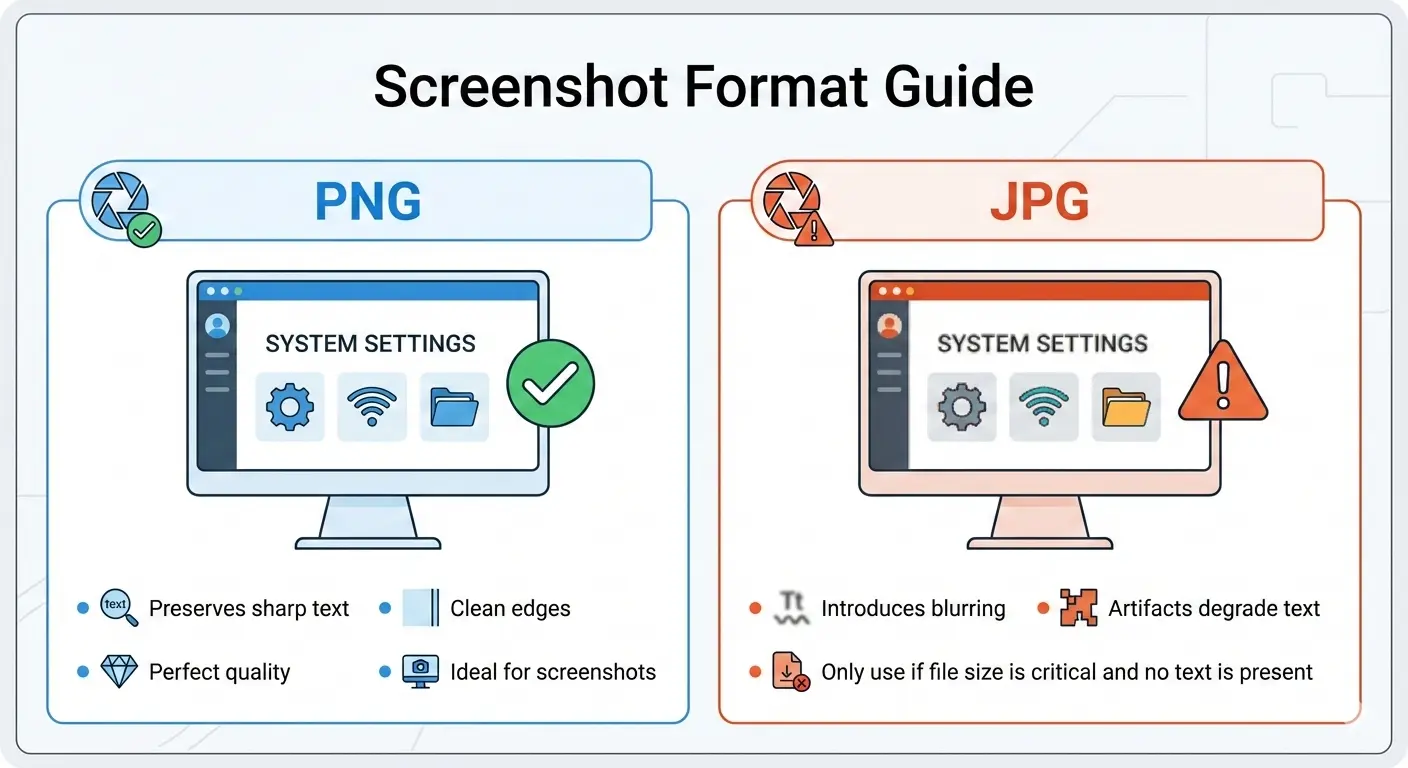
If you have ever taken a screenshot and noticed blurry text or weird artifacts around buttons, you were probably looking at a JPG. Screenshots are fundamentally different from photographs. They contain sharp text, solid colors, and precise lines—exactly the things JPG compression struggles with.
Let us dive deep into the differences so you never make the wrong choice again.
Let us dive deep into the differences so you never make the wrong choice again.
Should screenshots be PNG or JPG?
Screenshots should almost always be PNG. Here is why:
- Text clarity 📌 Screenshots contain text, buttons, and UI elements. PNG preserves them perfectly. JPG introduces blurring and artifacts that make text harder to read.
- Sharp edges 📌 Windows, icons, and lines need sharp edges. PNG is lossless, so edges stay crisp. JPG smudges them.
- Solid colors 📌 Screenshots often have areas of solid color. PNG compresses these efficiently. JPG can create visible banding and noise.
The only exception: If your screenshot is of a photograph or a complex image with no text, JPG might work. But for 99% of screenshots, PNG is the right choice.
What is the best format to save screenshots?
The best format to save screenshots is PNG. It is the standard for a reason:
| Feature | PNG (Lossless) | JPG (Lossy) |
|---|---|---|
| Text Clarity | ✅ Perfect, crystal clear | ❌ Blurry, artifacts around letters |
| Sharp Edges | ✅ Preserved exactly | ❌ Softened, smudged |
| Solid Colors | ✅ Clean, uniform | ❌ Possible banding, noise |
| File Size | Larger, but reasonable for screenshots | Smaller, but quality suffers |
| Transparency | ✅ Supported | ❌ Not supported |
For most uses—documentation, tutorials, bug reports, sharing UI designs—PNG is the professional choice.
Is a PNG file a screenshot?
No, PNG is a file format, not a type of image. A PNG file can contain anything: a screenshot, a photograph, a logo, or a digital painting.
However, PNG is the most common format for screenshots because it preserves quality so well. When someone says "save it as a PNG," they usually mean "save it with maximum quality, especially since it has text."
So while not every PNG is a screenshot, almost every professional screenshot is saved as PNG.
However, PNG is the most common format for screenshots because it preserves quality so well. When someone says "save it as a PNG," they usually mean "save it with maximum quality, especially since it has text."
So while not every PNG is a screenshot, almost every professional screenshot is saved as PNG.
Are PNG better quality than JPG?
For screenshots, yes, PNG is significantly better quality than JPG. Here is why:
- PNG is lossless: It preserves every pixel exactly as captured. No quality loss, no artifacts.
- JPG is lossy: It discards image data to save space. This creates visible artifacts, especially around text and sharp edges.
For photographs viewed at normal size, high-quality JPG is visually identical to PNG. But for screenshots, the difference is obvious. Text in JPG screenshots often looks fuzzy, as if it has a slight shadow or blur.
Visual test: Take a screenshot of any website. Save it as both PNG and JPG (quality 90). Zoom in on the text. The difference will be immediately visible.
Why PNG is perfect for screenshots
PNG was designed specifically for the types of images that appear on computer screens. It has several features that make it ideal for screenshots:
- Lossless compression: Every pixel stays exactly as captured. Text remains sharp.
- Support for transparency: If you need to capture a window with a drop shadow or transparent elements, PNG preserves it.
- Good compression for solid colors: Screenshots often have large areas of the same color. PNG compresses these very efficiently.
- No artifacts: Unlike JPG, PNG introduces no blurring, no banding, no noise.
Why JPG fails with screenshots
JPG was designed for photographs, not computer graphics. Its compression works by averaging colors and discarding fine details. This creates several problems for screenshots:
- Text becomes blurry: The sharp edges of letters get softened, making text harder to read.
- Artifacts appear: You may see "blocky" patterns around buttons and icons.
- Solid colors get noise: Areas that should be perfectly uniform develop subtle variations.
- Lines become jagged: Straight lines can develop a wavy appearance.
For a deeper understanding of JPG's strengths and weaknesses, read about JPEG advantages and disadvantages.
Real-world example: A screenshot comparison
Let us compare a typical screenshot saved in both formats:
The JPG file is smaller, but at the cost of visible quality loss. For documentation, tutorials, or any professional use, the PNG is clearly superior.
When might you use JPG for screenshots?
There are very few situations where JPG makes sense for screenshots:
- Extreme file size constraints: If you need to email a screenshot and have a strict size limit, JPG might be necessary.
- Screenshot of a photograph: If your screenshot is of a photo gallery or video frame, JPG may work well.
- Low-quality thumbnails: For preview images where text readability is not important.
Even in these cases, consider using PNG with compression tools first. You might be surprised how small a well-compressed PNG can be.
What about WebP for screenshots?
WebP is a modern format that offers both lossless and lossy compression. For screenshots, lossless WebP can produce smaller files than PNG with the same perfect quality. Lossy WebP can look better than JPG at similar file sizes.
However, WebP is not as universally supported as PNG. For sharing screenshots with others, PNG is still safer. For your own use, consider WebP. Learn more about is WebP better quality than JPEG.
However, WebP is not as universally supported as PNG. For sharing screenshots with others, PNG is still safer. For your own use, consider WebP. Learn more about is WebP better quality than JPEG.
PNG drawbacks for screenshots
PNG is not perfect. Here are its limitations:
- File size: PNG files are larger than JPG. For very large screenshots (like full-page captures), files can become big.
- No camera metadata: PNG does not store EXIF data well, but that rarely matters for screenshots.
For a complete overview, read about the main drawback of the PNG file format.
How to save screenshots in the right format
On Windows
- Snipping Tool: Default saves as PNG. This is good.
- Snip & Sketch: Also defaults to PNG.
- Print Screen: Pastes into apps. Save as PNG from there.
On Mac
- Command + Shift + 3/4/5: Mac defaults to PNG. This is perfect.
- To change format, use Terminal:
defaults write com.apple.screencapture type jpg(but we recommend keeping PNG).
On Linux
- Most screenshot tools default to PNG. Keep it that way.
How to convert screenshots between formats
Sometimes you have a JPG screenshot and need it as PNG, or vice versa. Conversion is easy:
- JPG to PNG: This is safe and recommended. The PNG will be larger but will not improve quality—the JPG artifacts remain.
- PNG to JPG: Only do this if you absolutely need smaller files. You will lose quality, especially around text.
Use a best free image converter online no signup to convert quickly. Always keep your original.
Screenshots for different purposes
For documentation and tutorials
Always PNG. Text must be readable. Quality matters.
For bug reports
PNG. Developers need to see exactly what you see. Artifacts from JPG could hide important details.
For social media sharing
PNG is still better, but JPG might work. Some platforms compress images further. Starting with PNG gives the best chance of good results.
For email attachments
PNG if possible. If file size is a concern, try compressing the PNG first. Many email services accept reasonable-sized PNGs.
For website use
PNG for UI screenshots. For photographs on the site, use JPG or WebP. For a detailed comparison, see our guide on PNG vs JPEG for website.
The verdict - Difference between JPG and PNG screenshot
PNG is the clear winner for screenshots. It preserves text clarity, sharp edges, and solid colors perfectly. The larger file size is a worthwhile trade-off for professional quality.
JPG should only be used for screenshots in rare cases where file size is absolutely critical and the screenshot contains no text or sharp elements.
Remember this simple rule: screenshots have text = PNG. Photographs have no text = JPG works.
JPG should only be used for screenshots in rare cases where file size is absolutely critical and the screenshot contains no text or sharp elements.
Remember this simple rule: screenshots have text = PNG. Photographs have no text = JPG works.
Final tip: Configure your computer to save screenshots as PNG by default. You will never regret having the extra quality, and you can always compress or convert later if needed.
Summary: PNG is the best format for screenshots because it preserves text clarity, sharp edges, and solid colors without artifacts. JPG introduces blurring and should only be used when file size is the only concern and the screenshot has no text. Configure your tools to save screenshots as PNG by default. For more help with image formats, visit Image Converter 24.