Different File Formats for Images
Photos, screenshots, logos, and print files all behave differently, and the different file formats for images exist because no single format handles every job well. Eight formats cover almost everything you will meet in daily use: JPEG, PNG, GIF, WebP, AVIF, HEIC, TIFF, and BMP, with SVG added for vector graphics.
This guide compares the formats using real specifications, shows how to convert between them, and then answers the most common follow-up questions: which types of images exist, which formats are most common, which gives the best quality, and which is best for printing.
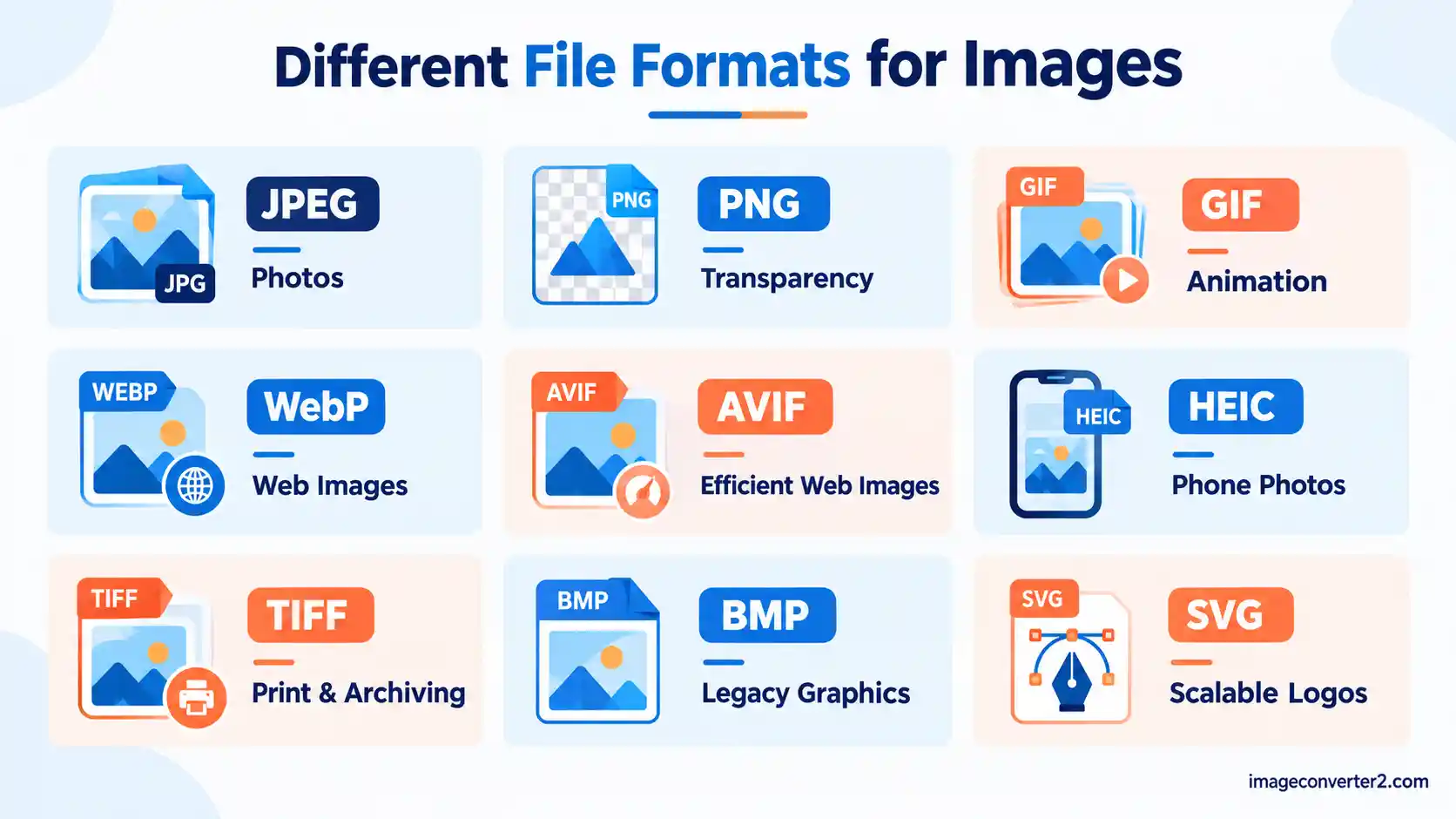
Image File Formats Compared by Real Specs
The main image formats differ in four measurable ways: compression type (lossy or lossless), color depth, transparency support, and hard size limits. The table below lists those figures instead of vague ratings, so you can pick a format by what it actually does.
| Format | Compression and color depth | Limits and best use |
|---|---|---|
| JPEG | Lossy; 8 bits per channel (24-bit color); no transparency | Compresses in 8×8 pixel blocks, so repeated saving adds visible artifacts. Best for photos. |
| PNG | Lossless; up to 16 bits per channel; full alpha transparency | Larger than JPEG for photos. Best for screenshots, logos, and text-heavy graphics. |
| GIF | Lossless but limited to a 256-color palette per frame; 1-bit transparency | Suited to short, simple animations. Poor for photographs. |
| WebP | Lossy or lossless; alpha transparency; animation | Maximum 16,383 × 16,383 pixels. Lossless files are 26% smaller than PNG, per Google. Best for web delivery. |
| AVIF | Lossy or lossless; based on the AV1 codec; 8, 10, or 12 bits per channel | Often smaller than JPEG at similar quality, but encoding is slower and older software may not open it. |
| HEIC | Lossy; based on the HEVC codec; 8 or 10 bits | Default photo format on iPhones since iOS 11. Many Windows apps and websites need a conversion. |
| TIFF | Uncompressed or lossless; 8 or 16 bits per channel; supports CMYK, layers, and multiple pages | Classic TIFF files are capped at 4 GB. Best for print and archiving. |
| BMP | Usually uncompressed; up to 24-bit color | Very large files and no modern advantage. Mostly legacy use. |
Two numbers in the table matter most in practice. JPEG works on 8×8 pixel blocks, which is why heavily compressed JPEGs show a blocky pattern around sharp edges. PNG and TIFF store pixels without that loss, which is why they keep text and line art crisp. The W3C describes PNG as a format for the lossless, portable storage of raster images, which is the reason it suits text and line art (source: the W3C PNG Specification). For a deeper look at the lossy side, see this breakdown of JPEG Advantages and Disadvantages, and for the lossless print side, read TIFF Advantages and Disadvantages.
SVG is the exception to the table because it is not a pixel format. It stores shapes as math, so it scales to any size without blur, which makes it the right choice for logos and icons.
How to Convert an Image to the Right Format
Once you know which format a job needs, the most direct way to get there is a converter that runs in your browser, such as Image Converter 24. It handles the conversion in one pass, so you do not need to open an editor and export manually, and it accepts up to 20 files in a single batch.
- Open Image Converter 24 in your browser.
- Upload the image you want to change. You can add up to 20 files at once, each up to 10 MB.
- Choose the desired output format, for example PNG, JPG, or WebP. In a batch, each file can be sent to a different format.
- Click Convert.
- Click Download to save the converted file or files.
The output-format step exists because this is the general converter page. Nothing is fixed in advance, so you decide the target format yourself instead of landing on a single preset conversion pair.
The tool fits this topic because format choice is usually a per-file decision: a phone photo in HEIC that a website rejects, or a PNG screenshot that is too heavy to email. The batch option helps when those files are mixed, because you can send one image to PNG, another to WebP, and a third to JPG in the same run instead of repeating the process 20 times. Keep in mind that conversion cannot restore detail an earlier lossy save already discarded: a JPEG turned into a PNG will be larger, but not sharper.
Types of Image Files
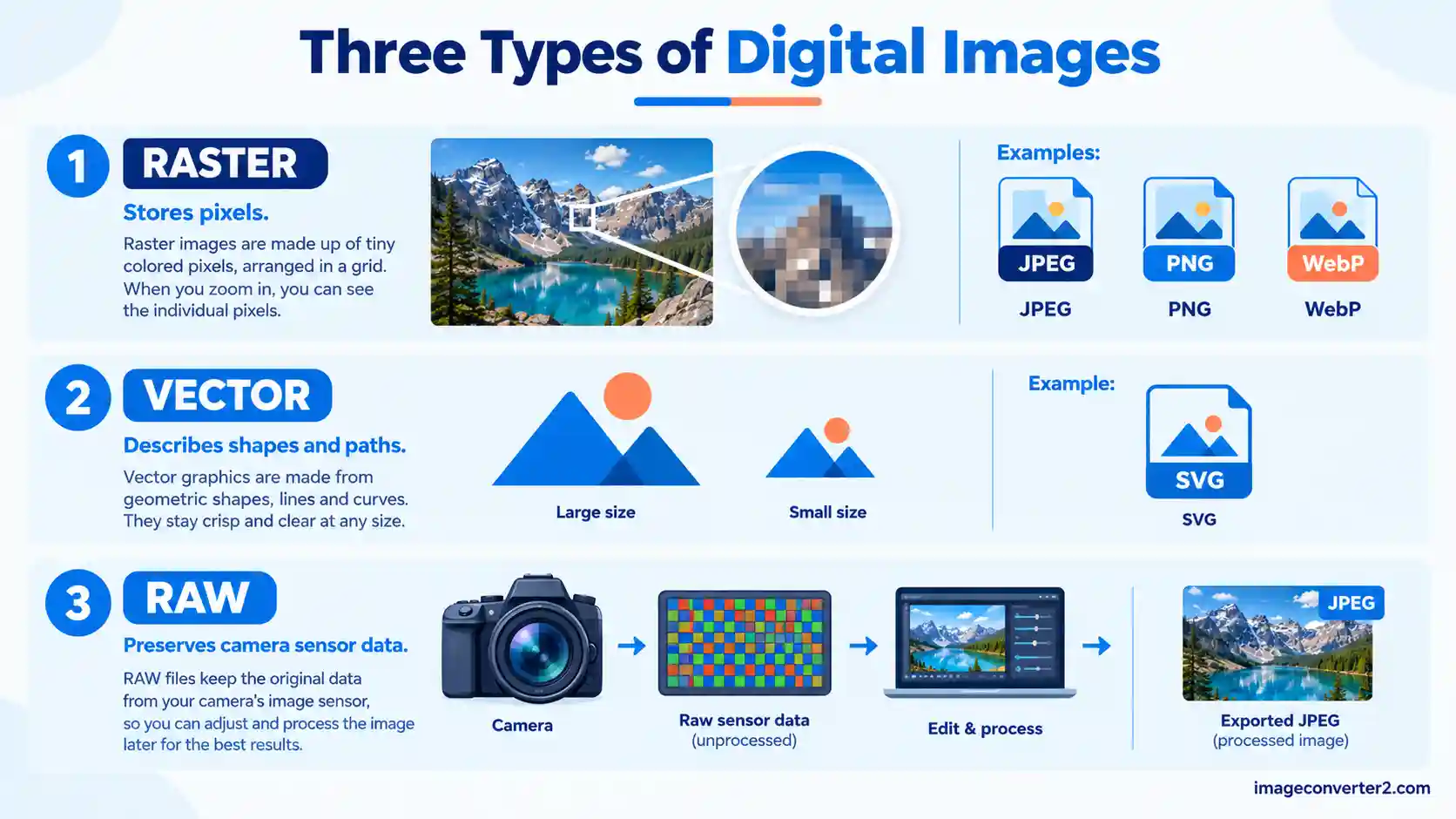
Image files fall into three broad types: raster (pixel-based), vector (shape-based), and RAW (unprocessed camera sensor data). Every common format, from JPEG to SVG, belongs to one of these groups.
Raster formats such as JPEG, PNG, GIF, WebP, AVIF, HEIC, TIFF, and BMP store a grid of colored pixels. A 1920×1080 image, for example, holds exactly 2,073,600 pixels, and enlarging it beyond that grid forces the software to guess new pixels, which causes blur. Vector formats such as SVG store coordinates and curves instead, so they stay sharp at any size.
RAW files (such as DNG, CR2, or NEF) keep the sensor data before processing. They hold more tonal range than JPEG, but they need editing software before most people can view or share them. A typical workflow is to edit the RAW file, then export a JPEG or PNG for sharing.
Image File Formats List With Examples
The most useful image formats list pairs each file extension with a typical real-world use. Use it as a quick lookup when you are unsure which file you are holding.
- .jpg / .jpeg: phone and camera photos, product pictures, social media uploads.
- .png: screenshots, logos, charts, and images with transparent backgrounds.
- .gif: short looping animations and reaction clips. For a modern comparison, see APNG vs GIF vs WebP.
- .webp: website images that need small file sizes with optional transparency.
- .avif: high-efficiency web images where browser support is confirmed.
- .heic: photos taken on recent iPhones.
- .tif / .tiff: scans, print-ready artwork, and archives.
- .bmp: older Windows graphics and some embedded systems.
- .svg: icons, logos, and illustrations that must scale cleanly.
- .dng / .cr2 / .nef: RAW photos from cameras.
Newer formats keep arriving. JPEG XL, for example, is designed to replace JPEG with better compression and lossless recompression of existing JPEG files, and its structure is explained in the JPEG XL Specification guide. The older JPEG XR format aimed at a similar goal but never gained broad support, and the differences are laid out in JPEG XL vs JPEG XR. Support for newer formats in browsers and apps is still uneven, so check where the file will be opened before choosing one.
Most Common Image File Types
The four most common image file types are JPEG, PNG, GIF, and WebP, with HEIC and TIFF close behind depending on whether you work on phones or in print. These formats are accepted almost everywhere, from email clients to social platforms.
JPEG dominates photography because it produces small files that every device opens. PNG dominates screenshots and graphics because it is lossless and supports transparency. GIF survives for animation, and WebP has become common on websites because, according to Google's WebP documentation, lossless WebP images are 26% smaller than PNGs and lossy WebP images are 25–34% smaller than comparable JPEGs at equivalent quality.
If you are deciding between the three web favorites, these comparisons go into detail: PNG vs JPG vs WebP Quality, JPG vs WebP, and webp vs jpeg. The short version is that WebP wins on file size, JPEG wins on universal compatibility, and PNG wins when you need lossless quality with transparency.
AVIF is the newest of the widely used formats. If you want to understand how it differs from a lossless baseline, read What is the difference between PNG and AVIF?.
Best Image Format for Quality
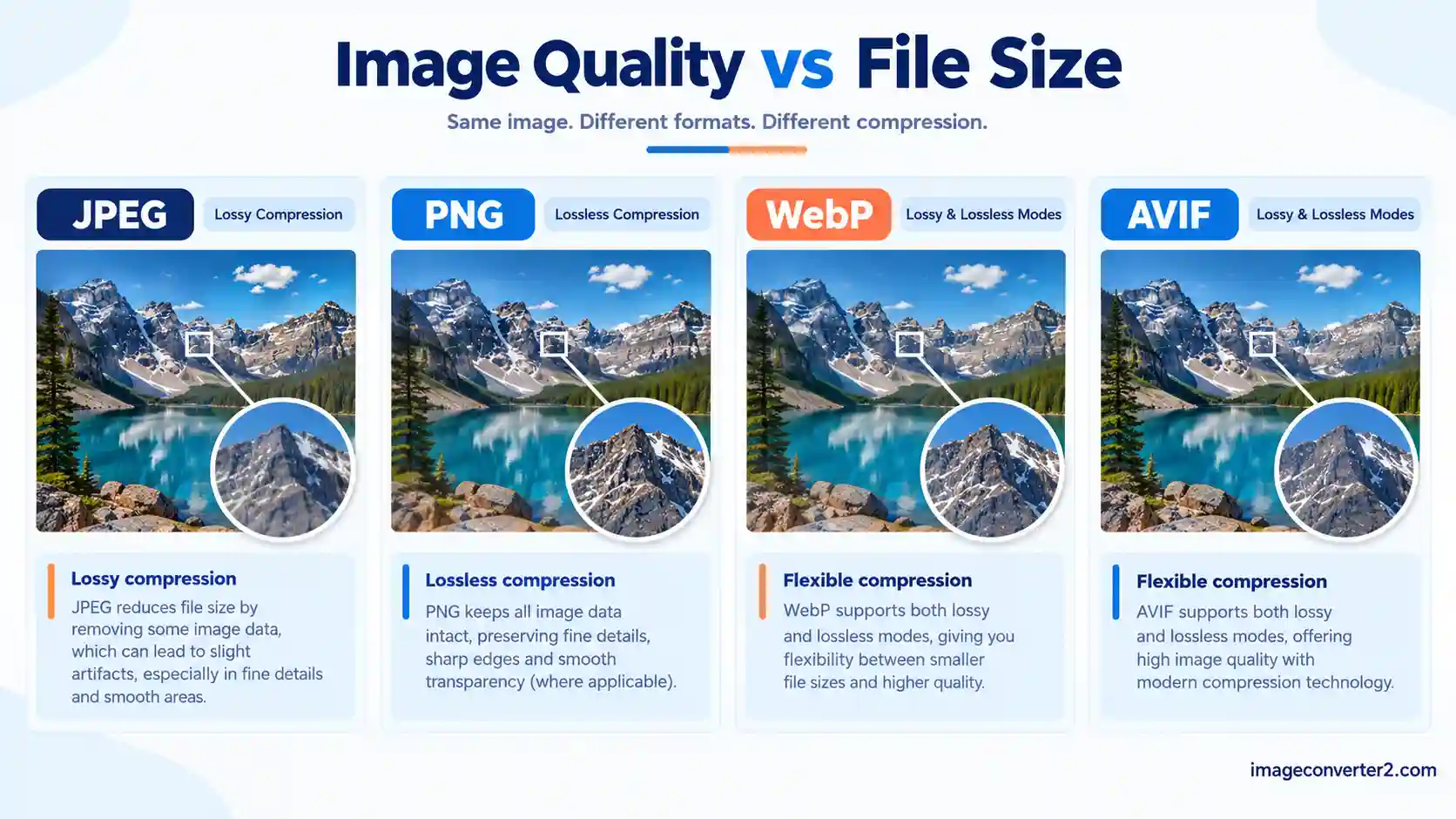
For pure quality, lossless formats win: PNG for graphics and screenshots, and TIFF for photos and professional work. Both store every pixel exactly, so you can open and re-save them without degradation.
Lossy formats can still look excellent. A JPEG saved at a high quality setting is usually hard to tell apart from the original at normal viewing size, but each re-save compounds the loss. That is why the standard workflow is to keep one lossless master and export lossy copies from it.
Bit depth is the other quality factor. PNG and TIFF both allow 16 bits per channel, which gives 65,536 tonal levels per channel instead of the 256 levels in an 8-bit JPEG. That headroom matters when you brighten shadows or apply heavy color grading. To see how lossless WebP stacks up against PNG, read WebP vs PNG Quality.
Rule of thumb: keep the lossless master, share the lossy copy.
Highest Quality Image Format for Printing
TIFF is the highest quality image format for printing because it is lossless, supports 16 bits per channel, and can store CMYK color, which print workflows commonly use. Professional printers and publishers accept it as a standard, and the Library of Congress notes that uncompressed TIFF is widely deployed as a master format in digital library projects (see its format description for uncompressed TIFF).
Resolution matters as much as format. Print work is normally prepared at 300 pixels per inch, so an 8×10 inch print needs 2,400 × 3,000 pixels. A TIFF below that resolution will still print soft, no matter how lossless it is.
PNG is a reasonable alternative for RGB print jobs, especially for flat graphics, but it does not support CMYK. BMP offers no printing advantage over TIFF and produces larger files without extra features. The full trade-offs are covered in TIFF vs PNG for Printing and BMP vs TIFF.
Avoid sending a heavily compressed JPEG to a print shop when you still have the original. If you only have a JPEG, send it as is rather than converting it, because conversion will not add detail.
Frequently Asked Questions
What are five common file formats for images?
Five common image file formats are JPEG, PNG, GIF, TIFF, and WebP. They cover photos, graphics, animation, print work, and web delivery respectively.
What is JPEG, PNG, and TIFF?
JPEG, PNG, and TIFF are three image formats with different compression approaches. JPEG (Joint Photographic Experts Group) is lossy and ideal for photos, PNG (Portable Network Graphics) is lossless with transparency, and TIFF (Tagged Image File Format) is a lossless or uncompressed format used for print and archiving.
What are the most popular image formats?
JPEG, PNG, GIF, and WebP are the most popular image formats. JPEG leads for photos and PNG leads for graphics, while WebP keeps growing on websites.
Which file format is best for pictures?
JPEG is the best everyday format for pictures because it gives small files that open on any device. For editing or archiving, use PNG or TIFF so no quality is lost on re-saving.
What are the six different types of file formats?
There is no official list of six, but a common set is JPEG, PNG, GIF, TIFF, WebP, and SVG. That set covers lossy photos, lossless graphics, animation, print, modern web, and vector images.
What's better quality, PNG or TIFF?
Both are lossless, so pixel quality is identical when they contain the same data. TIFF is better for professional work because it supports CMYK, layers, and multiple pages, while PNG is better for web use because files open everywhere. See TIFF vs PNG for Printing for details.
Is a screenshot a PNG or JPEG?
Screenshots are most commonly saved as PNG, because it keeps text and interface edges sharp. The exact default depends on your device and settings, so check the file extension if you are unsure.
What are the different types of digital images?
Digital images are mainly raster, vector, and RAW. Raster images are pixel grids, vector images are shapes defined by math, and RAW files contain unprocessed sensor data from a camera.
What are the four types of images?
The four-type grouping is not a formal standard, but a practical version is raster, vector, animated, and RAW. This guide uses those groups because each needs different software and file formats.
Which is better, JPEG or PNG or BMP or TIFF?
It depends on the purpose: JPEG for photos online, PNG for graphics and screenshots, TIFF for print and archives, and BMP rarely. BMP has no modern advantage, since PNG and TIFF both store pixels without loss and usually produce smaller files.
What are PNG and JPG called?
PNG and JPG are called raster image file formats, named after their extensions. PNG stands for Portable Network Graphics, and JPG is the short form of JPEG, which stands for Joint Photographic Experts Group.
How do I choose the right file format?
Choose by purpose: JPEG for sharing photos, PNG for transparency or sharp text, WebP or AVIF for website speed, TIFF for print, and SVG for scalable logos. Also check where the file will be opened, since compatibility can matter more than file size.
Is it better to save pictures as PNG or JPEG?
Save as PNG when you need lossless quality or transparency, and as JPEG when you need a small file for a photo. A PNG photo can be several times larger than the JPEG version, which is why JPEG is the usual choice for photos.
Should I save photos as JPEG or HEIC?
Save as JPEG when you need to share photos widely, and keep HEIC when you only use Apple devices and want to save storage. HEIC files are often smaller, but some Windows apps and websites cannot open them without conversion.
Does converting a JPG to a PNG improve quality?
No, converting a JPG to a PNG does not improve quality. The PNG stores the existing pixels losslessly, which prevents further loss, but it cannot recover detail that JPEG compression already removed.
Conclusion
Choosing between the different file formats for images comes down to matching the format to the job: JPEG for photos, PNG for sharp graphics, WebP and AVIF for fast websites, and TIFF for print. Lossless formats protect quality, lossy formats save space, and conversion cannot add back detail that has already been lost.
Keep a lossless original whenever possible, export lossy copies for sharing, and check compatibility before choosing a newer format. Resolution and bit depth matter as much as the file extension, especially for print.
The fastest way to fix a format problem is Image Converter 24. Open the link, upload your image, choose the desired output format, click Convert, and then click Download. Each file can be up to 10 MB, and you can convert up to 20 files in one batch, each to a different format if you need.