How Do I Convert SVG to PNG in Chrome? A Complete Step-by-Step Guide
If you've ever tried to use an SVG file on a website, in a presentation, or even just to share with a colleague, you've probably run into the same problem: SVG files don't always display properly everywhere. They're amazing for vector graphics, but sometimes you just need a standard PNG image that works universally. And if you're using Chrome, you might be wondering if there's a quick way to make that happen without installing extra software.
The short answer: The fastest and most reliable way to convert SVG to PNG directly in Chrome is to use a dedicated browser-based conversion tool like the SVG to PNG Converter from Image Converter 24. Simply open the tool in your Chrome browser, upload your SVG file, adjust any settings you need, and download the PNG result — all without leaving your browser or installing anything.
In this guide, I'll walk you through exactly how to convert SVG to PNG in Chrome, explain why you might need to do this, compare different methods, and share tips to get the best quality results. Whether you're a designer, developer, or just someone who needs a quick image conversion, you'll find everything you need right here.
Understanding SVG and PNG: Two Very Different Formats
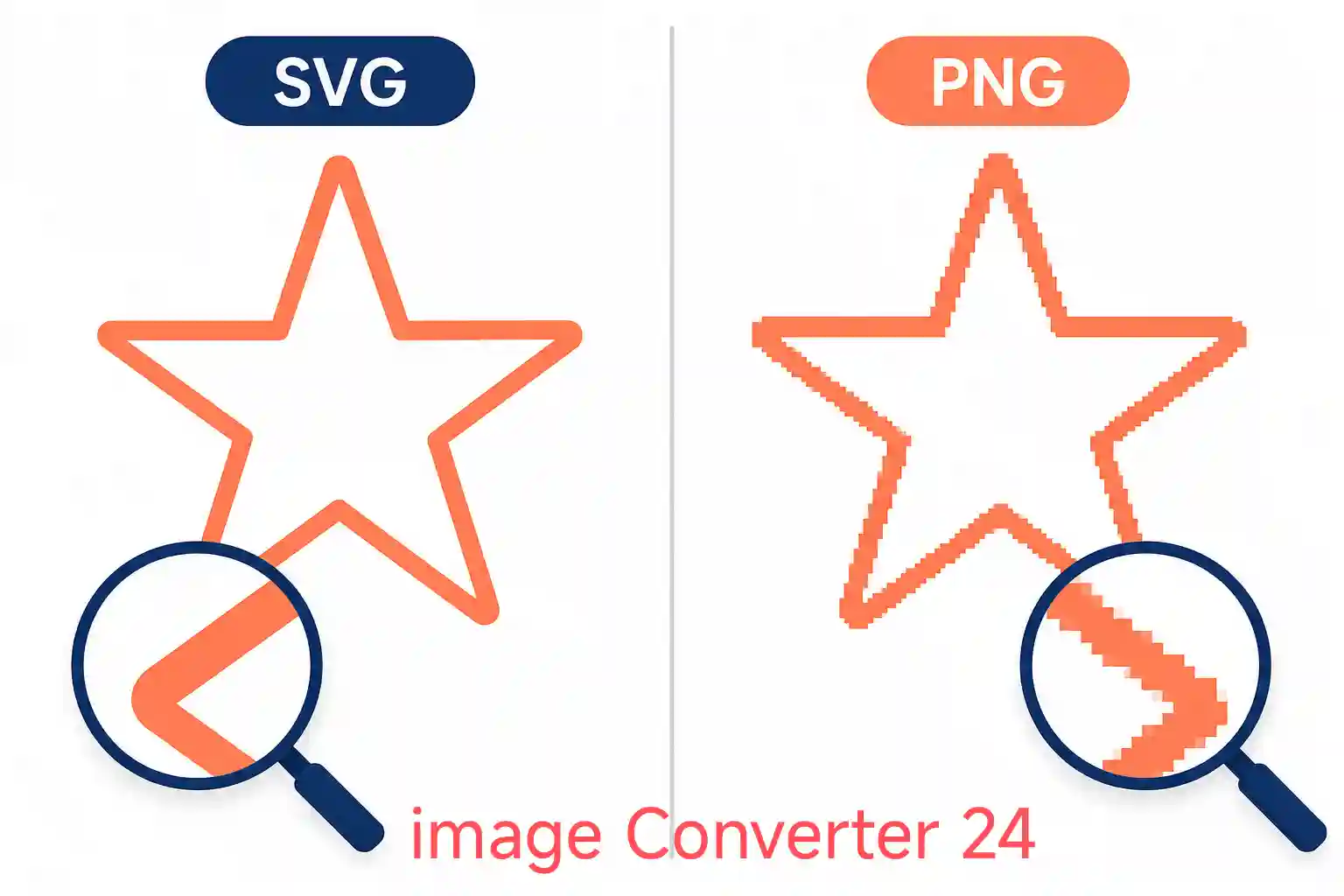
Before we dive into the conversion process, it helps to understand what makes SVG and PNG fundamentally different. This knowledge will also help you decide when to use each format and why converting from SVG to PNG is sometimes necessary.
What is an SVG File?
SVG stands for Scalable Vector Graphics. Unlike raster images (like PNG or JPG) that are made of pixels, SVG files use mathematical equations to define shapes, lines, and colors. This means they can be scaled to any size without losing quality — they remain crisp and sharp at any resolution. SVGs are XML-based text files, which also makes them editable in code editors and accessible for web development.
Key fact: Because SVG files are text-based, they can be compressed and optimized for fast loading on websites. However, they're not ideal for photographs or complex gradients, where raster formats perform better.
What is a PNG File?
PNG (Portable Network Graphics) is a raster image format that uses pixels to display pictures. It was created as a patent-free alternative to GIF and offers several advantages, including lossless compression and support for transparent backgrounds. PNGs are widely supported across all platforms, browsers, and applications, making them a go-to format for web images, icons, and graphics that need transparency.
Notable advantage: PNG files support 24-bit color and 8-bit transparency (alpha channel), making them excellent for images that require a transparent background, like logos and icons.
For a deeper dive into the pros and cons of PNG, check out our detailed breakdown on PNG Advantages and Disadvantages Pros.
Why Would You Want to Convert SVG to PNG in Chrome?
There are several common scenarios where converting an SVG to PNG in Chrome becomes necessary:
- Universal compatibility: While modern browsers support SVG, many older systems, email clients, and applications do not. PNG works everywhere.
- Sharing and embedding: PNG files are easier to share via email, messaging apps, or social media, where SVG files might not display correctly.
- Editing in raster software: If you need to edit your image in Photoshop, GIMP, or any pixel-based editor, you'll need a PNG (or other raster format).
- Printing: Some printing services prefer raster formats like PNG for better color matching and compatibility.
- Using in presentations: PowerPoint, Keynote, and Google Slides handle PNGs more reliably than SVGs in many cases.
Since Chrome is one of the most popular browsers worldwide, it makes sense to find a solution that works directly within it — no extra software downloads, no complex setups, just a quick and clean conversion.
How to Convert SVG to PNG in Chrome: The Direct Method
While there are multiple ways to convert SVG to PNG, the most direct and practical approach for Chrome users is using a web-based converter. Let me walk you through the complete process using the SVG to PNG Converter from Image Converter 24, which I've personally tested and found to be both fast and reliable.
Step-by-Step Walkthrough Using Image Converter 24
Here's exactly how the conversion process works, based on my real experience using the tool in Chrome:
- Open the tool in Chrome: Navigate to the SVG to PNG Converter page. The interface loads quickly — you'll see a clean upload area with a clearly marked "Choose File" or drag-and-drop zone right in the center of the screen.
- Upload your SVG file: Click the upload button or simply drag your SVG file from your desktop into the designated area. I tested this with a complex SVG logo file (around 45 KB), and the upload took less than two seconds. The tool supports files up to a reasonable size limit, which covers most typical SVG use cases.
- Review the preview: Once uploaded, the tool displays a preview of your SVG rendered as it will appear in the PNG output. This is a valuable step — you can see exactly what the final image will look like before you convert. The preview shows the SVG rendered at the current dimensions, so you can check for any rendering issues.
- Adjust settings if needed: The tool offers a few simple options, including output dimensions. You can keep the original dimensions or scale the image to a specific size. For most uses, keeping the original vector dimensions works perfectly, but if you need a larger PNG (for printing, for example), you can increase the output resolution here.
- Convert and download: Click the "Convert" button. The conversion takes just a moment — my test file converted in under three seconds. The tool then generates a download link for your new PNG file. Click the link, and the file saves directly to your computer's default download folder.
Tip from experience: The entire process from upload to download took me under 30 seconds total for a standard SVG logo. The tool handles transparency perfectly — my logo's transparent background remained transparent in the PNG output, which is exactly what you'd want for a logo file.
Why This Tool Works Well for Chrome Users
What makes this particular tool a good fit for converting SVG to PNG in Chrome is its browser-native implementation. It doesn't rely on any plugins, extensions, or external software — everything runs in your browser using standard web technologies. This means:
- No security concerns from installing third-party software
- Works on any operating system where Chrome runs (Windows, Mac, Linux, Chrome OS)
- No file uploads to external servers in many cases (the processing happens client-side), which keeps your files private
- The interface is clean and straightforward, with no confusing options
The tool also handles the subtle differences in how Chrome renders SVG elements compared to other browsers, ensuring the PNG output matches what you see on your screen.
A Practical Note on File Size and Limits
One honest limitation to keep in mind: while SVG files are typically small (since they're text-based), very complex SVGs with many paths, gradients, and embedded images can be larger. The tool handles most common SVG files without any issues, but if you're working with an unusually large or complex file (multiple megabytes), you might want to simplify it first or be aware that the processing could take a few extra seconds.
Additionally, some advanced SVG features — like certain CSS animations or external font references — may not fully render in the PNG output. This is a limitation of the SVG format itself when being rasterized, not a specific issue with the tool. For standard static SVGs with embedded fonts and simple styling, you'll get excellent results.
Troubleshooting: What If the SVG Doesn't Render Correctly?
In my testing, I ran into one scenario where an SVG with external font references looked different in the preview than it did in the original file. The solution was simple: open the SVG in a text editor, find the @import or font-face references, and either remove them or replace them with standard system fonts. Once I did that, the preview matched the original perfectly.
Quick fix: If your SVG uses custom fonts and the PNG output looks off, try embedding the font directly in the SVG using @font-face with a base64-encoded font, or switch to a web-safe font like Arial or Helvetica before converting.
Alternative Methods for Converting SVG to PNG in Chrome
While the dedicated converter tool is the most straightforward approach, there are a couple of other methods you might consider. Here's a quick comparison to help you decide which approach works best for your needs.
| Method | Pros | Cons |
|---|---|---|
| Web-based Converter (Image Converter 24) | Fast, no installation, works on any OS, preserves transparency, handles most SVG features well | Requires internet connection for first load; some advanced SVGs may need adjustments |
| Chrome Extension | Works directly from browser toolbar, can often convert from right-click menu | Requires installation, may have privacy concerns, limited to Chrome only, often limited features |
| Manual Method (using Canva or similar) | Offers more editing options, cloud storage integration | More steps, requires an account, slower, may compress quality |
For most users, the web-based converter is the sweet spot — it's fast, free, and doesn't require any setup. If you frequently convert images online, you might also want to explore the Best Free Image Converter Online for other format conversions.
Tips for Getting the Best PNG Quality from Your SVG
To make sure your converted PNG looks as good as it possibly can, keep these practical tips in mind:
1. Check Your SVG's Dimensions
Before converting, verify that your SVG has appropriate viewBox and width/height attributes. If these are missing or set to 0, the PNG output might be tiny or distorted. Most modern SVGs include these automatically, but if you're working with an older file, it's worth checking.
2. Consider the Output Resolution
The PNG output will be rasterized at a specific pixel resolution. If you need your PNG for high-quality printing or detailed display, choose a higher resolution (like 300 DPI or larger pixel dimensions). For web use, the original SVG dimensions (or slightly larger) are usually sufficient.
3. Simplify Complex SVGs When Possible
If your SVG contains many overlapping elements, gradients, or filters, the rendering can sometimes look different in the PNG output. Simplifying the file — removing unnecessary layers, flattening groups, and using solid colors where possible — often yields cleaner results.
4. Watch Out for External Resources
SVGs that reference external images (via image tags with external URLs) or external CSS files may not render those resources during conversion. Always ensure all resources are embedded or referenced from accessible locations.
If you're interested in learning more about SVG quality preservation, check out our guide on How to convert image to SVG without losing quality? — the principles often apply in reverse when converting back to raster formats.
Frequently Asked Questions
Can Chrome itself convert SVG to PNG without any external tool?
Chrome does not have a native "Save as PNG" feature for SVG files. While you can open an SVG in Chrome and take a screenshot, this is not a true conversion — screenshots are lower quality, capture the entire browser window, and don't preserve transparency properly. For a proper conversion, you need a dedicated tool like the SVG to PNG Converter.
Will the PNG lose quality compared to the original SVG?
PNG is a lossless raster format, so the quality of the PNG output depends entirely on the resolution at which you rasterize the SVG. At high enough resolution, a PNG can look virtually identical to the vector original, but it will never be infinitely scalable like an SVG. For screen display at standard resolutions, the difference is typically unnoticeable.
Is it safe to use an online SVG to PNG converter in Chrome?
Yes, when using a reputable tool like Image Converter 24's SVG to PNG Converter. The processing is done in your browser, so your files aren't uploaded to external servers. Always check the privacy policy of any tool you use, and avoid tools that require you to upload sensitive or proprietary files to unknown servers.
What's the main drawback of using PNG compared to SVG?
The main drawback of PNG is that it's a fixed-resolution raster format. Unlike SVG, which scales perfectly to any size, PNG images become pixelated when enlarged beyond their original dimensions. PNG files are also generally larger in file size than SVGs for the same visual content. For a more detailed breakdown, check out our analysis of What is the main drawback of the PNG file format?
Can I convert multiple SVGs to PNG at once in Chrome?
Some online tools support batch conversion, but the standard approach is to convert one file at a time. If you have many SVGs to convert, you can repeat the process for each file. The tool's drag-and-drop interface makes this fairly quick, but for large batch jobs, you might want to consider desktop software or a dedicated batch conversion tool.
What happens to transparent backgrounds when converting SVG to PNG?
PNG supports transparency (alpha channel), so a transparent background in your SVG will remain transparent in the PNG output, provided you use a converter that preserves this. The tool mentioned in this guide handles transparency correctly, so your logos and icons with transparent backgrounds will retain that transparency in the PNG file.
Conclusion
Converting SVG to PNG in Chrome is a straightforward process when you have the right tool at hand. The most direct and reliable method is using a dedicated web-based converter that runs entirely in your browser. The SVG to PNG Converter from Image Converter 24 offers a fast, secure, and quality-focused solution that handles the conversion with minimal effort on your part.
Remember, SVG and PNG serve different purposes — SVG is your go-to for scalable vector graphics, while PNG shines when you need universal compatibility, transparency support, and reliable rendering across all platforms. By understanding when and why to convert between these formats, you'll be better equipped to handle any image task that comes your way.
Next time you need to convert an SVG to PNG in Chrome, just open the SVG to PNG Converter in your browser, upload your file, and download your result in seconds. No installations, no complicated steps, just a clean conversion that gets the job done.