Published February 10, 2026 by Admin
Updated September 27, 2026
Views 562
Table of contents
WebP vs PNG Quality | Which Image Format Truly Wins?
Choosing the right image format is a crucial part of building a fast, beautiful, and user-friendly website. For years, PNG has been the go-to choice for high-quality graphics with transparency. But then came WebP, a modern format created by Google, promising better compression and smaller file sizes. This leaves many wondering: which one offers better quality? Is it worth switching from the trusted PNG to the newer WebP? Let's break down the WebP vs PNG quality debate in simple terms, compare their strengths, and help you decide which format is better for your specific needs.
WebP vs PNG Quality | Which Image Format Truly Wins?
The core of the debate lies in understanding two different approaches to compression: lossless and lossy. PNG is a purely lossless format, meaning it preserves every single pixel of data from the original image. WebP, however, is versatile—it can be both lossless and lossy. This flexibility is key to its performance. We'll explore transparency support, the eternal battle between file size and quality, and give you clear guidelines on when to use each format. By the end, you'll be able to make an informed decision that balances quality, performance, and compatibility for your website.
Is WebP Higher Quality Than PNG?
This is the million-dollar question, and the answer isn't a simple yes or no—it's "it depends." Quality is measured not just by visual sharpness, but by how efficiently an format preserves that sharpness at a smaller size.
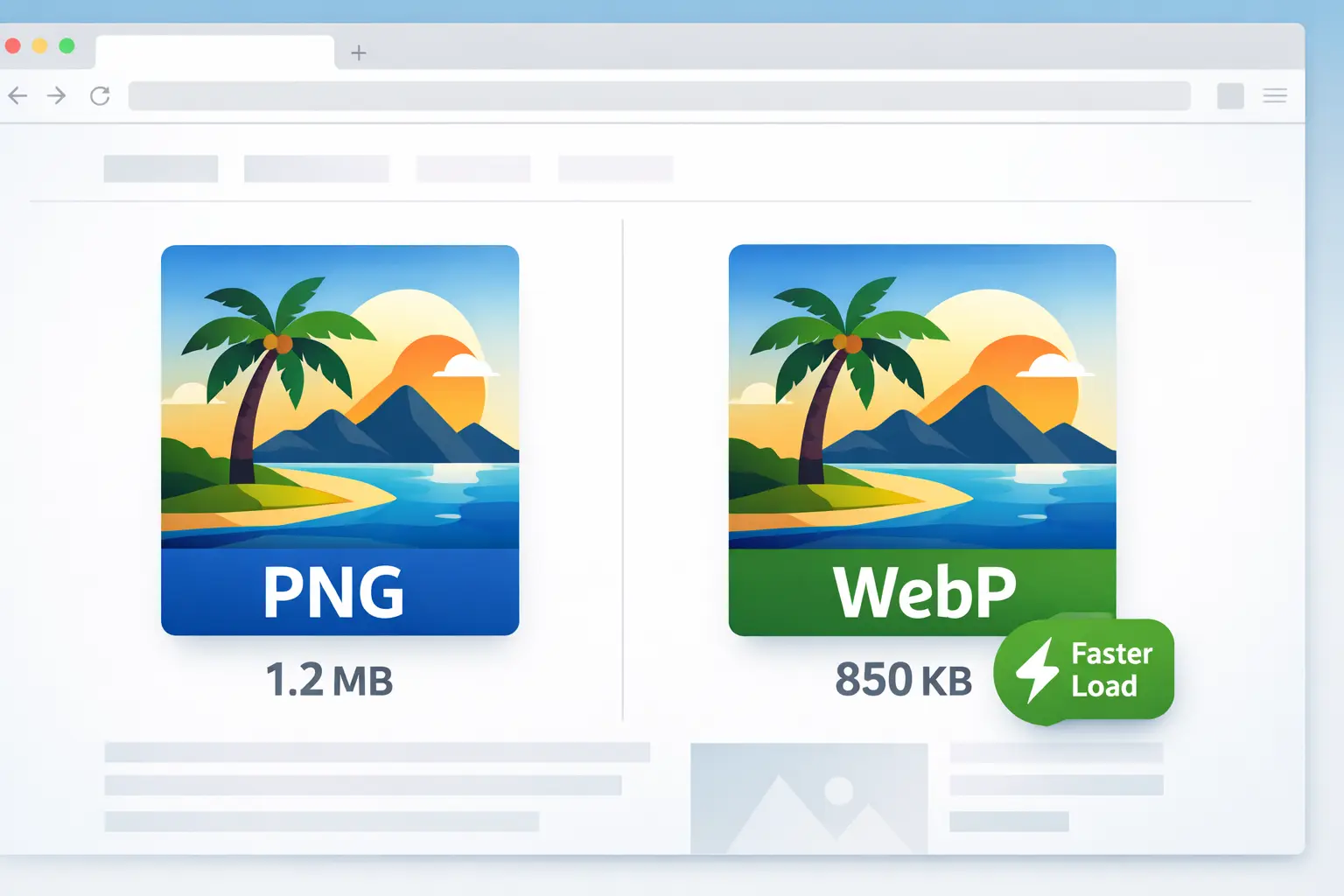
For Lossless Images: When both formats are set to their lossless modes, PNG and WebP can produce visually identical images. However, WebP's advanced compression algorithms often create a significantly smaller file while maintaining that perfect, pixel-for-pixel quality. In this scenario, WebP offers the same highest quality as PNG but delivers it in a more efficient package.
For Photographs & Complex Images: This is where WebP shines. Using lossy compression, WebP can reduce file sizes by 25-35% compared to PNG (which would be huge and inefficient for photos) while maintaining visually indistinguishable quality to the human eye. A well-encoded lossy WebP will look fantastic at a fraction of the size, making it higher "quality" in terms of web performance.
Think of it this way: PNG is like moving house using perfectly sized, rigid boxes—nothing gets damaged, but it takes up a lot of space in the truck. WebP is like using vacuum-seal bags for clothes—you get the same items at your destination, but they arrived in a much smaller, more efficient package.
Therefore, if you define "higher quality" as "the best visual result for the smallest file size," then WebP is often the winner. But if "higher quality" strictly means "absolutely zero data loss," then PNG and lossless WebP are tied, though WebP's file will be smaller. For a deeper dive into the practical benefits, you might explore reasons to use WebP images on your website.
Does WebP to PNG Lose Quality?
Converting an image from one format to another is a common task, and understanding quality loss is crucial. Let's look at the two conversion directions:
Converting Lossy WebP to PNG 📌 If your original WebP file was saved with lossy compression (common for photos), converting it to PNG will not restore the lost data. The conversion process will save the current pixel data into the PNG container, but the quality loss from the original WebP compression is permanent. The PNG file will be much larger but contain the same (already reduced) quality.
Converting Lossless WebP to PNG 📌 If you convert a lossless WebP file to PNG, the process should be quality-preserving. Since both are lossless in this case, the pixel data is copied exactly. The resulting PNG file will likely be larger than the WebP source but visually identical.
Key Takeaway: Converting a WebP to PNG does not magically improve its quality. The best practice is to always keep and work from your original, highest-quality source file (like a TIFF or PSD), then export to your target format. If you need to convert formats while preserving as much quality as possible, using the right tool is key. For a reliable method, check out this guide on how to convert an image to WebP without losing quality.
Are WebP Files High Quality?
Absolutely, yes. WebP files can be of exceptionally high quality. The format's reputation for small file sizes sometimes leads to a misconception that it's a "low-quality" format, but that's not true. The quality of a WebP file is directly controlled by the person creating it.
You can choose:
Lossless WebP: For graphics, logos, and screenshots where every pixel must be perfect. This yields high quality identical to PNG.
High-Quality Lossy WebP: For photographs, using a high quality setting (e.g., 90-100%) produces a file that looks just as good as a JPEG or PNG to the human eye, but is significantly smaller.
Aggressively Compressed Lossy WebP: Choosing a very low quality setting will create a small file with visible artifacts. This is a user choice, not a limitation of the format.
Use Case
Recommended WebP Setting
Expected Quality Outcome
Website Logo (with transparency)
Lossless
Perfect, sharp edges, identical to source
Product Photography
Lossy, Quality 85-95
Visually flawless, excellent detail, tiny file
Website Background Image
Lossy, Quality 75-85
Great appearance, very small file for fast loading
In short, WebP is a capable high-quality format. Its intelligence lies in giving you the tools to fine-tune the balance between quality and file size for every single image, often with better results than older formats.
Is PNG More High Quality?
PNG is synonymous with lossless quality. In its domain—sharp graphics, text, logos, and screenshots—it is the benchmark for pristine, unaltered pixel data. If you save an image as a PNG, you can be confident that it contains every bit of information from the original, with perfect clarity and no compression artifacts.
However, "more high quality" is a relative term. For a photograph, saving it as a PNG would result in a massive file with perfect quality, but it's overkill. A well-tuned WebP (or JPEG) would provide nearly identical visual quality at a fraction of the file size, which is often a more desirable outcome for web use.
PNG's true strength is in its uncompromising lossless nature and its superb, simple support for alpha transparency (clear backgrounds). For graphics that require these specific traits, PNG's quality is perfect and reliable. It's worth noting, however, that this perfection comes at a cost in file size, which is the main drawback of the PNG file format.
The Core Difference: Lossless vs. Lossy Compression
To truly understand the quality debate, you need to grasp the fundamental difference in how PNG and WebP handle compression.
Feature
PNG
WebP
Compression Type
Lossless only. Preserves all image data perfectly.
Both Lossless & Lossy. User chooses method.
Best For
Logos, icons, graphics with text, screenshots, images requiring simple transparency.
Photographs, complex web images, modern graphics. Also excels at lossless compression for smaller files.
Transparency
Full alpha channel support (smooth gradients).
Supports alpha transparency (lossless & lossy).
File Size
Larger, especially for complex images.
Significantly smaller at comparable visual quality.
Browser Support
Universal, supported by all browsers for decades.
Modern browsers, excellent support, not fully universal (older browsers like IE lack support).
When to Use WebP and When to Stick with PNG
Making the right choice depends on your project's needs. Here’s a practical guide:
Use WebP When:
Website Performance is Critical: You need the smallest possible file sizes for faster page loads (improving SEO and user experience).
You Serve Modern Audiences: Your visitors primarily use Chrome, Firefox, Edge, or Safari (all support WebP).
For Photographs and Complex Art: The file size savings are enormous with no visible quality loss.
You Can Implement a Fallback: Using HTML <picture> tags to serve WebP to supporting browsers and PNG/JPEG to others.
Use PNG When:
Compatibility is Non-Negotiable: The image must display perfectly in every browser, including old versions and niche software.
Editing and Re-editing is Required: You need a lossless "working" format that won't degrade with repeated saves.
For Simple Graphics with Hard Edges: Logos, text-heavy images, and screenshots where PNG's lossless compression is efficient enough.
The Project is Static & Offline: For presentations or documents where file size is not a concern and universal opening is.
💡 Pro Tip for Developers: Don't force an "either/or" decision. The modern best practice is to use the <picture> element. Generate both a WebP and a PNG/JPEG version of your image. The browser will automatically download the WebP version if it supports it, and fall back to the PNG/JPEG if not. This gives all users the best possible experience.
The Transparency Showdown
Both formats support transparency, but they handle it differently:
PNG Transparency: It's the classic, gold-standard method. PNG uses a full "alpha channel," which means each pixel can have a range of transparency from 0% (fully transparent) to 100% (fully opaque). This allows for smooth, gradient shadows and soft edges against any background.
WebP Transparency: WebP brings this powerful feature into the modern age. It also supports a full alpha channel, and here's the kicker—it supports it in both lossless and lossy modes. This means you can have a photograph with a soft, transparent fade-out (like a vignette) saved as a lossy WebP at a tiny file size, something PNG could never do efficiently.
How to Choose: Your Decision Checklist
Before you save your next image, run through this quick list:
✅ Is it a photo or a complex image? → Choose Lossy WebP.
✅ Is it a logo/icon needing a transparent background? → Choose Lossless WebP (for web) or PNG (for maximum compatibility).
✅ Does it need to work in Internet Explorer or very old devices? → Choose PNG (or provide a PNG fallback).
✅ Is the smallest file size the top priority? → Choose WebP (and experiment with lossy/lossless settings).
✅ Are you repeatedly editing the file? → Keep a master in PSD/TIFF, then export final versions to WebP/PNG.
For converting existing images, whether to WebP or even to other formats like JPEG, using a dedicated tool is essential. You can explore a versatile tool for such conversions at the Image Converter platform, which also provides a guide on how to convert an image to JPEG format.
Final Verdict: Which Is Better?
In the battle of WebP vs PNG quality, WebP emerges as the more technologically advanced and versatile format. For the vast majority of web use cases—where balancing visual quality with performance is key—WebP is the better choice. It matches or exceeds PNG's visual fidelity while consistently delivering dramatically smaller files.
However, PNG is not obsolete. It remains the simpler, universally compatible, and "safe" choice for specific graphics and environments where browser support cannot be guaranteed.
The smart strategy is not to replace PNG entirely, but to make WebP your primary modern web format while using PNG as a reliable fallback and for specific legacy needs. By understanding the strengths of each, you can ensure your website looks stunning and loads blazingly fast for every visitor.
Conclusion: The question isn't really "which format has higher quality?" Both can achieve top-tier visual results. The real question is: "Which format delivers the quality I need most efficiently?" For the modern web, the answer is increasingly WebP. Its dual lossless/lossy nature, excellent transparency support, and superior compression algorithms make it the forward-looking choice. Start by implementing WebP for your website's photographs and complex imagery, use fallbacks for compatibility, and enjoy the benefits of faster pages and happy users.
Application offline!
Your experience on this site will improve by allowing cookies