How to Change a JPEG to a PDF on a Computer
Converting a JPEG image to a PDF document is one of those everyday tasks that sounds simple but can get confusing when you're faced with multiple options. Whether you're putting together a portfolio, submitting paperwork, or just want to keep your images organized in a single file, turning your JPEG into a PDF is a practical skill to have. This guide walks you through every reliable method—from built-in operating system features to dedicated online tools—so you can pick the approach that works best for your situation.
The short answer: You can convert a JPEG to a PDF on any computer using built-in tools like the Print to PDF feature (Windows and Mac), Preview on macOS, or dedicated image-to-PDF converters. The fastest and most reliable way for most users is to use a specialized conversion tool that preserves image quality while giving you control over the output size and formatting. This article covers all these methods in detail so you can choose what suits you best.
In the sections ahead, we'll explore the most common approaches to JPEG-to-PDF conversion, compare their pros and cons, and give you step-by-step instructions that actually work. You'll also learn about how to keep image quality when converting to PDF, which is essential if you're working with photos or detailed graphics. By the end, you'll be confident handling this conversion on any computer, whether you're a beginner or a power user.
What Is a JPEG and Why Would You Convert It to PDF?
Before diving into the methods, it helps to understand what you're working with. JPEG (Joint Photographic Experts Group) is one of the most widely used image formats. It uses lossy compression, which means it reduces file size by discarding some detail that the human eye usually doesn't notice. This makes JPEG perfect for photographs, web graphics, and everyday images.
PDF (Portable Document Format), on the other hand, is designed for documents. It preserves layout, fonts, and images exactly as intended, regardless of what device or operating system you use to open it. Converting a JPEG to a PDF makes sense when you need to:
- Combine multiple images into a single, easy-to-share file
- Ensure the recipient sees the image exactly as you intended, without compression artifacts or formatting shifts
- Create professional-looking portfolios, reports, or presentations
- Make your images more secure—PDFs support password protection and digital signatures
- Comply with submission requirements that specify PDF format (common in job applications, government forms, and academic submissions)
Tip: If you're converting a single JPEG, the file size difference is usually minimal. But when you combine multiple high-resolution images, a PDF can actually be smaller than the sum of its parts, thanks to smart compression that doesn't sacrifice visual quality.
Method 1: Using Built-in Features on Windows
Windows offers several straightforward ways to convert JPEG to PDF without installing any third-party software. These methods are already on your computer and work well for most everyday needs.
Method 1a: Print to PDF (Windows 10 and 11)
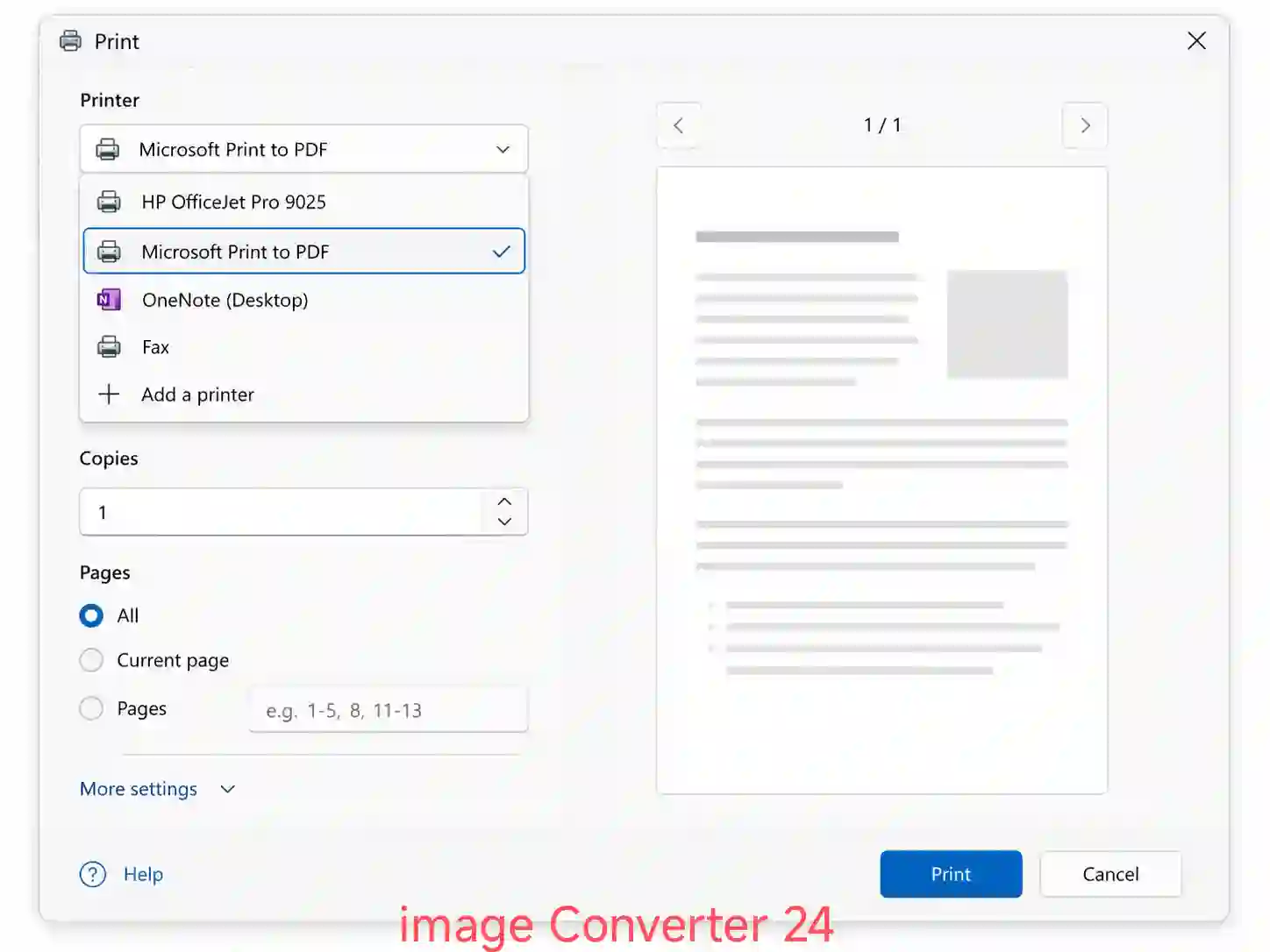
The Print to PDF feature has been a standard part of Windows since version 10. It treats PDF as a "printer," so any application that supports printing can generate a PDF file.
- Open the JPEG image using the Photos app or any image viewer that supports printing.
- Press Ctrl + P or go to File > Print.
- In the printer selection dropdown, choose "Microsoft Print to PDF".
- Adjust any settings like paper size, orientation, or margins as needed.
- Click Print, then choose where you want to save the PDF file and give it a name.
Note: This method works perfectly for single images. For multiple JPEGs, you'll need to combine them after creating individual PDFs, or use a different approach like the Photos app's "Print" option that lets you select multiple images at once.
Method 1b: Using Windows Photos App
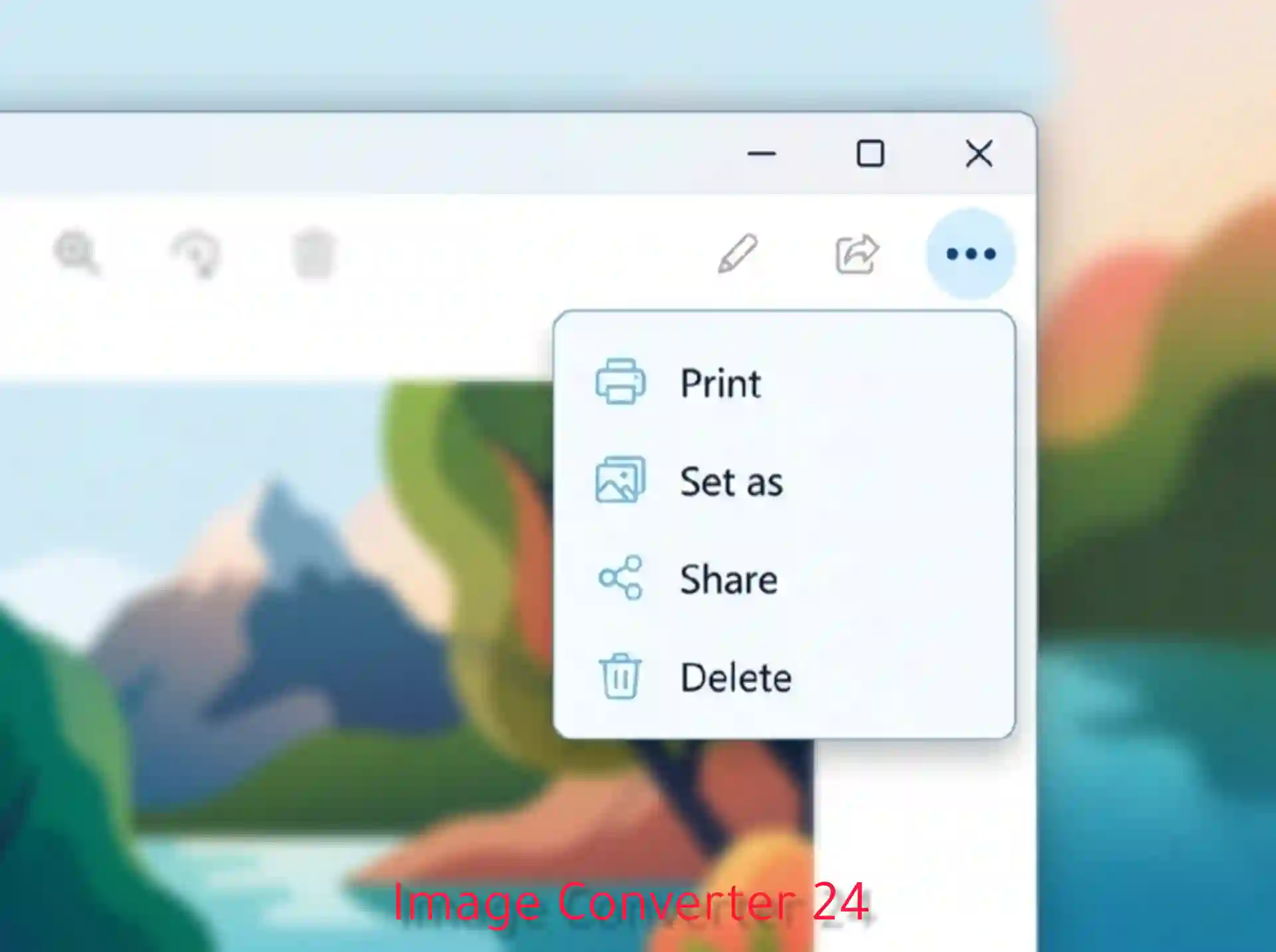
The built-in Photos app in Windows has a native PDF export feature that's even more straightforward:
- Open the JPEG in the Photos app.
- Click the three-dot menu (ellipsis) in the top-right corner.
- Select Print from the dropdown menu.
- Choose "Microsoft Print to PDF" as the printer.
- Adjust layout and paper size options, then click Print and save your PDF.
Method 2: Using Built-in Features on macOS
Mac users have excellent built-in tools for converting JPEG to PDF, primarily through Preview and the system-wide Print dialog.
Method 2a: Preview Export to PDF
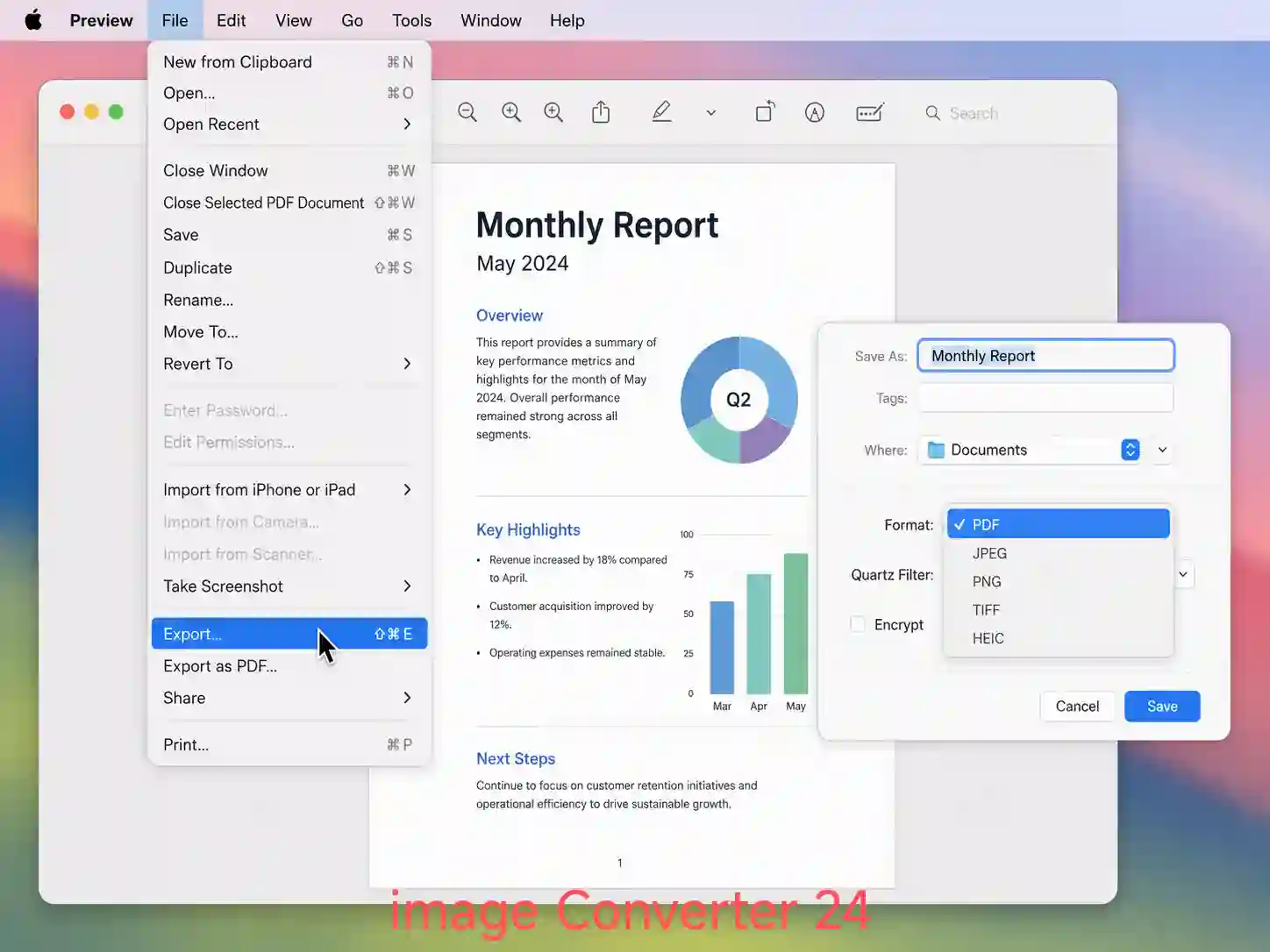
Preview is the default image viewer on macOS and includes a robust PDF export feature:
- Open your JPEG file in Preview.
- Go to File > Export... (or press Cmd + Shift + S).
- In the format dropdown, select PDF.
- Name your file, choose where to save it, and click Save.
To combine multiple JPEGs into a single PDF using Preview:
- Open all the JPEG images in Preview (select them all and double-click, or use File > Open and select multiple).
- In the sidebar, drag the thumbnails to reorder them as needed.
- Select all thumbnails (Cmd + A), then go to File > Export Selected Images....
- Choose PDF as the format and click Save.
Method 2b: Print to PDF on Mac
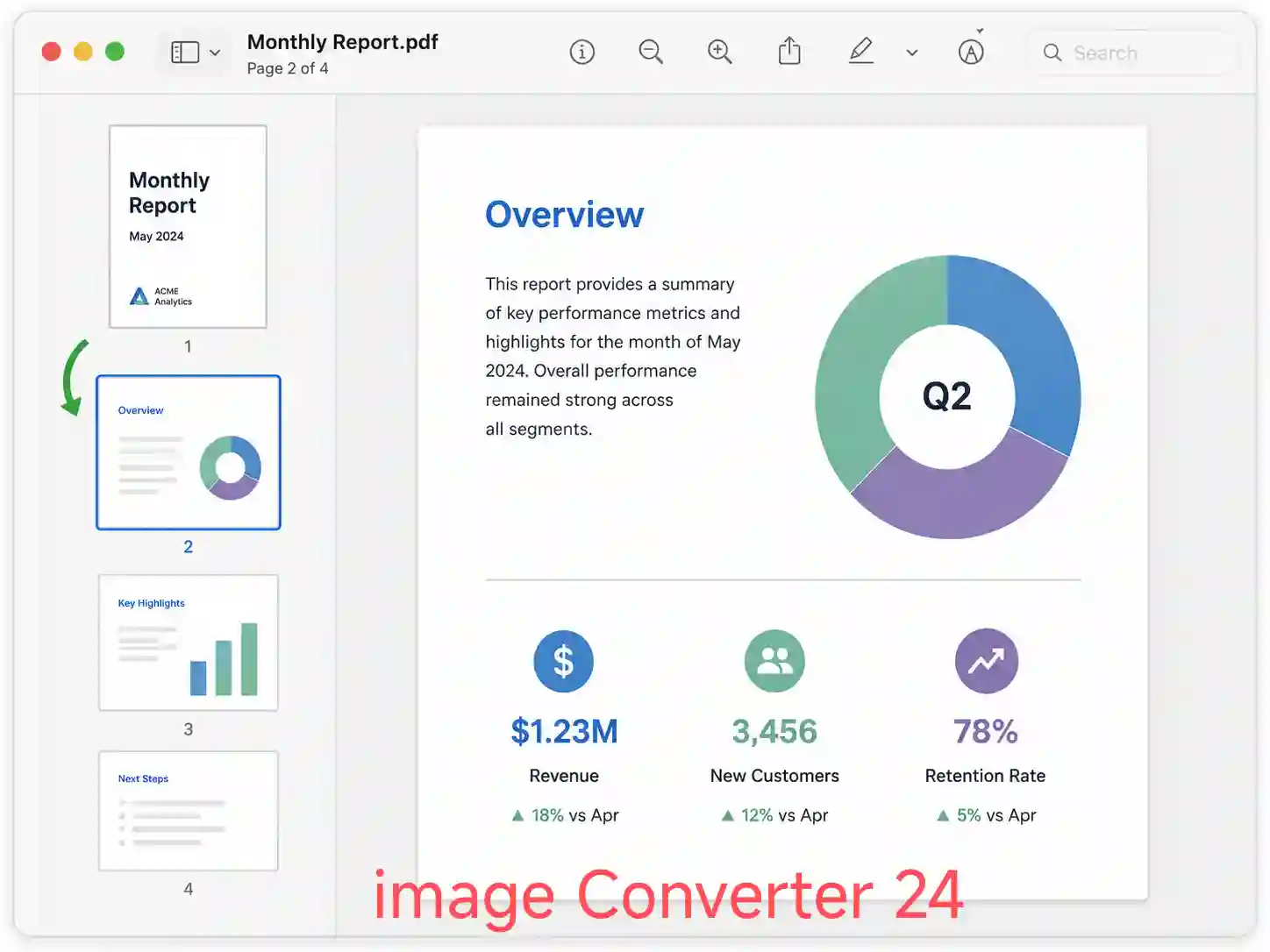
Similar to Windows, macOS offers a Print to PDF option from any application:
- Open the JPEG in Preview or any image viewer.
- Go to File > Print or press Cmd + P.
- In the Print dialog, look for the PDF button in the lower-left corner.
- Click it and choose "Save as PDF".
- Fill in the title, author, and keywords if desired, then click Save.
Pro tip: Preview on macOS offers more control than the standard Print dialog. You can adjust image quality, color profile, and even apply filters before exporting to PDF, which is useful if you're preparing images for print or professional presentation.
Method 3: Using Online Tools (The Most Versatile Option)
While built-in operating system features are convenient, they often lack control over output quality, file compression, and batch processing. Online JPEG-to-PDF converters solve these problems by offering flexible settings, multiple image handling, and no software installation required.
Here's why online converters are worth considering:
- No installation needed: Works on any computer with a browser, regardless of operating system.
- Batch processing: Convert multiple JPEGs to a single PDF in one go.
- Quality control: Adjust compression settings to balance file size and image quality.
- Additional features: Many tools let you merge, split, or rearrange pages within the PDF.
- Cross-platform: Works on Windows, macOS, Linux, and even Chromebooks.
Understanding the JPEG Advantages and Disadvantages Most people overlook can help you decide when converting to PDF is the right choice. JPEGs are great for photos but can lose quality with repeated edits. PDFs, by contrast, preserve your work in a stable format that looks the same everywhere.
How to Convert JPEG to PDF Using a Specialized Online Tool
For the most reliable and user-friendly experience, we recommend using a dedicated JPEG to PDF converter. These tools are specifically designed for this task and handle all the technical details behind the scenes.
One of the most efficient tools available is the JPEG to PDF Converter from ImageConverter24. Here's how to use it in just a few simple steps:
- Go to the converter page: Open your browser and visit imageconverter24.com/en/jpeg-to-pdf.
- Upload your JPEG files: Click the upload button or drag and drop your images into the designated area. You can select multiple files at once.
- Arrange the order (optional): If you've uploaded multiple images, drag them into the sequence you want them to appear in the PDF.
- Adjust settings (optional): Choose your preferred quality level, page size, and margin settings. For most purposes, the default settings work perfectly.
- Start the conversion: Click the Convert button and wait a few seconds for the tool to process your images.
- Download your PDF: Once the conversion is complete, click the download button to save your new PDF file to your computer.
Why this approach works best: The tool handles all the complexities—maintaining image resolution, applying appropriate compression, and ensuring the PDF displays correctly on any device. You don't need to understand DPI, color profiles, or compression algorithms; the converter does it all automatically.
If you're curious about the broader trade-offs between these two formats, the article Should I Scan Documents as JPEG or PDF Which Is Better goes deeper into the decision-making process for document scanning and archival.
Comparison of JPEG to PDF Conversion Methods
To help you choose the right approach, here's a quick comparison of the main methods discussed in this guide:
Tips for a Successful JPEG to PDF Conversion
No matter which method you choose, these practical tips will help you get the best possible PDF output:
- Check image resolution: If your JPEG is low-resolution (under 150 DPI), enlarging it to fit a full PDF page will make it look pixelated. Start with a high-resolution source whenever possible.
- Match page orientation: If your images are a mix of portrait and landscape, decide whether you want the PDF pages to auto-rotate or if you prefer a consistent layout.
- Consider file size: High-quality images produce large PDFs. If you're emailing the file or uploading it to a platform with size limits, use moderate compression to strike a balance.
- Check color profiles: If your JPEG uses a specific color space (like sRGB or Adobe RGB), make sure your converter preserves it. Most online tools handle this automatically.
- Name your files clearly: Give your PDF a descriptive filename before downloading to avoid confusion, especially if you're converting multiple sets of images.
Quality assurance tip: After converting, always open the PDF and scroll through it to check that every image is properly aligned and nothing got cut off. A quick visual review saves you from embarrassing mistakes when sharing with others.
Common Challenges and How to Handle Them
Even a simple task like converting a JPEG to PDF can run into occasional snags. Here are the most common problems and their solutions:
"My PDF looks blurry or pixelated."
This almost always means your source JPEG has a low resolution. Check the original image dimensions. If it's smaller than the page size you're targeting, consider resizing the image to a larger size before conversion, or choose a smaller page size (like A5 instead of A4) in your converter settings.
"The PDF file is too large."
Use a converter that offers compression options. You can reduce the quality slightly (e.g., from 100% to 85%) to significantly lower file size with barely noticeable visual loss. For large batches, consider splitting the images across multiple PDFs.
"I want to combine JPEGs in a specific order."
Most online converters let you drag and drop thumbnails to rearrange the order before conversion. On Windows and Mac, you can also name your files with numbers (e.g., img_01.jpg, img_02.jpg) so they sort correctly when selected.
"My computer doesn't have a 'Print to PDF' option."
This is rare on modern Windows and Mac systems, but if you're using an older OS, you can install a free PDF printer driver like CutePDF (Windows) or use the online converter method, which doesn't depend on system features.
Heads-up: Some free online converters impose limits on file size (often 10-25 MB per upload) or the number of images you can process in one go. For large files or batch processing, desktop software or the specialized tool mentioned earlier usually has higher or no limits.
Frequently Asked Questions
How to change a jpeg to a PDF on a computer?
You can change a JPEG to a PDF on any computer using several reliable methods. On Windows, open the image in Photos, press Ctrl+P, and select "Microsoft Print to PDF" as the printer. On macOS, open the image in Preview, go to File > Export, and choose PDF as the format. For the most flexible and user-friendly experience, use an online JPEG-to-PDF converter that supports batch processing, quality adjustments, and cross-platform compatibility. The exact steps vary by method, but all of them are covered in detail throughout this article.
What is the jpeg format?
JPEG (Joint Photographic Experts Group) is a widely used image format that uses lossy compression to reduce file size while maintaining acceptable visual quality. It's the most common format for digital photographs and web images because it offers a good balance between image quality and file size. JPEG supports millions of colors and works on virtually every device and platform. However, because it uses lossy compression, saving the same image repeatedly in JPEG format can gradually reduce its quality—a phenomenon known as generation loss. For this reason, JPEG is ideal for sharing and displaying images, while PDF is better suited for documents that need to preserve layout and be shared reliably across different systems.
Conclusion
Converting a JPEG to a PDF on a computer is a straightforward task with multiple reliable paths. If you're on Windows, the built-in Print to PDF feature gets the job done in seconds. On macOS, Preview offers robust export options with excellent quality control. But if you're looking for the most versatile and hassle-free solution—especially when dealing with multiple images, quality concerns, or cross-platform needs—online tools are the way to go.
The JPEG to PDF Converter we've highlighted throughout this guide combines ease of use with professional-grade features: batch processing, customizable output settings, and reliable quality preservation. It works on any operating system, requires no installation, and handles the technical details so you can focus on getting your work done.
Here's a quick recap of the key takeaways:
- Built-in tools on Windows and Mac are reliable for single-image conversions.
- Online converters offer the most flexibility, especially for batch processing and cross-platform use.
- Always check output quality and file size to ensure the PDF meets your needs.
- Pay attention to image resolution—start with a high-quality JPEG for the best PDF results.
Ready to convert your JPEGs to PDF right now? Head over to ImageConverter24's JPEG to PDF Converter and get your document ready in under a minute—it's free, fast, and works on any computer.