A Beginner's Guide to Flawless Image-to-SVG Conversion
SVG Format Explained
Before diving into conversion, it's crucial to understand what you're working with. SVG, or Scalable Vector Graphics, is fundamentally different from the image formats you use daily.
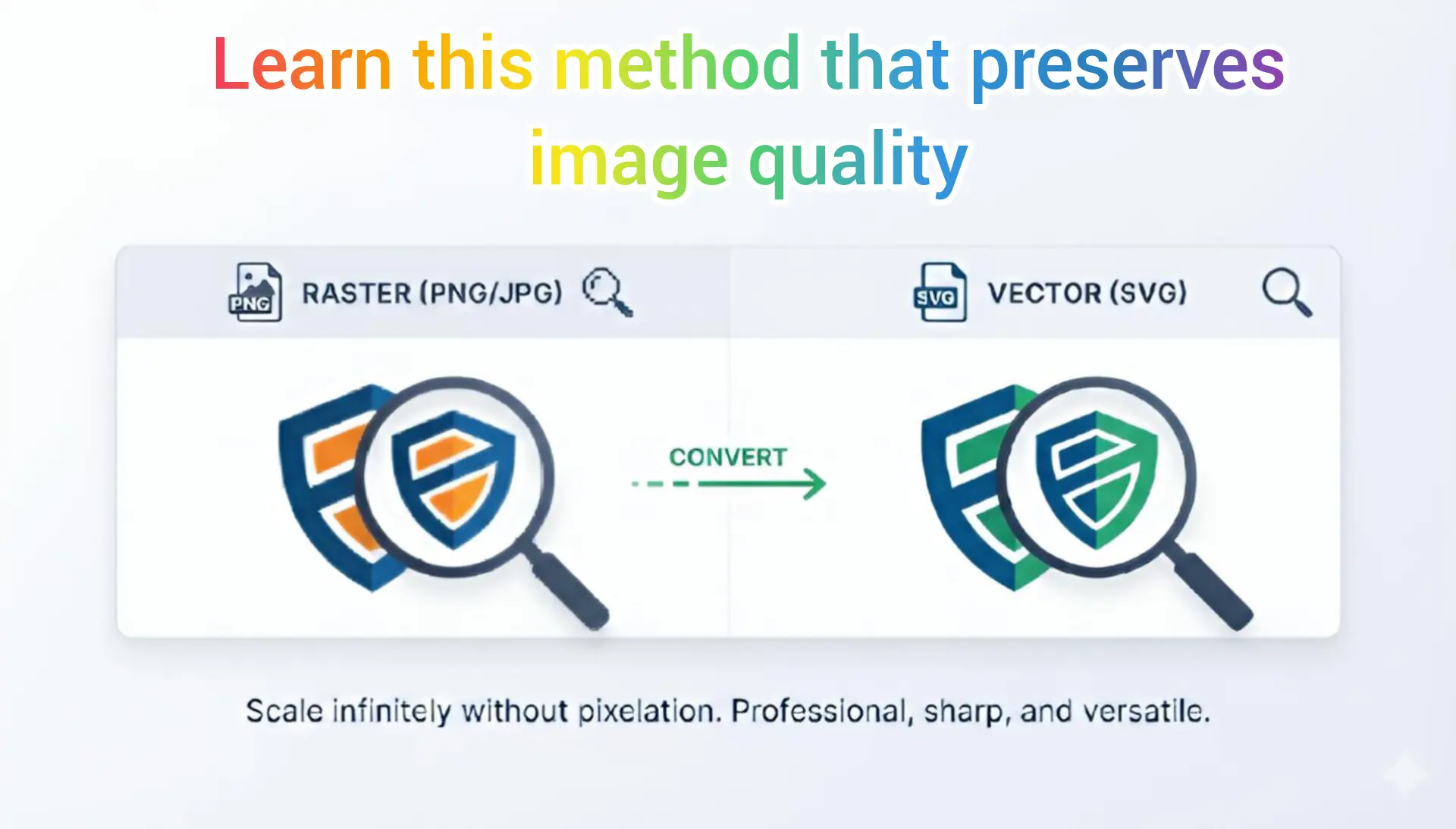
What is SVG? Unlike common raster images, SVG is a vector format. This means it doesn’t store picture information as a grid of pixels. Instead, it uses mathematical equations to define shapes, lines, curves, and colors. Think of it as a set of instructions like "draw a red circle with a 50px radius" rather than a map of colored dots. This core difference makes SVG infinitely scalable. You can zoom in or resize an SVG to the size of a billboard, and it will remain perfectly sharp and clear, with no blurry or pixelated edges.
This makes SVG the ideal format for logos, icons, illustrations, diagrams, and any graphic that needs to look pristine at various sizes across different devices and media.
Raster vs. Vector: The Key Difference
Let's break down the distinction with a helpful comparison:
| Raster Images (JPG, PNG, GIF) | Vector Graphics (SVG) |
|---|---|
| Composed of a fixed number of pixels (dots of color). | Composed of paths defined by mathematical points. |
| Lose quality and become pixelated (blurry) when enlarged beyond their original dimensions. | Infinitely scalable without any loss of quality or sharpness. |
| Ideal for complex, detailed scenes like photographs. | Ideal for simple to moderately complex graphics: logos, icons, typography, charts. |
| File size can be large, especially for high-resolution images. | File size is often significantly smaller for comparable simple graphics. |
| Common formats: JPG, PNG, WebP, GIF. | Common format: SVG. |
"Converting a raster logo to SVG is like turning a painted portrait into a blueprint—it becomes clean, scalable, and editable."
Why Convert an Image to SVG?
You might have a PNG logo or a simple graphic and wonder why you should bother converting it. Here are the compelling reasons:
- Perfect Resolution at Any Size: This is the #1 reason. Need your logo on a business card and a huge banner? One SVG file works for both, eliminating the need to create multiple PNG files at different resolutions.
- Reduced File Size for Web Performance: For logos and icons, an SVG can be much smaller in file size than a high-resolution PNG. Smaller files mean faster website loading times, which improves user experience and SEO.
- Full Flexibility for Web & Print: SVGs look perfect on any screen (Retina displays, mobile phones) and are equally suitable for high-quality print materials.
- Editability and Control: SVG code can be edited with CSS or JavaScript. You can change colors, add animations, or manipulate parts of the graphic dynamically right in the browser.
- Future-Proofing Your Assets: With an SVG, you have a source file that will never become obsolete due to resolution requirements increasing with new device technology.
The Right Way to Convert Without Losing Quality
The term "lossless conversion" is key. When converting from raster to vector, the goal is to create an SVG that perfectly mimics the original's shapes and lines, not its pixels. The quality of the output depends heavily on the tool and the source image.
Introducing a Reliable Tool: For a quick, free, and effective conversion, online tools are a great starting point. A powerful and user-friendly option is available at Image Converter 24. This platform simplifies the process while aiming for high-quality vector results.
Practical Step-by-Step Conversion Guide
Follow these steps to convert your image using an online converter:
- Prepare Your Image: Start with the highest quality version you have. Ensure it's a simple graphic (logo, icon, sketch) for best results.
- Visit the Converter: Navigate to the converter website. There's no need to create an account, making the process instant.
- Upload Your File: Click the upload button and select your PNG, JPG, or other raster image from your computer.
- Initiate Conversion: Click the "Convert" or similar button. The tool's algorithm will trace the shapes in your image and generate the SVG path data.
- Download and Inspect: Once processing is complete, download the SVG file. Open it in a browser or vector editor (like Inkscape or Adobe Illustrator) to zoom in and verify the quality.
Important Note: The conversion is an automated "tracing" process. For complex images, you may need to clean up the resulting SVG paths manually in a vector editor to achieve a perfect, crisp result. The online tool provides an excellent foundation.
Essential Tips for a Perfect Conversion
To ensure you get the best possible SVG file, keep these expert tips in mind:
- Choose the Right Source Image: SVGs are best for graphics with clear edges, solid colors, and simple shapes. Logos, icons, line art, and typography convert beautifully.
- Understand the Limits with Photos: Do not attempt to convert a full-color photograph to SVG. The tracing process will create an extremely complex and large file with thousands of paths, defeating the purpose of SVG. For photos, stick with optimized JPG or WebP formats.
- Always Backup the Original: Never delete your original high-resolution PNG/JPG file. The SVG is a derivative format. Keep the original as a master backup.
- Simplify Before Converting: If possible, use an image editor to increase contrast, remove noise, and clean up stray pixels in your source image. A cleaner source leads to a cleaner SVG.
- Check the Output Code: For developers, open the SVG file in a code editor. Look for unnecessary complexity or embedded raster images (which defeat the purpose). A good converter will create clean, minimal path data.
Your Action Plan: Convert with Confidence
You now have the knowledge to convert images to SVG intelligently. The process empowers you to create scalable, lightweight, and professional assets for any project.
To get started immediately, we encourage you to try converting your images using the free tool at Image Converter 24. It requires no account, has no restrictive limits for getting started, and provides a straightforward path from raster to vector.
Simply visit the link, upload your clean, simple graphic, and click convert. Within moments, you can download your new SVG file and experience the benefits of a scalable vector format firsthand.
Conclusion: Mastering Scalable Graphics
In Summary: Converting an image to SVG without losing quality is entirely possible when you understand the fundamentals. Remember that SVG is a vector format ideal for logos and simple graphics, not photographs. The conversion process involves tracing the shapes in your raster image, and using a dedicated online tool like Image Converter 24 makes this accessible to everyone.
By following the steps and tips outlined—starting with the right image, using a reliable converter, and always keeping a backup—you can successfully transform your static images into flexible, scalable assets. This elevates your design workflow, improves your website's performance, and ensures your branding looks impeccable everywhere.
Take the first step today. Choose a logo or icon, convert it, and see the difference true scalability makes.