Is PNG or JPEG Better for Printing? Your Complete Guide to Flawless Results
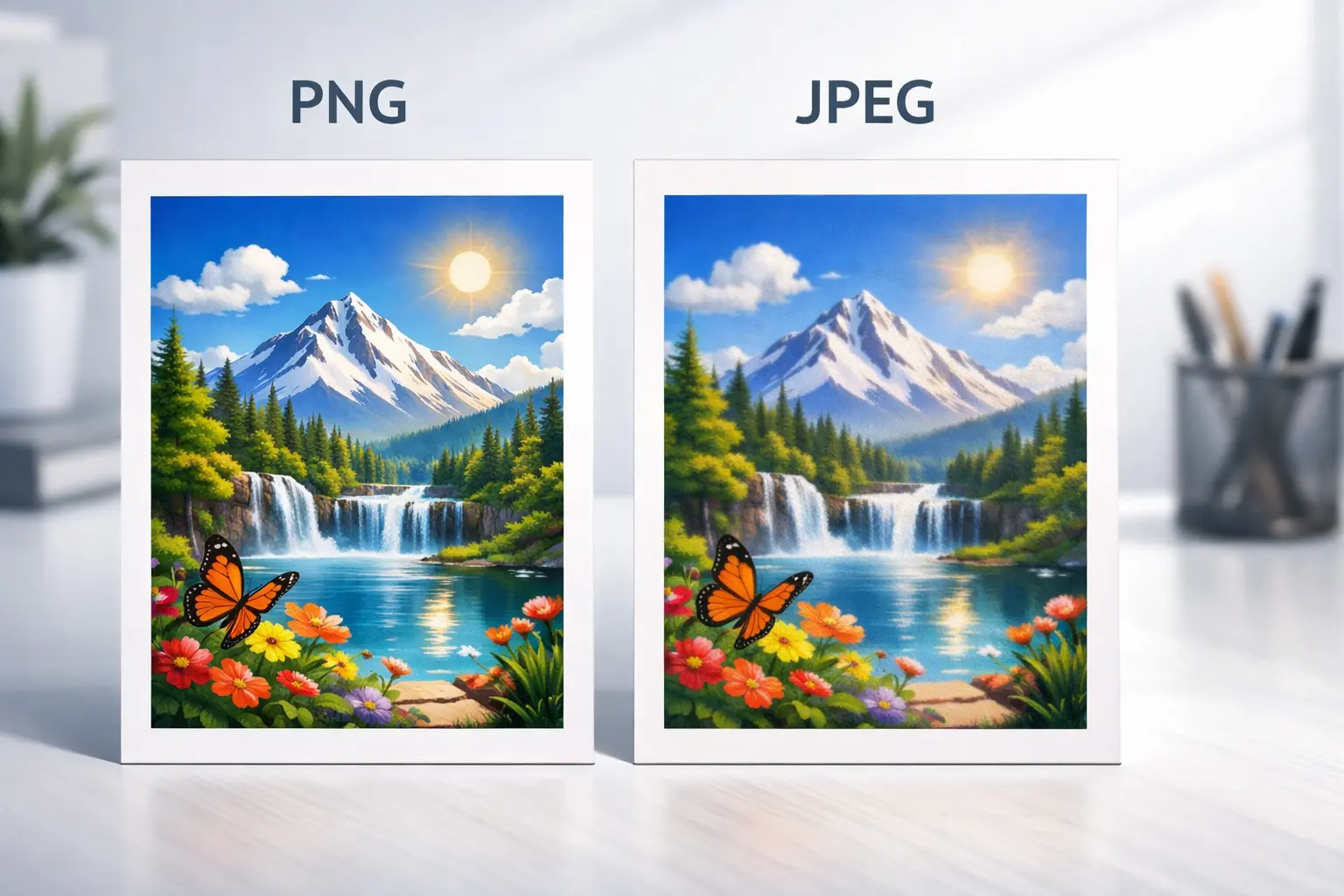
The Core Difference: Lossless (PNG) vs. Lossy (JPEG)
- PNG (Portable Network Graphics): The Perfectionist PNG uses lossless compression. Think of it like packing a suitcase perfectly—no matter how many times you unpack and repack it, everything inside remains exactly the same, untouched. Every single pixel's color and detail are preserved perfectly. This makes PNG files larger, but the quality is pristine.
- JPEG (Joint Photographic Experts Group): The Pragmatist JPEG uses lossy compression. Imagine that same suitcase, but this time you fold clothes a bit more roughly to save space. Some minor wrinkles are introduced, but it still looks great from a distance. JPEG achieves small file sizes by selectively discarding image data it deems "less important," which can introduce artifacts like blurring or blocky patches, especially when heavily compressed.
Head-to-Head: PNG vs. JPEG for Printing
| Feature | Comparison (PNG vs JPEG) | Winner for Printing |
|---|---|---|
| Compression Type | PNG: Lossless JPEG: Lossy |
PNG (for detail preservation) |
| Best For | PNG: Logos, text, line art, graphics with transparency JPEG: Photographs, smooth color gradients |
Depends on content |
| Color & Detail | PNG: Perfect preservation, excellent for sharp contrasts JPEG: May lose fine detail, blockiness in prints |
PNG (for critical detail) |
| File Size | PNG: Larger, sometimes significantly JPEG: Much smaller, easy to share |
JPEG |
| Transparency Support | PNG: YES JPEG: NO |
PNG (unmatched) |
| Ideal Use Case | PNG: Business cards, flyers, artwork for merch JPEG: Photo prints for albums, canvas prints |
Choose based on project |
Golden Rule: Use PNG for graphics (logos, text, illustrations). Use JPEG for photos (portraits, landscapes, snapshots). Deviating from this rule is the most common cause of poor print quality.
Is PNG Better Quality Than JPEG for Printing?
However, for photographs, "better quality" is more nuanced. A high-quality, minimally compressed JPEG can look absolutely identical to a PNG when printed, especially at standard photo sizes (like 4x6 or 8x10 inches). The massive file size of a photographic PNG often provides no visible benefit on paper. The potential quality loss in JPEG only becomes problematic if the file was saved at a very low quality setting to begin with.
What Format is Best for Printing Photos?
- Optimized for Reality 📌 JPEG compression is designed around how human eyes perceive color and detail in realistic scenes. It handles the smooth gradients of skies, skin tones, and landscapes brilliantly.
- Practical File Sizes 📌 A 10MB high-quality JPEG is perfect for printing an 8x10. The same image as a PNG could be 50MB+—overkill and often rejected by online print services.
- Universal Compatibility 📌 Every photo lab, online print service, and home printer software is built to work seamlessly with JPEG files.
Is PNG Good Enough for Printing?
- Printing Logos & Brand Assets: The transparency support is non-negotiable. You can't print a logo with a white box around it on a colored t-shirt or paper.
- Artwork with Text: Flyers, posters, and business cards demand razor-sharp text. PNG ensures no jagged edges or blurring.
- Archival Printing: For fine art or digital art prints where every pixel counts, a PNG guarantees no generation loss from compression.
Which is High Quality, PNG or JPG?
PNG's quality is guaranteed and uncompromised. It's a flawless 1:1 copy. JPEG's quality is adjustable and "good enough." A JPEG saved at 95% quality can be visually indistinguishable from a PNG for most photo prints, while being a fraction of the size.
Think of it like audio: PNG is a lossless FLAC file—perfect for audiophiles. JPEG is a high-bitrate MP3—excellent for everyday listening, and most people can't tell the difference. The "high quality" crown goes to PNG in a technical shootout, but JPEG wins the practicality award for most common printing needs.
Step-by-Step: How to Choose and Prepare Your File for Printing
- Identify Your Content: Is it a photograph or a graphic/design?
- Choose Your Format:
- Photo → JPEG (Save at 90-100% quality).
- Graphic/Logo/Text → PNG (Ensure transparency if needed).
- Check Resolution: Your image must have enough pixels. For a sharp 8x10" print, you need at least 2400 x 3000 pixels (300 DPI).
- Use the Correct Color Profile: For professional prints, convert your file to the print shop's specified profile (usually CMYK). For home printing, sRGB is standard.
- Final Check: Zoom in to 100% on your screen. If you see blurriness or artifacts, go back to your original high-quality master and re-export.
Important Note for Readers: Always start with the highest quality original file you have. You can always convert a high-quality PNG to a high-quality JPEG, but you cannot magically add lost detail back to a low-quality JPEG. Never use a heavily compressed image from a social media platform for printing.
Common Printing Scenarios Solved
- Printing Family Photos at Home: Use JPEG (High Quality). Your printer driver is optimized for it.
- Ordering Business Cards Online: Use PNG. The printer needs your logo with a transparent background.
- Making a Large Canvas Print of a Landscape: Use JPEG (Maximum Quality), provided your original photo is high-resolution.
- Printing a Text-Heavy Research Poster: Use PNG for all charts, graphs, and logos. Use JPEG for any background photographs.
- Creating Stickers or Decals: Use PNG with transparency. This is mandatory.
What About Other Formats? TIFF, PDF, and More
Troubleshooting Poor Print Quality
- Print is Blurry or Pixelated: Your image resolution is too low. You cannot increase DPI by simply changing a setting; you need a larger image file to start with.
- Colors Look Wrong (Dull or Off): You're likely printing an RGB file (for screens) without color correction. Use your printer's color management or convert to CMYK if using a pro service.
- White Box Around My Logo: You printed a JPEG, which doesn't support transparency. You must use a PNG.
- File is Too Large to Upload: For a photo, re-save your JPEG at a slightly lower quality (but not below 80%). For a graphic, if the PNG is massive, ensure it's not an unnecessarily high resolution (e.g., a 600 DPI logo for a business card). If you must convert a PNG to JPEG, use a tool that minimizes compression loss.
Conclusion: Printing Perfection Made Simple
Remember, a great print starts with a great digital file. Don't let compression artifacts or lost transparency ruin your project. Use this guide as your reference, always preserve your original high-quality masters, and you'll achieve professional, stunning prints every single time. For a broader understanding of working with digital images, visit our main resource hub for more tools and guides.
Manage Your Images Effortlessly
Turn heavy TIFF, PNG, JPG, or WebP files into web-ready formats — quickly, safely, and without limits. Image Converter 24 makes your workflow smooth, helping you save time and share files with ease.
Start Converting ImagesSimplify your image management, speed up your projects, and reach a broader audience with ease.