How Do I Change a JPEG to PNG?
If you've ever needed to change a JPEG image to PNG format, you're not alone. It's one of the most common image conversion tasks people search for daily. Whether you need a transparent background, better quality for text-heavy graphics, or a format that handles multiple edits without quality loss, converting JPEG to PNG is a straightforward process once you know the right approach.
Short answer: The fastest way to change a JPEG to PNG is using a free online image converter. Simply upload your JPEG file, select PNG as the output format, and download the converted file in seconds. For the most reliable and hassle-free conversion, use a browser-based tool like the JPEG to PNG converter — it handles the entire process automatically with no software installation needed.
This guide walks you through everything you need to know: what makes JPEG and PNG different, why you might want to convert between them, and the most practical ways to actually do it — including a detailed step-by-step walkthrough of using a free online tool that gets the job done in under a minute. By the end, you'll know exactly which method works best for your situation and how to avoid common pitfalls.
Understanding JPEG and PNG Formats
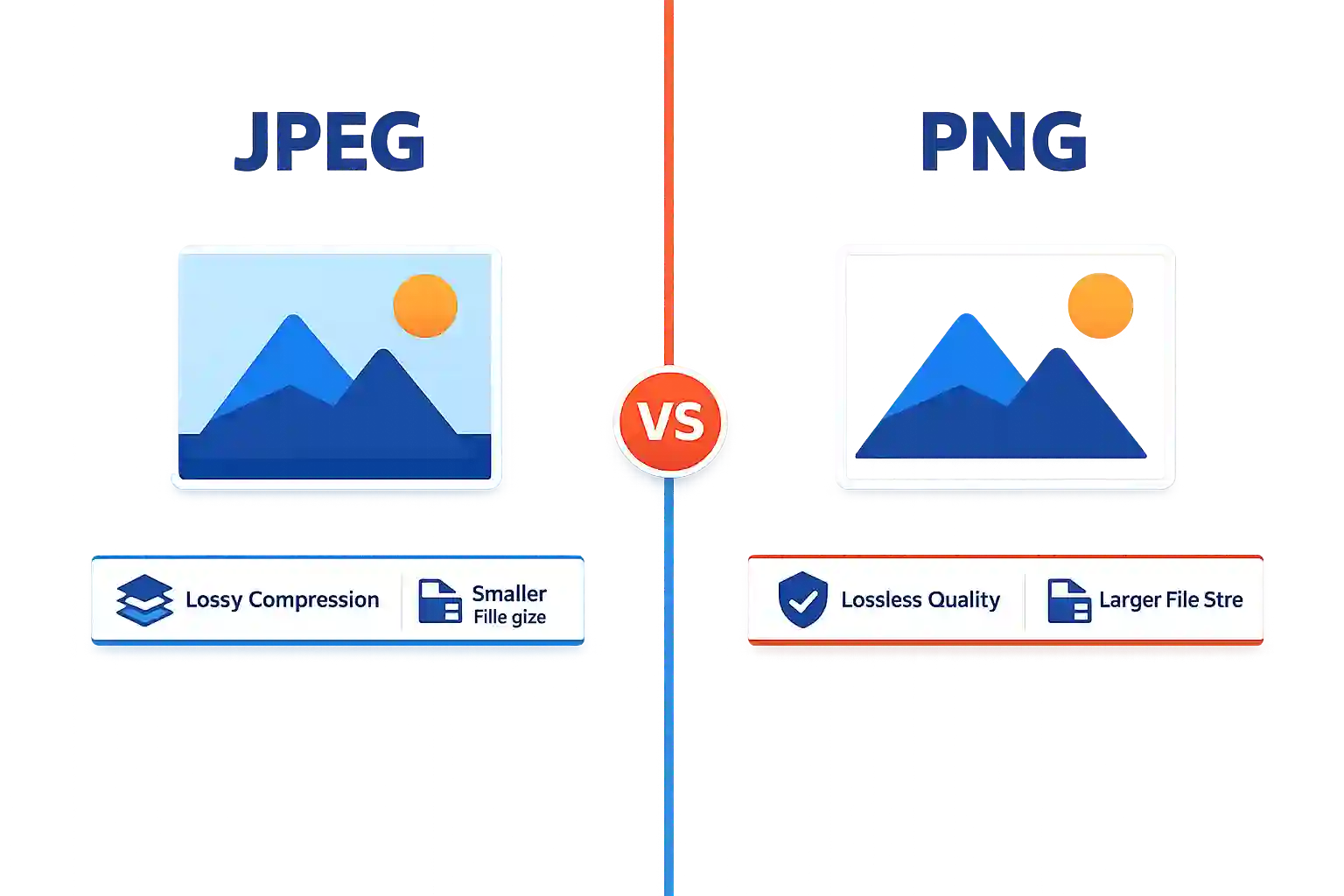
Before diving into the conversion process, it helps to understand what these two formats actually are and why the difference matters for your specific use case. Both JPEG and PNG are widely used image formats, but they serve fundamentally different purposes.
What Is JPEG?
JPEG (Joint Photographic Experts Group) is a lossy compression format designed primarily for photographs and realistic images. It reduces file size by discarding some image data that the human eye is less likely to notice. This makes JPEG files much smaller than their uncompressed counterparts, which is why they're the default format for digital cameras, smartphone photos, and most images shared online.
Notable fact: JPEG compression can reduce file size by up to 90% compared to uncompressed images, but every time you save a JPEG, you lose a small amount of quality permanently. That's why it's called "lossy" compression.
What Is PNG?
PNG (Portable Network Graphics) is a lossless compression format. Unlike JPEG, PNG preserves every pixel of the original image exactly as it was. This makes PNG the preferred choice for graphics with text, sharp lines, logos, and images that require transparency. PNG also supports an alpha channel, which means you can have transparent backgrounds — something JPEG simply cannot do.
The trade-off is file size. PNG files are typically much larger than JPEGs because they retain all image data. This is why PNG isn't ideal for large photo libraries or web pages where load speed matters, but it's absolutely essential when quality and transparency are top priorities.
Why Convert JPEG to PNG?
There are several practical reasons you might want to change a JPEG to PNG. Understanding these will help you decide whether the conversion is actually necessary for your project.
Key Reasons for Conversion
- Transparency support: If you need an image with a transparent background for a logo, watermark, or overlay, PNG is the format you need. JPEG doesn't support transparency at all.
- Quality preservation: When you're editing an image multiple times, PNG keeps every iteration lossless. JPEG degrades with each save, so PNG is better for work-in-progress files.
- Text and graphics: PNG handles sharp edges and text much better than JPEG, which tends to introduce blurring artifacts around high-contrast areas.
- Web compatibility: While JPEG is still the web standard for photos, PNG is often preferred for UI elements, icons, and graphics that need to look crisp on high-DPI screens.
To help you decide which format suits your specific project, here's a direct comparison:
| Aspect | JPEG | PNG |
|---|---|---|
| Compression | Lossy (discards data) | Lossless (preserves all data) |
| File Size | Small (great for sharing) | Large (better for quality) |
| Transparency | Not supported | Fully supported (alpha channel) |
| Best For | Photos, web images, social media | Logos, graphics, text, editing |
| Color Depth | Up to 24-bit (16.7 million colors) | Up to 48-bit (more detail) |
| Editing Repeatedly | Loses quality each time | Maintains quality perfectly |
If you're still uncertain about which format suits your needs, take a look at our detailed breakdown of PNG vs JPEG for Website — it covers performance, load times, and visual quality specifically for web use.
How to Convert JPEG to PNG — Step-by-Step Walkthrough
Now that you understand the formats and why you might need to convert, the most direct way to actually change a JPEG to PNG is using a dedicated online converter. You don't need to install any software, adjust complex settings, or worry about your operating system. A browser-based tool handles everything in seconds.
For this walkthrough, we're using the JPEG to PNG converter from Image Converter24. It's specifically designed for this exact conversion, free to use, and handles the technical details automatically so you don't have to think about color profiles, compression levels, or encoding settings.
Here's exactly what the experience looks like when you convert a JPEG to PNG using this tool:
- Open the tool: Go to the JPEG to PNG converter page in your browser. The interface loads immediately — you'll see a clean upload area in the center of the screen, with a clear call-to-action button labeled "Choose Files" or "Upload."
- Upload your JPEG: Click the upload button. A file dialog opens, letting you select one or more JPEG images from your device. You can also drag and drop files directly onto the upload area — the tool accepts both methods. Once you drop or select a file, a progress indicator shows the upload status. For most JPEGs (under 5 MB), the upload completes in under two seconds.
- Automatic conversion: Here's where the magic happens. As soon as the file uploads, the tool automatically recognizes the format and begins converting it to PNG. You don't need to select any output settings, adjust quality sliders, or choose advanced options — the tool applies optimal PNG encoding by default. A small spinner or progress bar appears while the conversion runs, typically finishing in 1–3 seconds for a standard JPEG.
- Preview and download: When the conversion completes, the result appears as a thumbnail preview right next to your original file. A "Download" button appears below the preview. Click it, and the PNG file saves directly to your device's default downloads folder. The file name stays the same, but the extension changes from .jpg or .jpeg to .png.
That's it. The entire process — from opening the page to having your PNG file on your device — takes around 15 to 30 seconds, depending on your internet speed and the original file size. No account creation, no email signup, and no hidden steps.
One important thing to note: because PNG is a lossless format, the converted file will be larger than your original JPEG. That's expected and actually a sign that the conversion preserved all the quality from your original image. The tool makes no quality compromises — every pixel from your JPEG is faithfully preserved in the PNG output.
Limitation to keep in mind: While PNG preserves quality perfectly, the file size increase can be significant — sometimes 3 to 5 times larger than the original JPEG. If file size is a concern (for example, if you need to email the image or upload it to a site with size restrictions), consider whether a high-quality JPEG might actually be a better choice for your specific need.
If you're working with multiple images, this tool supports batch conversion as well — you can upload several JPEGs at once, and the tool converts all of them to PNG in one go, then lets you download a ZIP archive or individual files. This makes it an excellent choice for designers who need to convert large batches quickly.
Compared to other free converters, this tool stands out because it's purpose-built for the JPEG-to-PNG conversion. It doesn't try to be a one-size-fits-all converter with confusing options. It focuses on this one task and does it extremely well, which means you get consistent results without guesswork.
Troubleshooting tip: If your converted PNG appears to have a black or solid-color background instead of being transparent, that's because the original JPEG didn't have transparency information to begin with. JPEG doesn't support transparent backgrounds, so converting to PNG won't create transparency out of nothing. You'd need to edit the image in a tool like Photoshop or GIMP to manually remove the background and save it as a PNG with transparency enabled.
For more insight into the PNG format's strengths and weaknesses, read our detailed breakdown of PNG Advantages and Disadvantages Pros — it covers use cases, compatibility, and when to choose PNG over other formats.
Other Methods to Change JPEG to PNG
While online tools are the fastest and most convenient method, they're not the only option. Depending on your situation — whether you're offline, working with sensitive files, or need to convert many images regularly — you might prefer one of these alternatives.
Desktop Software
If you already have image editing software installed, converting JPEG to PNG is usually a matter of opening the file and using "Save As" or "Export" to choose PNG as the output format. Adobe Photoshop, GIMP (free), and even Microsoft Paint (on Windows) can do this. Paint is the simplest: open the JPEG, click File > Save As, choose PNG, and click Save. No additional configuration needed.
Built-in Operating System Tools
Both Windows and macOS have built-in preview and conversion features. On Mac, you can open the image in Preview, go to File > Export, and select PNG. On Windows, the built-in Photos app and Paint both support saving as PNG. These tools are free, always available, and don't require an internet connection.
Command Line (for advanced users)
If you're comfortable with the command line, tools like ImageMagick (convert command) or FFmpeg can convert JPEG to PNG in a single line. For example, using ImageMagick: convert input.jpg output.png. This method is ideal for automating conversions in scripts or handling large batches programmatically.
Each method has its place, but for most users — especially those who need a quick, reliable, no-installation solution — the online converter is the clear winner.
Frequently Asked Questions
Does converting JPEG to PNG improve image quality?
No, converting a JPEG to PNG does not improve the original image quality. JPEG is a lossy format, meaning some quality was already lost when the image was originally saved as a JPEG. When you convert to PNG, you preserve the existing quality exactly as it is, but you cannot recover the data that was already discarded by the JPEG compression. The benefit of converting to PNG is that you can now save and edit the file without further quality loss, but the starting point remains the same.
Can I convert a JPEG to PNG without losing quality?
Yes, converting JPEG to PNG preserves the existing quality perfectly because PNG uses lossless compression. The conversion process itself does not introduce any additional quality loss. However, remember that the JPEG already had some quality loss from its original compression, so the PNG will reflect the JPEG's current quality state, not the original uncompressed image.
How do I change a JPEG to PNG on my phone?
You can convert JPEG to PNG on a phone using the same online tools mentioned in this guide — they work perfectly on mobile browsers. Simply open the converter in your phone's browser, upload the image, and download the PNG. Alternatively, both Android and iOS have apps that can convert images, but the browser-based method requires no installation and works across all devices.
Is a PNG bigger than a JPEG?
Yes, PNG files are almost always larger than JPEG files for the same image. This is because PNG uses lossless compression (keeping all the data) while JPEG uses lossy compression (discarding some data to save space). The size difference can range from minor (2x larger) to substantial (5x or more), depending on the image complexity and the JPEG compression level used.
Can I batch convert multiple JPEGs to PNG at once?
Yes, many online converters and desktop applications support batch processing. The JPEG to PNG converter mentioned in this guide allows you to upload multiple files simultaneously and convert them all at once. On desktop, you can also use tools like Adobe Photoshop (via actions) or ImageMagick (via command line) for batch conversions.
Will my PNG have a transparent background after converting from JPEG?
No. JPEG does not support transparency, so if your original JPEG had a solid background, the converted PNG will also have a solid background. To get a transparent background, you need to manually edit the image (using Photoshop, GIMP, or similar tools) to remove the background and then save it as a PNG with transparency enabled. The conversion itself simply changes the file format without altering the image content.
If you're still weighing the differences between the two formats, check out our detailed comparison Is PNG or JPEG Better for Printing Expert Advice You Need — it covers color depth, resolution, and what actually matters when sending images to print.
For users who need to convert images regularly across different formats, our guide on the best unlimited image converter free online without watermark covers tools that handle multiple formats without restrictions.
Conclusion
Changing a JPEG to PNG is a simple but important task that comes up frequently for designers, content creators, and everyday users alike. The key takeaways are straightforward: PNG preserves quality and supports transparency, while JPEG offers smaller file sizes at the cost of some quality loss. The best method to convert depends on your specific needs — for speed and convenience, an online tool like the JPEG to PNG converter is the most practical choice, offering a seamless, no-installation experience that gets the job done in under a minute.
Whichever method you choose — whether it's the online tool, desktop software, or command line — the conversion process preserves your image quality exactly as it is. Just keep in mind the file size trade-off and the fact that JPEG's lack of transparency won't magically become transparent when you convert to PNG. For most people, the online converter approach is the fastest, most reliable, and completely free way to change a JPEG to PNG without any hassle.
Ready to convert your image? Try the JPEG to PNG converter now — it takes just a few seconds and works on any device.