How to Convert a Mermaid Diagram to an Image Online – The Complete Guide
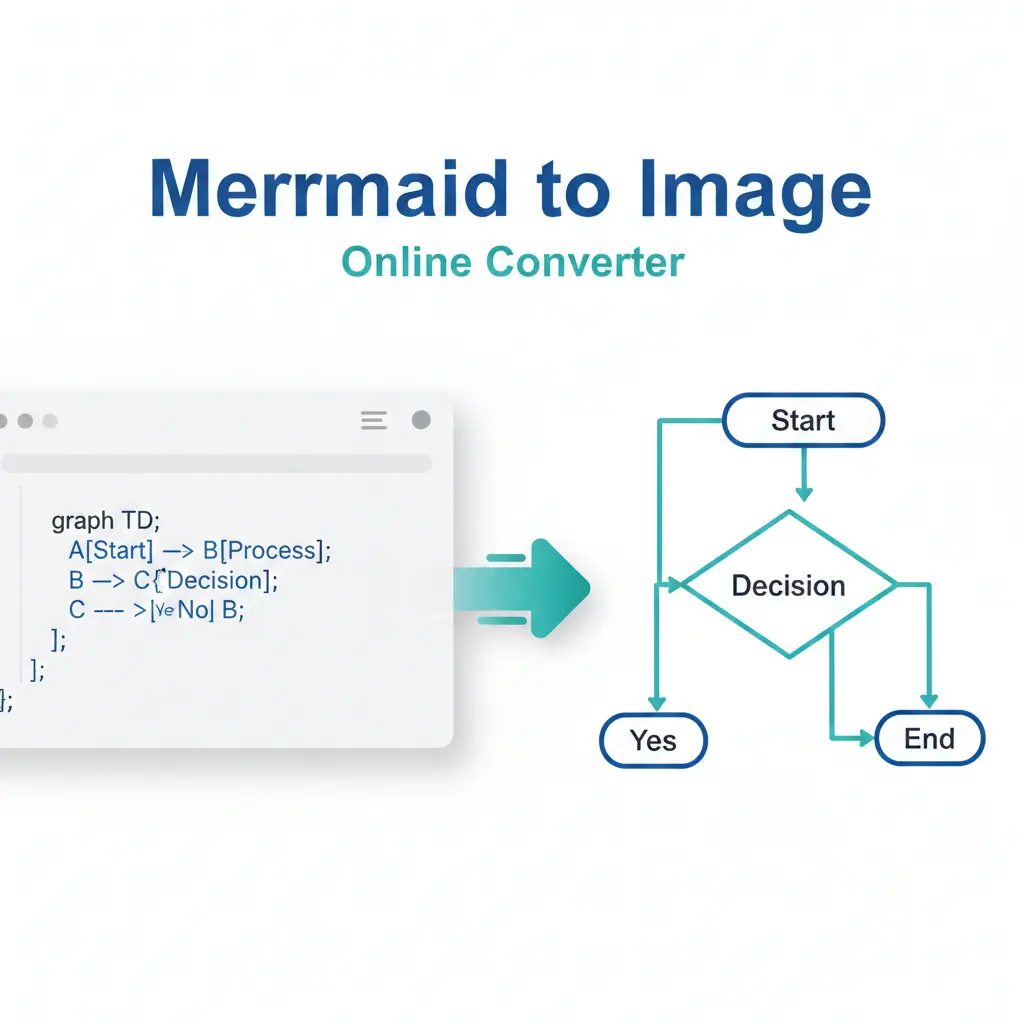
What is a Mermaid Diagram and Why Convert It?
- Insert the diagram into a Microsoft Word or Google Docs report.
- Embed it in a presentation slide (PowerPoint, Google Slides).
- Use it in platforms that don't support live Mermaid rendering.
- Archive or print a static version for offline reference.
- Share it quickly with colleagues or clients who prefer a simple image file.
Choosing the Best Online Mermaid-to-Image Converter
| Tool Name | Best For | Output Formats | Key Advantage |
|---|---|---|---|
| Mermaid Live Editor | Real-time editing & conversion | SVG, PNG | Official tool; instant preview |
| Kroki.io | API integration & batch use | SVG, PNG, PDF | Supports many diagram types |
| CodeToImg | Styling and customization | PNG, JPEG | Beautiful themes and backgrounds |
| PlantText (Mermaid mode) | Quick, no-fuss conversion | PNG, SVG | Extremely simple interface |
📌 Important Note for Readers: Always test with a simple diagram first. Some online tools may have size or complexity limits for free usage. For critical or very large diagrams, the official Mermaid Live Editor is the most reliable starting point.
Why We Recommend the Mermaid Live Editor for Most Users
Step-by-Step: Convert Mermaid to PNG or SVG
- Prepare Your Mermaid Code 📌 Have your Mermaid diagram code ready. For example, a simple flowchart:
graph TD A[Start] --> B{Decision?}; B -->|Yes| C[Process]; B -->|No| D[End]; C --> D; - Open the Online Editor 📌 Navigate to https://mermaid.live in your web browser.
- Paste and Preview 📌 Paste your Mermaid code into the left-hand "Code" panel. The diagram will render automatically on the right.
- Adjust if Needed 📌 Use the editor's built-in controls to change the theme (e.g., dark/light) or adjust the layout.
- Export as Image 📌 Look for the "Download" button (or a camera/save icon) above the diagram. Click it and choose either Download as PNG or Download as SVG.
- Save Your File 📌 The image file will download to your computer. Rename it if necessary and use it wherever you need.
Pro Tips for High-Quality Image Output
- Choose SVG for Scalability If your document or website supports it, always prefer SVG format. SVG images are vector-based, meaning they stay sharp and clear at any size—perfect for high-resolution displays and printing.
- Mind the PNG Resolution When downloading as PNG, some tools let you select a scale factor (e.g., 1x, 2x). For print or detailed diagrams, choose 2x or higher for a crisper image, but note the file size will be larger.
- Use a Clean Theme The default theme is often perfect. Avoid overly complex backgrounds if the image will be placed in a formal document. High contrast (black on white) is usually most readable.
- Check the Viewport Before exporting, zoom out in the preview pane to ensure the entire diagram is visible and not cut off. Some diagrams may need layout tweaks (like adjusting
graphConfig) to fit well. - Simplify Complex Diagrams If your diagram is very large, consider splitting it into multiple smaller ones. A single, overly complex image can be hard to read and may not convert cleanly.
- Verify Syntax Support Online converters update frequently, but some may not support the very latest Mermaid syntax (like new chart types). Stick to the official editor for cutting-edge features.
What to Do When Online Tools Aren't an Option
1. Use the Mermaid CLI (Command Line Interface): This is the most powerful offline method. Install the Mermaid CLI via npm (
npm install -g @mermaid-js/mermaid-cli). You can then convert a .mmd file to an image with a single command like:mmdc -i input.mmd -o output.pngThis is ideal for scripting and batch processing.
2. Integrate with Documentation Tools: Many modern documentation platforms (like Docusaurus, VuePress, or GitBook) have built-in Mermaid plugins. These systems automatically render your Mermaid code as images or SVGs during the site build process, requiring no manual conversion from you.
💡 Developer's Insight: "For teams, integrating Mermaid rendering into your CI/CD pipeline is a game-changer. Every time documentation updates, diagrams are auto-generated, ensuring they are never out-of-sync with the codebase."
Common Conversion Issues and How to Fix Them
- The diagram is cut off in the PNG. 👈 This is usually a viewport issue. Go back to the editor and try adding
%%{init: {'theme': 'default', 'themeVariables': { 'primaryColor': '#fff' }}}%%at the top of your code to adjust the diagram's padding and size, or simplify the layout. - The SVG looks blurry when resized. 👈 A true SVG should not blur. Ensure you're downloading the actual SVG data and not a screenshot of it. If embedded in HTML, check that the
widthandheightattributes aren't restricting it. - The tool shows a syntax error. 👈 Double-check your Mermaid code against the official documentation. Common mistakes include missing semicolons in sequence diagrams or incorrect indentation.
- The download button doesn't work. 👈 Try a different browser (Chrome and Firefox work best). Disable any ad-blockers or script blockers for that site, as they can interfere with the export JavaScript.
Maintaining Quality and Efficiency in Your Workflow
- Store Your Source Code Always keep the original
.mmdor text file containing your Mermaid code. Images are for output; the text is your source for easy future edits. - Standardize Your Tools Pick one primary online converter (like the Live Editor) and stick with it for consistency across all your team's diagrams.
- Create a Template Library Build a collection of pre-styled Mermaid code snippets for common diagrams (system architecture, deployment pipeline). This speeds up creation and ensures branding consistency.
- Automate When Possible If you generate reports weekly, explore using the Kroki API or a simple Node.js script to automate the conversion of multiple diagrams at once.
The Bottom Line: Keep It Simple and Reliable
Start with the official Mermaid Live Editor for the most reliable experience. Remember to export as SVG for digital use where possible and high-resolution PNG for print. Keep your source Mermaid code safe for future updates.
By following the clear steps and best practices outlined here, you can seamlessly turn your text-based diagrams into polished images, enhancing your documentation, reports, and presentations with clear, professional visuals.
Final Summary: Converting a Mermaid diagram to an image online is a straightforward three-step process: 1) Copy your correct Mermaid code, 2) Paste it into a trusted online editor like mermaid.live, and 3) Download your choice of PNG or SVG format. Prioritize SVG for quality and scalability. By integrating this quick task into your workflow, you unlock the full potential of Mermaid—combining the efficiency of text-based diagramming with the universal utility of image files.