The Ultimate Guide to Choosing the Best Format to Scan Documents for Email
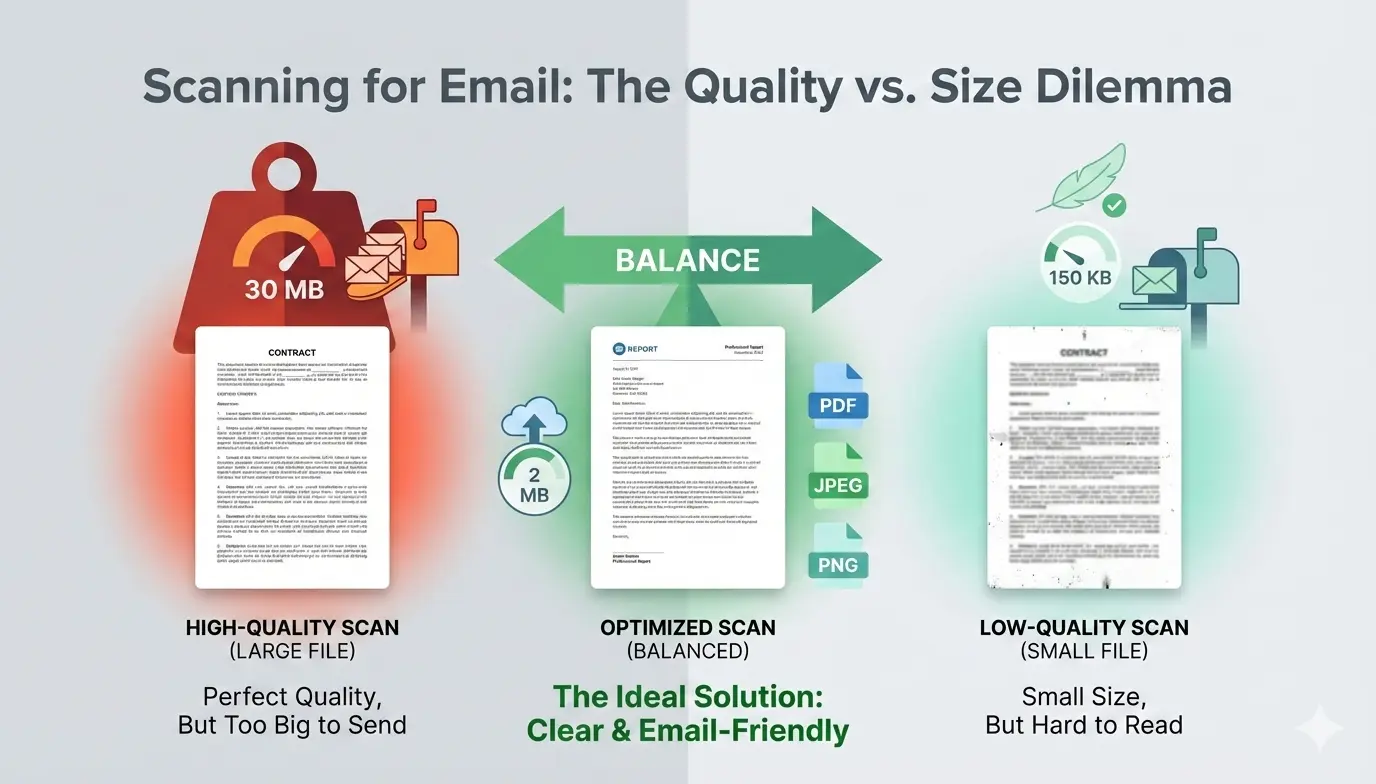
Why the Right Scanning Format Matters for Email
Head-to-Head: PDF vs. JPEG vs. PNG for Scanned Documents
| Format | Best Use Case | Key Characteristics |
|---|---|---|
| Formal documents, contracts, reports, mixed text & images | File size: Medium–Small Text clarity: Excellent Compatibility: Universal |
|
| JPEG | Photographs, color scans, image-heavy documents | File size: Very small Text clarity: Poor Compatibility: Universal |
| PNG | Logos, screenshots, line art, black & white text | File size: Large Text clarity: Perfect Compatibility: Universal |
Pro Tip: For 90% of email scanning needs, a properly configured PDF is the champion. It combines great quality with manageable size and is the standard for business communication. Use JPEG only for photos, and PNG for digital graphics or when every pixel must be perfect.
When to Choose PDF for Email Scanning
When to Choose JPEG for Email Scanning
When to Choose PNG for Email Scanning
Optimal Scanner Settings for Email (DPI, Color, Compression)
- Resolution (DPI): The Sweet Spot 📌150 DPI is ideal for most documents. For text-only pages, 200 DPI is maximum. Never scan text at 300+ DPI for email—it creates unnecessarily huge files with no visible benefit on screen. Use high DPI (300-600) only if you intend to print the scanned file later.
- Color Mode: Match Your Content 📌
- Black & White / Grayscale: Use for text documents. This drastically reduces file size.
- Color: Only use for documents with color photos, graphs, or signatures you need to preserve.
- Output Format (Based on Guide) 📌 Set your scanner to save as "PDF" for documents and "JPEG" for photographs. If your scanner has a "PDF (Searchable)" or "OCR" option, enable it.
- Compression & Quality Slider 📌 If available, set compression to "Medium" or quality to around 75-80%. This strikes the perfect balance. Always preview a page before scanning the whole batch.
Step-by-Step: How to Scan Any Document for Perfect Email Delivery
- Clean Your Scanner Glass Wipe it with a microfiber cloth to avoid dust spots on your final scan.
- Align the Document Neatly Place your document straight on the scanner bed to avoid crooked pages that need later rotation.
- Select the Correct Profile Choose "Document" or "Text" mode in your scanning software, not "Photo."
- Apply the Settings Above Input 150 DPI, Black & White (for text), output as PDF.
- Preview and Adjust Use the preview function to check clarity and cropping.
- Name Your File Logically Use a descriptive name like "Invoice_2023_10_Scan.pdf" instead of "Scan001.pdf".
- Final Check Before Sending Open the scanned file on your computer to verify everything is legible and the file size is reasonable (aim for under 1 MB per page for text).
Advanced Tips: Reducing PDF File Size for Email
- Use online tools or Adobe Acrobat's "Reduce File Size" or "Optimize PDF" feature.
- Re-scan color pages in grayscale if color isn't necessary.
- For multi-page documents, use a tool to compress images embedded within the PDF.
- Consider splitting very large documents (50+ pages) into smaller chapters for email.
Important Note for Readers: Most email servers have a size limit, typically 25 MB for attachments. A good rule of thumb is to keep your total email attachment size under 10 MB to ensure it reaches any inbox without issue. If you must send larger files, use a cloud service (like Google Drive or Dropbox) and email a link instead.
FAQs: Quick Answers to Common Scanning Questions
Q: Is it better to scan as a PDF or JPEG for email?
A: For documents containing text, always choose PDF. JPEG is only suitable for photographs where text clarity is not a concern.
Q: What is the best DPI for scanning documents to email?
A. 150 DPI is the sweet spot for clear, readable text and manageable file size.
Q: How can I make my scanned PDF file size smaller?
A. Rescan in Black & White mode at 150 DPI, and use PDF optimization tools in your software or online. Our comprehensive image conversion resource hub offers tools and guides for various format needs.
Q: Can I scan a document with my phone for email?
A. Yes! Apps like Adobe Scan or your phone's native Notes app use your camera and automatically create optimized, cropped PDFs that are perfect for email.
What About Other Formats? TIFF, WebP, and More
Troubleshooting: Fixing Common Scanning Problems
- Blurry Text: You likely used JPEG format or a DPI below 150. Rescan as a PDF at 150 DPI.
- File Too Large: You scanned in Color or at high DPI. Rescan in Grayscale at 150 DPI.
- Recipient Can't Open File: You used a rare format. Convert it to a standard PDF. If you have an image that needs to be a JPEG, follow a reliable tutorial like this one on how to convert an image to JPEG format.
- Crooked or Dark Scans: Use the preview function to adjust alignment and brightness/contrast settings before the final scan.
Conclusion: Mastering the Art of the Email Scan
By applying the settings and principles in this guide, you'll stop worrying about bounced emails or unreadable attachments. You'll send professional, lightweight, and crystal-clear scanned documents every single time, making communication smoother and more effective for everyone involved. Now go ahead, optimize your scanner settings, and transform this everyday task into a seamless experience.
Simplify Image Conversion — Instantly
Stop worrying about large image files, incompatible formats, or slow uploads. Image Converter 24 makes it easy to convert images between TIFF, JPG, PNG, WebP, and more in seconds — directly from your browser, with no installation and no limits.
Whether you're optimizing images for your website, preparing documents for email, or managing digital archives, this tool helps you work faster and more efficiently.
Start Converting Images Now