PNG vs JPG vs WebP | The Ultimate Image Format Showdown
PNG, JPG, WebP: A Quick Definition
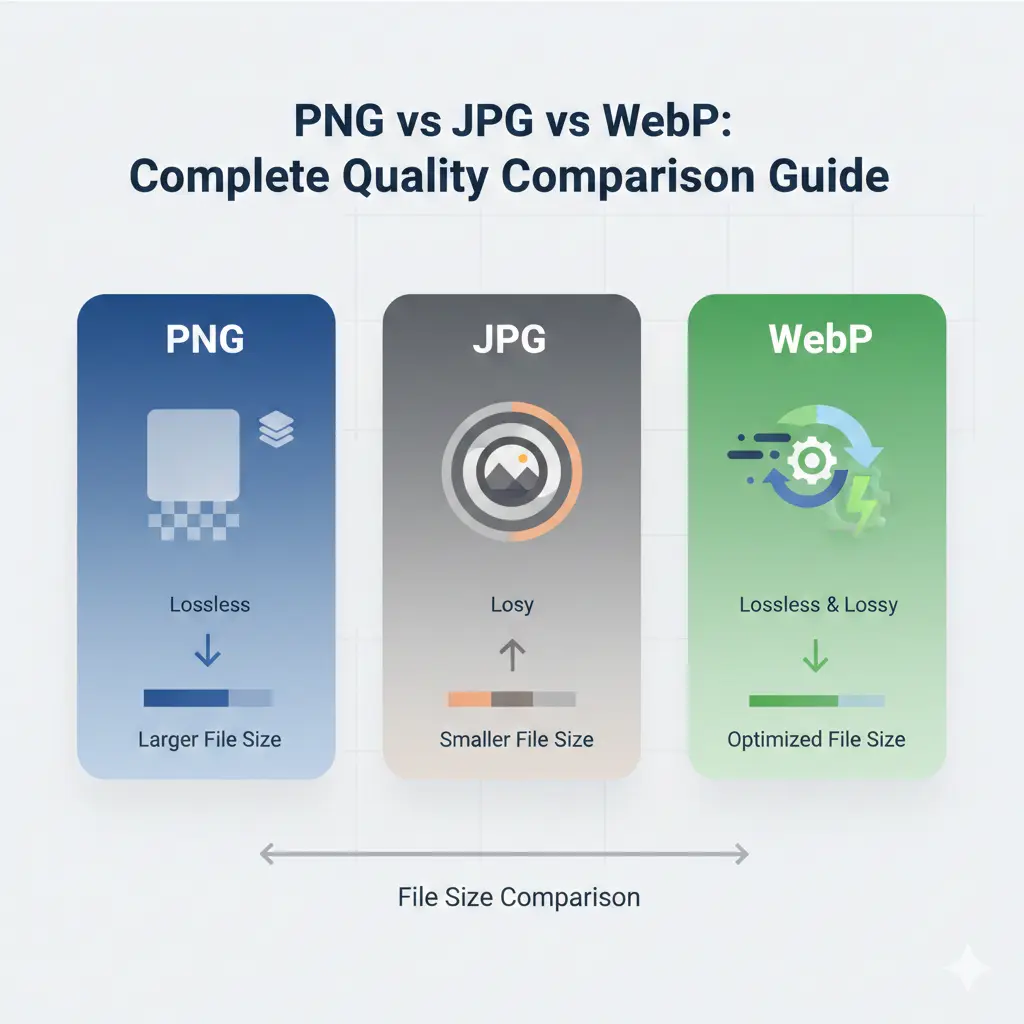
- PNG (Portable Network Graphics): Born as an improved, patent-free replacement for the GIF format. Its superpower is lossless compression, meaning it reduces file size without sacrificing a single pixel of quality. It also supports transparency (alpha channel), making it perfect for logos, icons, and graphics with sharp edges.
- JPG or JPEG (Joint Photographic Experts Group): The undisputed king of photographs on the web. It uses lossy compression, which strategically discards some image data that the human eye is less likely to notice. This allows for very small file sizes, but repeated saving can lead to a gradual loss in quality, known as "generation loss."
- WebP: A modern format developed by Google that aims to provide the best of both worlds. It offers both lossless and lossy compression modes. In lossy mode, it typically creates files that are 25-35% smaller than comparable JPGs at the same visual quality. It also supports transparency, like PNG, and animation, like GIF.
Quality and Size Comparison | The Real-World Test
| Feature | PNG | JPG |
|---|---|---|
| Compression Type | Lossless (WebP: Lossy & Lossless) | Lossy (WebP: Lossy & Lossless) |
| Transparency Support | ✅ Yes (Alpha Channel) (WebP: ✅ Yes) | ❌ No (WebP: ✅ Yes) |
| Best For | Logos, Icons, Text, Graphics with sharp edges (WebP: Web Images) | Photographs, Complex Images (WebP: Web Images) |
| Typical File Size | Largest (WebP: Smallest) | Medium (WebP: Smallest) |
| Image Quality | Perfect, Pixel-for-pixel (WebP: Excellent) | Good, can have compression artifacts (WebP: Excellent) |
| Browser Support | Universal (WebP: Modern Browsers) | Universal (WebP: Modern Browsers) |
Practical Example: Imagine a detailed landscape photograph. Saving it as a high-quality JPG might result in a 500KB file. A PNG of the same visual clarity could be 2MB. A WebP version, however, could achieve the same (or better) perceived quality at just 300-350KB. This significant size saving directly translates to faster page loads.
You can test this yourself. Take a photo, convert it to all three formats using a tool like Image Converter 24, and compare the sizes and visual results. Seeing is believing when it comes to understanding WebP's efficiency.
When to Use Each Format | Your Decision Guide
- Use PNG for Transparency and Fine Details 📌 This is non-negotiable. Any graphic that needs a transparent background – your website's logo, a product icon, an illustration with non-rectangular edges – must be a PNG. It's also superior for images containing text, line art, or screenshots where every sharp edge must be preserved perfectly. The trade-off is a larger file, but for these elements, quality is paramount.
- Use JPG for Standard Photographs 📌 JPG remains a reliable and universally compatible workhorse for photographic content. Think blog post images, product photos, user avatars, and any complex, colorful image where tiny imperfections won't be noticed. For a deep dive into its pros and cons, explore the detailed breakdown of JPEG advantages and disadvantages.
- Use WebP to Reduce File Size While Maintaining Quality 📌 This is your secret weapon for web performance. Use WebP for almost everything that goes on a website, provided your audience uses modern browsers. It shrinks photo file sizes dramatically compared to JPG and handles transparent graphics much more efficiently than PNG. The key question many have is answered here: Is WebP better quality than JPEG? In most cases, for the same file size, yes—and for the same quality, it's significantly smaller.
Practical Tips for Developers and Website Owners
- Implement a Modern Conversion Workflow Don't just upload camera originals. Use automated tools or build processes that convert uploaded images to WebP automatically. For critical graphics, keep a PNG master file, but serve WebP to your site visitors.
- Use the HTML `picture` Element This is essential for backward compatibility. The `<picture>` tag lets you provide WebP as the first option and fall back to JPG or PNG for older browsers. This ensures everyone sees an image, while most get the faster, smaller version.
- Compress Even Your PNGs and JPGs Before considering conversion, always run PNGs through a lossless compressor like TinyPNG and JPGs through a tool like JPEG Optimizer. This strips unnecessary metadata and maximizes compression without quality loss.
- Audit Your Existing Site Images Use tools like Google PageSpeed Insights or Lighthouse. They will identify images that can be modernized. Creating a plan to batch-convert these old JPGs and PNGs to WebP can yield massive speed improvements. For a reliable conversion, consider a guide on how to convert image to WebP without losing quality.
- Choose the Right Compression Level When saving as JPG or WebP (lossy), you choose a quality setting from 1-100. For the web, a setting between 75-85 is almost always the perfect sweet spot. The quality is excellent to the human eye, but the file size savings are substantial.
Note for Readers: The single biggest performance gain for most websites comes from image optimization. Switching from legacy formats to WebP is often a faster and more impactful upgrade than changing hosting providers or re-writing code. Start with your images first.
Conclusion and Final Recommendation
Here is your final, simple decision framework:
- Need perfect detail or transparency? Start with a PNG master file, then also create a WebP version for web use.
- Working with a standard photo? Create or convert it directly to WebP. Use JPG only as a mandatory fallback for older systems.
- Unsure or working with a mix of images? Default to WebP. It handles both photographic and graphic content brilliantly.
The theory is complete. Now it's time for action. The best way to understand the difference is to see it for yourself.
We encourage you to convert your own images and compare the results. You can do this easily, for free, and without any account using Image Converter 24. It's a straightforward tool to put everything you've learned into practice.
Convert Your Images at Image Converter 24
Simply visit the link, upload any PNG or JPG image, select "WebP" as the target format, and click "Convert." In seconds, you can download the optimized version and witness the file size savings firsthand. It's the first and most important step toward a faster website.
The Path to a Faster Website Starts Here
Final Thought: Don't let your images weigh your site down. Embrace the modern web standards. Audit your media, implement a smart conversion strategy, and default to WebP. Your users—and your website's performance metrics—will thank you for it.