WebP vs JPEG | Which Image Format Should You Use?
Here is the simple truth: WebP almost always gives you a smaller file than JPEG at the same visual quality. Sometimes 25% smaller. Sometimes 35% smaller. For website owners, this means faster pages and better Core Web Vitals. But JPEG is not dead. It remains the most compatible image format in existence, supported by every device, every browser, and every piece of software from the past 30 years.
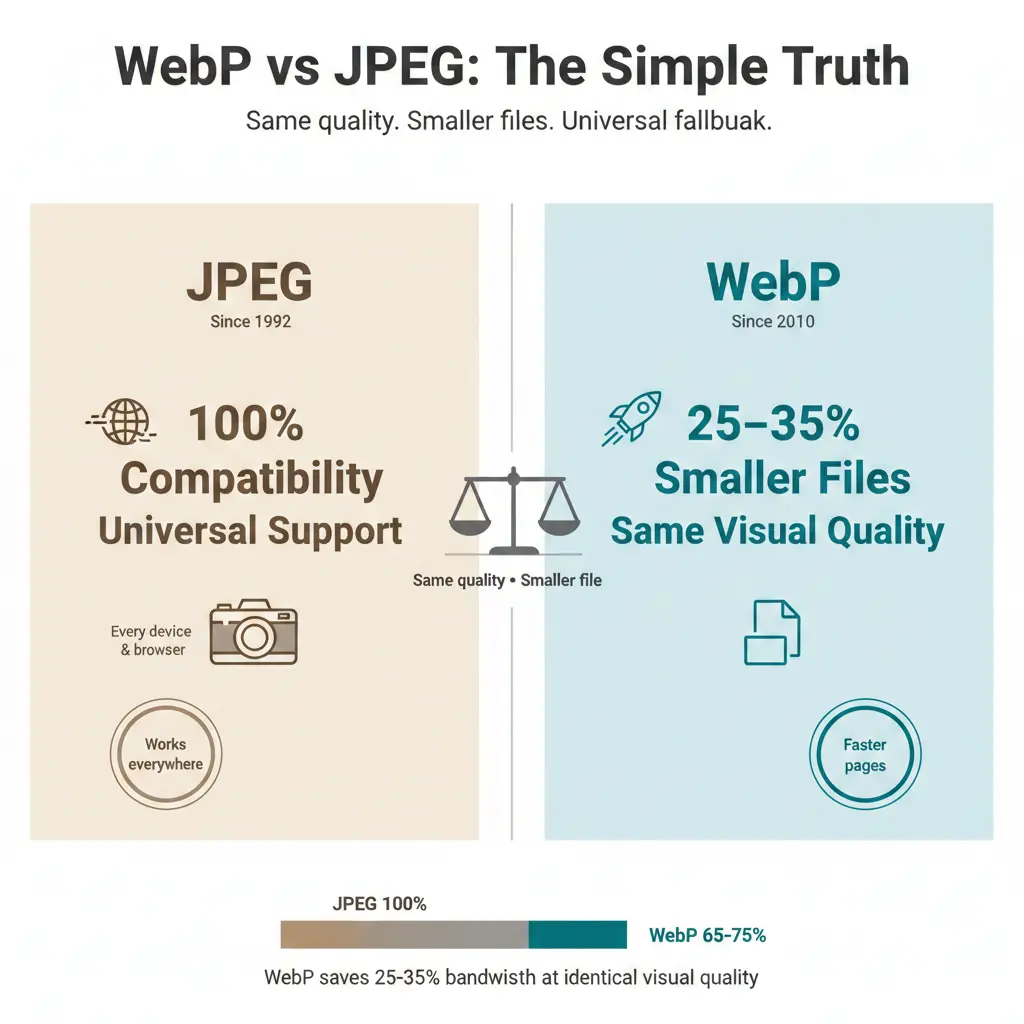
This guide compares WebP vs JPEG across quality, file size, transparency, and real-world usability. You will learn exactly when to switch to WebP, when to stay with JPEG, and whether the extra effort of conversion is worth your time.
Let us start with the most important fact: both formats use lossy compression. When you save a JPEG or a WebP, you are permanently discarding some image data. The goal is to discard only what the human eye cannot easily see. WebP does this more intelligently than JPEG, which is why it achieves smaller files with fewer visible artifacts.
But WebP also offers a lossless mode. JPEG does not. This alone makes WebP more versatile. However, lossless WebP files are larger than lossy WebP and are better suited for graphics than photographs. Understanding these trade-offs is the key to choosing correctly.
But WebP also offers a lossless mode. JPEG does not. This alone makes WebP more versatile. However, lossless WebP files are larger than lossy WebP and are better suited for graphics than photographs. Understanding these trade-offs is the key to choosing correctly.
Is WebP better quality than JPEG?
At the same file size, WebP almost always looks better than JPEG. WebP's compression algorithm is more advanced. It preserves detail in high‑contrast areas and introduces fewer blocking artifacts.
At the same visual quality, WebP files are significantly smaller. You can take a JPEG photograph, convert it to WebP at the same subjective quality level, and reduce the file size by 25–35%. This is not a small improvement—it is a major advantage for web performance.
One exception: If you need absolute, pixel‑perfect accuracy, neither format is ideal. Both are lossy. For lossless quality, use PNG or lossless WebP. For a detailed breakdown of how WebP compares to other formats, see this analysis of PNG vs JPG vs WebP quality.
At the same visual quality, WebP files are significantly smaller. You can take a JPEG photograph, convert it to WebP at the same subjective quality level, and reduce the file size by 25–35%. This is not a small improvement—it is a major advantage for web performance.
One exception: If you need absolute, pixel‑perfect accuracy, neither format is ideal. Both are lossy. For lossless quality, use PNG or lossless WebP. For a detailed breakdown of how WebP compares to other formats, see this analysis of PNG vs JPG vs WebP quality.
Visual quality winner: WebP. It delivers the same perceived quality as JPEG in a much smaller package. For web use, this is a clear victory.
What are the disadvantages of WebP?
WebP is not perfect. It has three real disadvantages you need to know:
- Compatibility gaps 📌 WebP works in all modern browsers, but it does not work in Internet Explorer or very old Safari versions (before Safari 14). For most consumer websites, this affects less than 3% of visitors. But if your audience includes government offices, schools, or regions with older devices, you must provide a JPEG fallback.
- Adoption inertia 📌 Many content management systems, plugins, and image libraries still default to JPEG. You need to actively configure your site to generate and serve WebP. This adds a small technical overhead.
- Lossless files can be large 📌 Lossless WebP preserves every pixel, but for photographs it produces files much larger than lossy WebP. Some users mistakenly use lossless WebP for photos and wonder why their files are not smaller.
These disadvantages are manageable. The compatibility gap shrinks every year, and most modern tools now support WebP natively. The question is not whether WebP works—it is whether you are willing to implement a fallback for the small percentage of users on legacy software.
Is WebP high quality?
Yes. WebP is a high‑quality format when configured correctly. At quality settings between 80 and 90, WebP is visually indistinguishable from the original source to the average viewer. Fine details, textures, and gradients are preserved exceptionally well.
The myth of "low quality": Some early WebP encoders produced soft images. Modern encoders are excellent. If you use a quality setting of 85 or higher, you will not see the difference between WebP and JPEG—but your visitors will load the page much faster.
For critical images where quality is the absolute priority, you can use lossless WebP. This gives you the same perfect quality as PNG with slightly better compression.
The myth of "low quality": Some early WebP encoders produced soft images. Modern encoders are excellent. If you use a quality setting of 85 or higher, you will not see the difference between WebP and JPEG—but your visitors will load the page much faster.
For critical images where quality is the absolute priority, you can use lossless WebP. This gives you the same perfect quality as PNG with slightly better compression.
Should I use WebP?
Yes, for almost all websites. the browser support argument against WebP is weak. Chrome, Edge, Firefox, Safari, and all mobile browsers support WebP. The only significant holdout is Internet Explorer, which Microsoft itself has deprecated.
If your website serves a general audience, you should use WebP with a JPEG fallback. This gives modern users the speed benefit and legacy users a working image. Most image optimization plugins and CDNs can automate this process.
When to skip WebP:
If your website serves a general audience, you should use WebP with a JPEG fallback. This gives modern users the speed benefit and legacy users a working image. Most image optimization plugins and CDNs can automate this process.
When to skip WebP:
- You absolutely cannot implement a fallback system.
- Your analytics show more than 5% of visitors using Internet Explorer or Safari 13.
- You are preparing images for print or offline archiving (use TIFF or PNG instead).
WebP vs JPEG - Head‑to‑head comparison
| Feature | JPEG | WebP |
|---|---|---|
| Year introduced | 1992 | 2010 |
| Compression type | Lossy only | Lossy + Lossless |
| File size (typical) | Baseline | 25–35% smaller at same quality |
| Transparency | Not supported | Full alpha channel (8‑bit) |
| Animation | Not supported | Supported (animated WebP) |
| Metadata | EXIF, ICC profiles | EXIF, XMP, ICC profiles |
| Browser support | 100% (universal) | ~96% (all modern browsers) |
| Best use case | Maximum compatibility, photography | Web performance, modern sites |
File size and speed- WebP wins decisively
This is the main event. WebP's lossy compression is simply more efficient than JPEG's DCT‑based compression.
Real‑world example: A 1.2 MB JPEG photograph converted to WebP at quality 85 becomes 780 KB. That is a 35% reduction. The two images look identical side by side. Over an entire website with dozens of images, this difference adds up to seconds of faster loading time.
Google has measured that switching to WebP reduces image payload by 25–35% on average. For mobile users on limited data plans, this is a significant improvement in both cost and experience.
Real‑world example: A 1.2 MB JPEG photograph converted to WebP at quality 85 becomes 780 KB. That is a 35% reduction. The two images look identical side by side. Over an entire website with dozens of images, this difference adds up to seconds of faster loading time.
Google has measured that switching to WebP reduces image payload by 25–35% on average. For mobile users on limited data plans, this is a significant improvement in both cost and experience.
Transparency and other features
JPEG does not support transparency. If you need a transparent background, you traditionally used PNG or GIF. WebP changes this.
WebP supports full 8‑bit alpha channel transparency in both lossy and lossless modes. This means you can have a photograph with a smooth, fading transparent edge and still enjoy lossy compression. PNG cannot do this efficiently. JPEG cannot do it at all.
WebP also supports animation. Animated WebP files are smaller and higher quality than GIFs, and they support 24‑bit color and full transparency. This makes WebP a true all‑in‑one replacement for JPEG, PNG, and GIF in modern web workflows.
WebP supports full 8‑bit alpha channel transparency in both lossy and lossless modes. This means you can have a photograph with a smooth, fading transparent edge and still enjoy lossy compression. PNG cannot do this efficiently. JPEG cannot do it at all.
WebP also supports animation. Animated WebP files are smaller and higher quality than GIFs, and they support 24‑bit color and full transparency. This makes WebP a true all‑in‑one replacement for JPEG, PNG, and GIF in modern web workflows.
JPEG advantages - Why it refuses to die
JPEG has three powerful advantages that keep it alive:
- Universal compatibility: Every device, every browser, every image editor since 1992 opens JPEG. No fallbacks needed.
- Simplicity: You do not need to configure anything. Save as JPEG, upload, done.
- Progressive rendering: JPEG can load in waves, showing a blurry preview then sharpening. WebP supports this too, but it is less commonly used.
For a complete overview of what makes this format tick, read this summary of JPEG advantages and disadvantages.
WebP advantages - The modern choice
WebP offers features JPEG simply cannot match:
- Smaller files: 25–35% reduction at same quality.
- Lossless mode: Perfect quality for graphics and screenshots.
- Transparency: Full alpha channel, even in lossy mode.
- Animation: Replaces GIF with better quality and smaller size.
- Metadata support: Preserves EXIF and ICC profiles.
When to use JPEG
You should still use JPEG in these specific situations:
- Email newsletters: Many email clients strip WebP or convert it to a static image. JPEG is universally safe.
- User‑uploaded content: If you cannot control or convert what users upload, accept JPEG as the baseline.
- Legacy systems: If your CMS or CDN does not support WebP generation, JPEG is the reliable fallback.
- Print: JPEG is widely accepted by print labs, though TIFF is preferred for professional work. For more on print formats, see TIFF vs PNG for printing.
When to use WebP
Use WebP for almost everything on your website:
- Product photos, hero images, blog content: Lossy WebP at quality 80–90 gives you the best quality‑to‑size ratio.
- Logos and icons with transparency: Lossless WebP preserves sharp edges with smaller files than PNG.
- Animated graphics: Replace heavy GIFs with lightweight animated WebP.
- Mobile‑optimized sites: Smaller files mean faster loading on slow connections.
Smart workflow tip: Do not delete your JPEGs. Implement a system that serves WebP to modern browsers and falls back to JPEG for older ones. This gives you the best of both worlds: speed for most users, compatibility for all.
How to convert JPEG to WebP without losing quality
If you already have a library of JPEG images, you do not need to recreate them. Conversion is straightforward:
- Choose your tool 📌 Use an online converter, command‑line tool (cwebp), or image optimization plugin.
- Set quality appropriately 📌 For web use, quality 85 is a safe starting point. Compare side by side and adjust.
- Preserve metadata 📌 Ensure your tool retains EXIF data if you need copyright or camera information.
- Test and deploy 📌 Verify that the WebP files look correct, then upload and update your image paths.
For a step‑by‑step walkthrough, see this guide on how to convert an image to WebP without losing quality. If you need a simple, no‑cost solution, use a best free image converter online no signup to get started immediately.
The verdict | WebP vs JPEG
WebP is the technical winner. It produces smaller files, supports transparency and animation, and offers lossless options. For new websites and redesigns, WebP should be your default format.
JPEG is the compatibility champion. It works absolutely everywhere with zero configuration. It is not going away, and it remains the safest choice when you cannot control the viewing environment.
The smart strategy is not to choose one format forever. It is to use WebP where it benefits your users and JPEG where it is required. With modern tools, this hybrid approach is easy to implement and delivers the best possible experience for everyone.
JPEG is the compatibility champion. It works absolutely everywhere with zero configuration. It is not going away, and it remains the safest choice when you cannot control the viewing environment.
The smart strategy is not to choose one format forever. It is to use WebP where it benefits your users and JPEG where it is required. With modern tools, this hybrid approach is easy to implement and delivers the best possible experience for everyone.
Summary: WebP offers better compression, transparency, and modern features. JPEG offers universal compatibility and simplicity. In 2025, most websites should serve WebP with a JPEG fallback. The file size savings directly improve page speed, user experience, and search rankings. Make the switch—your visitors will thank you.