Should I Scan Documents as JPEG or PDF? The Complete Guide
The short answer: Use PDF for most documents, especially multi-page files, contracts, and anything formal. Use JPEG for single-page documents, receipts, and photos that you want to share quickly. PDF keeps everything together and looks professional. JPEG creates smaller files but treats each page as a separate image.
This guide answers the common question "Should I scan documents as JPEG or PDF?" once and for all. You will learn the strengths of each format, when to use them, and how to choose based on your specific needs—whether you are archiving, emailing, printing, or just saving a quick copy.
This guide answers the common question "Should I scan documents as JPEG or PDF?" once and for all. You will learn the strengths of each format, when to use them, and how to choose based on your specific needs—whether you are archiving, emailing, printing, or just saving a quick copy.
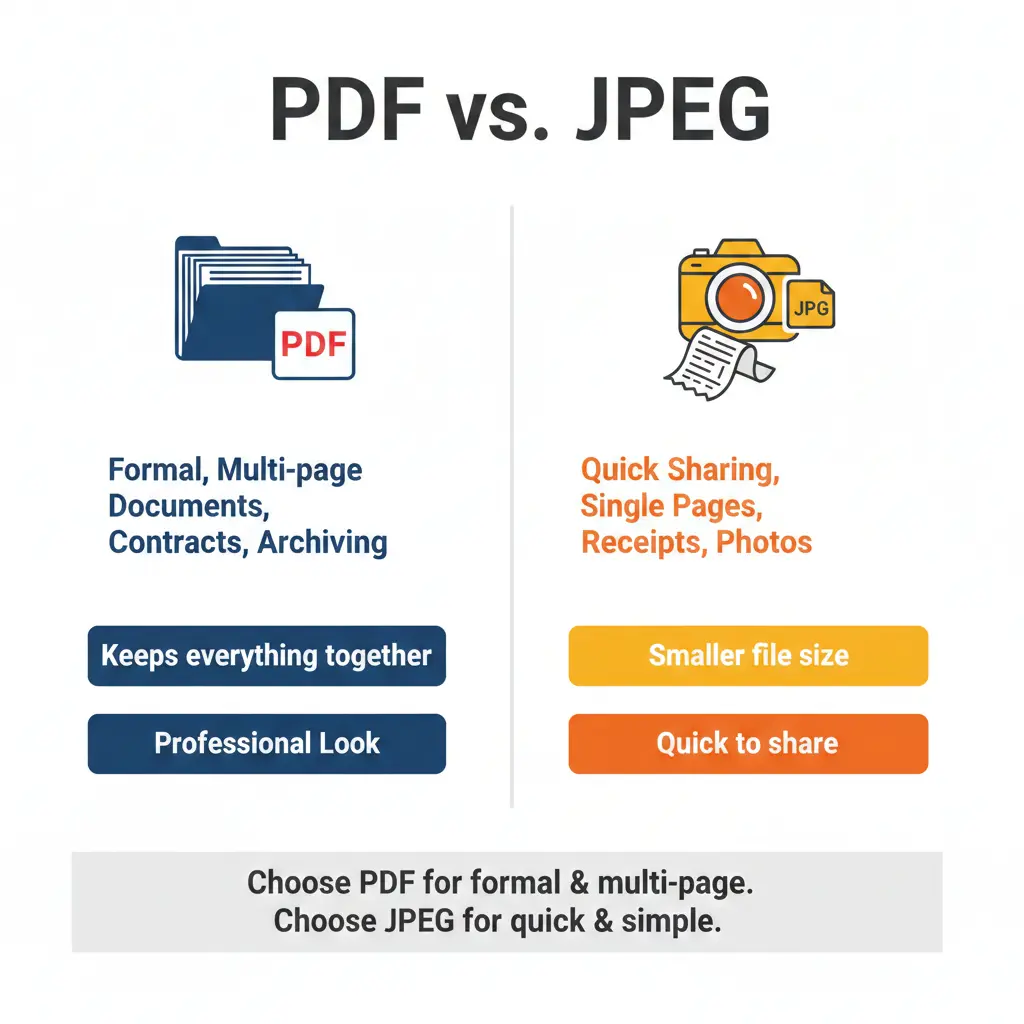
Before we dive into the comparison, let us understand what each format does best:
- PDF (Portable Document Format): Designed for documents. Preserves layout, fonts, and can hold multiple pages in one file. It is the standard for business, legal, and formal documents.
- JPEG (Joint Photographic Experts Group): Designed for images. Creates smaller files by using compression. Each page saves as a separate file. Best for photos and simple single-page documents.
Is it better to save a scan as PDF or JPEG?
For most documents, PDF is better. Here is why:
- Multi-page support 📌 PDF keeps a 10-page contract in one file. JPEG would create 10 separate files—messy and easy to lose.
- Professional appearance 📌 PDF looks like a real document. JPEG looks like a photo of a document.
- Text recognition 📌 PDF works seamlessly with OCR (Optical Character Recognition) to make text searchable.
- Compression options 📌 PDF lets you balance quality and file size intelligently.
When JPEG wins: If you are scanning a single receipt, a photo, or something you want to quickly text to someone, JPEG is fine. It creates small files that open instantly on any device.
Simple rule: Multi-page = PDF. Single page = either works, but PDF is more professional.
Which format is best for scanning documents?
PDF is the best format for scanning documents. It was literally created for this purpose. Here is why PDF dominates document scanning:
For a deeper dive into this topic, read our comprehensive guide on which document scanning format is best.
What is the best format to scan a photo?
For scanning photos, JPEG is usually the best choice. Here is why:
- JPEG is designed for photographs. It handles continuous tones and color gradations beautifully.
- At high quality settings (90-100%), JPEG is visually identical to the original.
- File sizes are manageable—a high-quality photo scan might be 2-5 MB, compared to 20-50 MB for TIFF.
- JPEG is universal. Every device, every app, every website accepts JPEG.
For archival quality: If you are preserving precious family photos for future generations, consider TIFF instead. TIFF is lossless and will preserve every detail forever. But for everyday use and sharing, JPEG is perfect.
For more details, see our guide on the best file type for scanning photos for high quality.
For more details, see our guide on the best file type for scanning photos for high quality.
Does JPG to PDF lose quality?
No, converting a JPG to PDF does not lose quality. PDF can embed the original JPG image exactly as it is. The conversion simply places the image inside a PDF container.
However, there is one exception: If your PDF software recompresses the images during conversion, quality can be reduced. Always choose settings that preserve the original image quality. Most good converters, including best free image converter online no signup tools, let you control this.
When you convert JPG to PDF, you are essentially putting a photo into a document envelope. The photo inside stays exactly the same.
However, there is one exception: If your PDF software recompresses the images during conversion, quality can be reduced. Always choose settings that preserve the original image quality. Most good converters, including best free image converter online no signup tools, let you control this.
When you convert JPG to PDF, you are essentially putting a photo into a document envelope. The photo inside stays exactly the same.
JPEG vs PDF | Detailed comparison for common tasks
For emailing documents
PDF is better for email. A single PDF attachment is cleaner and more professional than multiple JPEGs. Email recipients can open PDFs on any device, and the document looks exactly as you intended.
If you have a multi-page document, PDF is the only sensible choice. Sending 10 separate JPEGs is confusing and unprofessional.
If you have a multi-page document, PDF is the only sensible choice. Sending 10 separate JPEGs is confusing and unprofessional.
For printing
Both work, but PDF is preferred for documents. PDF preserves layout, margins, and page size perfectly. JPEG prints fine but may not have the correct page dimensions.
For photos, JPEG is excellent for printing. Just make sure you scan at 300 DPI for good print quality.
For photos, JPEG is excellent for printing. Just make sure you scan at 300 DPI for good print quality.
For archiving
For long-term document archiving, use PDF/A—a special version of PDF designed for preservation. It embeds all fonts and ensures the file looks the same decades from now.
For photo archiving, use TIFF or high-quality JPEG. PDF is less common for photo archives.
For photo archiving, use TIFF or high-quality JPEG. PDF is less common for photo archives.
For text recognition (OCR)
PDF is the standard for OCR. You can scan a document to PDF, run OCR, and get a searchable, selectable text file. JPEG can be used with OCR, but PDF workflows are smoother and more reliable.
When should you scan to JPEG?
JPEG is the right choice in these situations:
- Single-page documents only: Receipts, notes, business cards.
- Photos: JPEG is made for photos.
- Quick sharing via text or social media: JPEG files are small and universally accepted.
- When file size is the top priority: JPEG compresses more aggressively than PDF.
- When you need to edit the image later: JPEG is easier to edit in photo software.
When should you scan to PDF?
PDF is the better choice for:
- Multi-page documents: Contracts, reports, articles, books.
- Business and legal use: PDF is the professional standard.
- Emailing documents: One file, professional appearance.
- Archiving: PDF/A is designed for long-term preservation.
- OCR and searchable text: PDF works seamlessly with text recognition.
- Printing: PDF preserves exact layout and page size.
Recommended scanner settings by use case
How to choose - A simple decision flow
Ask yourself these questions:
- Does my document have multiple pages? 📌 Yes → Use PDF. No → Go to next question.
- Is this a formal or business document? 📌 Yes → Use PDF. No → Go to next question.
- Is this a photo? 📌 Yes → Use JPEG (or TIFF for archiving). No → Go to next question.
- Do I need to email this to someone? 📌 Yes → PDF is more professional and easier. No → Either works.
The safe choice: When in doubt, choose PDF. It handles everything well and looks professional.
Common scanning mistakes to avoid
Avoid these common errors when deciding between JPEG and PDF:
- Scanning a multi-page document as separate JPEGs: This creates a mess. Use PDF to keep everything together.
- Using JPEG for formal documents: A contract sent as a JPEG looks amateurish. Use PDF.
- Not checking file size before emailing: Large files get rejected. Compress your PDF or JPEG appropriately.
- Forgetting OCR: If you might need to search the text later, scan to PDF and run OCR.
- Using the wrong resolution: 150 DPI is fine for email, but too low for printing. 300 DPI is the safe standard.
How to convert between JPEG and PDF
Sometimes you scan in one format and later need the other. For example, you might have a JPEG receipt but need to send it as PDF. Or you might have a PDF and need just one page as JPEG.
Converting is easy with the right tool. Use a best free image converter online no signup to:
Converting is easy with the right tool. Use a best free image converter online no signup to:
- Convert JPEG to PDF (combine multiple JPEGs into one PDF)
- Convert PDF to JPEG (extract pages as images)
- Adjust quality and compression settings
Always keep your original scan. Convert copies as needed.
Real-world examples - When to use each format
Example 1: Scanning a 5-page contract
Choose PDF. A contract is formal and multi-page. Sending five separate JPEGs would be confusing and unprofessional. PDF keeps everything in one file, looks official, and can be digitally signed.
Example 2: Scanning a restaurant receipt for expense report
Either works, but PDF is safer. A single receipt can be JPEG, but many expense systems prefer PDF. If you need to submit multiple receipts, combine them into one PDF.
Example 3: Scanning old family photos
Use JPEG at high quality. For most family photos, high-quality JPEG is perfect. If these are irreplaceable heirlooms, consider TIFF for archival and JPEG for sharing.
Example 4: Scanning a magazine article to read later
Use PDF. PDF preserves the layout with columns and images. You can also run OCR to make the text searchable.
Example 5: Scanning a business card
JPEG is fine. It is a single image. But some contact management apps prefer PDF. Either works.
The verdict - Should I scan documents as JPEG or PDF?
For most document scanning, PDF is the better choice. It handles multi-page files, looks professional, supports text search, and is the standard for business and legal use.
Use JPEG for:
Use JPEG for:
- Single-page documents where file size is critical
- Photos and images
- Quick sharing via text or social media
- When you need to edit the image later
- Multi-page documents
- Formal and business documents
- Email attachments
- Archiving
- OCR and searchable text
- Printing with exact layout
Final tip: When in doubt, choose PDF. It works for everything and looks professional. For photos and quick single-page scans, JPEG is perfectly fine.
Summary: PDF is the best format for most document scanning, especially multi-page and formal documents. JPEG works well for photos and single-page scans. Consider your goal: archiving, emailing, printing, or quick sharing. For email, use compressed PDF. For photos, use high-quality JPEG. For more detailed advice, read our guides on which document scanning format is best and the best format to scan documents for email.