Which Document Scanning Format Is Best? The Complete Guide
The short answer: There is no single best format. The right choice depends entirely on what you plan to do with the scanned document. For archiving, you want a format that preserves every detail. For email, you need a small file size. For printing, you need high resolution and accurate colors.
This guide compares the most common scan formats—PDF, JPEG, and PNG—across quality, file size, and real-world use. You will learn exactly which format to choose for archiving, emailing, printing, and everyday document management. By the end, you will never wonder which document scanning format is best for your specific needs.
This guide compares the most common scan formats—PDF, JPEG, and PNG—across quality, file size, and real-world use. You will learn exactly which format to choose for archiving, emailing, printing, and everyday document management. By the end, you will never wonder which document scanning format is best for your specific needs.
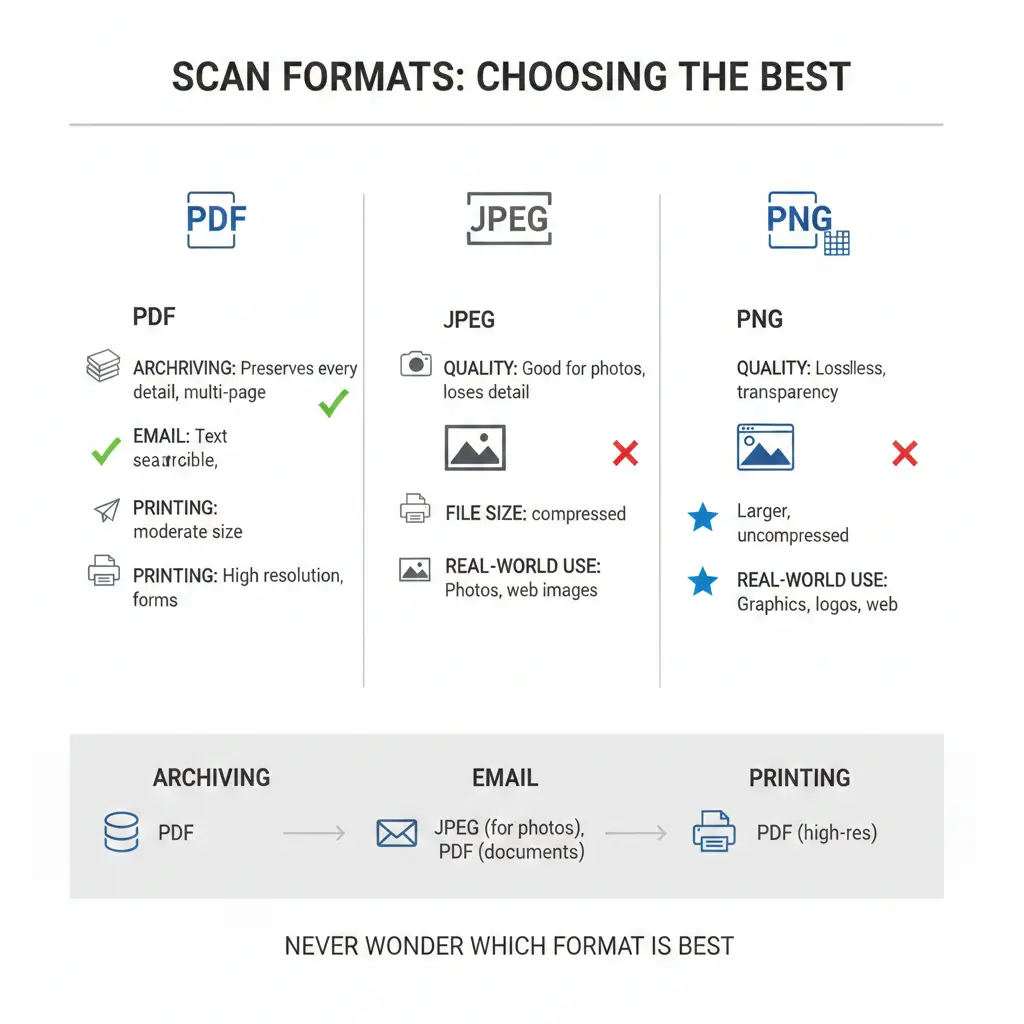
Before we dive into the details, let us look at the three main contenders:
- PDF (Portable Document Format): The universal standard for documents. Preserves layout, supports multiple pages, and can contain both text and images.
- JPEG (Joint Photographic Experts Group): A compressed image format. Produces small files but loses some quality. Best for photos and simple documents.
- PNG (Portable Network Graphics): A lossless image format. Preserves every pixel perfectly but creates larger files. Best for documents with text or sharp lines.
Which format is best for scanning documents?
The best format for scanning documents is PDF. Here is why:
- Multi-page support — PDF can contain dozens of pages in one file. JPEG and PNG are single-page formats.
- Universal compatibility — Every computer, phone, and tablet opens PDFs. No special software needed.
- Searchable text — When combined with OCR (Optical Character Recognition), PDFs become searchable.
- Compression options — PDF lets you choose between small file sizes (for email) and high quality (for archiving).
PDF is the Swiss Army knife of document formats. It handles everything from a simple receipt to a 500-page legal contract.
Is PDF or JPG better for scanning?
For most document scanning, PDF is better than JPG. PDF preserves the document as a complete file with multiple pages. JPG saves each page as a separate image, which becomes messy with multi-page documents.
When JPG makes sense: If you are scanning a single photo, a quick note, or something that does not need to be a formal document, JPG is fine. It creates small files that are easy to share.
When PDF wins: For contracts, receipts, books, or any multi-page document, PDF is the professional choice. It keeps everything together and looks the same on any device.
When JPG makes sense: If you are scanning a single photo, a quick note, or something that does not need to be a formal document, JPG is fine. It creates small files that are easy to share.
When PDF wins: For contracts, receipts, books, or any multi-page document, PDF is the professional choice. It keeps everything together and looks the same on any device.
Quick answer: Use PDF for documents. Use JPG for photos and single images.
Is it better to scan as JPEG or PNG?
For documents with text, PNG is better than JPEG. PNG uses lossless compression, which means text stays sharp and crisp. JPEG can introduce blurring around letters, making small text harder to read.
File size trade-off: PNG files are larger than JPEGs. A scanned letter as PNG might be 2–3 MB, while the same scan as JPEG could be 300–500 KB. If storage space is tight and the text is large enough, JPEG can work.
Best practice: Scan important documents as PNG for archival quality. Use JPEG for casual scans where file size matters more than perfect clarity.
File size trade-off: PNG files are larger than JPEGs. A scanned letter as PNG might be 2–3 MB, while the same scan as JPEG could be 300–500 KB. If storage space is tight and the text is large enough, JPEG can work.
Best practice: Scan important documents as PNG for archival quality. Use JPEG for casual scans where file size matters more than perfect clarity.
Best format to scan documents for email
The best format for emailing scanned documents is PDF. Here is why PDF dominates email:
- Email attachments have size limits (usually 10–25 MB). PDF offers excellent compression, keeping files small.
- PDF combines multiple pages into one attachment. No one wants to download ten separate JPEGs.
- PDF looks the same on every device. What you see is what they get.
Settings for email: When scanning for email, choose PDF with moderate compression. Aim for a file size under 5 MB for most documents. If you are scanning a photo-heavy document, you might need to reduce resolution to 150 DPI. For a detailed guide, read best format to scan documents for email.
Should I scan documents as JPEG or PDF?
This is one of the most common questions. Here is the simple rule:
| Scenario | Choose PDF | Choose JPEG |
|---|---|---|
| Multi-page document | ✅ PDF keeps all pages together | ❌ JPEG creates separate files |
| Formal/business use | ✅ PDF is professional | ❌ JPEG looks casual |
| Photo scanning | ❌ Overkill | ✅ JPEG is perfect |
| Email attachment | ✅ Preferred format | ⚠️ Works but multiple files |
| Archiving | ✅ PDF/A is archival standard | ❌ Not suitable |
For a deeper dive into this specific question, see should I scan documents as JPEG or PDF.
Best file type for scanning documents
The best file type depends on your goal. Here is a quick reference:
- For archiving: PDF/A (a special version of PDF designed for long-term preservation).
- For printing: PDF at 300 DPI or TIFF for highest quality.
- For email: PDF with compression or JPEG for single pages.
- For OCR (text recognition): PDF or TIFF at 300 DPI.
- For sharing photos: JPEG.
- For text-heavy documents: PNG or PDF.
Scan formats comparison table
Understanding DPI for scanning
DPI (dots per inch) determines the resolution of your scan. Higher DPI means more detail, but also larger files.
- 150 DPI: Good for drafts and emails. Text is readable but not crisp. File size is small.
- 300 DPI: The standard for most documents. Good quality for printing and OCR. Balanced file size.
- 600 DPI: High quality for small text, detailed graphics, or archiving. Files are large.
- 1200 DPI+: For professional photography or film scanning. Overkill for most documents.
Recommendation: For regular document scanning, use 300 DPI. It gives you excellent quality without wasting storage space.
Best format for archiving documents
For long-term archiving, choose PDF/A or TIFF.
- PDF/A: A specialized version of PDF designed for preservation. It embeds all fonts, prohibits encryption, and ensures the file looks the same in 50 years. Many government and legal institutions require PDF/A.
- TIFF: A lossless format widely used in libraries and museums. TIFF files are large but preserve every detail. They can also store multiple pages.
If you are archiving personal documents, high-quality PDF at 300 DPI is sufficient. For professional or legal archiving, use PDF/A.
Best format for printing scanned documents
For printing, you need high resolution and accurate colors. PDF at 300 DPI is the best choice. It preserves the layout and looks professional.
JPEG can also work for printing photos, but it loses quality with compression. PNG is excellent for text and graphics but creates larger files.
Pro tip: When printing, save your scan as PDF with these settings:
JPEG can also work for printing photos, but it loses quality with compression. PNG is excellent for text and graphics but creates larger files.
Pro tip: When printing, save your scan as PDF with these settings:
- Resolution: 300 DPI
- Color: RGB for home printing, CMYK for professional print shops
- Compression: Minimal or lossless
Best format for OCR (text recognition)
OCR software converts scanned images into searchable and editable text. For best results:
- Use 300 DPI resolution. Lower resolutions miss fine details; higher resolutions slow down processing without improving accuracy.
- Use TIFF or PDF. These formats preserve the image cleanly and are widely supported by OCR software.
- Avoid JPEG. Compression artifacts can confuse OCR, leading to errors.
If you plan to OCR your documents, scan as PDF at 300 DPI in black and white or grayscale. Color is usually unnecessary for text recognition.
Important note: Always keep a master copy of your scans in a lossless format (PDF or TIFF) before running OCR. If the OCR software makes mistakes, you have the original to fall back on.
Color vs. Black & White vs. Grayscale
Your choice of color mode affects file size significantly:
- Black & White (1-bit): Smallest file size. Best for text-only documents with no images.
- Grayscale (8-bit): Medium file size. Good for documents with black-and-white photos or illustrations.
- Color (24-bit): Largest file size. Use only when color is important, such as for magazines, brochures, or artwork.
For most business documents, black and white or grayscale is sufficient and saves storage space.
How to convert scanned documents between formats
Sometimes you scan in one format and later need another. For example, you might have a TIFF archive but need a PDF for email. Converting is easy with the right tool.
Use a best free image converter online no signup to change formats quickly. You can convert:
Use a best free image converter online no signup to change formats quickly. You can convert:
- TIFF to PDF for sharing
- PNG to JPEG for smaller file size
- PDF to JPEG for extracting single pages
- Multiple images into one PDF
Always keep your original scan. Convert copies as needed.
Practical guide: Which format for which document
| Document Type | Recommended Settings | Notes |
|---|---|---|
| Text-only letter | PDF • 300 DPI • Black & White | Best clarity for text and printing |
| Receipt | PDF or JPEG • 200–300 DPI • Color | Balance between size and clarity |
| Photo | JPEG • 300 DPI • Color | Optimized for image detail |
| Book page | PDF or TIFF • 300 DPI • Grayscale | Better for archiving text pages |
| Magazine / Article | PDF • 300 DPI • Color | Maintains layout and graphics |
| Legal document | PDF/A • 300 DPI • Black & White | Archival standard format |
| For email | Compressed PDF • 150–200 DPI • As needed | Reduces attachment size |
Common scanning mistakes to avoid
Even with the right format, mistakes can ruin your scans. Avoid these common errors:
- Scanning at too low resolution 📌 150 DPI might look fine on screen but becomes pixelated when printed. Stick to 300 DPI for important documents.
- Using JPEG for text 📌 JPEG artifacts make small text harder to read. Use PDF or PNG instead.
- Ignoring color mode 📌 Scanning a black-and-white document in color triples the file size. Use the appropriate mode.
- Not checking the scan 📌 Always preview before saving. Look for crooked pages, shadows, or smudges.
- Forgetting to name files properly 📌 "Scan001.pdf" is not helpful. Use descriptive names like "Passport_2025.pdf".
The verdict: Which document scanning format is best?
For most purposes, PDF is the best format for scanning documents. It handles multiple pages, compresses well, looks professional, and works everywhere.
Use JPEG for photos and quick single-page scans where file size matters more than perfect quality.
Use PNG for text-heavy documents when you need perfect clarity and file size is not a concern.
Use TIFF for professional archiving when you need lossless quality and multi-page support.
The right format depends on your goal. Now you have the knowledge to choose wisely every time.
Use JPEG for photos and quick single-page scans where file size matters more than perfect quality.
Use PNG for text-heavy documents when you need perfect clarity and file size is not a concern.
Use TIFF for professional archiving when you need lossless quality and multi-page support.
The right format depends on your goal. Now you have the knowledge to choose wisely every time.
Summary: PDF is the most versatile format for document scanning, ideal for multi-page files, email, and archiving. JPEG works for photos and casual scans. PNG excels for text documents. Choose 300 DPI for most scans, and adjust color mode based on your document. Keep masters in lossless formats, and convert copies as needed.
Convert Your Images Effortlessly
Image Converter 24 empowers you to handle TIFF, PNG, JPG, WebP and more in seconds. No downloads, no limits — just fast, reliable, and browser-based image conversion for professionals and creatives alike.
Try Image Converter 24