PNG Advantages and Disadvantages: The Complete Pros and Cons Guide
Quick answer: PNG's main advantages are lossless quality, full transparency, sharp text and universal support. Its main disadvantages (limitations, drawbacks, negatives) are large file sizes for photos and no CMYK support for professional printing.
What is PNG used for? Logos, icons, screenshots, UI assets, charts and any image that needs a transparent background.
You see PNG files everywhere: website logos, screenshots, app icons and sharp graphics. But is PNG always the right choice? No. PNG has clear strengths and real weaknesses. This guide covers the PNG advantages and disadvantages, what PNG is used for, and when another format serves you better.
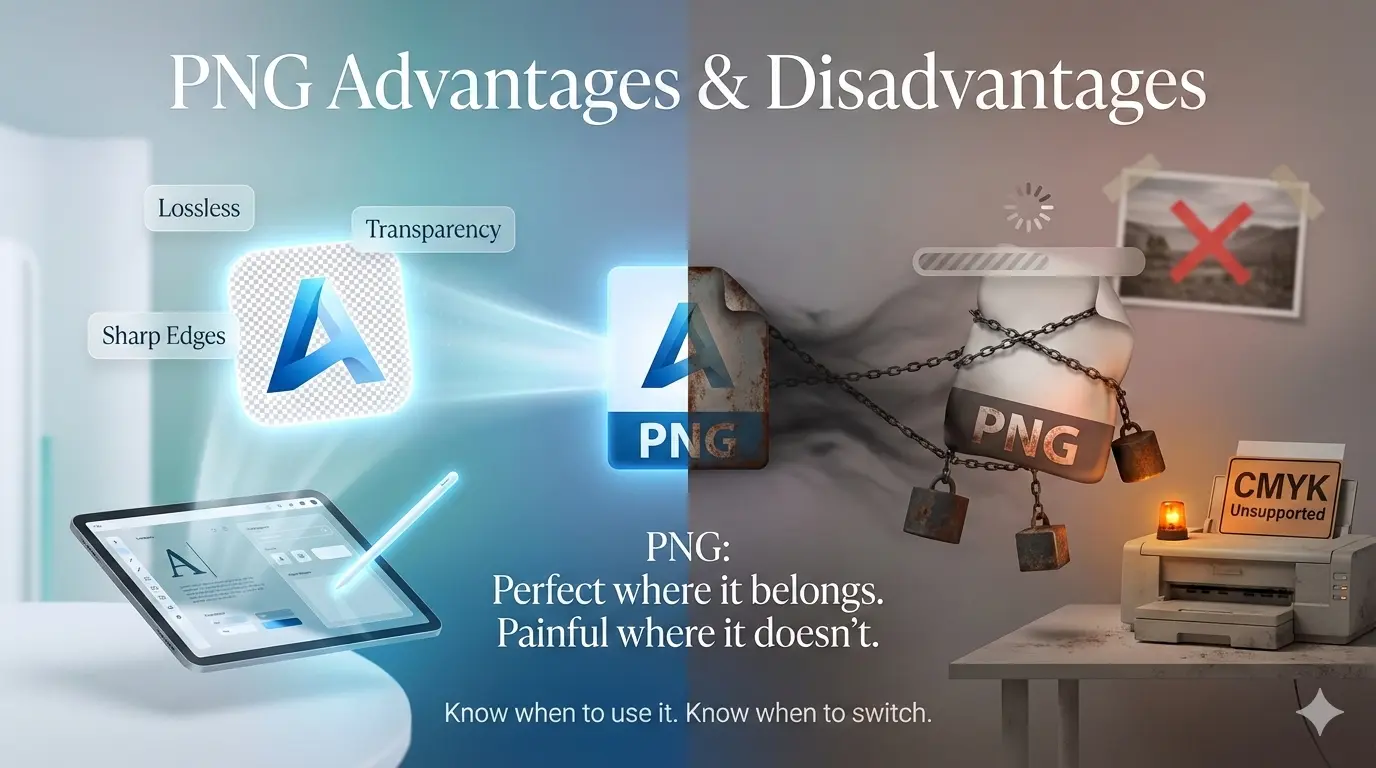
PNG was created in 1996 to replace GIF. It is lossless, supports millions of colors, and handles transparency better than any format before it. The web has changed since then: newer formats like WebP offer similar quality with much smaller files. Knowing PNG's strengths and weaknesses helps you use it where it belongs and avoid it where it hurts performance.
PNG Pros and Cons at a Glance: Strengths and Weaknesses
| Category | Advantages (strengths) | Disadvantages (weaknesses) |
|---|---|---|
| Image quality | ✔ Lossless, pixel-perfect, no artifacts | ✖ Overkill for photos; looks similar to high-quality JPEG |
| File size | ✔ Efficient for graphics with solid colors | ✖ Much larger than JPEG and WebP for photos and complex images |
| Transparency | ✔ Full 8-bit alpha channel, smooth edges | ✖ Some very old email clients and software display it poorly |
| Color support | ✔ 24-bit RGB, grayscale, indexed color, up to 16 bits per channel (48-bit RGB) | ✖ No CMYK |
| Compatibility | ✔ Opens in every browser, OS and image viewer | — No significant drawbacks |
| Animation | ✔ APNG extension exists | ✖ Standard PNG has no animation |
Disadvantages of Using PNG Files
The main limitations, drawbacks and negatives of PNG are large file size on photos, no CMYK support, no native animation, and little advantage over WebP for web performance.
1. Large file sizes (PNG's biggest drawback)
PNG's DEFLATE compression works well on images with large areas of solid color, such as screenshots, logos and flat graphics. On photographs, gradients and complex textures, PNG files balloon. A photo saved as PNG is typically several times larger than the same photo as JPEG or WebP at similar visual quality, with no visible gain on screen. On screenshots and flat graphics, the gap is much smaller. This is the main drawback of the PNG file format.
2. Resolution increases file size almost linearly
Because PNG stores every pixel losslessly, doubling an image's resolution roughly doubles its file size. There is no quality setting to soften the increase, so a high-resolution PNG can reach several megabytes even with few colors.
3. No CMYK support
PNG works in RGB. For professional printing, use TIFF or PSD, which support CMYK.
4. No native animation
Standard PNG cannot animate. Use GIF, APNG or animated WebP instead.
5. Poor fit for photographs and email
PNG is lossless, so a photo saved as PNG looks identical to the original but the file can be many times larger than a JPEG. Large files are also a problem for email attachments and page speed.
Advantages of Using PNG: Why Are PNG Files Good?
PNG has stayed relevant for nearly three decades because of these strengths:
- Lossless compression. The image data stays identical every time you save. No quality loss, no artifacts.
- Full transparency. 8-bit alpha channels give smooth, gradual transparency in every browser.
- Sharp edges and text. Unlike JPEG, PNG does not blur fine detail, so logos, icons and screenshots stay crisp.
- Wide compatibility. Every browser, viewer and operating system opens PNG.
- Metadata support. PNG can store text descriptions, creation dates and color profiles.
The transparency advantage: why PNG is still king for logos
Unlike GIF, which offers only on/off transparency, PNG gives 256 levels of transparency per pixel. That means smooth anti-aliased edges on any background, soft shadows and fades, and clean cutouts of complex shapes. WebP also supports alpha channels but needs modern browsers, so PNG remains the safest choice for transparent graphics.
Advantages of PNG over JPG
- Transparency. PNG supports it, JPG does not.
- Lossless quality. Every JPG save loses a little detail. PNG preserves every pixel.
- Sharp lines and text. JPG blurs high-contrast edges. PNG keeps them razor-sharp.
Where JPG wins is file size, especially for photographs.
Photographer's note: Use PNG for photos only when you need a transparent background, such as a cutout of a person or product. For everything else, JPEG or WebP gives nearly identical quality at a fraction of the size.
What Is PNG Used For? (Why PNG Is Used)
PNG uses center on images where sharpness and transparency matter more than file size:
- Logos and brand assets. Transparency lets them sit on any background without a white box.
- Icons and UI elements. Crisp edges at small sizes, which is why PNG is the standard for mobile and desktop app assets.
- Screenshots. Text and interface details stay pixel-perfect.
- Diagrams, charts and illustrations. Flat colors and sharp lines compress well and stay clean.
- Images edited repeatedly. Lossless saves prevent generational quality loss.
- Cutouts and overlays. Watermarks, stickers and product images with transparent backgrounds.
In short, PNG is used because it keeps quality exact and works everywhere. It is not used for photo galleries or large hero images, where file size matters more.
PNG vs JPG, WebP, TIFF and TGA
| Feature | PNG | JPG / JPEG |
|---|---|---|
| Compression | Lossless (DEFLATE) | Lossy (DCT) |
| Transparency | ✔ Yes (alpha channel) | ✖ No |
| Best for | Graphics, logos, screenshots | Photographs |
| File size | Larger | Smaller |
| Quality loss on save | ✔ None | ✖ Yes, each save |
PNG vs WebP: WebP matches PNG's lossless quality and transparency with smaller files, and it also offers lossy compression PNG cannot match. According to Google's WebP documentation, lossless WebP files are about 26% smaller than equivalent PNGs. See the full PNG vs JPG vs WebP quality comparison.
PNG vs TIFF: PNG is better for web and digital use. TIFF is better for print and archiving. Read TIFF vs PNG for printing.
PNG vs TGA: TGA is mainly used in game development and video work. It can store lossless data with an alpha channel, but far fewer browsers and apps open it. PNG is the better choice for the web and general use. TGA makes sense only when a game engine or video tool requires it.
PNG Advantages and Disadvantages in Photoshop
Advantages: PNG preserves layer transparency when you flatten and export, keeps text and vector shapes free of compression artifacts, and supports 16-bit color depth for high-precision work.
Disadvantages: A PNG exported from Photoshop can be several times larger than the same image saved as JPEG, and it cannot hold CMYK data. Files meant for professional printing need TIFF or PSD.
When to Use PNG and When to Choose Another Format
Choose PNG when:
- You need transparency (logos, icons, cutouts). PNG is the safest choice for widest support.
- You are saving screenshots, diagrams or sharp-line graphics.
- You will edit the image multiple times and need lossless saves.
- You are designing app or UI assets.
Choose another format when:
- Photographs: use JPEG or WebP for much smaller files with almost identical quality.
- Fastest possible web pages: use WebP. It is smaller than PNG in nearly every comparison.
- Professional print: use TIFF or PSD for CMYK and 16-bit workflows.
- Animation: use GIF, APNG or animated WebP.
- Email attachments: JPEG is usually smaller and loads faster.
For website owners: if your site uses many PNG images, consider WebP. You can convert an image to WebP without losing quality and serve WebP to modern browsers with a PNG fallback.
How to convert PNG to other formats
- For web use: convert PNG to WebP. Use quality 85 to 90 for lossy, or lossless WebP for perfect quality.
- For photographs: convert PNG to JPEG at quality 85. The file shrinks dramatically with almost no visible change.
- For maximum compatibility: keep the original PNG and generate WebP or JPEG versions for modern browsers.
Use a free online image converter with no signup. For the other side of the story, see JPEG advantages and disadvantages.
Is PNG Still Relevant in 2026?
Yes. PNG remains the most reliable format for graphics that need transparency and lossless quality. WebP has not replaced it because compatibility matters: PNG works on every device, browser and piece of software. For performance-focused websites, though, PNG should no longer be the default. Use it where its strengths matter and use WebP or JPEG everywhere else.
PNG FAQ
What are the disadvantages of using PNG files?
The main disadvantages are large file sizes for photos and complex images, no CMYK support for print, and no native animation.
Why are PNG files good?
They are lossless, support smooth transparency, keep text and logos sharp, and open on every device.
What is PNG used for?
Logos, icons, screenshots, UI assets, charts and any image that needs a transparent background.
Why is PNG used for logos and screenshots?
Lossless compression keeps edges and text crisp, and the alpha channel lets logos sit cleanly on any background.
Is PNG better for digital use?
Yes for graphics, logos, screenshots and UI where transparency and sharpness matter. For photos and speed-focused sites, WebP or JPEG is usually the better digital choice.
Why is PNG bad for photos?
Lossless compression makes photo files several times larger than JPEG or WebP, with no visible quality gain on screen.
The Verdict: PNG Pros and Cons
PNG is irreplaceable for certain jobs. When you need transparency, lossless quality or razor-sharp text, PNG is the tool to reach for.
PNG is inefficient for others. For photographs, large images or anywhere file size matters, modern formats like WebP give the same visual quality in smaller files.
Summary: PNG advantages include lossless quality, full transparency and universal support. Its main limitations, drawbacks and negatives are large file sizes and no CMYK support, which make it inefficient for photographs and professional printing. Use PNG for logos, screenshots and graphics. Use JPEG or WebP for photos and web performance. For more, read should I use WebP images on my website.