8-Bit vs 16-Bit TIFF: Which Should You Use?
8-bit TIFF stores 256 shades per color channel; 16-bit TIFF stores 65,536. Use 16-bit for editing and master files, because it gives more headroom and helps avoid banding after heavy adjustments. Use 8-bit for final delivery, most printing and the web. Uncompressed, a 16-bit TIFF is exactly twice the size of an 8-bit TIFF.
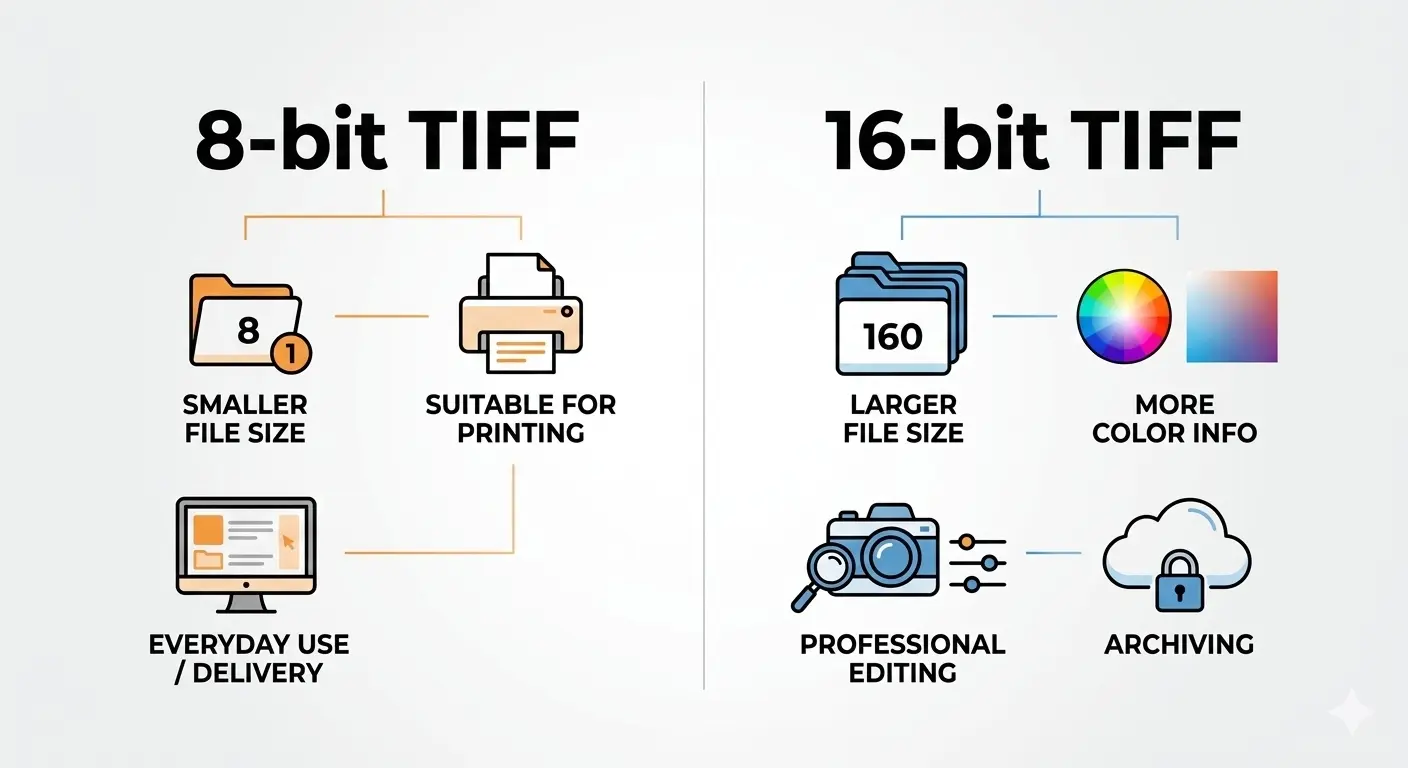
This guide explains the difference between 8-bit and 16-bit TIFF files, shows where the difference is visible, includes a small test you can reproduce, and covers when each depth makes sense for editing, printing, archiving and the web.
8-bit vs 16-bit TIFF at a glance
What do 8-bit and 16-bit mean?
Bit depth is the amount of tonal information stored for each color channel (red, green and blue). 8-bit per channel gives 28 = 256 shades per channel, or about 16.7 million colors in RGB. 16-bit per channel gives 216 = 65,536 shades per channel, or about 281 trillion colors.
Two naming traps to avoid: an RGB image with 8 bits per channel is also called 24-bit color (3 × 8), and 16-bit per channel is 48-bit. And an "8-bit image" can also mean 8-bit indexed color, a palette of only 256 colors in total, as in GIF. That is a different thing from 8-bit per channel.
Is 16-bit better than 8-bit?
For editing, yes. For finished images, usually not visibly. It depends on what you are doing:
- Editing: when you adjust levels, curves or exposure, 16-bit gives you far more headroom, so you can push shadows and highlights without visible banding.
- File size: 16-bit files are twice as large when uncompressed. Compressed sizes vary.
- Compatibility: 8-bit opens everywhere. Some older software handles 16-bit TIFF poorly.
- Final output: most screens display 8 bits per channel, so a well-edited 8-bit image looks the same as a 16-bit one when viewed normally.
The honest truth: for light edits and final delivery, 8-bit is fine. 16-bit matters most for heavy editing and master files.
Does TIFF support 16-bit?
Yes. TIFF supports 8-bit, 16-bit and even 32-bit floating-point images, in RGB, CMYK and grayscale. That flexibility is one reason it is used for professional photography and archiving. For a comparison with another lossless format, read BMP vs TIFF quality.
Where you will actually see the difference
The difference shows up when you push the image during editing:
- Gradients: in an 8-bit sky, a strong contrast boost can turn smooth transitions into visible steps (banding). 16-bit keeps them smooth.
- Shadows: brightening dark areas of an 8-bit file can reveal posterization, because dark tones have few levels to work with. 16-bit has many more.
- Repeated edits: each adjustment rounds values. In 8-bit, rounding errors add up across many steps. In 16-bit they are negligible.
The catch: your final output cannot show all those extra shades. A standard monitor shows 8 bits per channel, and estimates of how many colors people can tell apart are commonly quoted up to around 10 million. The extra data is for editing headroom, not for display. (8-bit can still show banding in very smooth gradients, which is why the editing headroom matters.)
Test it yourself: 8-bit vs 16-bit banding
Here is a small test you can reproduce with ImageMagick. It builds a smooth black-to-white gradient, stretches a narrow slice of it to full range (a deliberately extreme edit), and counts the distinct gray levels left.
# ImageMagick 7 (use "convert" instead of "magick" on version 6)
magick -size 200x4000 gradient:black-white -rotate 90 -depth 16 g16.tif
magick g16.tif -depth 8 g8.tif

# stretch the 30%-50% tonal range to full range
magick g8.tif  -level 30%,50% -depth 8  edit_from_8bit.tif
magick g16.tif -level 30%,50% -depth 16 edit_16bit.tif
magick edit_16bit.tif -depth 8 edit_from_16bit_to_8bit.tif

# count unique gray levels in any file
magick edit_from_8bit.tif -format %k info:
Editing in 8-bit left only 53 distinct steps across the stretched range, which appear as visible bands. Editing in 16-bit and converting to 8-bit at the end kept all 256 levels, so the gradient stays smooth. These numbers come from a synthetic gradient run on ImageMagick 6.9. Real photos contain noise that can hide banding, so expect the effect to be most visible in skies, studio backdrops and other smooth areas after strong edits.
File size: the practical trade-off
Uncompressed size is easy to calculate: width × height × channels × bytes per channel. Going from 8-bit to 16-bit doubles the bytes per channel, so it doubles the file.
- 10-megapixel RGB image: 30 MB at 8-bit, 60 MB at 16-bit
- 24-megapixel RGB image: 72 MB at 8-bit, 144 MB at 16-bit
- 10,000 images of 10 MP, uncompressed: about 300 GB at 8-bit, 600 GB at 16-bit
With LZW or ZIP compression the files get smaller, but the ratio depends on the image and 16-bit files do not always shrink to exactly twice the 8-bit size. Save your own image both ways to see the real numbers.
When to use 16-bit TIFF
- Editing photos with heavy adjustments to exposure, curves or levels.
- Compositing and retouching.
- Saving master copies you may re-edit later.
- Working from high-bit-depth RAW files.
- Working with smooth gradients such as skies and studio backgrounds.
When to use 8-bit TIFF
- Delivering finished images to clients.
- Sending files to most print workflows.
- Archiving images that are fully edited.
- Saving storage space.
- Sharing with people whose software may not handle 16-bit.
The professional workflow: 16-bit for editing, 8-bit for delivery
- Start with RAW. Most cameras capture 12-bit or 14-bit RAW; some medium-format cameras capture 16-bit.
- Edit in 16-bit. In Photoshop, set Image > Mode > 16 Bits/Channel. In Lightroom Classic, choose 16 bits/component when you export TIFF.
- Save a 16-bit master. A 14-bit RAW fits inside a 16-bit TIFF, so nothing is lost.
- Convert to 8-bit for delivery. Use 8-bit TIFF, or JPEG, which is 8-bit per channel, for clients, print and the web.
8-bit or 16-bit for printing?
8-bit is usually sufficient. Many print workflows work with 8-bit data, and a printer cannot reproduce the full tonal precision of 16-bit. Some fine-art inkjet workflows can accept 16-bit files, so if you print for galleries or exhibitions, ask your printer what they prefer.
8-bit or 16-bit for archiving?
For master copies you may re-edit, 16-bit preserves the most information. For files that are already finished, 8-bit saves space with no visible loss. The trade-off is storage: 16-bit doubles it.
Can you convert 8-bit to 16-bit?
Yes, in Photoshop (Image > Mode > 16 Bits/Channel) or with a command such as
magick in.tif -depth 16 out.tif. It does not add new detail. The tonal steps that were not in the 8-bit source stay missing.It can still help before editing. In a second test, an 8-bit gradient went through a strong stretch and then an undo. Edited in 8-bit, it ended with 103 distinct levels. Edited in a 16-bit container, it kept 154, which is every level that survived the clipping. So converting to 16-bit first avoids extra rounding loss from your own edits, but it cannot recover what the source never had.
Can you convert 16-bit to 8-bit?
Yes, and it is normal for final delivery. The extra tonal precision is discarded, so do it last, after all edits. In Photoshop use Image > Mode > 8 Bits/Channel; some editors also offer dithering options when reducing depth, so check yours. With ImageMagick:
magick master16.tif -depth 8 delivery8.tif
To check a file's bit depth:
magick identify image.tif
exiftool -BitsPerSample image.tif
Common mistakes with 8-bit and 16-bit
- Editing everything in 8-bit to save space. Heavy edits can cause banding.
- Delivering 16-bit to clients who do not need it. Bigger files, and possible compatibility problems.
- Assuming 16-bit always looks better. On a normal screen or print, a well-processed 8-bit image looks the same.
- Converting 8-bit to 16-bit and expecting more detail. It only helps prevent additional loss during edits.
- Converting to 8-bit too early. Do it as the very last step.
Related guides
Common questions about 8-bit vs 16-bit TIFF
What is the difference between 8-bit and 16-bit?
8-bit stores 256 shades per channel and 16-bit stores 65,536. 16-bit gives more editing headroom; 8-bit gives smaller files.
Which should I use day to day?
For everyday use and final delivery, 8-bit. Use 16-bit for heavy editing and master files.
Does 8-bit or 16-bit matter for printing?
Usually not. Most print workflows are 8-bit, so 8-bit TIFF is enough for the vast majority of jobs. For fine-art printing, ask your printer.
Can the human eye see 16-bit color?
Not the full range. Estimates of distinguishable colors vary, commonly up to around 10 million, and screens show 8 bits per channel. 16-bit is about editing headroom, not visible quality.
Do I need 16-bit for web images?
No. Screens and browsers show 8 bits per channel, so 16-bit only adds file size. Also note that most browsers cannot display TIFF at all; only Safari does.
Does PNG support 16-bit?
Yes, the PNG format allows 16 bits per channel, but many apps and browsers reduce it to 8-bit. TIFF is more common for 16-bit workflows.
Is JPEG 8-bit or 16-bit?
Standard JPEG files are 8 bits per channel. That is why you convert a 16-bit master to 8-bit before exporting a JPEG.
Is 16-bit always better for editing?
For significant adjustments, yes. For minor edits such as cropping or slight color correction, 8-bit is usually fine.
Does TIFF support 16-bit grayscale?
Yes. 16-bit grayscale TIFF is useful for high-quality black-and-white work and scientific images.
The verdict: 8-bit vs 16-bit TIFF
16-bit TIFF is for editing and masters. It gives you room to push the image without banding, at twice the uncompressed size. 8-bit TIFF is for delivery and everyday use: smaller, more compatible and visually identical on a normal screen or print. The smart workflow is to edit in 16-bit, save a 16-bit master, and deliver in 8-bit.
Need to convert between formats? Use the free converter at Image Converter 24.
Summary: 8-bit TIFF stores 256 shades per channel and is right for final delivery, most printing and the web. 16-bit TIFF stores 65,536 shades per channel and is right for editing and master files, where it prevents banding after heavy adjustments. 16-bit doubles the uncompressed file size. Edit in 16-bit, convert to 8-bit last.