How to Convert Any Image to 9:16 (Free, Fast, No Login)
The fastest way to convert any image to a 9:16 aspect ratio is to use a dedicated online converter tool. Upload your image, select the 9:16 crop or resize option, and download the result — it takes less than a minute and requires no software installation or account creation.
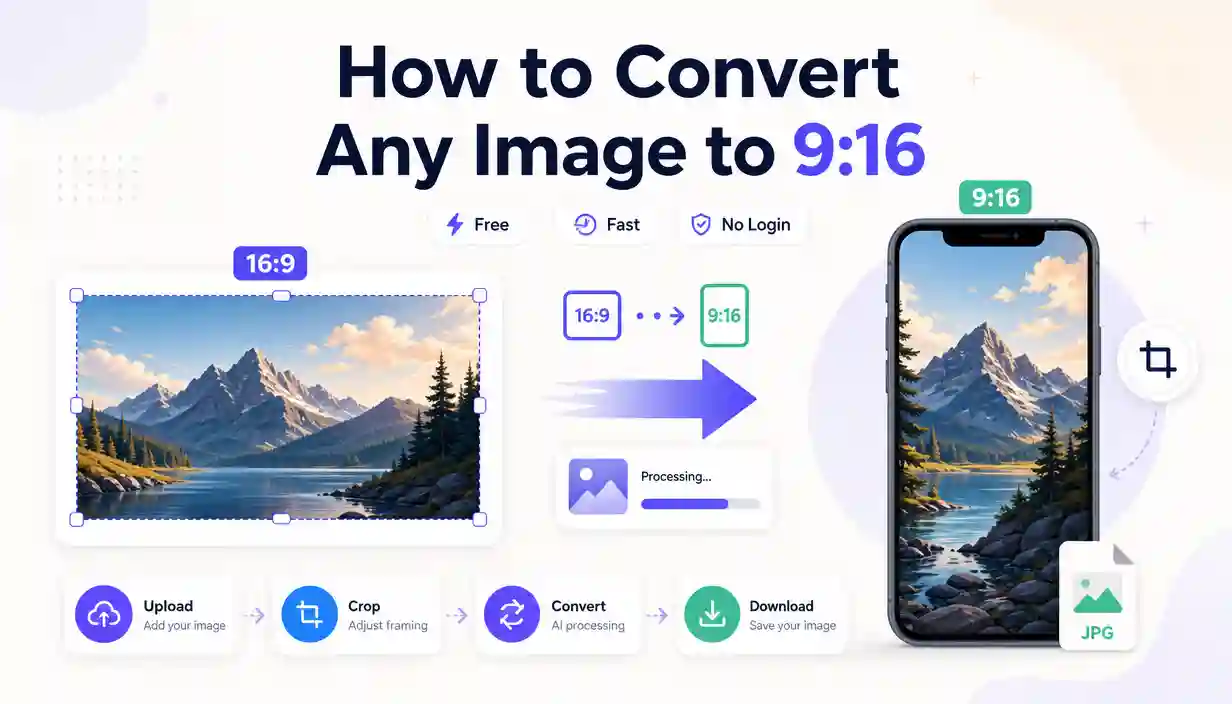
This guide covers everything you need to know about converting images to the vertical 9:16 format, from the simplest no-login online tools to step-by-step instructions for professional software like Premiere Pro and Photoshop. Whether you're preparing content for TikTok, Instagram Stories, YouTube Shorts, or any other vertical platform, you'll find the solution that fits your skill level and needs.
The 9:16 aspect ratio has become the standard for mobile-first content. It's the format that fills a smartphone screen completely, creating an immersive, full-screen viewing experience that keeps viewers engaged. Converting your existing horizontal images and videos to this vertical format can be a challenge, but with the right approach, it's straightforward and doesn't require expensive software.
What Is the 9:16 Aspect Ratio and Why Does It Matter?
The 9:16 aspect ratio is a vertical rectangle where the width is 9 units and the height is 16 units. It's essentially the reverse of the standard 16:9 widescreen format. This ratio perfectly matches the orientation of most modern smartphones when held vertically, making it the ideal format for mobile-optimized visual content.
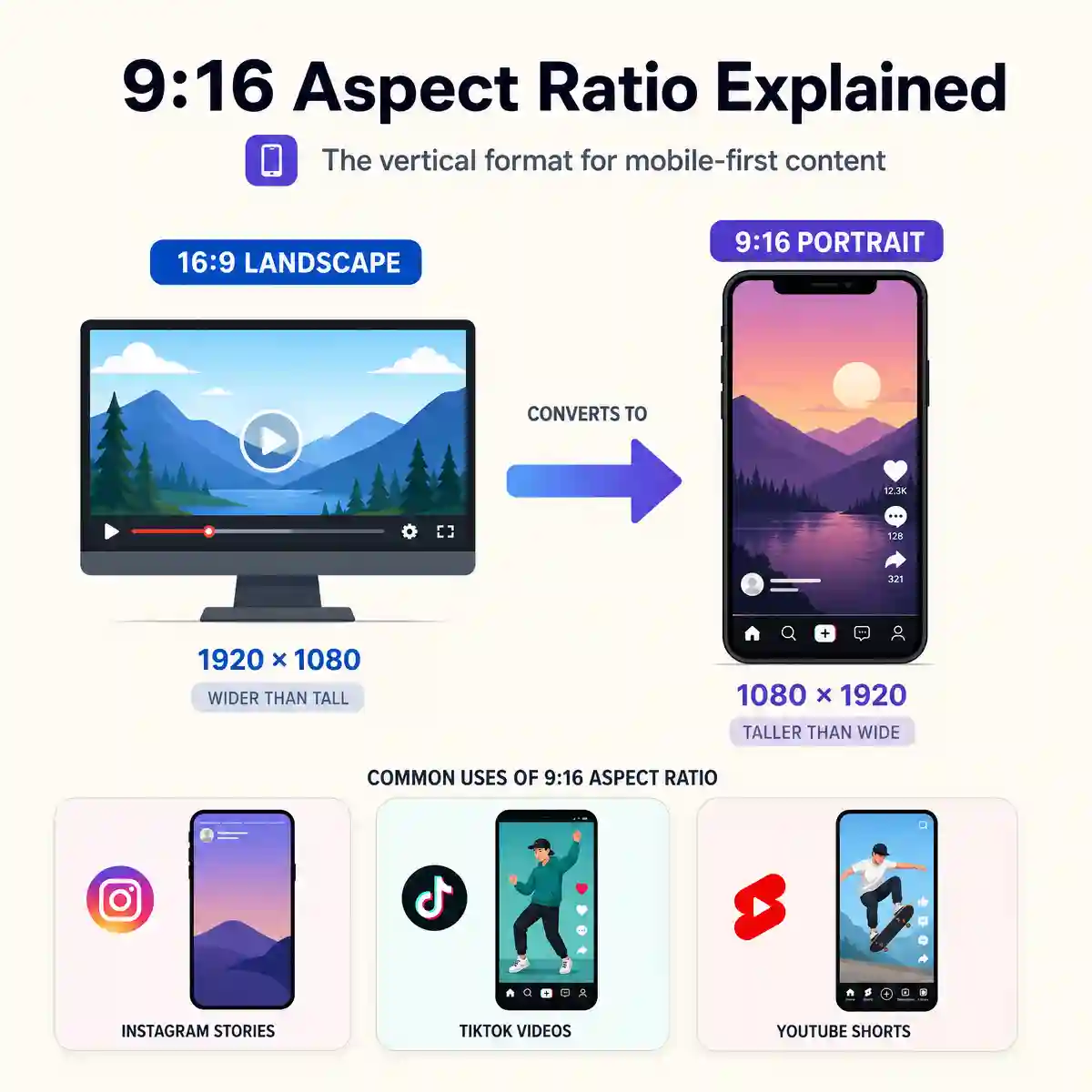
You see 9:16 content daily across platforms like Instagram Stories, TikTok videos, YouTube Shorts, and Snapchat. It's also used for digital signage, mobile advertising, and any visual content designed for portrait-mode consumption. Converting your existing images to 9:16 allows you to repurpose content for these high-engagement platforms without losing quality or cropping out important elements.
Note: Converting a horizontal image to vertical orientation usually requires one of three approaches — cropping the image to fit the new frame, adding blurred or solid-color background bars to fill the empty space, or using AI-powered tools to intelligently expand the image beyond its original borders. The best method depends on your image and how much of the original composition you want to preserve.
How to Convert Any Image to 9:16 Using the Best Free Online Tool
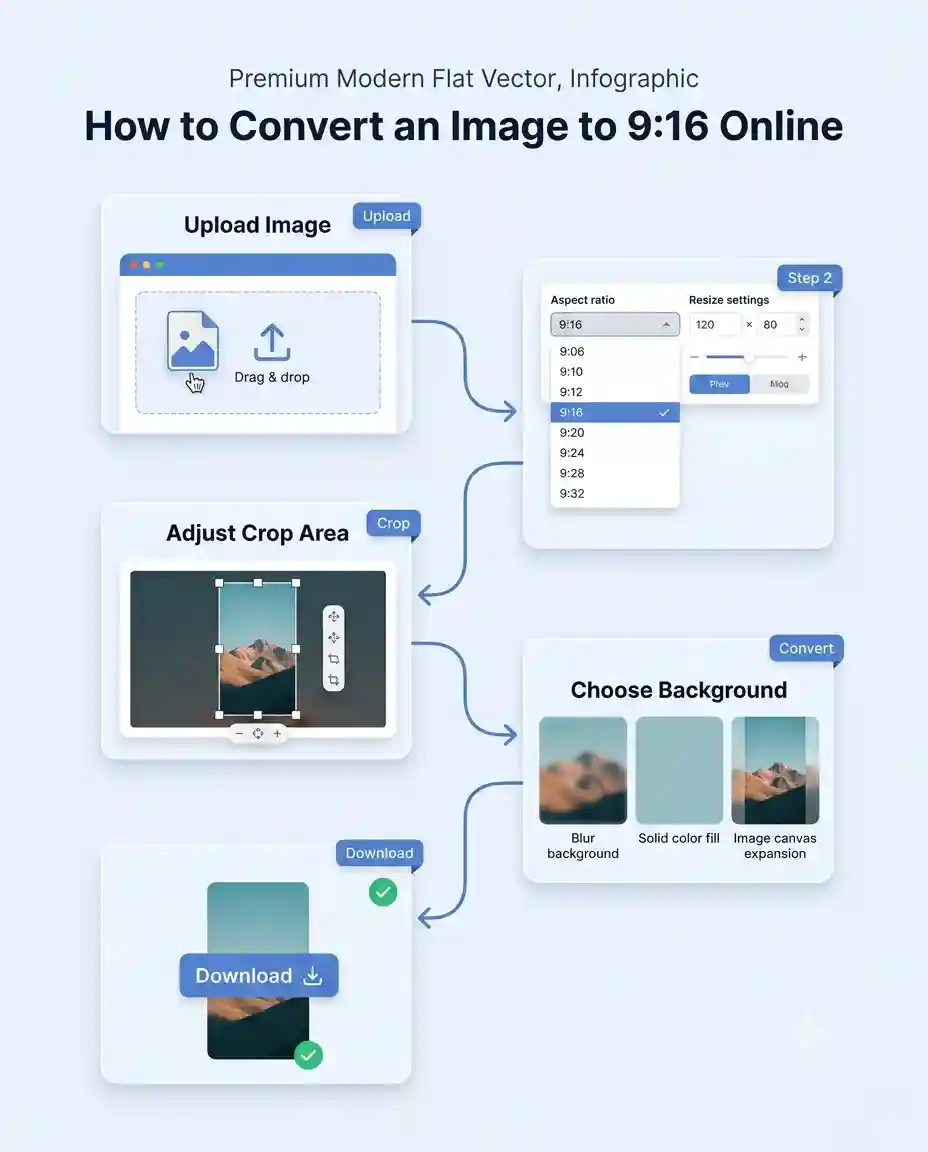
After testing a variety of methods and tools, the most direct and effective way to convert images to 9:16 is using a browser-based image converter. These tools handle the entire process without downloads, accounts, or complicated settings. For this guide, we'll walk through the process using convert image to 9:16, a free online tool that delivers high-quality results in seconds.
This tool is specifically built to address the 9:16 conversion challenge. It provides a clean, intuitive interface that works on any device with a browser. Here's exactly how a real session with this tool plays out:
- Open the tool in your browser: Navigate to the convert image to 9:16 page. The interface loads immediately with a large upload area in the center of the screen, which clearly states "Drop your image here or click to browse."
- Upload your image: Click the upload area and select the image you want to convert from your device. Supported formats include JPG, PNG, WebP, and BMP. The upload is almost instantaneous for images under 10 MB — you'll see a thumbnail preview of your uploaded image appear within the interface, confirming the file is ready for processing.
- Select the 9:16 conversion option: The tool automatically applies a 9:16 crop or resize depending on your settings. A crop box appears over your image preview, showing you exactly what will be retained in the final output. You can click and drag the crop box to adjust the composition — this is where you decide which part of your image makes the cut. The preview updates in real-time as you make adjustments, with the final aspect ratio dimensions displayed clearly.
- Choose your background option (if available): For images that don't naturally fill a 9:16 frame, the tool offers background options. You can select a solid color, a blurred version of your image (which creates a stylish "canvas" effect), or a custom color that complements your photo. This feature is particularly valuable when you don't want to crop aggressively and prefer to preserve the full original image within the new frame.
- Preview and download: Once you're satisfied with the composition, click the "Convert" or "Download" button. The tool generates your 9:16 image in a matter of seconds. A download link appears, and you can also choose to save the image in different quality settings. The final output is crisp, with minimal compression artifacts even when upscaling.
Why this tool stands out: Unlike generic image resizers, this dedicated 9:16 converter is optimized for vertical formats. It preserves image quality effectively through intelligent resizing algorithms, and the real-time preview lets you control exactly how your final image will look. For social media content where visual quality directly impacts engagement, this level of control matters.
Limitation to keep in mind: The tool works with images up to 20 MB in file size. For extremely large, high-resolution files (such as professional RAW images or massive TIFF files), you may need to compress or downsample the file before conversion. Additionally, while the tool supports batch processing in its advanced settings, the free version processes one image at a time for optimal quality control.
Troubleshooting: Uploaded Image Looks Stretched or Distorted
If your converted image appears stretched, it's likely because the tool is set to "resize" mode instead of "crop" mode. Resizing forces an image into 9:16 dimensions even if the original aspect ratio doesn't match, resulting in distortion. The solution is simple: switch to "crop" mode, which maintains the original proportions while filling the 9:16 frame. Alternatively, if you want to preserve the entire image, select the background blur option to fill empty space without distortion.
How to Convert 16:9 to 9:16 in Premiere Pro (Video)
While this guide focuses on images, many readers also need to convert video from 16:9 (widescreen) to 9:16 (vertical) for platforms like YouTube Shorts or TikTok. Adobe Premiere Pro offers professional-grade tools for this conversion, and the process is similar to image editing but with timeline-based controls.
To convert 16:9 to 9:16 in Premiere Pro, follow these steps:
- Create a new sequence: Open Premiere Pro, go to File > New > Sequence, and choose the "Vertical" preset (usually under Social Media > Instagram or TikTok presets). This sets your timeline to a 9:16 frame.
- Import your 16:9 video: Drag your widescreen video into the timeline. Premiere Pro will place it on the timeline, but it won't fill the vertical frame automatically — the video appears centered with black bars on top and bottom.
- Adjust the scaling: In the Effects Controls panel, find the "Scale" setting under Motion. Increase the scale value until the video fills the 9:16 frame. You can also adjust the "Position" to center the most important part of the frame vertically. Be careful not to scale too aggressively — this can cause pixelation and loss of sharpness.
- Use Auto Reframe (Premiere Pro's AI tool): For a smarter approach, right-click your video clip and choose "Auto Reframe." This feature uses Adobe Sensei AI to analyze your footage, detect the main subject, and automatically reposition the crop as the action moves, keeping the subject centered in the vertical frame throughout the clip. It's highly effective for dynamic footage where the subject changes position.
- Add background (optional): If you prefer not to crop or scale the video, you can create a background layer below your video track. Add the "Transform" effect to the background, scale it up, and apply a strong blur (Gaussian Blur at 50 or higher) for a professional, stylish look.
For quick, one-off conversions where you don't need the full power of Premiere Pro, the online convert image to 9:16 tool is a simpler alternative that requires no video editing experience.
Portrait to Landscape and Landscape to Portrait: Understanding the Difference
The confusion between portrait and landscape conversion is common. Here's the straightforward distinction: Portrait orientation means the image is taller than it is wide (like 9:16), while landscape orientation means it's wider than it is tall (like 16:9). Converting "portrait to landscape" means going from a vertical image to a horizontal one, which is the opposite of what most mobile-first platforms need.
If you're trying to convert a portrait photo to landscape, you'll need to either:
- Crop the vertical image to a horizontal frame (which loses the top and bottom sections of your photo), or
- Add background bars on the left and right sides to fill the empty space, keeping the original portrait image intact.
The best online tools support both directions seamlessly, and you can use an aspect ratio converter to handle any aspect ratio transformation you need.
Different Methods to Convert an Image to 9:16
Not every conversion method works for every image. Here's a comparison of the main approaches to help you choose the right technique:
| Method | Best Used For | Key Limitation |
|---|---|---|
| Crop | Images with clear focal point in center | Loses top and bottom of original image |
| Add Background | Preserving the entire original image | Creates empty space that must be filled |
| AI Expansion | Images where you need to extend the canvas | AI-generated content may look artificial |
| Resize/Stretch | Abstract or pattern-based images | Distorts subjects; generally not recommended |
How to Convert Portrait to Landscape Using AI (and Vice Versa)
AI-powered tools are the newest and most sophisticated solution for aspect ratio conversion. Instead of simply cropping or adding backgrounds, AI tools use generative models to extend the canvas, creating new image content that seamlessly blends with the original. For example, if you have a portrait photo that needs to become landscape, an AI tool can generate additional content on the left and right sides to fill the wider frame.
While free online tools are available for this purpose, the results can be inconsistent. For reliable, predictable outcomes, the convert image to 9:16 tool focuses on reliable crop and background methods rather than unpredictable AI generation, ensuring you always get a usable result without the risk of distorted or unnatural elements.
How to Resize an Image for Web Without Losing Quality
When converting images for web use, preserving quality is as important as getting the right aspect ratio. Here are the key factors to keep in mind:
- Resolution: For most web purposes, 1920x1080 pixels is sufficient for horizontal images, while 1080x1920 pixels works well for vertical 9:16 images. However, platforms like Instagram and TikTok prefer slightly lower resolutions for faster loading, typically around 1080x1350 pixels for Stories.
- File format: JPEG is best for photographs with many colors; PNG is ideal for graphics with transparency or text; WebP offers superior compression for web use.
- Compression: Use quality settings between 80-90% for the best balance of file size and visual quality. Avoid compressing below 70%, as artifacts become visible.
For resizing multiple images for web use, the best free image converter online no signup tools support batch processing, letting you convert multiple images in a single session.
How to Convert Horizontal Video to Vertical on iPhone
If you're working on your iPhone and need to convert a horizontal video to vertical format, you have built-in options that don't require third-party apps. The simplest method is to use the Photos app's built-in crop tool:
- Open the video in the Photos app and tap "Edit."
- Tap the crop icon (the square with arrows at the bottom).
- Tap the aspect ratio icon in the top-right corner (looks like a small square with a resize arrow).
- Select "Vertical" or "9:16" from the options (on newer iOS versions, you'll see presets including 9:16 for social media).
- Adjust the crop box to your preference, then tap "Done" to save.
For more control, apps like CapCut and InShot allow you to set custom aspect ratios, add background colors or blur effects, and adjust the framing frame-by-frame. For images, however, the dedicated online tool is faster and often produces better results than iOS's built-in photo editing features.
Frequently Asked Questions
How to convert any image to 9 16?
The quickest method is to use a dedicated online converter like convert image to 9:16. Upload your image, select the 9:16 crop or resize option, preview the result, and download. The entire process takes under a minute, requires no account, and works on any device with a browser. For mobile users, the responsive interface works seamlessly on smartphones and tablets.
How to convert to 9 16 aspect ratio?
To convert to 9:16, use an aspect ratio converter tool that supports custom ratios. Enter 9:16 as the target, upload your image, and choose between cropping, adding background, or (if available) AI expansion. The tool handles all the calculations and output generation automatically.
How do I resize an image to a 16:9 ratio?
Resizing an image to 16:9 (horizontal widescreen) involves the same process as converting to 9:16, just with the width and height swapped. Use an image editor or online converter, set the target aspect ratio to 16:9, and choose your preferred method (crop, resize, or background fill). For videos, Premiere Pro's Auto Reframe can also target 16:9.
How do I put my photos in 9 16?
Putting photos in 9:16 means cropping or resizing them to fit a vertical frame. Upload your photo to the convert image to 9:16 tool, which automatically applies the correct dimensions. You can then adjust the crop area or add a background to fill empty space before downloading the final image.
What size is a 9 16 photo?
A 9:16 photo has a width-to-height ratio of 9:16. Common pixel dimensions for 9:16 images include 1080x1920 (full HD vertical), 720x1280, and 540x960. For Instagram Stories, the recommended size is exactly 1080x1920 pixels. The actual pixel dimensions depend on the resolution you choose, but the aspect ratio remains 9:16 regardless of the specific pixel count.
How to make an image 9 16 in Photoshop?
Open your image in Photoshop, select the Crop Tool (C), and in the options bar at the top, enter 9 for width and 16 for height (or vice versa if entering dimensions). This locks the crop to a 9:16 ratio. Drag the crop box to select the area you want to keep, then press Enter to apply. If you want to expand the canvas instead, use Image > Canvas Size, set the new dimensions to 9:16 proportions, and fill the additional space with a background color or pattern.
Is 9 16 the same as 1920x1080?
No, 9:16 is the vertical equivalent of 16:9. 1920x1080 represents a 16:9 (horizontal widescreen) resolution, where width (1920) is greater than height (1080). A 9:16 vertical version of that resolution would be 1080x1920 — the same numbers but with the dimensions swapped, so the image is taller than it is wide. Both ratios are standard: 16:9 for widescreen displays and 9:16 for mobile screens.
How to change photo ratio?
Changing a photo's aspect ratio involves cropping, resizing, or expanding the image. The easiest method is to use an online aspect ratio converter, which lets you select a target ratio (like 9:16, 16:9, 4:3, or custom) and automatically processes your image. For manual control, image editors like Photoshop, GIMP, and Lightroom provide crop tools with preset aspect ratios.
What is 9 16 in pixels?
9:16 is an aspect ratio, not a fixed pixel resolution. In pixel terms, 9:16 means the width is 9/16 of the height. Common 9:16 pixel dimensions include 1080x1920, 720x1280, 540x960, and 1440x2560 (QHD vertical). The actual pixel count varies depending on the quality level you choose, but the aspect ratio remains 9:16 across all these resolutions. For social media, 1080x1920 is the standard.
Conclusion
Converting images to 9:16 is an essential skill for anyone creating content for mobile-first platforms. Whether you're a social media manager, a content creator, or simply someone who wants to share photos in the optimal mobile format, the process is straightforward. The key is choosing the right method for your specific image — cropping works when you have a clear focal point, background fill preserves the entire original composition, and AI expansion offers creative possibilities when you need to extend beyond the original frame.
The dedicated convert image to 9:16 tool we've walked through provides the fastest, most reliable solution for most users. It handles all the heavy lifting, delivers professional-quality results, and requires no learning curve. For more advanced workflows, the techniques for Premiere Pro, Photoshop, and iPhone give you additional control. Ultimately, the best tool is the one that fits your workflow and delivers the quality you need without unnecessary complexity. For quick, one-off conversions, the online tool is the clear winner. For batch processing or complex edits, desktop software offers more depth. And for all-around versatility, understanding the core principles of aspect ratio conversion ensures you can adapt any image to any format.
For all your image conversion needs, including different aspect ratios and format conversions, the best image converter website free options on the market provide a comprehensive set of tools for every scenario.