Single TIFF vs Multi TIFF: A Full Comparison and Complete Guide
The difference between single TIFF and multi TIFF is that A single TIFF stores one image per file. A multi-page TIFF stores multiple images in a single file, like a digital stack of pages. Both offer the same lossless quality, but they serve different purposes. Use single TIFF for individual photos and print work. Use multi-page TIFF for scanned documents, faxes, and archival collections.
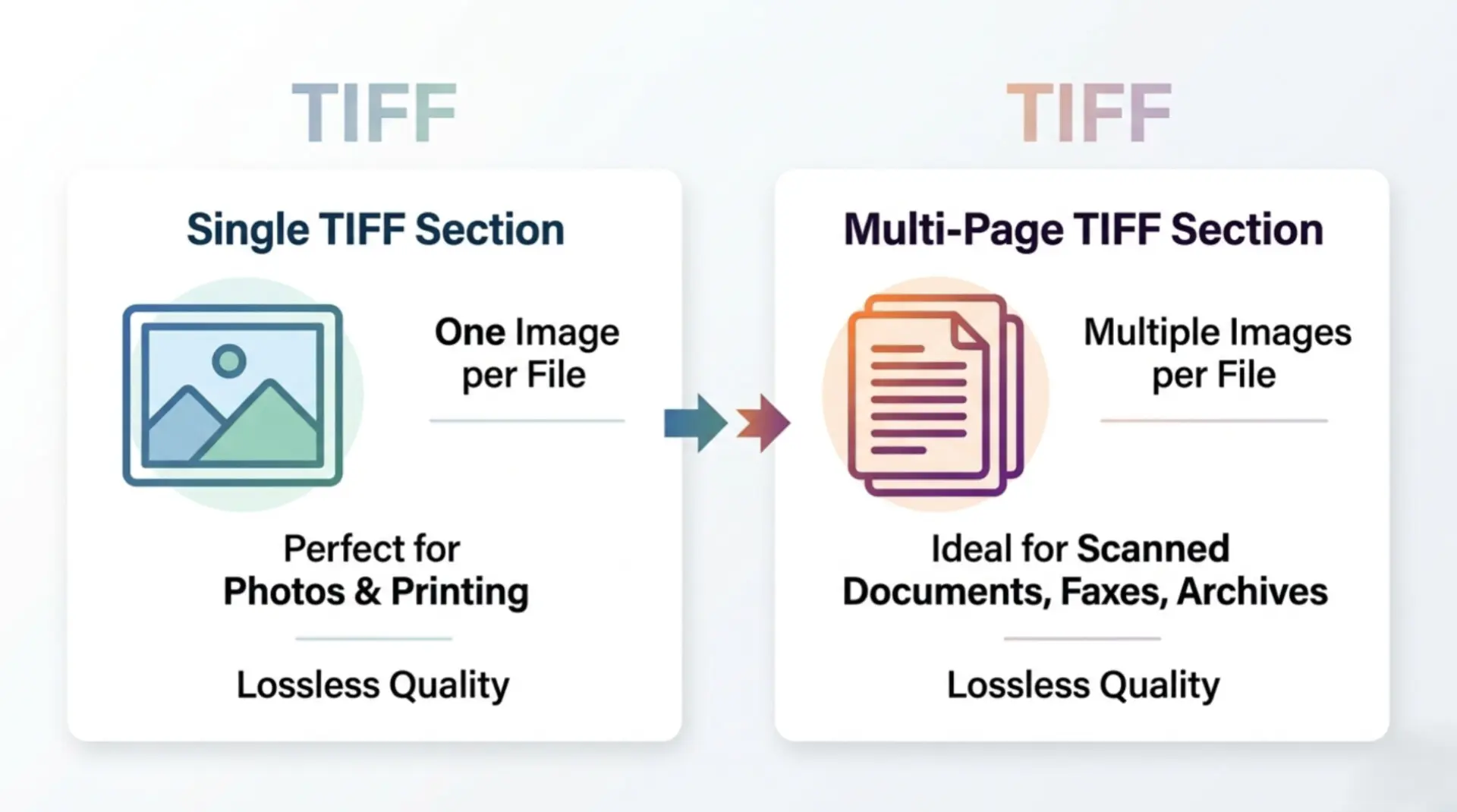
In this comprehensive guide, we will explore single tiff vs multi tiff. We will break down their differences in terms of image quality, file size, transparency, and browser compatibility. By the end of this article, you will know exactly which format suits your specific workflow, and how to convert them easily using online tools. Let us dive into the technical and practical details.
What is a single page TIFF file?
A single page TIFF file is an image container that holds exactly one picture or document page. When you export an image from Photoshop or save a high-resolution scan from your desktop scanner, it usually saves as a single TIFF. Professionals prefer this format because it supports lossless compression, meaning the image loses zero quality no matter how many times you open, edit, and save it.
Single TIFFs store rich color data, including CMYK for print and RGB for digital screens. They also support advanced image features like layers, alpha channels, and precise color profiles. Because they hold so much detailed data, single TIFF files often have large file sizes compared to JPEGs or PNGs. Photographers and print publishers rely on single TIFF files to ensure their final prints look crisp, accurate, and free of compression artifacts.
Single TIFFs store rich color data, including CMYK for print and RGB for digital screens. They also support advanced image features like layers, alpha channels, and precise color profiles. Because they hold so much detailed data, single TIFF files often have large file sizes compared to JPEGs or PNGs. Photographers and print publishers rely on single TIFF files to ensure their final prints look crisp, accurate, and free of compression artifacts.
💡 Important Tip:
Always use single page TIFF files when sending high-resolution photography to a print shop. This guarantees the printer receives the highest possible quality without any unexpected multiple pages confusing their software.
Always use single page TIFF files when sending high-resolution photography to a print shop. This guarantees the printer receives the highest possible quality without any unexpected multiple pages confusing their software.
What is multi tiff?
You might ask, what is multi tiff and why do we need it? Multi-TIFF is a variation of the TIFF format that stores multiple independent images or document pages inside a single file. Think of it like a digital folder or a PDF, but specifically designed for raster images. Instead of having 50 separate scanned pages cluttering your computer desktop, a multi-TIFF binds them together into one continuous file.
Organizations widely use this format for document archiving, faxing, and digital record keeping. When you open a multi-TIFF file in a compatible viewer, you can scroll through the pages just like you would flip through a physical book. It keeps related images securely grouped together, preventing you from losing individual pages of a crucial contract or medical record.
Organizations widely use this format for document archiving, faxing, and digital record keeping. When you open a multi-TIFF file in a compatible viewer, you can scroll through the pages just like you would flip through a physical book. It keeps related images securely grouped together, preventing you from losing individual pages of a crucial contract or medical record.
Multi tiff meaning
To understand the multi tiff meaning from a technical perspective, we need to look at how the file organizes data. "TIFF" stands for Tagged Image File Format. The "tags" are pieces of metadata that tell the software how to read the pixels. A standard TIFF has one Image File Directory (IFD) that points to the image data.
A multi-TIFF simply contains multiple IFDs linked together in a chain. The first directory points to the first image and then provides a technical link to the second directory, which points to the second image, and so on. This intelligent structure means the file can hold an unlimited number of pages (up to the 4GB file size limit of the standard TIFF architecture).
A multi-TIFF simply contains multiple IFDs linked together in a chain. The first directory points to the first image and then provides a technical link to the second directory, which points to the second image, and so on. This intelligent structure means the file can hold an unlimited number of pages (up to the 4GB file size limit of the standard TIFF architecture).
What is multi tiff format?
When we discuss exactly what is multi tiff format, we refer to the container environment that allows different types of images to coexist. One of the most powerful features of the multi-TIFF format is its flexibility. You do not have to use the same color depth or resolution for every page.
For example, page one of a multi-TIFF could be a full-color cover image, while pages two through ten could be black-and-white text documents compressed differently to save space. This makes it an incredibly versatile format for complex document management systems. If you want to dive deeper into the structure and technical benefits, you can read more about what is multi tiff and how it handles complex image directories.
For example, page one of a multi-TIFF could be a full-color cover image, while pages two through ten could be black-and-white text documents compressed differently to save space. This makes it an incredibly versatile format for complex document management systems. If you want to dive deeper into the structure and technical benefits, you can read more about what is multi tiff and how it handles complex image directories.
What is the difference between TIFF and multi-TIFF?
The core of the single tiff vs multi tiff debate comes down to understanding their distinct differences across four main categories: Image quality, file size and compression efficiency, transparency support, and browser compatibility. Let us explore each aspect to help you make an informed choice.
For a detailed external analysis, you can also check out this deep dive on tiff vs multi tiff.
For a detailed external analysis, you can also check out this deep dive on tiff vs multi tiff.
1. Image Quality
Both formats offer identical, high-tier image quality. Because both use the same underlying Tagged Image File Format architecture, they both support lossless compression (like LZW or ZIP) and uncompressed data. Whether you save a photograph as a single TIFF or place it on page one of a multi-TIFF, the color accuracy, sharpness, and pixel integrity remain exactly the same.
2. File Size and Compression Efficiency
File size management is where the two formats begin to diverge. A single TIFF holding a high-resolution photo will be large. If you have 50 single TIFFs, you have 50 large files taking up hard drive space and requiring individual metadata headers.
A multi-TIFF bundles these pages together. While a multi-TIFF containing 50 pages will still be a very large file, it is generally more efficient than 50 separate files. It shares a single file wrapper, reducing operating system clutter. Furthermore, document scanners often apply CCITT Group 4 compression to black-and-white multi-TIFFs, making a 100-page document surprisingly small and highly efficient for archiving.
A multi-TIFF bundles these pages together. While a multi-TIFF containing 50 pages will still be a very large file, it is generally more efficient than 50 separate files. It shares a single file wrapper, reducing operating system clutter. Furthermore, document scanners often apply CCITT Group 4 compression to black-and-white multi-TIFFs, making a 100-page document surprisingly small and highly efficient for archiving.
3. Transparency Support
Both single and multi-TIFF formats support background transparency via alpha channels. Graphic designers frequently use transparent single TIFFs to place cut-out product images on different backgrounds in Adobe InDesign or Illustrator. Multi-TIFFs also support transparency on a page-by-page basis, though this feature is rarely used since multi-TIFFs primarily serve as document archives rather than design assets.
4. Browser Compatibility
Neither format performs well on modern web browsers like Google Chrome, Mozilla Firefox, or Safari. Browsers natively support JPEG, PNG, GIF, and WebP, but they block or force you to download TIFF files because of their enormous size and complex rendering requirements.
If you try to embed a single TIFF on a website, it simply will not load for most users. If you try to embed a multi-TIFF, the browser will definitely prompt a download. Therefore, you must always convert both single and multi-TIFF files to a web-friendly format before using them online.
If you try to embed a single TIFF on a website, it simply will not load for most users. If you try to embed a multi-TIFF, the browser will definitely prompt a download. Therefore, you must always convert both single and multi-TIFF files to a web-friendly format before using them online.
What is a multi-TIFF scan?
If you work in an office setting, you have likely created a multi-TIFF scan without even realizing it. A multi-TIFF scan occurs when you place a stack of papers into the Automatic Document Feeder (ADF) of an office scanner, and the machine outputs a single file containing all those scanned pages.
Hospitals, law firms, and government agencies heavily rely on multi-TIFF scans. Unlike PDFs, which can contain hidden malware, editable text layers, or malicious scripts, a multi-TIFF scan is purely a collection of flat pictures. This makes it highly secure and tamper-proof, which is legally required in many industries for archiving sensitive records.
Hospitals, law firms, and government agencies heavily rely on multi-TIFF scans. Unlike PDFs, which can contain hidden malware, editable text layers, or malicious scripts, a multi-TIFF scan is purely a collection of flat pictures. This makes it highly secure and tamper-proof, which is legally required in many industries for archiving sensitive records.
⚠️ Warning:
Do not use multi-TIFF scans if you need the text in the document to be searchable. Multi-TIFF files are flat images. If you need searchable text, you must convert the TIFF to a PDF and run OCR (Optical Character Recognition) software.
Do not use multi-TIFF scans if you need the text in the document to be searchable. Multi-TIFF files are flat images. If you need searchable text, you must convert the TIFF to a PDF and run OCR (Optical Character Recognition) software.
Are TIFF and TIF the same?
Yes, TIFF and TIF are exactly the same file format. There is absolutely no technical difference between an image saved as "photo.tiff" and one saved as "photo.tif". They both function identically, support the same compression methods, and open in the exact same software applications.
Difference between tif and tiff
Since they are the same format, you might wonder why the difference between tif and tiff exists in the first place. The answer goes back to the early days of personal computing. Older Windows operating systems (like MS-DOS and Windows 3.1) enforced a strict naming rule called "8.3 format". This rule dictated that file extensions could only have a maximum of three letters.
Because of this limitation, the four-letter ".tiff" was shortened to the three-letter ".tif" for Windows users. Meanwhile, Apple Mac computers did not have this three-letter restriction, so Mac users historically used ".tiff". Today, modern Windows, Mac, and Linux systems handle both extensions perfectly. You can safely rename a file from .tif to .tiff without corrupting the image.
Because of this limitation, the four-letter ".tiff" was shortened to the three-letter ".tif" for Windows users. Meanwhile, Apple Mac computers did not have this three-letter restriction, so Mac users historically used ".tiff". Today, modern Windows, Mac, and Linux systems handle both extensions perfectly. You can safely rename a file from .tif to .tiff without corrupting the image.
What are the different types of TIFF files?
Because TIFF is an incredibly adaptable container, developers have created several variations over the years to serve different industries. Understanding these types helps you appreciate the full power of the format.
- Baseline TIFF: This is the standard version of the format. It supports basic color spaces (RGB, CMYK, Grayscale) and standard lossless compression. Most basic image viewers can open this without issues.
- Extended TIFF: This type includes advanced tags and metadata not found in the baseline version. It might include complex color profiles, clipping paths, and software-specific layers (like Adobe Photoshop layers).
- TIFF/EP (Electronic Photography): Camera manufacturers created this version to handle raw sensor data. Many modern RAW camera formats (like Nikon's NEF or Canon's CR2) actually base their structure on TIFF/EP.
- TIFF/IT (Graphic Arts): Used exclusively in the high-end print and prepress industry, this type ensures that images, text, and layout graphics exchange perfectly between different professional printing machines.
What are the TIFF categories?
When saving a TIFF file, software usually prompts you to choose a category based on color depth. The main categories include:
- Bilevel (Black and White): Contains only two colors, pure black and pure white. It is primarily used for text documents and faxes.
- Grayscale: Contains 256 shades of gray. This category is excellent for black-and-white photography and highly detailed document scans.
- Palette-Color: Uses an indexed color palette (similar to a GIF). It restricts the image to a specific set of colors to save space.
- Full Color (RGB/CMYK): Stores millions of colors. This is the standard category for high-resolution digital photography and professional print layouts.
What is a 1 bit TIFF?
A 1-bit TIFF falls into the Bilevel category mentioned above. But what is a 1 bit TIFF exactly? In digital imaging, "bit depth" determines how much color information each pixel holds. A 1-bit image uses only one bit of data per pixel, meaning the pixel can only exist in one of two states: turned on (black) or turned off (white). There are no shades of gray or varying opacities.
The printing industry heavily utilizes 1-bit TIFFs for "platesetting". When a printer prepares a magazine for the printing press, they convert the images into tiny dots (halftones) saved as 1-bit TIFF files. Additionally, office faxes use 1-bit compression because it results in incredibly small file sizes. If you want to understand how this compares to higher-quality images, check out this guide on tiff 16 bit vs 8 bit to see how extra bits dramatically change image quality.
The printing industry heavily utilizes 1-bit TIFFs for "platesetting". When a printer prepares a magazine for the printing press, they convert the images into tiny dots (halftones) saved as 1-bit TIFF files. Additionally, office faxes use 1-bit compression because it results in incredibly small file sizes. If you want to understand how this compares to higher-quality images, check out this guide on tiff 16 bit vs 8 bit to see how extra bits dramatically change image quality.
Is TIF the highest quality?
Many people wonder, is TIF the highest quality format available? In the realm of processed raster images, yes, TIFF is generally considered the gold standard for quality. Because it relies on lossless compression (or no compression at all), it preserves every single pixel of data exactly as it was captured or created.
However, if we compare TIFF to camera RAW files, RAW holds more dynamic range and sensor data directly from the camera. Once you edit a RAW file and finalize the colors and exposure, saving it as a TIFF ensures you lock in that absolute highest quality. JPEGs, on the other hand, discard data to save space (lossy compression), meaning a TIFF will always look sharper and hold better color data than a standard JPEG.
To see a broader view of why professionals choose this format, you can read about the tiff advantages and disadvantages.
However, if we compare TIFF to camera RAW files, RAW holds more dynamic range and sensor data directly from the camera. Once you edit a RAW file and finalize the colors and exposure, saving it as a TIFF ensures you lock in that absolute highest quality. JPEGs, on the other hand, discard data to save space (lossy compression), meaning a TIFF will always look sharper and hold better color data than a standard JPEG.
To see a broader view of why professionals choose this format, you can read about the tiff advantages and disadvantages.
Is TIF better than PNG?
Deciding whether TIF is better than PNG depends entirely on your project's destination. Both formats use lossless compression, and both support transparent backgrounds.
TIF is infinitely better for print media. PNG only supports the RGB color space, which is meant for digital screens. TIF supports the CMYK color space required by commercial printing presses. If you send a PNG to a professional printer, the colors will shift unpredictably. TIF also supports EXIF metadata (camera data) and Adobe layers, which PNG cannot hold.
On the flip side, PNG is far better for web design. Browsers render PNG files effortlessly, and they usually produce smaller file sizes for graphics with solid colors, like logos and icons. So, use TIF for print and photography, and use PNG for web assets.
TIF is infinitely better for print media. PNG only supports the RGB color space, which is meant for digital screens. TIF supports the CMYK color space required by commercial printing presses. If you send a PNG to a professional printer, the colors will shift unpredictably. TIF also supports EXIF metadata (camera data) and Adobe layers, which PNG cannot hold.
On the flip side, PNG is far better for web design. Browsers render PNG files effortlessly, and they usually produce smaller file sizes for graphics with solid colors, like logos and icons. So, use TIF for print and photography, and use PNG for web assets.
Is TIFF a raster or vector?
TIFF is exclusively a raster image format. A raster image constructs a picture using a vast grid of tiny colored squares called pixels. If you zoom in close enough on a TIFF photograph, you will eventually see these individual pixel blocks. Because they rely on a set number of pixels, raster images lose sharpness if you try to stretch or enlarge them beyond their original resolution.
Vector images (like SVG, EPS, or AI files), contrastingly, use mathematical equations to draw lines, curves, and shapes. You can scale a vector graphic to the size of a billboard, and it will remain perfectly crisp. While a TIFF can occasionally contain vector clipping paths saved by Photoshop, the core visual image remains a raster pixel grid.
Vector images (like SVG, EPS, or AI files), contrastingly, use mathematical equations to draw lines, curves, and shapes. You can scale a vector graphic to the size of a billboard, and it will remain perfectly crisp. While a TIFF can occasionally contain vector clipping paths saved by Photoshop, the core visual image remains a raster pixel grid.
💡 Important Tip:
Never save a text-heavy logo originally created as a vector (AI or EPS) into a TIFF format unless you specifically need it for a specialized print layout. Keeping logos as vectors ensures they remain sharp at any size.
Never save a text-heavy logo originally created as a vector (AI or EPS) into a TIFF format unless you specifically need it for a specialized print layout. Keeping logos as vectors ensures they remain sharp at any size.
How to view a multipage TIFF?
A common frustration for users is figuring out how to view a multipage TIFF. If you double-click a multi-TIFF on a standard computer, the default photo viewer might only display the first page, making you think the rest of the document is lost.
To view all the pages, you need compatible software:
To view all the pages, you need compatible software:
- Windows: The classic "Windows Photo Viewer" handles multi-TIFFs well, allowing you to click arrows to flip through pages. More modern Windows 10/11 default apps struggle with them. Third-party free software like IrfanView or XnView are excellent choices for Windows users.
- Mac: The built-in Apple "Preview" application natively supports multi-page TIFFs beautifully. It will show you a sidebar with thumbnail previews of every page in the document.
- Web: As mentioned, you cannot view them natively in a browser. You must convert them to PDF or individual JPEGs first.
How to separate a multi-page TIFF?
Sometimes, you receive a 50-page multi-TIFF, but you only need page 12 to send to a client. Learning how to separate a multi-page TIFF becomes essential for your workflow.
You can split these files using professional desktop software like Adobe Acrobat (which can open TIFFs and extract pages) or specialized TIFF splitters. However, downloading heavy software just to extract one page wastes time. The easiest, fastest, and most efficient way to separate a multi-page TIFF is by using a dedicated online conversion and extraction tool. Online tools parse the file in seconds and allow you to download a ZIP file containing every single page as an individual image.
You can split these files using professional desktop software like Adobe Acrobat (which can open TIFFs and extract pages) or specialized TIFF splitters. However, downloading heavy software just to extract one page wastes time. The easiest, fastest, and most efficient way to separate a multi-page TIFF is by using a dedicated online conversion and extraction tool. Online tools parse the file in seconds and allow you to download a ZIP file containing every single page as an individual image.
Can I change multiple TIFF to JPEG?
Absolutely. A very common question we receive is: Can I change multiple TIFF to JPEG? Whether you have a folder full of single TIFFs, or one massive multi-TIFF that you need broken down into web-friendly JPEGs, conversion is incredibly simple.
Converting to JPEG reduces the file size drastically, strips out complex print profiles, and makes the images ready to email, upload to social media, or embed on a website. To do this securely without losing essential visual clarity, you need a high-quality converter.
We highly recommend using Image Converter 24. It provides a seamless, browser-based solution that takes your heavy, complicated TIFF files and transforms them into lightweight JPEGs in just a few clicks. It handles the heavy processing in the cloud, so your computer doesn't slow down, and it safely extracts every page of a multi-TIFF into individual, numbered JPEG files.
Converting to JPEG reduces the file size drastically, strips out complex print profiles, and makes the images ready to email, upload to social media, or embed on a website. To do this securely without losing essential visual clarity, you need a high-quality converter.
We highly recommend using Image Converter 24. It provides a seamless, browser-based solution that takes your heavy, complicated TIFF files and transforms them into lightweight JPEGs in just a few clicks. It handles the heavy processing in the cloud, so your computer doesn't slow down, and it safely extracts every page of a multi-TIFF into individual, numbered JPEG files.
⚠️ Warning:
When you convert a TIFF to a JPEG, you introduce lossy compression. Always keep your original TIFF file safely backed up on your hard drive, and only use the converted JPEG files for web sharing or emailing.
When you convert a TIFF to a JPEG, you introduce lossy compression. Always keep your original TIFF file safely backed up on your hard drive, and only use the converted JPEG files for web sharing or emailing.
Conclusion
Understanding the nuances of single tiff vs multi tiff empowers you to manage your digital assets with confidence. Single TIFFs provide unparalleled quality for photographers, graphic artists, and the professional print industry. They hold rich color data and transparency but take up significant storage space. Multi-TIFFs, on the other hand, shine in the corporate and medical worlds, acting as secure, uneditable digital binders for scanned documents and faxes.
While both formats remain crucial for high-end digital workflows, their massive file sizes and poor web compatibility make them difficult to share in everyday situations. Whenever you need to view pages individually, share a design with a client, or upload a photo to the internet, remember to convert your files. By leveraging fast, secure online platforms like Image Converter 24, you can bridge the gap between professional-grade TIFF archives and everyday web-friendly formats seamlessly.
While both formats remain crucial for high-end digital workflows, their massive file sizes and poor web compatibility make them difficult to share in everyday situations. Whenever you need to view pages individually, share a design with a client, or upload a photo to the internet, remember to convert your files. By leveraging fast, secure online platforms like Image Converter 24, you can bridge the gap between professional-grade TIFF archives and everyday web-friendly formats seamlessly.
Manage Your Images Easily
Convert, resize, and optimize images instantly with Image Converter 24. Free, fast, and accessible directly from your browser — no complicated steps required.
Try Image Converter 24