How to Convert an Image to 300x300 Pixels
Understanding the 300x300 Pixel Requirement
Before diving into the how-to, it's helpful to understand what a 300x300 pixel image actually represents and why this specific size is so common. A pixel is the smallest unit of a digital image. When we say an image is 300 pixels wide and 300 pixels tall, we are talking about its dimensions, not its file size. This square format is crucial for many online platforms that standardize profile pictures, album art, or avatars.
Is it the Same as 300 DPI?
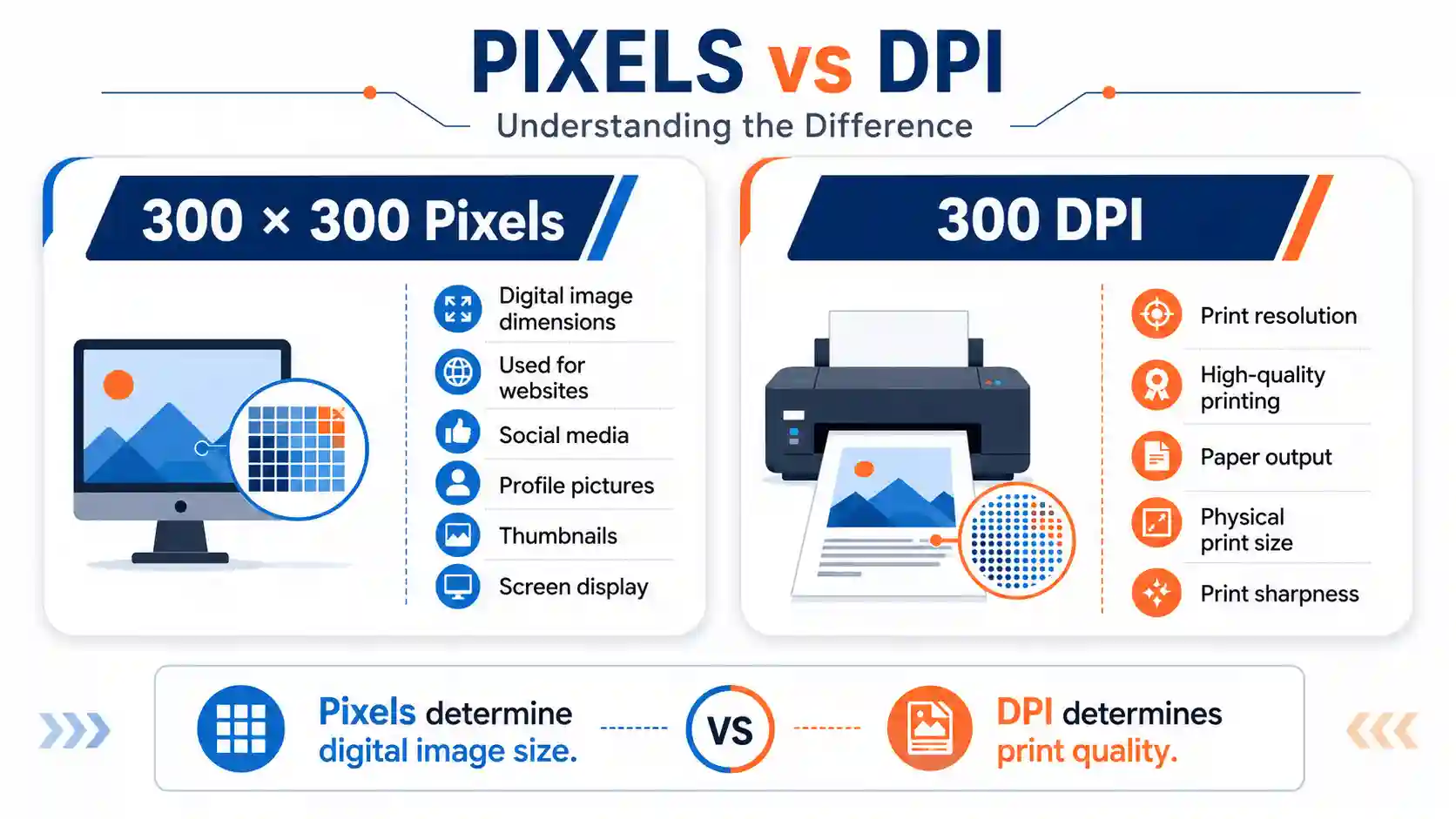
It is vital not to confuse pixels with DPI (dots per inch). Pixels dictate the digital size of your image on a screen. DPI, on the other hand, is a measure of print quality. An image that is 300x300 pixels is a small digital image, perfect for web use. It has no inherent DPI until it's printed. A 300 DPI image, conversely, refers to the resolution of a print output. For digital displays and web formats like image converter 24 handles, the pixel dimensions are what matter.
Method 1: Using a Dedicated Online 300x300 Image Converter
For most people, using a specialized online tool is the most efficient way to convert an image to 300x300 pixels. After explaining the technical side of image sizing, the most practical route is to use a tool built for this exact purpose. I have documented my experience using the convert image to 300x300 pixels tool, which stands out for its simplicity and speed.
- Access the tool: I navigated to the 300x300 converter page on the website. The page loaded quickly and presented a clear, uncluttered interface with a prominent "Upload" button.
- Upload your image: I clicked the upload area and selected a JPEG photo from my desktop. A progress bar appeared, indicating the file was being uploaded. For a 5MB image, this took only a couple of seconds.
- Automatic resizing: As soon as the upload was complete, the tool automatically processed the image. I didn't have to manually enter "300" and "300" in any fields; the process is pre-configured for this specific dimension. A preview of the resulting 300x300 image for Spotify or other platforms was generated instantly.
- Download your new image: Once the preview appeared, a "Download" button became available. I clicked it, and the newly resized image saved directly to my computer. The entire process, from upload to download, took less than 30 seconds.
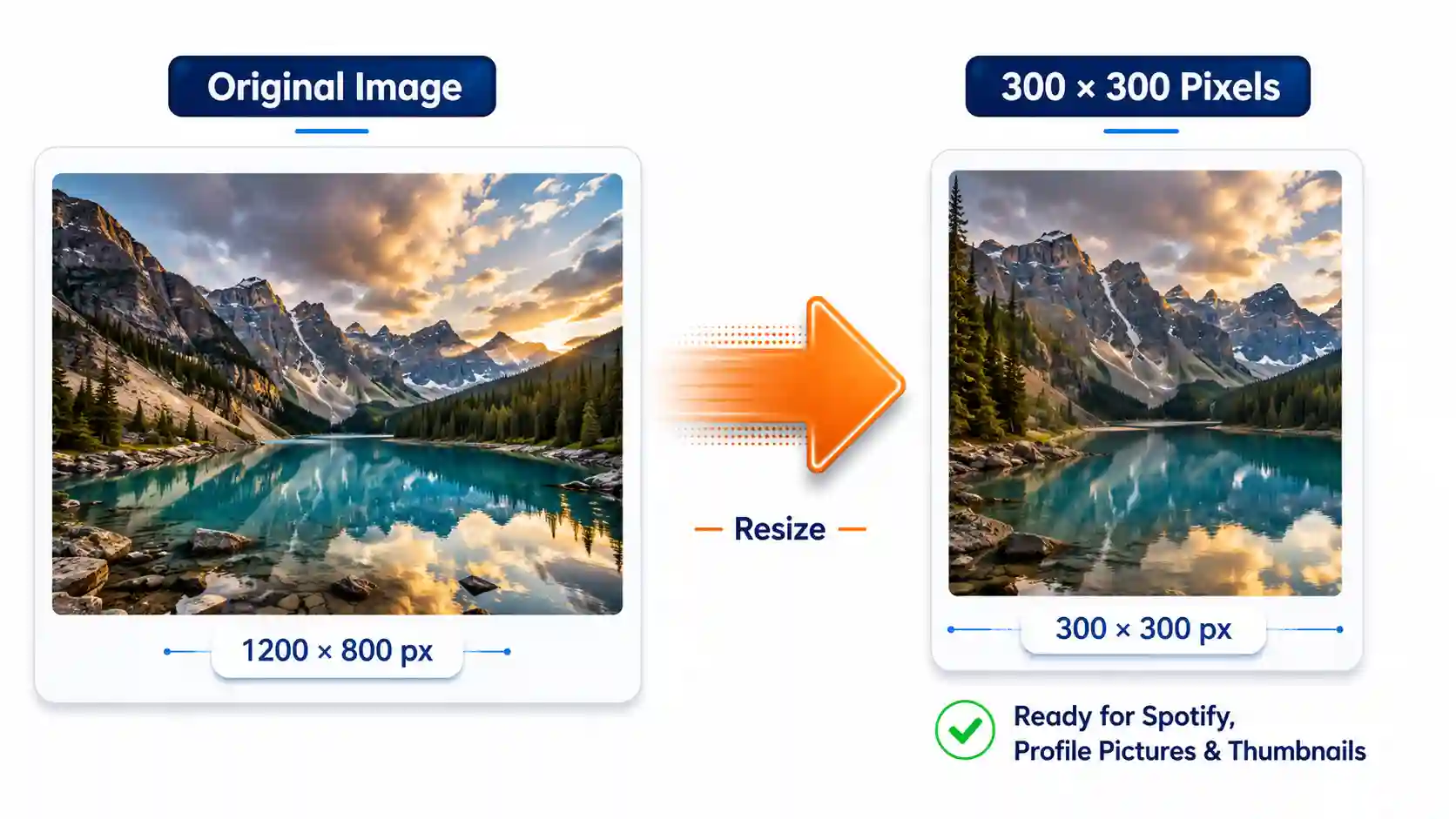
What makes this tool so effective for this specific task is its focus. It eliminates all the guesswork and extra steps. By pre-setting the dimensions to exactly 300x300, it prevents users from accidentally entering the wrong numbers. It ensures the output is a perfect square, which is exactly what platforms like Spotify or many social media sites require.
Mini-Troubleshooting: My Image Won't Upload
If you encounter a problem where your file won't upload, check the format. The tool supports popular formats like JPG, PNG, and WebP. If you have a less common format (like HEIC or BMP), the upload might fail. The simple fix is to use the Best Image Converter Website Free service to first change your image to a common format like JPG or PNG, and then use the 300x300 tool.
Method 2: Using Desktop Software (Photoshop & GIMP)
For those who prefer offline solutions or need to handle very large files, professional image editing software is another viable route. This method gives you greater control over the resizing process and the quality of the final output.
Using Adobe Photoshop
Photoshop is the industry standard for image manipulation, and resizing an image to 300x300 pixels is a basic but essential skill. Here is how you do it:
- Open the Image: In Photoshop, go to File > Open and select your photo.
- Access Image Size: Navigate to Image > Image Size in the top menu.
- Set Dimensions: In the "Image Size" dialog box, ensure the "Width" and "Height" are linked (the chain icon should be visible). Enter 300 for both values. If the link is broken, check the box next to "Constrain Proportions" or click the chain icon to link them.
- Choose Resampling Method: Select a resampling method. For most photos, "Bicubic Automatic" or "Bicubic Smoother" works well.
- Save: Click "OK" to apply the changes. Then, save your new image via File > Save As to preserve your original file.
Using GIMP (GNU Image Manipulation Program)
GIMP is a powerful free alternative to Photoshop. The process for resizing is similarly straightforward:
- Open the Image: Open your image in GIMP.
- Access Scale Image: Go to Image > Scale Image... in the main menu.
- Set New Size: In the "Scale Image" dialog, enter 300 for both the width and height. Click the chain link icon next to the width and height to unlock them if you want to force a perfect square, but this will likely stretch your image. It's often better to leave the aspect ratio locked and then crop the image to 300x300 (Image > Canvas Size) to maintain the correct proportions.
- Export: Click "Scale" and then go to File > Export As to save your new image.
Method 3: Using Built-in Windows & Mac Tools
Sometimes, you don't need to download any extra software or even open a browser. Both Windows and Mac computers come with built-in tools that can accomplish this basic image sizing task.
Windows: Using the Photos App
The default Photos app in Windows 10 and 11 includes a robust image editor.
- Open: Right-click your image file and select "Open with > Photos."
- Edit: Click the "Edit Image" icon (or press Ctrl+E).
- Resize: Select the "Resize" option. You'll see pre-set sizes or custom options.
- Custom Dimensions: Click on "Define custom dimensions" and enter 300 for both width and height. Ensure the "Maintain aspect ratio" option is unchecked if you want to force a specific size, but be aware this can distort the image.
- Save: Click "Save a copy" to keep your original file intact.
Mac: Using Preview
Preview is the default image viewer on Mac and offers quick editing capabilities.
- Open: Open your image in Preview.
- Adjust Size: Go to Tools > Adjust Size.
- Set Dimensions: Uncheck "Scale proportionally" to manually enter 300 for both width and height.
- Save: Click "OK" and then save the image.
Comparison of Conversion Methods
To help you decide which method is best for your situation, here is a comparison table of the different approaches.
| Method | Pros | Cons |
|---|---|---|
| Dedicated 300x300 pixels converter (Online) | Fastest, simplest, no software install, pre-configured for the task. | Requires internet, file size limits. |
| Photoshop / GIMP | High control over quality, works offline, handles large files. | Steeper learning curve, may require paid software (Photoshop). |
| Windows/Mac Built-in Tools | Free, no extra downloads, always available. | Fewer options, can distort images if not careful. |
Best Practices for Image Quality
When you shrink an image, especially one as small as 300x300 pixels, you risk losing image quality. Maintaining clarity and sharpness is a major concern, particularly if the final use is for a professional or high-visibility setting like a 300x300 image for Spotify artist profile, where first impressions matter.
The key to preserving quality is to start with the highest resolution image possible. If you start with a small, low-quality image and try to enlarge it to 300x300 pixels, the result will be pixelated and blurry. For the best results, ensure your original image is larger than 300x300. When you shrink it, you are removing pixels, which generally leads to a sharper image than trying to add pixels, which is what happens when you enlarge.
Frequently Asked Questions
What size is 300X300 pixels?
It is a digital image that is 300 pixels wide and 300 pixels tall. It's a perfect square. Physically, on a standard 96 DPI monitor, it would appear as about 3.1 inches x 3.1 inches. On higher-resolution screens, it appears smaller.
How many KB is 300X300 pixels?
There is no fixed file size for a 300x300 pixel image. The file size (in KB) depends entirely on the format (JPEG, PNG, WebP) and the complexity/color depth of the image. A simple JPEG could be 20-30 KB, while a detailed PNG with transparency could be over 100 KB.
How do I make my image 300x300?
The easiest method is to use an online 300x300 pictures converter. Simply upload your image, and the tool will automatically resize it for you. Alternatively, you can use software like Photoshop, GIMP, or your computer's default photo editor to manually change the dimensions.
How big is a 300x300 image?
In terms of file size, it's typically small, ranging from around 20 KB to over 100 KB. In terms of visual size on a screen, it is a small thumbnail. It's standard for profile avatars, product icons, and album art.
Conclusion
Converting an image to 300x300 pixels is a fundamental skill in the digital age. Whether you are updating your Spotify artist profile, setting up an e-commerce product thumbnail, or creating a consistent look across social media, knowing how to quickly and correctly resize photos is invaluable. We have covered several reliable methods—from the speed of a dedicated 300x300 image converter to the control of desktop software like Photoshop.
For the quickest and easiest experience, I recommend using the convert image to 300x300 pixels online tool. It handles the entire process for you in seconds, ensuring a perfect square with minimal effort. Try it out today to get your images platform-ready.