How to Make a Picture in JPEG Format: Your Complete Guide
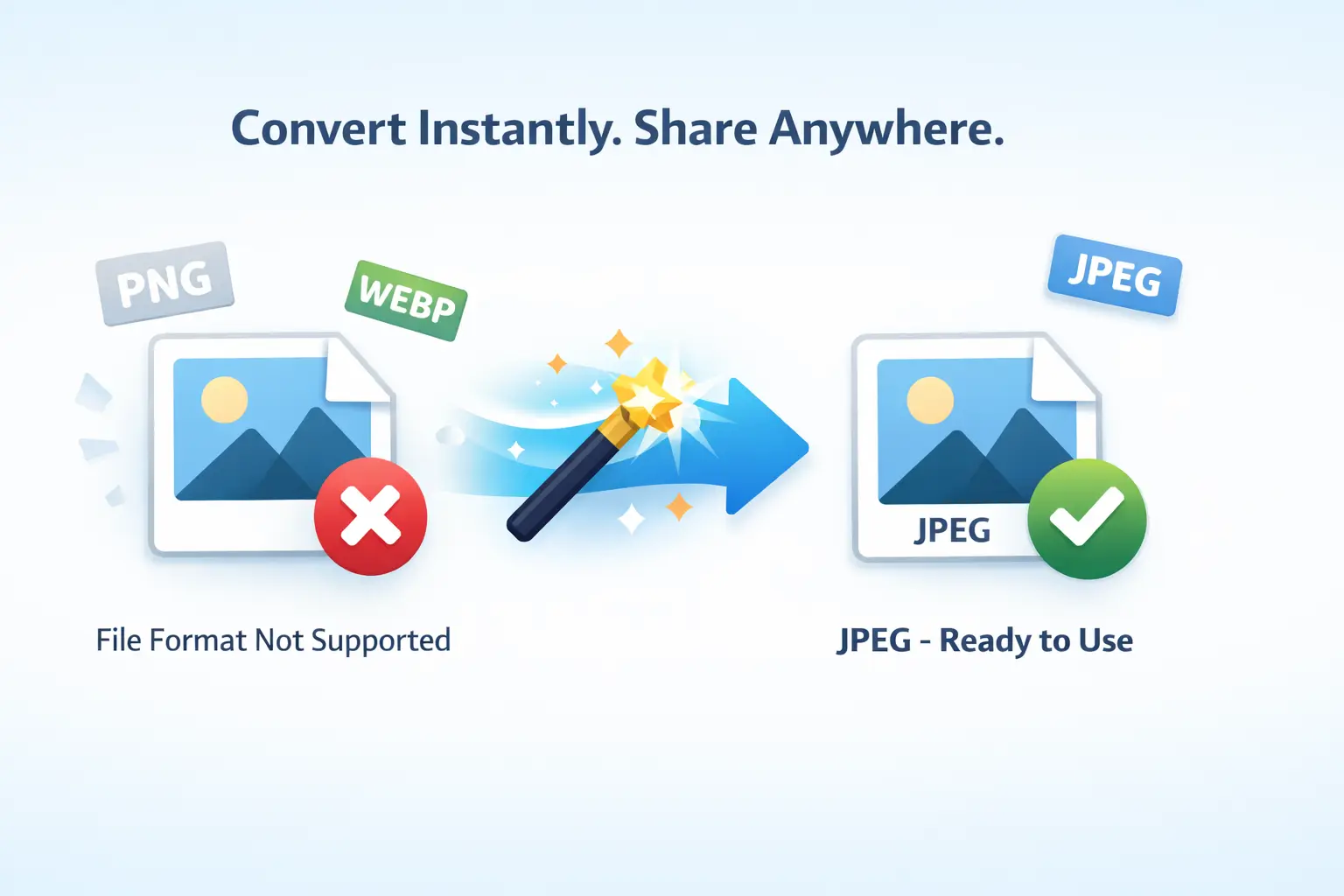
Have you ever tried to upload a photo to a website, only to get an error saying “file format not supported”? Or perhaps you’ve wanted to email a batch of images, but the files were too large to send? These are common frustrations in our digital world, and the solution often lies in one of the most universal file formats: JPEG.
In this guide, we’ll walk you through exactly how to make a picture in JPEG format. We’ll start with a simple explanation of what a JPEG is and why it’s so important. Then, we’ll explore the reasons you might need to convert your images. Finally, we’ll introduce you to a remarkably easy, web-based solution for all your conversion needs. Let’s simplify your digital life.
What Exactly is a JPEG File?
JPEG (pronounced "jay-peg") stands for Joint Photographic Experts Group, the name of the committee that created the standard. It's a method of lossy compression for digital images. Think of it like packing a suitcase: to make things fit, you might fold your clothes in a way that saves space but might create a small crease. JPEG compression works similarly—it reduces file size by selectively discarding some image data, focusing on details the human eye is less likely to notice.
The primary goal of the JPEG format is to find the perfect balance. It aims to keep visual quality high while making the file size small enough for easy storage, sharing, and fast loading on websites. This is why JPEG has become the default format for photographs and complex images across the internet, social media, and digital cameras.
"JPEG is the lingua franca of digital imagery. Its universal support and efficient compression made the visual internet we know today possible."
Note to Readers: It's crucial to understand that "JPEG" and "JPG" are the same thing. The three-letter extension (.jpg) was simply a requirement of older Windows systems. You can use the terms interchangeably.
Why Would You Need to Convert an Image to JPEG?
You might have images in other formats like PNG, TIFF, WebP, or RAW from your camera. Converting these to JPEG is often a necessary step for practical, everyday use. Here are the most common reasons:
- Universal Compatibility: JPEG is supported by every operating system, web browser, image viewer, and social media platform on the planet. Converting ensures your image will open anywhere.
- Reduced File Size: JPEGs are significantly smaller than formats like PNG, BMP, or TIFF. This is essential for saving storage space on your devices and cloud services.
- Faster Website & Email: Smaller files load faster on websites, improving user experience and SEO. They also attach and send via email much more quickly.
- Social Media & Online Forms: Most social networks and online application portals explicitly request or work best with JPEG images.
- Printing & Professional Services: Many photo labs and printing services prefer high-quality JPEG files for producing physical photos.
However, it's not always the perfect choice. For images with text, sharp lines, or transparent backgrounds, PNG might be better. You can learn more about this in our comparison of WebP versus JPEG quality to understand the trade-offs between modern formats.
| Situation | Best Format | Why? |
|---|---|---|
| Posting a vacation photo on Instagram | JPEG | Small size, fast upload, perfect for complex photographs. |
| Saving a company logo with a transparent background | PNG | Preserves transparency and sharp edges without loss. |
| Archiving professional photos for editing | RAW / TIFF | Lossless quality, retains all original data for maximum flexibility. |
Your Easy Solution: Convert Images Online in Seconds
You don't need expensive software or technical expertise to convert your images. The simplest and most accessible method is to use a dedicated online converter. For a fast, secure, and hassle-free experience, we recommend Image Converter 24.
This web-based tool eliminates all the friction. There’s no software to download, no registration required for basic use, and it works directly in your browser on any device. Whether you’re converting a single screenshot or a batch of photos, the process is streamlined and intuitive.
Why Choose an Online Converter Like Image Converter 24?
- No Installation: Use it instantly from your phone, tablet, or computer.
- Privacy Focused: Your images are processed securely and are not stored on their servers permanently.
- High-Quality Output: You maintain control over the final quality and size of your JPEG.
- Completely Free: Convert images without watermarks, usage limits, or hidden costs.
Step-by-Step Guide: How to Convert PNG (or Any Image) to JPEG
Let’s walk through the conversion process using the specialized PNG to JPEG tool. The same logic applies to converting WebP, BMP, GIF, and other formats.
- Visit the Converter Tool: Open your web browser and go to the Image Converter 24 PNG to JPEG page.
- Upload Your Image: Click the “Upload” or “Choose File” button. Navigate to the image file on your device and select it. The tool supports multiple images at once for batch conversion.
- Adjust Settings (Optional): Some tools allow you to adjust the JPEG quality level before converting. A higher percentage (e.g., 90%) means better quality but a larger file. A lower percentage (e.g., 70%) creates a much smaller file. The default is usually a great balance.
- Start the Conversion: Click the “Convert”, “Start”, or “Convert to JPEG” button. The tool will process your image in seconds.
- Download Your JPEG: Once processing is complete, a “Download” button will appear. Click it to save the new JPEG file directly to your device. Some tools offer a “Download All” button for batch conversions.
Pro Tip: Before converting a large batch of images, do a test with one file. Check the downloaded JPEG’s quality and file size to ensure the settings meet your needs before processing everything.
Understanding JPEG: Pros, Cons, and Best Practices
To use JPEG effectively, it helps to know its strengths and limitations. For a deep dive, you can read about the key advantages and disadvantages of JPEG.
✅ Advantages of JPEG
- Small File Size: Excellent compression for efficient storage and sharing.
- Universal Support: Opens on any device or platform without issue.
- Ideal for Photos: Compression is optimized for realistic images with smooth color gradients.
- Adjustable Quality: You control the trade-off between size and visual fidelity.
❌ Disadvantages of JPEG
- Lossy Compression: Repeated saving and editing can degrade quality over time.
- No Transparency: Cannot support transparent backgrounds (unlike PNG).
- Not Ideal for Text/Graphics: Can create blurry edges and artifacts around sharp lines.
Best Practice: Always keep a copy of your original, high-quality image (like a PNG or RAW file) as a "master." Convert a copy to JPEG for sharing or web use. This way, you never lose the original quality.
Ready to Convert Your Images? It's Time to Act!
Now that you understand the 'why' and 'how,' there's no need to struggle with incompatible or oversized image files. Converting your pictures to the versatile JPEG format is a simple skill that will save you time and hassle every single day.
We encourage you to try the process yourself right now. Take that high-resolution PNG screenshot or that bulky TIFF scan and turn it into a sleek, shareable JPEG.
Convert Your First Image in Under a Minute
Click the button below to go directly to the free converter. Upload, convert, and download. It’s that easy.
Go to Image Converter 24No registration required. No limits. Just simple conversion.
Remember, the goal is to make your digital workflow smoother. Whether you're a blogger, a small business owner, a student, or someone just organizing family photos, knowing how to make a picture in JPEG format is an essential digital literacy skill. Embrace the simplicity of online tools and never let a file format problem slow you down again.
Final Thoughts: Embracing Simplicity in Your Digital Tasks
Technology should solve problems, not create them. Converting image formats is a perfect example of a small technical task that can become a major roadblock if you don't know the right path. With this guide, you now have that path.
You've learned about the JPEG standard, understood its critical role in compatibility and efficiency, and been introduced to a direct, no-fuss tool to get the job done. The power to manage your digital assets effectively is now at your fingertips.
In Summary: Mastering simple conversions like creating JPEGs empowers you to share, publish, and store your visuals with maximum ease and minimum fuss. It’s a small step in technical knowledge that yields significant daily rewards.
So, what are you waiting for? Find an image and give the converter a try. Experience for yourself how quickly you can overcome format barriers and get back to what matters—using your images to communicate, create, and connect.