Published February 20, 2026 by Admin
Updated September 27, 2026
Views 581
Table of contents
PNG vs JPEG for Website | Which Format Is Better?
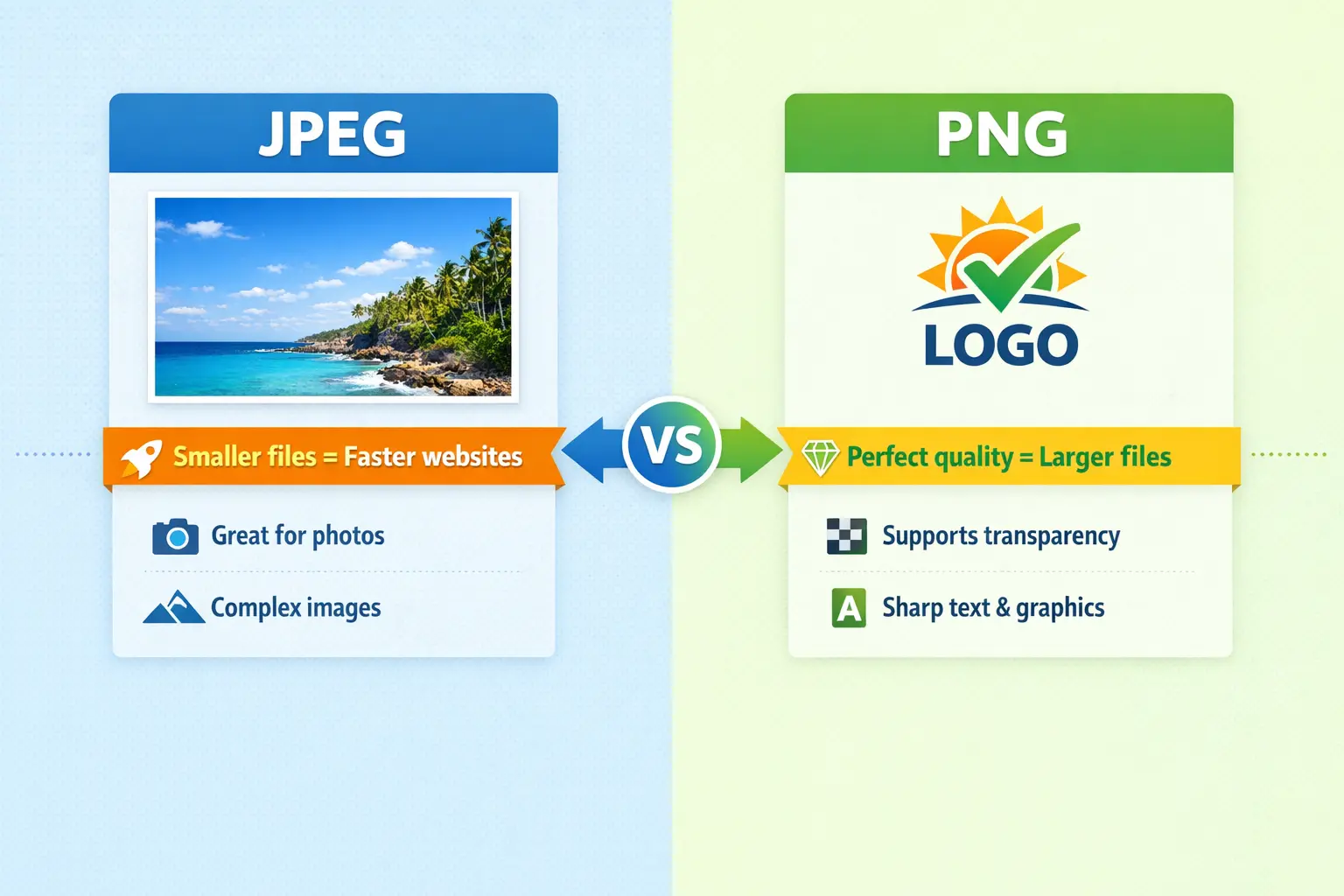
The short answer: Use JPEG for photographs and complex images. Use PNG for logos, icons, and graphics that need transparency or sharp text. JPEG gives you smaller files, which means faster websites. PNG gives you perfect quality, but with larger files.
This guide compares PNG vs JPEG for website use in detail. You will learn exactly when to use each format, how they affect your site speed, and how to make the right choice for every image on your website.
PNG vs JPEG for Website | Which Format Is Better?
Every image on your website affects loading speed, user experience, and even your search engine ranking. Choosing the right format is not just about quality—it is about performance. Let us break down the differences so you can make informed decisions.
Which image format is best for a website?
There is no single "best" format. The best format depends on what the image contains:
For photographs: JPEG is best. It creates small files with excellent quality.
For logos and graphics: PNG is best. It preserves sharp edges and supports transparency.
For modern websites: WebP is becoming the new standard. It combines the best of both worlds with smaller files.
For now, most websites use a mix of JPEG and PNG. Understanding when to use each will make your site faster and look better.
What file format is best for websites?
For general website use, the best file formats are:
Format
Best For
Notes
JPEG
Photos, complex images
✅ Small files, good quality, universal support ❌ No transparency, loses quality on edit
PNG
Logos, icons, graphics with text
✅ Lossless, transparency, sharp edges ❌ Larger files, not ideal for photos
WebP
Modern websites, all image types
✅ Smaller than JPEG and PNG, supports transparency ❌ Not supported in very old browsers
SVG
Logos, icons, illustrations
✅ Scales infinitely, tiny files ❌ Not for photos or complex images
Should the website logo be PNG or JPEG?
Your website logo should almost always be PNG. Here is why:
Transparency 📌 Logos often need transparent backgrounds to sit nicely on colored or image backgrounds. PNG supports transparency. JPEG does not.
Sharp edges 📌 Logos have crisp lines and text. PNG preserves them perfectly. JPEG can introduce blurring and artifacts.
Multiple uses 📌 You might use your logo on different colored sections. PNG with transparency gives you flexibility.
Exception: If your logo is a complex photograph with no text and no transparency needs, JPEG could work. But for 99% of logos, PNG is the right choice.
Rule of thumb: Logos = PNG. Photos = JPEG. Graphics with text = PNG.
Is PNG or JPEG better for printing?
For printing, the answer is different than for websites. For professional printing, TIFF is often best, but between PNG and JPEG:
PNG is better for text and graphics: It preserves sharp edges and solid colors perfectly.
JPEG is better for photographs: At high quality settings (90-100%), JPEG prints beautifully with manageable file sizes.
For maximum quality: PNG is lossless, so it will never introduce artifacts. But the files are huge.
For most home printing, high-quality JPEG (300 DPI) is perfectly fine. For professional print work, consult your print shop—they often prefer TIFF or PDF.
Is PNG or JPEG higher quality?
PNG is technically higher quality because it is lossless. It preserves every single pixel exactly as it was. JPEG is lossy, meaning it discards some data to save space.
But here is the catch: At high quality settings (90-100%), JPEG is visually identical to PNG for photographs. You cannot see the difference with your eyes. Only if you zoom in 400% and compare pixel by pixel would you notice.
For graphics with text, sharp lines, or solid colors, PNG is visibly better. JPEG can create blurring and artifacts around text.
PNG vs JPEG - Head-to-head comparison for websites
Feature
PNG
JPEG
Compression
Lossless (DEFLATE)
Lossy (DCT)
Transparency
✅ Full alpha channel
❌ Not supported
File size
Larger (especially for photos)
Smaller (5–10x smaller than PNG for photos)
Text and sharp lines
✅ Excellent, crystal clear
❌ Can show artifacts and blurring
Photographs
❌ Overkill, files too large
✅ Perfect balance of quality and size
Browser support
Universal
Universal
Best use on website
Logos, icons, screenshots, UI elements
Product photos, hero images, blog images
When to use PNG on your website
Choose PNG for these types of images:
Logos and branding elements – Need transparency and sharp edges.
Icons and UI elements – Small graphics that must look crisp.
Screenshots – Text and interface details must be perfectly clear.
Images with text overlays – Any graphic that includes text.
Graphics with sharp lines or solid colors – Illustrations, diagrams, charts.
Images that need transparency – Cutouts, overlays, product images on different backgrounds.
When to use JPEG on your website
Choose JPEG for these types of images:
Photographs – Product photos, team photos, blog post images, backgrounds.
Complex images with many colors – Artwork, detailed illustrations, textures.
Any image where file size matters more than perfect quality – Hero images, large backgrounds.
Images that will be viewed at normal size (not zoomed) – The loss is invisible at normal viewing.
File size comparison: Real numbers
Let us look at real file sizes to understand the difference:
Image Type
PNG Size
JPEG / Notes
1200x800 photo
2.4 MB
350 KB – JPEG is 85% smaller
Logo with transparency
45 KB
Not suitable (no transparency) – PNG wins for this use
Screenshot with text
180 KB
80 KB (but text blurry) – PNG better quality, JPEG smaller but worse
For photographs, the size difference is enormous. A 2.4 MB PNG photo becomes a 350 KB JPEG with nearly identical visual quality. That is a huge saving for website speed.
Transparency: PNG's superpower
The most important difference between PNG and JPEG is transparency. JPEG does not support transparency at all. If you need a transparent background, you must use PNG (or GIF, or WebP).
PNG supports full alpha channel transparency. This means you can have smooth, gradual fades, soft shadows, and perfect edges on any background. This is essential for:
Logos on colored or image backgrounds
Product images that need to be placed on different backgrounds
Icons and UI elements
Overlay graphics
What about WebP? The modern alternative
WebP is a modern format created by Google that aims to replace both JPEG and PNG. It offers:
Smaller files than JPEG (25-35% smaller at same quality)
Supports transparency like PNG
Supports animation like GIF
Lossless and lossy modes
Is WebP better quality than JPEG? Yes, at the same file size, WebP looks better. At the same quality, WebP files are smaller. For a detailed comparison, read is WebP better quality than JPEG.
The only drawback: very old browsers (like Internet Explorer) do not support WebP. For modern websites, you can use WebP with a JPEG or PNG fallback.
PNG drawbacks for websites
PNG is not perfect. Here are its main disadvantages for web use:
Large file sizes for photos – PNG can be 5-10 times larger than JPEG for photographs. This slows down your website.
No EXIF data – PNG does not store camera metadata well. If you need to preserve photo info, JPEG is better.
Not ideal for printing – PNG is RGB only, no CMYK for professional printing.
For photographs and complex images: Use JPEG. The file size savings are too important to ignore. Your website will load faster, and users will not see any quality difference.
For logos, icons, and graphics with text: Use PNG. The perfect quality and transparency are essential. File sizes are small enough for these types of images.
For modern websites: Consider using WebP with fallbacks. It gives you the best of both worlds: smaller files than JPEG and transparency like PNG.
Remember: The goal is to balance quality and performance. A beautiful image that takes 10 seconds to load will be seen by almost no one. A slightly compressed image that loads in 1 second will be seen by everyone.
Summary: Use PNG for logos, icons, and any image needing transparency or sharp text. Use JPEG for photographs and complex images where file size matters. For best performance, consider modern formats like WebP. Always optimize your images for web use. For more help, visit Image Converter 24 to convert and optimize your images.
Application offline!
Your experience on this site will improve by allowing cookies