How to Convert Photo to JPEG in Mobile for Free (No Sign Up & Unlimited)
you can convert any photo to JPEG on your phone for free using Image Converter 24. No app to download, no sign up required, and no limits on how many photos you convert. Just upload, convert, and download in seconds.
This guide shows you exactly how to convert photo to JPEG in mobile for free on iPhone, Android, and iPad. You will learn the fastest methods and why Image Converter 24 is the best tool for the job.
This guide shows you exactly how to convert photo to JPEG in mobile for free on iPhone, Android, and iPad. You will learn the fastest methods and why Image Converter 24 is the best tool for the job.
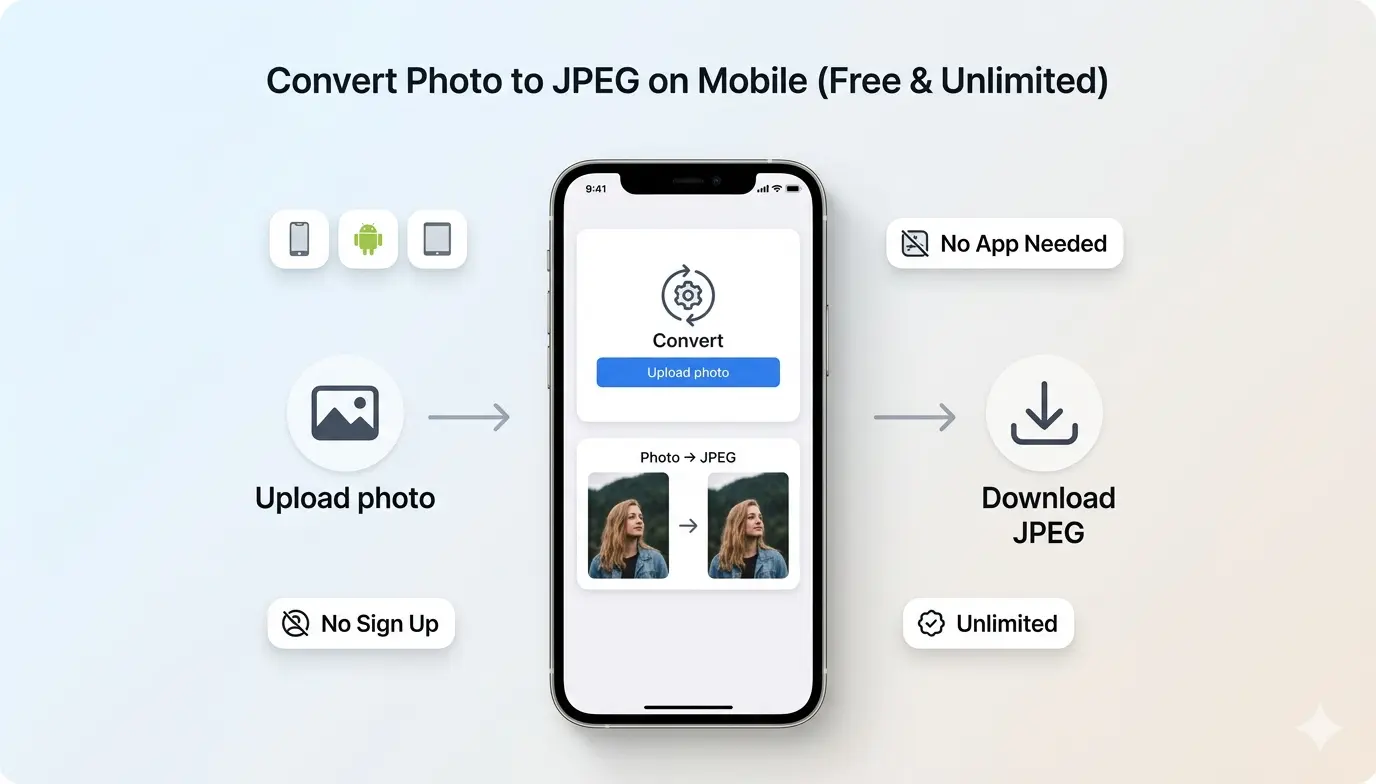 |
| Convert any photo to JPEG on your phone – free, unlimited, no sign up. |
You have a photo on your phone. Maybe it is a PNG, a WebP, or a HEIC from your iPhone. You need it as JPEG for a website, an email, or to share with someone who only accepts JPEG. You want it done now, without installing another app or creating another account.
Good news: You do not need any of that. Let us show you how.
Good news: You do not need any of that. Let us show you how.
Why Convert Photos to JPEG on Mobile?
JPEG is the most compatible image format in the world. Converting your photos to JPEG gives you:
- Universal compatibility 📌 JPEG works everywhere – every website, every app, every device.
- Smaller file sizes 📌 JPEG compresses photos well, saving storage space and making sharing faster.
- Better compatibility with older systems 📌 Some older software and websites still prefer JPEG.
- Professional use 📌 Many businesses and services require JPEG format.
For a complete overview, read about JPEG advantages and disadvantages and most advantages of JPEG.
Can I Turn a Picture on My Phone into a JPEG?
Yes, absolutely. Any picture on your phone can be converted to JPEG. It does not matter if it is a PNG, WebP, HEIC, or any other format.
With Image Converter 24, you simply upload your photo, choose JPEG as the output, and download your converted file. The process takes less than 30 seconds.
With Image Converter 24, you simply upload your photo, choose JPEG as the output, and download your converted file. The process takes less than 30 seconds.
How to Convert Photo to JPEG in Mobile for Free
The process is the same for both iPhone and Android. Here is how:
- Open your browser 📌 On your phone, open Safari, Chrome, or any browser.
- Go to Image Converter 24 📌 Visit our website. No app to download, no sign up required.
- Upload your photo 📌 Tap the upload button and select the photo from your gallery. You can also take a new photo directly.
- Choose JPEG as output 📌 Select JPEG from the format options.
- Convert and download 📌 Tap convert. In seconds, your JPEG will be ready to download and save to your phone.
That is it. No app, no sign up, no limits.
Try it now: Visit Image Converter 24 on your phone and convert your first photo to JPEG in seconds.
How to Convert Photo to JPEG in iPhone
iPhones save photos as HEIC by default. This format is efficient but not always compatible. Here is how to convert to JPEG on iPhone:
- Open Safari 📌 Any browser works, but Safari is pre-installed.
- Go to Image Converter 24 📌 Visit our website.
- Upload your HEIC or PNG photo 📌 Tap upload and select from your photo library.
- Select JPEG output 📌 Choose JPEG format.
- Convert and download 📌 Tap convert, then save the JPEG to your Photos app.
You can also change your iPhone camera settings to save as JPEG instead of HEIC. Go to Settings > Camera > Formats > Select "Most Compatible." This saves photos as JPEG by default.
How to Convert Photo to JPEG in Android
Android phones typically save photos as JPEG already, but you may have PNG or WebP files from other sources. Here is how to convert:
- Open Chrome or your browser 📌 Any browser works.
- Go to Image Converter 24 📌 Visit our website.
- Upload your photo 📌 Tap upload and select from your gallery or file manager.
- Choose JPEG output 📌 Select JPEG format.
- Convert and download 📌 Tap convert, then save the JPEG to your device.
Some Android phones have a built-in converter in the Gallery app. Tap Edit, then Save as, and choose JPEG. But Image Converter 24 works for all photos, regardless of source.
How to Convert Photo to JPEG on iPad
The process on iPad is identical to iPhone:
- Open Safari or any browser
- Go to Image Converter 24
- Upload your photo from Photos or Files
- Select JPEG output
- Convert and download
The larger screen makes it even easier to see your converted photos before downloading.
How Do I Turn a Picture to JPEG Format?
Turning any picture to JPEG format is simple with the right tool. Here is the universal method:
- Open your browser and go to Image Converter 24
- Upload your picture (any format: PNG, WebP, HEIC, BMP, GIF, etc.)
- Select JPEG as the output format
- Click convert and download your new JPEG file
For more detailed instructions, read our guide on how to convert an image to JPEG format.
What Are the Disadvantages of WebP?
WebP is a modern format, but it has some drawbacks:
- Compatibility: Not supported in very old browsers or some software
- Not universal: Some platforms still prefer JPEG or PNG
- Sharing issues: Some messaging apps may not display WebP correctly
- Editing limitations: Some image editors have limited WebP support
These are exactly the reasons you might need to convert WebP to JPEG. For a detailed comparison, read is WebP better quality than JPEG.
Why Use an Online Converter Instead of an App?
You might wonder why not just download an app. Here is why online is better:
For a complete list of features, visit our best free image converter online no signup guide and free unlimited image converter.
Does Converting to JPEG Reduce Quality?
JPEG uses lossy compression, so some quality is lost compared to the original. However, at high quality settings (90-100%), the loss is invisible to the human eye.
Image Converter 24 lets you choose the quality level. For photos, use 90-95% for excellent quality with small file sizes. For maximum quality, use 100%.
Image Converter 24 lets you choose the quality level. For photos, use 90-95% for excellent quality with small file sizes. For maximum quality, use 100%.
Can I Convert Multiple Photos at Once?
Yes! Image Converter 24 supports batch conversion on mobile. You can upload multiple photos at once and convert them all to JPEG in one go.
Just select multiple files when uploading. They will all be processed together, and you can download them as individual files or as a ZIP archive.
Just select multiple files when uploading. They will all be processed together, and you can download them as individual files or as a ZIP archive.
What About JPEG vs Other Formats?
For more detailed comparisons, check out these guides:
- Is PNG or JPEG better for printing
- PNG vs JPEG for website
- TIFF or JPEG for scanning photos
- JPEG vs JPEG2000 for printing
The Bottom Line: Convert Photo to JPEG in Mobile for Free
Image Converter 24 is the simplest way to convert photos to JPEG on your phone. It is:
- Completely free – no hidden costs
- No sign up – just use it instantly
- Unlimited – convert as many photos as you need
- Fast – results in seconds
- Secure – files automatically deleted
- Works on iPhone, Android, and iPad – any device with a browser
- No app to download – just open your browser
- Preserves quality – choose your quality level
- Batch capable – convert multiple photos at once
For HEIC files from your iPhone, PNG screenshots, or WebP images from the web, Image Converter 24 turns them into JPEG in seconds.
Ready to Convert Your Photos to JPEG?
Stop struggling with incompatible formats. Convert to JPEG now.
Visit Image Converter 24 now on your phone and convert your first photo to JPEG. It takes seconds, it is completely free, and you do not even need to sign up.
Bookmark the site, and you will always have a reliable, unlimited photo converter at your fingertips.
Visit Image Converter 24 now on your phone and convert your first photo to JPEG. It takes seconds, it is completely free, and you do not even need to sign up.
Bookmark the site, and you will always have a reliable, unlimited photo converter at your fingertips.
Convert Your Images Instantly ⚡
Need a quick JPEG? Skip the complex software. Join thousands who use our ultra-fast, 100% free tool to convert photos directly from their phone.
✓ No Sign-up ✓ Unlimited ✓ Privacy Secured
Perfectly optimized for iPhone, Android, and iPad.