JPEG2000 vs TIFF for Printing: A Comprehensive Guide 2026
If you are preparing images for a print run — whether that's a photo book, a gallery print, a magazine spread, or packaging artwork — the file format you choose has a direct effect on how sharp, color-accurate, and reliable your final print will be. TIFF and JPEG2000 are both built for high-quality output, but they solve the problem in different ways, and picking the wrong one can mean banding in gradients, rejected files at the print shop, or unnecessarily huge uploads.
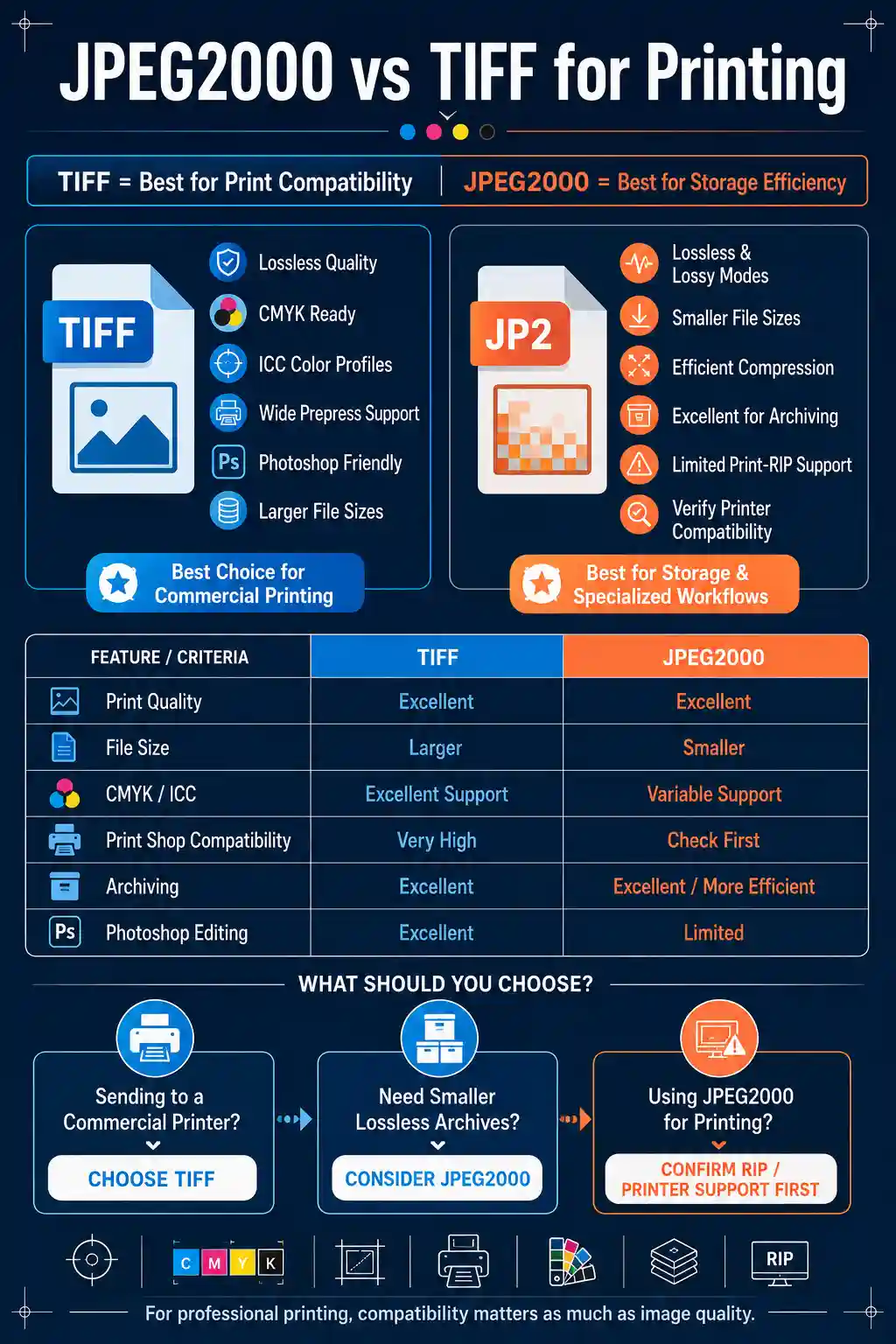
For most professional printing, TIFF remains the safer default because of its universal support in prepress software and its lossless, CMYK-ready structure. JPEG2000 can match or beat TIFF on file size at visually lossless quality, but it is far less consistently supported across printers and RIP software, so it is better suited to archival storage and specific technical workflows than to a print shop drop-off. Before you commit to either format for a big job, running a test file through a reliable image converter to check compatibility and settings can save you a wasted print.
This guide walks through how each format actually behaves under print conditions — compression, color handling, file size, and software support — then covers the fastest way to convert between them, how they perform for photos, video-derived stills, web use, and Photoshop workflows, and answers the most common questions people search when comparing the two.
What TIFF and JPEG2000 Actually Are
TIFF (Tagged Image File Format) has been the backbone of professional imaging since the late 1980s. It's a container format, meaning it can hold image data compressed or uncompressed, in RGB or CMYK, with or without layers, alpha channels, and embedded color profiles. Most TIFF files used for printing are either fully uncompressed or use LZW/ZIP lossless compression, which means no pixel data is discarded no matter how many times the file is opened, edited, and resaved.
JPEG2000 is a newer format standardized in 2000 as a successor to standard JPEG. It uses wavelet-based compression instead of the older discrete cosine transform (DCT) method, which allows it to avoid the blocky artifacts associated with heavy JPEG compression. JPEG2000 supports both lossy and mathematically lossless compression modes, and it can achieve noticeably smaller file sizes than TIFF at visually equivalent quality. Despite these technical advantages, it never reached the same level of adoption, and that gap in software and hardware support is the single biggest factor to weigh when deciding between the two for a print job.
A format's technical quality only matters if the software along your print pipeline can actually open and interpret it correctly — this is the core reason TIFF still dominates professional printing despite JPEG2000's compression advantages.
Image Quality: TIFF vs JPEG2000 for Print
When both formats are used in lossless mode, the visual quality is effectively identical — a lossless TIFF and a lossless JPEG2000 file will reproduce the exact same pixel values on output. The differences show up in three specific situations relevant to printing.
- Fine gradients and skies: JPEG2000's wavelet compression handles smooth tonal transitions more gracefully than DCT-based formats even at moderate compression, reducing the risk of visible banding in large flat areas.
- High-frequency detail: Uncompressed or lightly compressed TIFF preserves fine texture (fabric weave, hair, foliage) with zero interpretation, which some prepress technicians still prefer for large-format prints where every pixel gets magnified.
- Repeated editing: A TIFF opened, edited, and resaved multiple times in a lossless workflow will not degrade. A JPEG2000 file in lossy mode will lose a small amount of information on every resave, the same as standard JPEG, just at a much slower rate.
For a deeper technical breakdown of where TIFF holds up and where it falls short across different use cases, our guide to TIFF Advantages and Disadvantages covers the tradeoffs in more detail than fits here.
File Size Comparison for Print-Ready Images
File size is where JPEG2000 has a real, measurable edge. A JPEG2000 file using lossless compression typically comes in at roughly half the size of an equivalent lossless TIFF, because wavelet compression is genuinely more efficient at packing image data than the LZW or ZIP compression schemes TIFF relies on. In lossy mode, JPEG2000 can go dramatically smaller while remaining visually indistinguishable from the original at normal viewing distances.
| Format & Mode | Approx. Size (24MP image) | Quality Loss |
|---|---|---|
| TIFF, uncompressed | ~70-100 MB | None |
| TIFF, LZW/ZIP lossless | ~35-60 MB | None |
| JPEG2000, lossless | ~20-35 MB | None |
| JPEG2000, lossy (high quality) | ~4-10 MB | Minimal, visually negligible |
These figures vary with image content and specific encoder settings, but the ranking holds consistently: JPEG2000 wins on efficiency in every mode. If your main constraint is storage space or upload bandwidth rather than software compatibility at the print shop, that efficiency is worth taking seriously.
CMYK, Color Profiles, and Print Pipeline Compatibility
Printing almost always happens in CMYK rather than RGB, and this is where TIFF's maturity really shows. TIFF has native, well-tested support for CMYK color, embedded ICC color profiles, spot colors, and even multiple alpha channels for masking — all features that prepress software from Adobe, Quark, and print RIPs have supported for decades without exception.
JPEG2000 technically supports CMYK and embedded color profiles as part of its specification, but real-world support is inconsistent. Some RIP software and commercial print processors either don't accept JPEG2000 at all or handle its color management unpredictably. Sending a JPEG2000 CMYK file to an unfamiliar print vendor without first confirming their software can support it is a common way jobs get delayed or come back with shifted colors.
Before sending any JPEG2000 file to a commercial printer, call or email them first to confirm their RIP software explicitly supports it. Many prepress departments will simply ask you to resend as TIFF or high-quality JPEG, which costs you time you didn't need to lose.
When to Use TIFF vs JPEG2000 for Printing
Given the tradeoffs above, the practical decision usually comes down to where the file is going next.
- Use TIFF when: sending files to a commercial print shop, working in a CMYK prepress pipeline, submitting to a stock photo agency or publisher with format requirements, or archiving a master file you'll edit repeatedly.
- Use JPEG2000 when: archiving large photo or scan libraries where storage space matters, working with medical or satellite imaging systems that already standardize on it, or delivering files to a client or system you've already confirmed supports the format.
- Use lossless compression (in either format) for anything that will be reprinted, resized, or edited again later.
- Use lossy JPEG2000 only for delivery copies where the original master is safely archived elsewhere.
If your work spans both formats regularly, it's worth understanding how the two compare inside a specific editing tool as well — our breakdown of jpeg2000 vs tiff for photoshop goes into how each format behaves with layers, smart objects, and Photoshop's own compression handling.
The Fastest Way to Convert Between Formats
Once you know which format your print job actually needs, the most direct way to get there is with a dedicated image converter rather than re-exporting from your original editing software every time — especially useful when you receive a batch of images in the wrong format from a client or a stock library. A free browser-based tool like Free unlimited image converter online handles TIFF-to-JPEG2000 and JPEG2000-to-TIFF conversion without requiring desktop software installed.
The general workflow with a tool like this follows the same basic pattern regardless of which direction you're converting:
- Upload your source file (TIFF or JPEG2000) to the converter, either by dragging it into the upload area or selecting it from your file browser.
- Choose your target format and, where available, set compression mode — for print work, select lossless compression if the tool offers a choice, since this preserves full print quality.
- Confirm any color-space or resolution settings the tool exposes before starting the conversion.
- Run the conversion and preview the result before downloading, checking that colors and detail look consistent with the source file.
- Download the converted file and, for anything going to a commercial printer, open it in your editing software to confirm the color profile carried over correctly.
This kind of tool fits this specific problem well because format conversion between TIFF and JPEG2000 needs to preserve exact pixel values when quality matters for print — a converter that defaults to lossless handling for both formats avoids introducing the kind of compression artifacts that only become visible once a large print is already off the press.
One honest limitation worth knowing: very large uncompressed TIFF files (in the hundreds of megabytes, common with large-format or high-DPI scans) can take noticeably longer to upload and process through any browser-based tool than they would through desktop software running locally, simply because of upload bandwidth. If you're working with files in that range regularly, budget extra time or consider batching smaller groups rather than uploading dozens at once.
A common snag people hit during this exact conversion is ending up with a JPEG2000 file that opens fine on their own machine but gets rejected by a print vendor's software. If that happens, the fix is almost always to check whether the vendor's RIP supports JPEG2000 at all before troubleshooting the file itself — if it doesn't, converting back to TIFF is the quicker path than trying to force compatibility.
JPEG2000 vs TIFF for Photos
For everyday photography — portraits, events, product shots destined for print — TIFF is still the more practical default simply because every photo lab, print-on-demand service, and photo book platform accepts it without question. The lossless nature of both formats means a well-exposed photo will look identical printed from either, so the decision usually comes down to workflow convenience rather than pixel quality.
Where JPEG2000 earns its place is in photo archiving at scale. Photographers and studios storing tens of thousands of session files benefit meaningfully from JPEG2000's smaller lossless file size, since it can cut archival storage costs nearly in half compared to TIFF without sacrificing a single pixel of quality. For a closer look at how the two formats specifically compare across different photography scenarios, see our guide on jpeg2000 vs tiff for photos.
JPEG2000 vs TIFF for Video
JPEG2000 actually has a stronger footing in the video and film world than most people expect. Digital Cinema Package (DCP) files, the standard used to deliver movies to commercial theaters, use JPEG2000 as their image codec for individual frames, precisely because of its efficient lossless-capable compression at very high resolutions. TIFF, by contrast, is rarely used for video frame sequences because of its comparatively large file sizes at scale — a two-hour film stored as individual TIFF frames would require an impractical amount of storage.
If your print work involves pulling still frames from video footage — for a poster, a behind-the-scenes book, or promotional print material — you'll often find the source frames already exist as JPEG2000 files if they came from a DCP-based production pipeline. Converting those frames to TIFF before sending them to a commercial printer is usually the safer move given TIFF's broader prepress compatibility, discussed further in our dedicated comparison of jpeg2000 vs tiff for video.
JPEG2000 vs TIFF for Web
Neither format is well-suited to web delivery in its raw form, and this matters for print workflows because designers often need a web-friendly preview version alongside the print-ready master file. TIFF files are far too large for web pages and aren't reliably rendered by web browsers at all without conversion. JPEG2000 has technically better compression than standard JPEG for web use, but browser support has remained limited for years, meaning most site visitors simply won't see the image if it's served directly as JPEG2000.
The practical approach for a print project that also needs a web presence is to keep your TIFF or lossless JPEG2000 as the print master, then export a separate, smaller JPEG or WebP copy specifically for web use. Our detailed comparison of jpeg2000 vs tiff for web explains why neither format was really designed with browsers in mind and what alternatives work better.
JPEG2000 vs TIFF for Photoshop
Photoshop supports both formats natively, but the depth of support differs. TIFF integrates fully with Photoshop's layer system, smart objects, adjustment layers, and alpha channels, all of which are preserved when saving. JPEG2000 support in Photoshop, by comparison, has historically required a separate plug-in in some versions and doesn't support layers at all — saving a layered document as JPEG2000 flattens it first.
For any print project still in active editing (color correction, retouching, compositing), TIFF is the more practical working format in Photoshop simply because it preserves your full edit history and layer structure. Reserve JPEG2000 conversion for the final, flattened export stage once editing is complete. For the full technical rundown of how each format behaves inside Photoshop specifically, our guide to jpeg2000 vs tiff for photoshop covers plug-in requirements and export settings in more depth.
Frequently Asked Questions
Why is JPEG 2000 not used?
JPEG2000 isn't obscure so much as unevenly adopted. It launched years after standard JPEG had already become the default across cameras, browsers, and editing software, and switching an entire industry's tooling over is slow and expensive. Web browsers never added broad native support, which cut off its biggest potential use case. It does see real use in specific fields — medical imaging, satellite imagery, and digital cinema — where its lossless compression and dynamic range advantages justify specialized software support.
Can TIFF be used for printing?
Yes, TIFF is one of the most widely accepted and recommended formats for professional printing. It supports CMYK color, embedded ICC profiles, and lossless compression, and virtually every prepress system, print shop, and RIP software handles it without issue. It's the default recommendation for anyone submitting files to a commercial printer.
What are the disadvantages of TIFF?
TIFF's main drawback is file size — even with lossless compression, TIFF files are typically much larger than equivalent JPEG2000 or JPEG files, which slows down uploads, eats storage space, and can make email delivery impractical for high-resolution images. TIFF also isn't supported by web browsers for direct display, so it always needs converting for online use.
What's the main difference between JPEG2000 and TIFF for print quality?
At equivalent lossless settings, print quality between the two formats is essentially identical since no image data is discarded in either case. The real difference is efficiency: JPEG2000 achieves that same lossless quality in a noticeably smaller file, while TIFF trades larger file size for broader, more predictable software compatibility across the print industry.
Which format is better for printing: JPEG2000 or TIFF?
For most people sending files to a commercial print shop, TIFF is the better choice because of its universal support in prepress and RIP software. JPEG2000 can be a better choice specifically for archiving large volumes of print-ready masters, where its smaller lossless file size saves meaningful storage space, as long as you've confirmed your eventual printer can accept it.
Is JPEG2000 a lossy format like regular JPEG?
JPEG2000 can operate in both modes. It supports a genuinely lossless compression mode that discards no image data, unlike standard JPEG which is always lossy. It also supports a lossy mode for smaller file sizes, but unlike older JPEG, that lossy compression tends to produce smoother, less blocky artifacts because of its wavelet-based approach.
When should I use TIFF vs. JPEG2000?
Use TIFF when compatibility is the priority — sending to a print shop, submitting to a publisher, or working actively in layered editing software. Use JPEG2000 when storage efficiency matters more than universal compatibility, such as archiving large photo libraries, or when working within a system (medical imaging, digital cinema) that already standardizes on it.
Conclusion
TIFF and JPEG2000 can both deliver flawless print quality when used in lossless mode — the real difference between them is compatibility versus efficiency. TIFF remains the safer default for anything headed to a commercial printer because of its decades-long, universal support across prepress software. JPEG2000 earns its place when storage space matters more than compatibility, particularly for archiving large volumes of print masters or working within systems that already standardize on it, like digital cinema or medical imaging.
If you need to move between the two formats — whether you're converting a client's JPEG2000 archive back to TIFF for a print shop, or shrinking a folder of TIFF masters into lossless JPEG2000 for long-term storage — the fastest route is a dedicated converter rather than re-exporting from your editing software one file at a time. Free unlimited image converter online handles both directions with lossless options intact, so your print quality carries through the conversion unchanged. Upload your file, choose your target format, and download the result once you've confirmed the preview looks right.