WebP vs JPG for Website: Which Image Format Is Better in 2027?
You're building or running a website in 2027, and you've likely faced this choice: should you use WebP or JPG for your images? The decision impacts your page speed, user experience, and even your SEO performance.
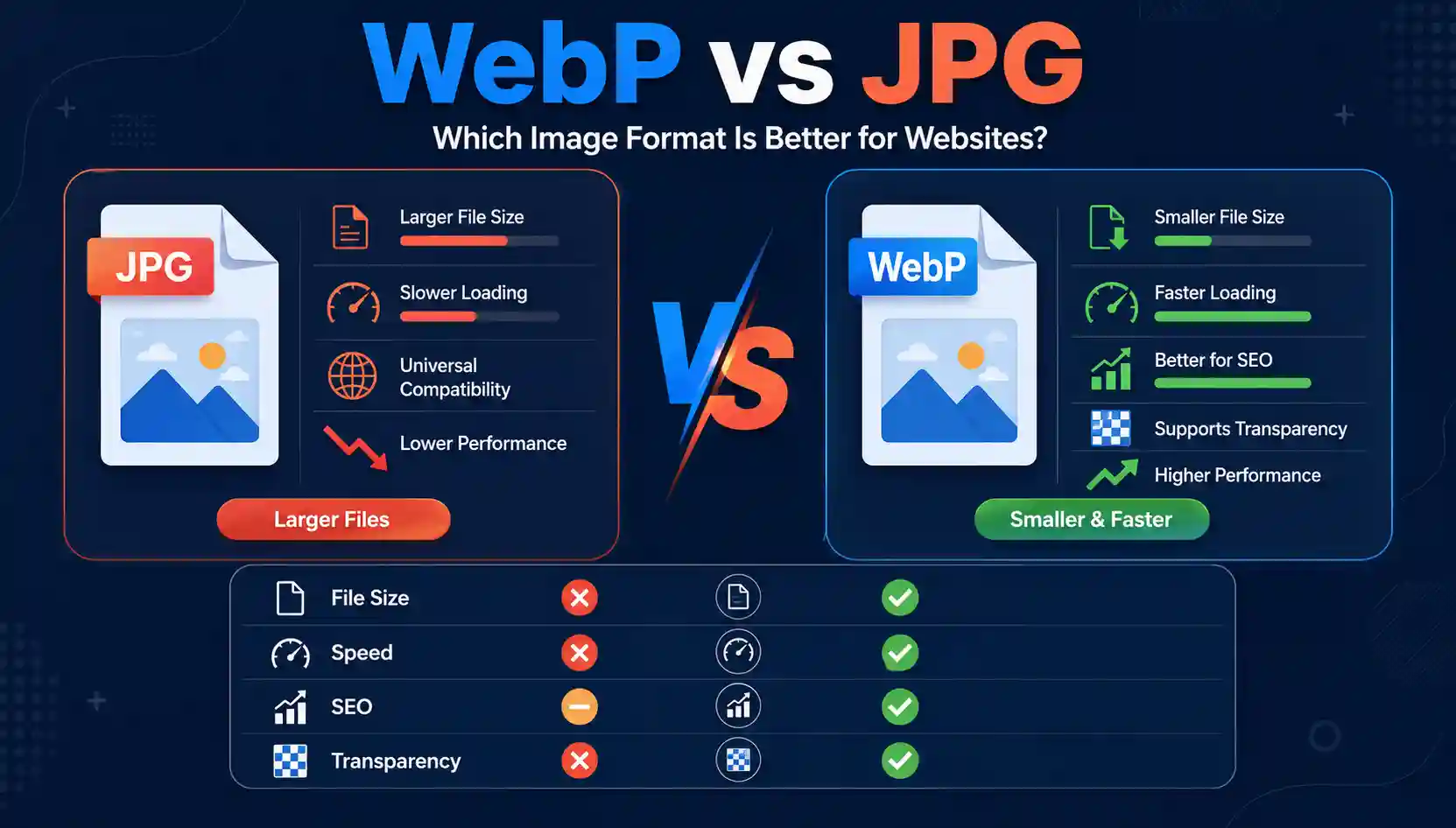
The short answer: For most modern websites, WebP is the better choice in 2027. It offers superior compression, resulting in files that are about 25-35% smaller than JPGs at the same visual quality. This translates directly to faster page load times and better Core Web Vitals. The fastest way to implement this is by using a reliable browser-based conversion tool that can instantly convert your existing JPGs to WebP without losing quality.
This guide will walk you through a detailed comparison of WebP and JPG, explaining exactly when and why to use each format. We'll cover everything from technical specifications and visual quality to SEO impact and practical conversion steps. By the end, you'll know precisely which format suits your specific web project needs and how to make the switch seamlessly.
Understanding the Image Formats: JPG and WebP
Before diving into the side-by-side comparison, it's essential to grasp the fundamental nature of each format and why they exist. Both are designed to handle photographic imagery for the web, but they use very different underlying technologies.
What is JPG (JPEG)?
JPEG, which stands for Joint Photographic Experts Group, has been the internet's go-to image format for decades. It uses a "lossy" compression algorithm — meaning it discards some data to reduce file size. This algorithm works well with the complex gradients and color variations found in photographs, effectively reducing file size while maintaining acceptable visual quality.
However, this compression comes with a trade-off. Each time you save a JPG file, you lose a little more quality, which is why repeated editing and saving is not recommended. Despite its age, JPG enjoys universal browser support and remains a standard fallback option.
What is WebP?
WebP is a modern image format developed by Google. It was created specifically to be a superior format for the web, offering both lossy and lossless compression. It achieves its smaller file sizes through more intelligent prediction algorithms and a more efficient compression process than the older JPG standard.
Unlike JPG, WebP also supports transparency (an alpha channel) and animation, making it a highly versatile format. Over the last few years, WebP support has grown significantly across all modern browsers, including Chrome, Firefox, Safari, and Edge, making it a viable and highly recommended choice for web projects today.
The Head-to-Head Comparison: WebP vs JPG
To make an informed decision, it's helpful to look at how JPG and WebP stack up against each other across a range of critical performance and usability criteria. The table below breaks down the key differences.
| Feature | JPG | WebP |
|---|---|---|
| Compression Type | Lossy only | Lossy & Lossless |
| Transparency Support | No | Yes |
| Animation Support | No | Yes |
| Average File Size | Larger (Baseline) | ~25-35% smaller |
| Browser Support | Universal | 96%+ (Modern browsers) |
| Lossless Compression | No | Yes |
Which Image Format Should You Use?
The decision ultimately depends on your specific project goals and target audience. Here's a practical breakdown of when to use each format.
When to Choose WebP
- You're optimizing for speed and SEO. The 25-35% file size reduction directly improves your site's load times and Google Core Web Vitals. This is a major ranking factor.
- You need transparency. If your design requires images with a transparent background, WebP is the modern choice over PNG, offering significantly smaller file sizes.
- You have a modern, responsive website. Since over 96% of all web traffic comes from browsers that support WebP (Chrome, Firefox, Safari, Edge), it's a safe bet for a majority of your users.
- You're looking to future-proof your content. As internet speeds improve and bandwidth costs fluctuate, using a more efficient format is a forward-thinking approach to web development.
When to Choose JPG
- You need to ensure maximum compatibility. For legacy systems, older devices, or critical images that must be seen by every potential visitor, JPG is the safe fallback. You can use the
<picture>element in HTML to serve JPGs to older browsers and WebP to modern ones. - You want simple, fast editing. JPG is the standard, and every image editor (from professional suites to simple paint programs) handles them flawlessly.
- You're dealing with photographs for print. While WebP is for the web, JPG remains the standard for high-resolution print and offline work.
For a more detailed technical breakdown, you can also read our article on JPG vs WebP for a deeper comparison.
How to Convert JPG to WebP in 2027
Now that you understand the theoretical benefits of WebP, the most direct way to implement this on your website is to convert your existing image library. The quickest and most reliable method is using a specialized online tool.
For this process, we highly recommend using Image Converter 24. It's a fast, free, and browser-based tool that is specifically designed to handle various format conversions, including JPG to WebP, with great precision. The following step-by-step guide walks you through the process, based on an actual session using this tool.
Step-by-Step Walkthrough
- Open the Converter: Start by navigating to the Image Converter 24 website. The homepage immediately presents a clean, straightforward interface with a clearly marked drop zone and an "Upload Image" button.
- Upload Your JPG: Click the "Upload Image" button or simply drag and drop your JPG file from your computer or cloud storage into the designated area. The upload is processed locally in your browser, which means your images are never stored on an external server. Once uploaded, a quick thumbnail preview of your image appears on the screen, confirming it's the right file.
- Select Output Format: Under the "Convert To" section, click on the dropdown menu and select "WEBP" from the list of available formats. You'll see a few other options, but WEBP is the one you want.
- Adjust Quality (Optional): For lossy WebP conversion, you'll find a quality slider. The default is usually set to a high quality (around 80-90%). For a good balance of file size and quality, leaving it at the default is recommended. You can adjust it down to 70% for more compression or up to 100% for the highest quality if file size is less of a concern.
- Start the Conversion: Click the "Convert" button. The conversion usually takes a couple of seconds for a standard image. Once complete, a preview of the new WebP image appears, and a "Download" button becomes available.
- Download Your WebP: Click the "Download" button to save the newly converted WebP image directly to your device. The file will be ready to use on your website.
Pro Tip: You can batch-convert multiple images using this same tool. Simply upload a folder of JPGs, and the interface will process them all in sequence, allowing you to download a single ZIP file containing all your new WebP images.
This tool is particularly effective for this task because it allows you to fine-tune the quality, ensuring that your WebP images are optimized for the web with no noticeable visual loss. It's a perfect solution for webmasters, developers, and content creators looking to quickly convert image to WEBP without losing quality instantly.
A Note on Limitations
While Image Converter 24 is a powerful and free tool, it's important to be aware of its practical boundaries. For most users converting standard images (like those from a digital camera, screenshots, or web graphics), the tool works perfectly. However, for extremely large files (over 50MB), you might run into browser-based limitations. In such cases, you can use the tool to convert smaller batches or find a dedicated software for massive raw image files. This is a common limitation of all browser-based tools and not a flaw of Image Converter 24.
Troubleshooting: The "File Not Converted" Issue
Occasionally, you might upload an image that doesn't convert properly. This is often due to the file being corrupted or using an unsupported format variant. The tool will usually display a clear error message explaining this. The fix is simple: double-check that the file opens correctly on your device. If it does, try saving a copy and uploading that instead. Another simple solution is to try converting to a different format first (like PNG) and then converting that PNG to WebP, which often resolves any format-specific glitches.
Optimizing Images for Your Website: A Practical Guide
Choosing the right format is just the first step. To maximize your website's performance, you need a holistic approach to image optimization. This involves not just the file format, but also the resolution, compression level, and how you serve the images.
1. Use Responsive Images
Serving different image sizes for different screen sizes is crucial. Use the <picture> element and srcset attributes to ensure that mobile users don't download a desktop-sized image. This technique works perfectly with WebP, allowing you to serve a modern format to modern browsers while maintaining a fallback for older ones.
2. Choose the Right Compression Level
Don't default to 100% quality. For WebP, a quality setting of 80-85% is often visually indistinguishable from the original file while offering significant size savings. For JPG, you can often get away with 70-75% quality for a good balance. The key is to experiment and find the sweet spot for your specific images.
3. Leverage Browser Caching
Set up your server to cache images in the user's browser. This means that returning visitors don't need to re-download the same images, drastically speeding up their experience. This is beneficial regardless of whether you use JPG or WebP.
To get started with converting your entire media library, you can use Best Free Image Converter Online for a seamless experience.
SEO and Performance Impact
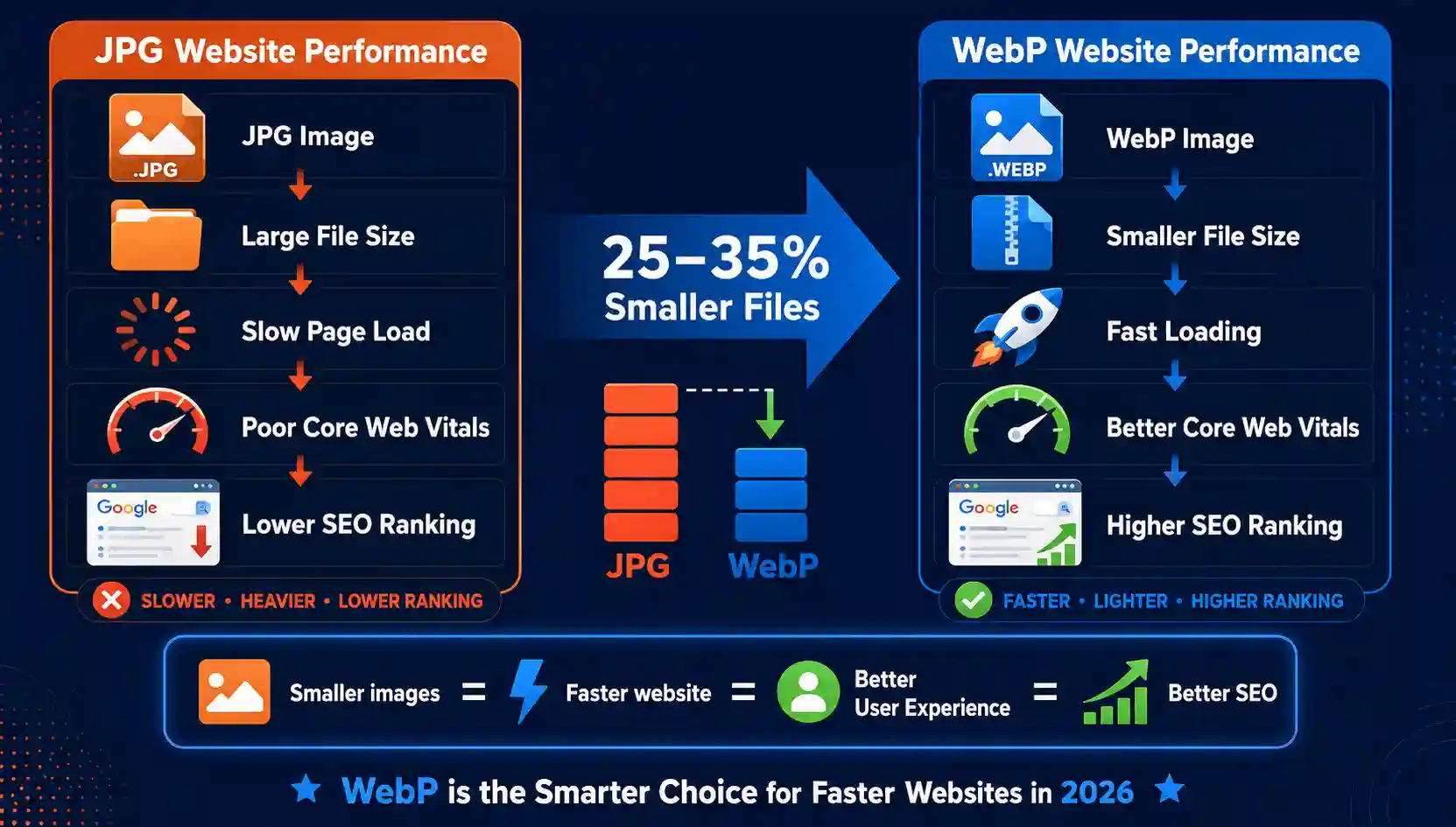
Switching from JPG to WebP is not just a technical decision; it's a strategic one for your website's visibility. Google's algorithms have long prioritized page speed, and image file size is a major contributing factor. A faster website leads to a better user experience, which in turn leads to lower bounce rates and higher engagement. These are all positive signals to search engines.
Moreover, with the introduction of Core Web Vitals as a ranking signal, optimizing your Largest Contentful Paint (LCP) is critical. LCP is heavily impacted by the load time of your hero images. By using WebP, you can significantly reduce the load time of these images, directly improving your LCP score and your overall search ranking. This makes the webp vs jpg debate a clear win for WebP from an SEO perspective. For more information on technical image optimization, check out our guide on the Content Type JPG specification.
Frequently Asked Questions
Which is better for a website, JPG or WebP?
WebP is generally better for websites because it offers superior compression (25-35% smaller files) and supports features like transparency and animation. This results in faster load times and a better user experience, which are key for SEO.
Is WebP good for websites?
Yes, WebP is excellent for websites. It is a modern, highly efficient format that is supported by over 96% of all modern browsers. Its small file size makes it ideal for improving site performance, especially on mobile networks.
Why WebP instead of JPG?
Choose WebP for its advanced compression algorithms that deliver smaller files, faster page loads, and better SEO rankings. It's the future-proof choice for the modern web and supports features like lossless compression and alpha transparency.
Does WebP to JPG lose quality?
Converting from WebP to JPG is a lossy process. Since WebP is often superior, converting it to JPG will add compression artifacts and likely result in a larger file size, which usually means a loss in quality.
What are the disadvantages of using WebP?
The main disadvantages are slightly lower browser support (though it's now >96%) and less compatibility with old legacy software and graphic editors. It may also take a little more CPU power to encode compared to JPG, though this is rarely noticeable on modern hardware.
Which image type is best for a website?
For most content, WebP is the best choice due to its superior compression and speed benefits. For icons, logos, or images requiring perfect clarity, WebP's lossless mode or the newer AVIF format can be considered. PNG remains a great option for images with text or sharp edges.
Is WebP better for SEO?
Yes, WebP is indirectly but significantly better for SEO. It reduces file sizes, which improves page load speed and Core Web Vitals (especially LCP). Since page speed is a confirmed Google ranking factor, using WebP can give your site a competitive edge in search results.
Why is WebP not used?
Historically, lack of support in older browsers and Apple's ecosystem (Safari was a holdout) slowed its adoption. Many webmasters were also simply hesitant to change their established workflow. However, this is quickly changing as Safari now supports WebP, and its adoption is accelerating rapidly.
Is WebP bigger than JPEG?
No, WebP is typically 25-35% smaller than JPEG for a given visual quality, making it more efficient and faster to load.
Conclusion
The debate between WebP and JPG for your website in 2027 is clear. While JPG is a reliable, universally supported standard, WebP is the superior format for performance, user experience, and search engine visibility. Its ability to deliver 25-35% smaller files without compromising quality makes it the ideal choice for modern web design. We recommend using WebP for most of your photographic and graphic content, while keeping JPG as a fallback for legacy systems.
The most efficient way to upgrade your site's images is to convert your existing library to WebP. We invite you to try Image Converter 24 today. Its fast, browser-based processing ensures your images are converted with no quality loss and with total privacy—your files are never stored on their servers.
Make the switch to WebP today and see the difference in your website's speed and performance.