Convert PNG to WebP Without Losing Quality
you can convert PNG to WebP without losing quality by using lossless WebP mode. WebP supports both lossy and lossless compression, so you can preserve every pixel exactly while getting smaller files than PNG. Image Converter 24 lets you do this for free, with no sign up and no limits.
This guide explains exactly how to convert PNG to WebP without losing quality, the difference between lossy and lossless modes, and why WebP is the modern choice for web images.
This guide explains exactly how to convert PNG to WebP without losing quality, the difference between lossy and lossless modes, and why WebP is the modern choice for web images.
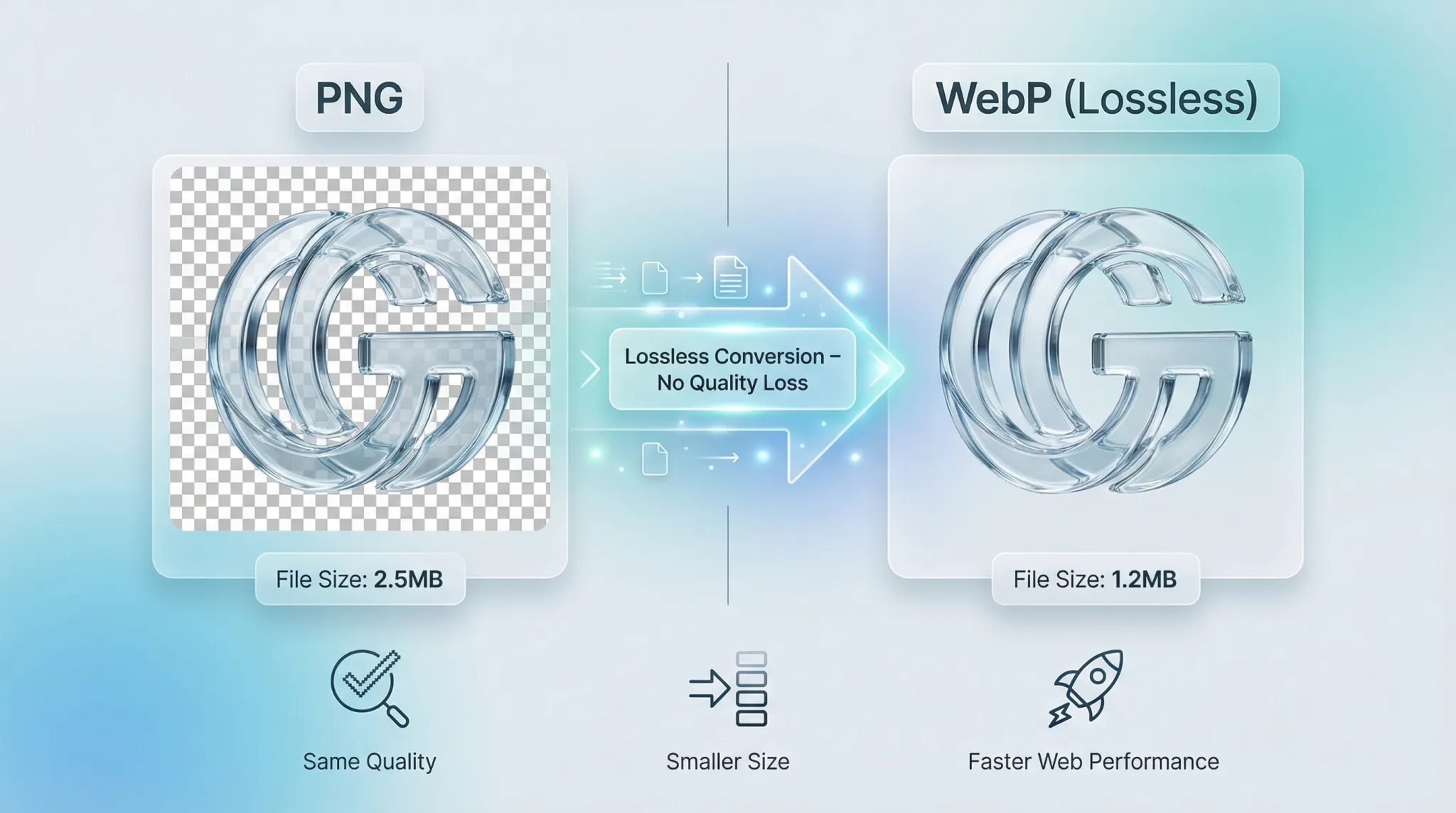 |
| Convert PNG to WebP losslessly – preserve every pixel, reduce file size, free and unlimited. |
PNG is excellent for preserving quality, but it creates large files. WebP offers the same lossless quality with significantly smaller file sizes. The key is using the right conversion settings.
Let us show you how.
Let us show you how.
PNG vs WebP: Understanding the difference
Before we explore the conversion process, let us understand the two formats:
- PNG (Portable Network Graphics): Lossless format. Preserves every pixel perfectly. Large file sizes, especially for photographs and complex images.
- WebP: Modern format from Google. Supports both lossy and lossless compression. Can preserve perfect quality (lossless) or create smaller files with excellent quality (lossy).
For a detailed comparison, read our guides on WebP vs PNG quality and PNG vs JPG vs WebP quality.
Is WebP better quality than PNG?
For lossless quality, WebP and PNG are identical. Both preserve every pixel exactly. You cannot tell the difference.
For lossy quality, WebP produces smaller files than PNG at the same visual quality. Since PNG is lossless only, WebP offers more flexibility.
So technically, WebP is "better" because it gives you more options while matching PNG's lossless quality.
For lossy quality, WebP produces smaller files than PNG at the same visual quality. Since PNG is lossless only, WebP offers more flexibility.
So technically, WebP is "better" because it gives you more options while matching PNG's lossless quality.
Is PNG to WebP lossless?
Yes, you can convert PNG to WebP losslessly. WebP has a lossless mode that preserves every single pixel from the original PNG.
When you convert PNG to WebP using lossless mode, the resulting WebP file will look identical to the original. No artifacts, no blurring, no quality loss.
The only difference? The WebP file will be smaller—often 20-30% smaller than the original PNG.
When you convert PNG to WebP using lossless mode, the resulting WebP file will look identical to the original. No artifacts, no blurring, no quality loss.
The only difference? The WebP file will be smaller—often 20-30% smaller than the original PNG.
Key fact: Lossless WebP preserves every pixel exactly. It is mathematically identical to the original PNG.
Is WebP bad quality?
No, WebP is not bad quality. That is a common misconception. WebP produces excellent quality—both in lossless and lossy modes.
At high quality settings (85-100%), lossy WebP is visually identical to the original. At the same quality level, WebP files are 25-35% smaller than JPEG.
Lossless WebP matches PNG perfectly. The only way WebP looks "bad" is if you use very low quality settings, just like any format.
At high quality settings (85-100%), lossy WebP is visually identical to the original. At the same quality level, WebP files are 25-35% smaller than JPEG.
Lossless WebP matches PNG perfectly. The only way WebP looks "bad" is if you use very low quality settings, just like any format.
Does converting to WebP reduce quality?
It depends on how you convert. If you use lossless WebP mode, quality is preserved perfectly. No reduction at all.
If you use lossy WebP mode with high quality settings (85-100%), the quality reduction is invisible to the human eye. Only at lower settings do you see visible artifacts.
Image Converter 24 lets you choose between lossless and high-quality lossy modes, so you control the quality.
If you use lossy WebP mode with high quality settings (85-100%), the quality reduction is invisible to the human eye. Only at lower settings do you see visible artifacts.
Image Converter 24 lets you choose between lossless and high-quality lossy modes, so you control the quality.
How to convert PNG file to WebP without losing quality
Using Image Converter 24, the process is simple:
- Go to Image Converter 24 📌 Open your browser and visit our website. No download, no installation.
- Upload your PNG file 📌 Click the upload button and select your PNG image. You can also drag and drop.
- Choose WebP as output 📌 Select WebP from the format options.
- Select lossless mode 📌 Choose the lossless option to preserve perfect quality. This ensures every pixel stays exactly the same.
- Convert and download 📌 Click convert and download your lossless WebP file.
For a detailed step-by-step, see how to convert an image to WebP without losing quality.
Lossy vs Lossless WebP: Which should you choose?
Here is a comparison to help you decide:
For most web use, high-quality lossy WebP (90% quality) is perfect. For archiving or when quality is absolutely critical, use lossless WebP.
Why does PNG save as WebP?
You might have noticed that some software or websites save your PNG as WebP automatically. This is because WebP is becoming the standard for web images.
WebP offers:
WebP offers:
- Smaller file sizes (faster loading websites)
- Better compression than PNG and JPEG
- Full transparency support (like PNG)
- Excellent quality at smaller sizes
For more on why you should consider WebP, read should I use WebP images on my website.
Is WebP more efficient than PNG?
Yes, significantly. WebP is more efficient in every way:
- File size: Lossless WebP is 20-30% smaller than PNG. Lossy WebP is 50-70% smaller.
- Encoding speed: WebP encodes quickly, comparable to PNG.
- Decoding speed: Modern browsers decode WebP very fast, often faster than PNG.
- Features: WebP supports both lossy and lossless, while PNG is lossless only.
For website performance, switching from PNG to WebP is one of the easiest ways to speed up your site.
What are the PNG drawbacks?
PNG is excellent, but it has limitations:
- Large file size: PNG files are often much larger than WebP at the same quality
- No lossy option: PNG is lossless only, so you cannot trade quality for smaller files
- Not ideal for photos: PNG photographs are huge; JPEG or WebP are better
For more details, read about the main drawback of the PNG file format and PNG advantages and disadvantages.
Why use Image Converter 24 for PNG to WebP conversion?
Image Converter 24 is the best free tool for this conversion:
- Lossless WebP support: Preserve every pixel perfectly
- Completely free: No hidden costs, no premium tiers
- No sign up: Just use it instantly – no email, no password
- Unlimited conversions: Convert as many files as you need
- Fast processing: Results in seconds
- Secure: Files automatically deleted
- Works on any device: Computer, tablet, or phone
- No watermarks: Your files are clean
- Batch conversion: Convert multiple PNGs to WebP at once
For a complete list of features, visit our best free image converter online no signup guide.
Step-by-step: Lossless PNG to WebP conversion
Here is a detailed walkthrough for preserving perfect quality:
- Prepare your PNG 📌 Ensure your PNG is the version you want to preserve. Keep the original as backup.
- Open Image Converter 24 📌 Go to our website in your browser.
- Upload your PNG 📌 Click upload or drag and drop your file.
- Select WebP output 📌 Choose WebP from the format dropdown.
- Enable lossless mode 📌 Toggle the lossless option to ensure perfect quality preservation.
- Convert and download 📌 Click convert, then download your lossless WebP file.
The result is a WebP file that looks identical to your original PNG but is 20-30% smaller.
Step-by-step: High-quality lossy PNG to WebP conversion
For web use where you want smaller files:
- Upload your PNG 📌 Same as above.
- Select WebP output 📌 Choose WebP.
- Set quality to 85-90% 📌 This gives excellent quality with significantly smaller files.
- Convert and download 📌 Get your optimized WebP file.
The result is visually identical to the original but 50-70% smaller.
Real-world file size comparison
Here are real examples of file size savings:
The savings are substantial, especially for web use.
Important note: Lossless WebP preserves every pixel. It is mathematically identical to the original PNG. You can test this by converting a PNG to lossless WebP and back – the files will be identical.
When to use lossless vs lossy WebP
Use lossless WebP when:
- You need perfect, pixel‑for‑pixel quality
- You are archiving master copies
- The image contains text or sharp lines
- You need transparency preserved perfectly
- You plan to edit the image later
Use high-quality lossy WebP when:
- You are optimizing for web performance
- File size is more important than perfect preservation
- The image is a photograph (lossy works great)
- You need the smallest possible files
Common questions about PNG to WebP conversion
Will WebP work in all browsers?
WebP is supported by all modern browsers (Chrome, Firefox, Safari, Edge). For older browsers, you can use a fallback like PNG. Learn more in should I use WebP images on my website.
Does WebP support transparency like PNG?
Yes, WebP supports full alpha channel transparency in both lossless and lossy modes. Your transparent PNG will convert perfectly.
Can I convert back to PNG without losing quality?
If you used lossless WebP, converting back to PNG will restore the original quality perfectly. If you used lossy WebP, the loss is permanent.
How much space can I save by converting PNG to WebP?
Lossless WebP saves 20-30%. High-quality lossy WebP saves 50-70%. The exact savings depend on the image content.
The bottom line: Convert PNG to WebP without losing quality
Image Converter 24 is the best way to convert PNG to WebP without losing quality. It is:
- Completely free – no hidden costs
- No sign up – just use it instantly
- Unlimited – convert as many files as you need
- Lossless mode – preserve every pixel perfectly
- Fast – results in seconds
- Secure – files automatically deleted
- Batch capable – convert multiple PNGs at once
For web developers optimizing site speed, designers saving storage space, or anyone who wants smaller files without quality loss, Image Converter 24 has you covered.
Ready to convert your PNG to WebP?
Stop using oversized PNG files. Convert to WebP and save space without sacrificing quality.
Visit Image Converter 24 now and convert your first PNG to WebP with lossless quality. It takes seconds, it is completely free, and you do not even need to sign up.
Bookmark the site, and you will always have a reliable, unlimited PNG to WebP converter at your fingertips.
Visit Image Converter 24 now and convert your first PNG to WebP with lossless quality. It takes seconds, it is completely free, and you do not even need to sign up.
Bookmark the site, and you will always have a reliable, unlimited PNG to WebP converter at your fingertips.