Tiff 16 Bit vs JPEG: The Ultimate Comparison Guide
If you've ever opened your camera's settings, saved a file from Photoshop, or scanned a photo, you've likely seen the options: TIFF or JPEG. But when you add "16-bit" into the mix, things get more complex. This guide breaks down everything you need to know about TIFF 16-bit vs JPEG, so you can choose the right format for your specific needs—whether you're a photographer, designer, or just someone who wants the best image quality.
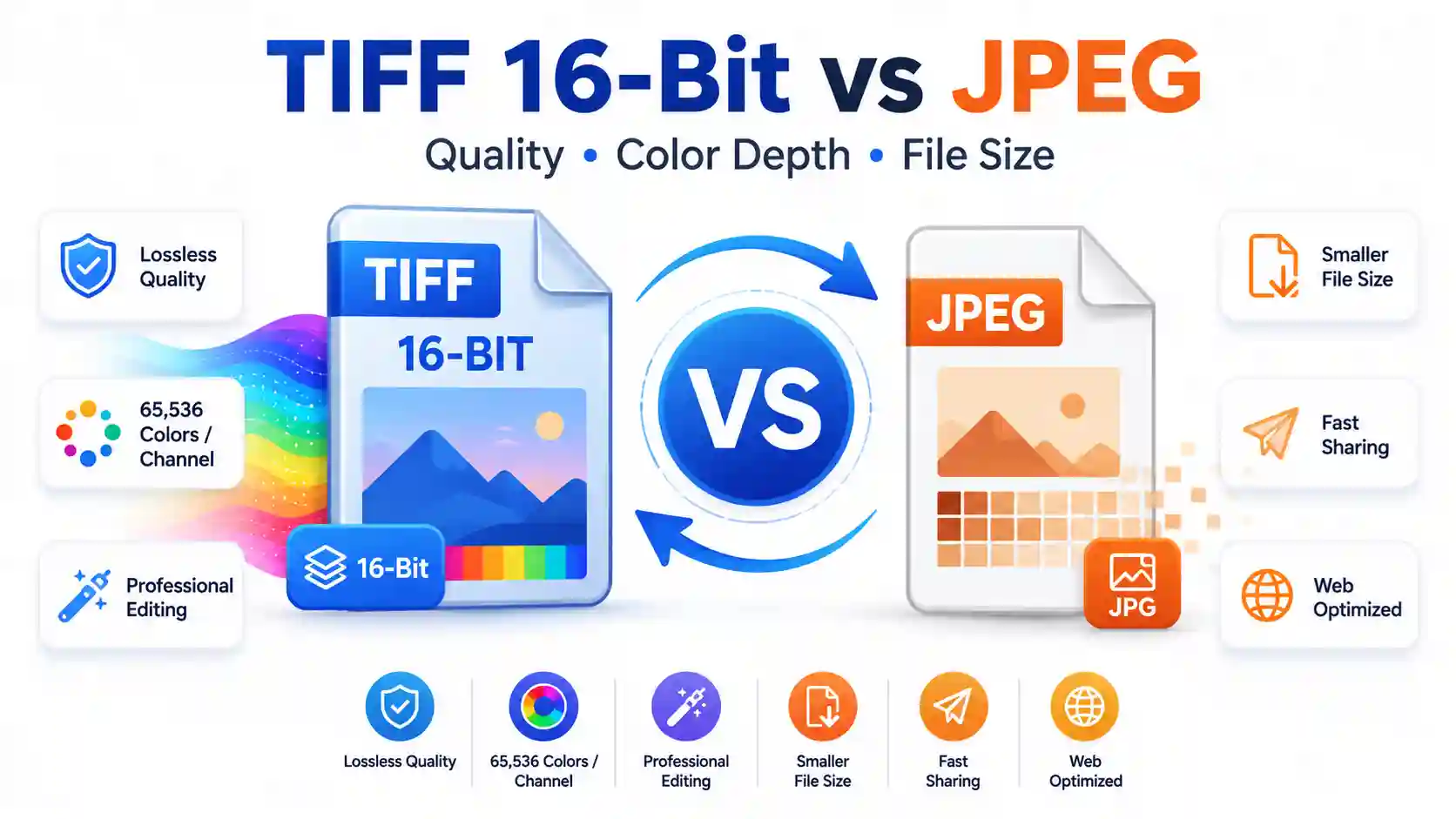
The short answer: TIFF 16-bit is a high-fidelity, lossless format that preserves every bit of color and detail—ideal for professional editing, printing, and archiving. JPEG is a compressed, 8-bit format that sacrifices some quality for smaller file sizes, making it perfect for web use and sharing. The right choice depends entirely on what you need the image for. If you're working with an image and need the best quality, using a browser-based image converter can help you switch between these formats depending on your needs.
In this guide, we'll explore the technical differences, file size comparisons, printing considerations, and real-world use cases. By the end, you'll know exactly which format to choose—and how to convert between them when needed.
What Is a TIFF 16-Bit File?
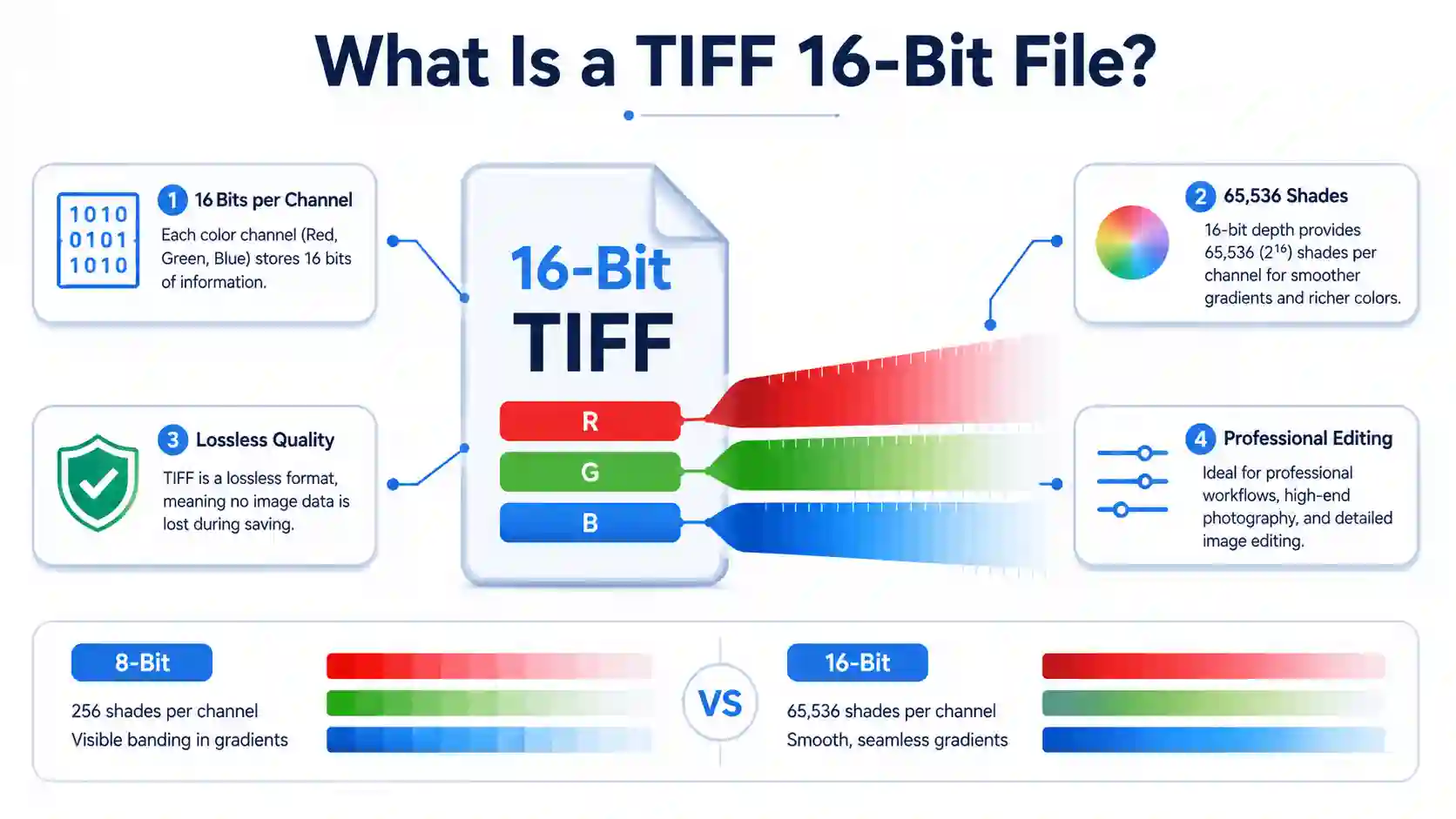
TIFF stands for Tagged Image File Format. It's a flexible raster image format that supports lossless compression—meaning no image data is discarded when the file is saved. A 16-bit TIFF stores 16 bits per color channel (Red, Green, and Blue), which adds up to 65,536 possible shades per channel. Combined, this allows for billions of colors with incredibly smooth gradients and detailed tonal transitions.
Note: While TIFF supports both 8-bit and 16-bit depths, 16-bit is far superior for editing because it provides more "headroom" for adjustments like exposure, contrast, and color grading without introducing banding or posterization.
What Is a JPEG File?
JPEG (Joint Photographic Experts Group) is the most widely used image format for digital photography and web publishing. It uses lossy compression, which means some visual information is permanently discarded during saving to reduce file size. JPEG files are typically 8-bit, offering 256 shades per color channel—a total of about 16.7 million colors. For many everyday purposes, this is more than enough.
However, the compression that makes JPEG so practical for sharing and web use comes at a cost. Every time you edit and re-save a JPEG, more data is lost, which gradually degrades image quality.
TIFF 16-Bit vs JPEG: The Key Differences
Let's break down the core differences between these two formats. This comparison will help you understand why one might be better suited for your project than the other.
| Feature | TIFF 16-Bit | JPEG |
|---|---|---|
| Bit Depth | 16-bit per channel (billions of colors) | 8-bit per channel (~16.7 million colors) |
| Compression | Lossless (LZW, ZIP) or none | Lossy (discards data) |
| File Size | Very large (50–200+ MB per file) | Small (2–10 MB typically) |
| Editing Flexibility | Excellent — retains all data, multiple saves safe | Limited — quality degrades with each save |
| Color Depth | Billions of colors, smooth gradients | Millions, but can show banding in gradients |
| Best Use Case | Professional photography, printing, archiving | Web images, social media, sharing |
| Transparency Support | Yes (with alpha channel) | No (uses a solid background) |
Image Quality: Which Looks Better?
When it comes to pure image quality, TIFF 16-bit is the clear winner. It preserves every pixel exactly as it was captured, with no compression artifacts, color banding, or lost detail. This is especially noticeable in:
- Gradients — Skies and smooth color transitions look perfectly smooth in 16-bit TIFF, while JPEG can show visible stepping or banding.
- Shadow and highlight detail — 16-bit TIFF preserves subtle tonal information that JPEG compression often crushes.
- Fine textures — Details like fabric weaves, hair, and foliage remain crisp and defined in TIFF.
JPEG can look excellent at high quality settings (low compression), but it will always be a representation of the original, not a perfect copy. The difference is most visible when you zoom in or make significant edits.
"A 16-bit TIFF contains roughly 4,000 times more color information than a JPEG. For professional editing and printing, that extra data is essential—especially when you need to recover details from shadows or highlights."
TIFF vs JPEG: File Size Comparison
One of the most significant differences between these formats is file size. A single 16-bit TIFF file can be 10 to 50 times larger than a JPEG of the same image. Here's a rough breakdown for a 24-megapixel image:
| Format | File Size (Approx.) | Relative Size |
|---|---|---|
| TIFF 16-bit (uncompressed) | 150–250 MB | 50x larger |
| TIFF 16-bit (LZW compressed) | 80–150 MB | 30x larger |
| TIFF 8-bit | 30–60 MB | 15x larger |
| JPEG (high quality, 90%) | 5–12 MB | 1x baseline |
| JPEG (standard quality, 70%) | 2–5 MB | 0.5x |
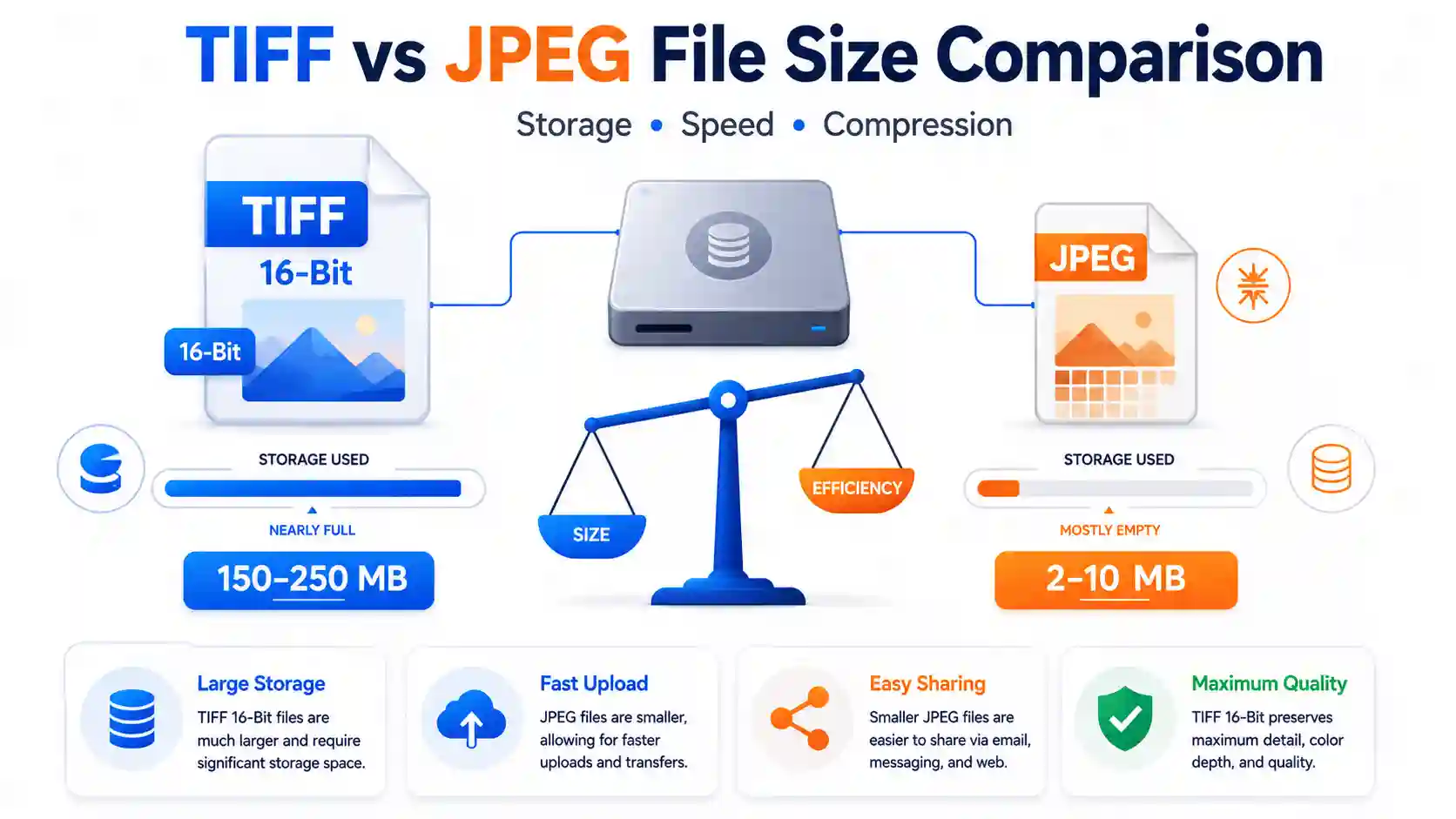
The practical implication is straightforward: if you're working with limited storage, sending files via email, or building a website, JPEG's smaller size is a huge advantage. But if storage space isn't a concern and quality is your top priority, the larger file size of TIFF is a worthwhile investment.
For a deeper dive into JPEG's pros and cons, check out our JPEG Advantages and Disadvantages Most Important Guide 2026.
Is TIFF or JPEG Better for Printing?
This is one of the most common questions, and the answer depends on the type of printing you're doing.
- For professional, large-format, or fine art printing: TIFF 16-bit is strongly recommended. The extra color depth ensures smooth tonal transitions, especially in sky gradients and skin tones. The lossless nature means your print matches your digital file with no compression artifacts. Many professional print labs actually require TIFF files for the highest quality output.
- For standard photo prints (4x6, 5x7, 8x10) at consumer labs: JPEG is perfectly acceptable. Most consumer print labs expect JPEG files and have optimized their workflows for them. With a high-quality JPEG (90% or above), you won't notice significant quality loss in typical print sizes.
- For archival purposes: TIFF 16-bit is the clear choice. It's a stable, widely-supported format that preserves your image in its highest quality. If you're printing a family heirloom or a portfolio piece, start with TIFF.
Printing tip: If you're sending a JPEG to a professional lab, ask them what color space they prefer (sRGB or Adobe RGB) and what compression quality they recommend. This small step can make a big difference in your final prints.
You can also read our detailed guide on TIFF or JPEG for Scanning Photos: The Smart Choice Guide for more specific advice on scanning workflows.
When to Use TIFF 16-Bit vs JPEG
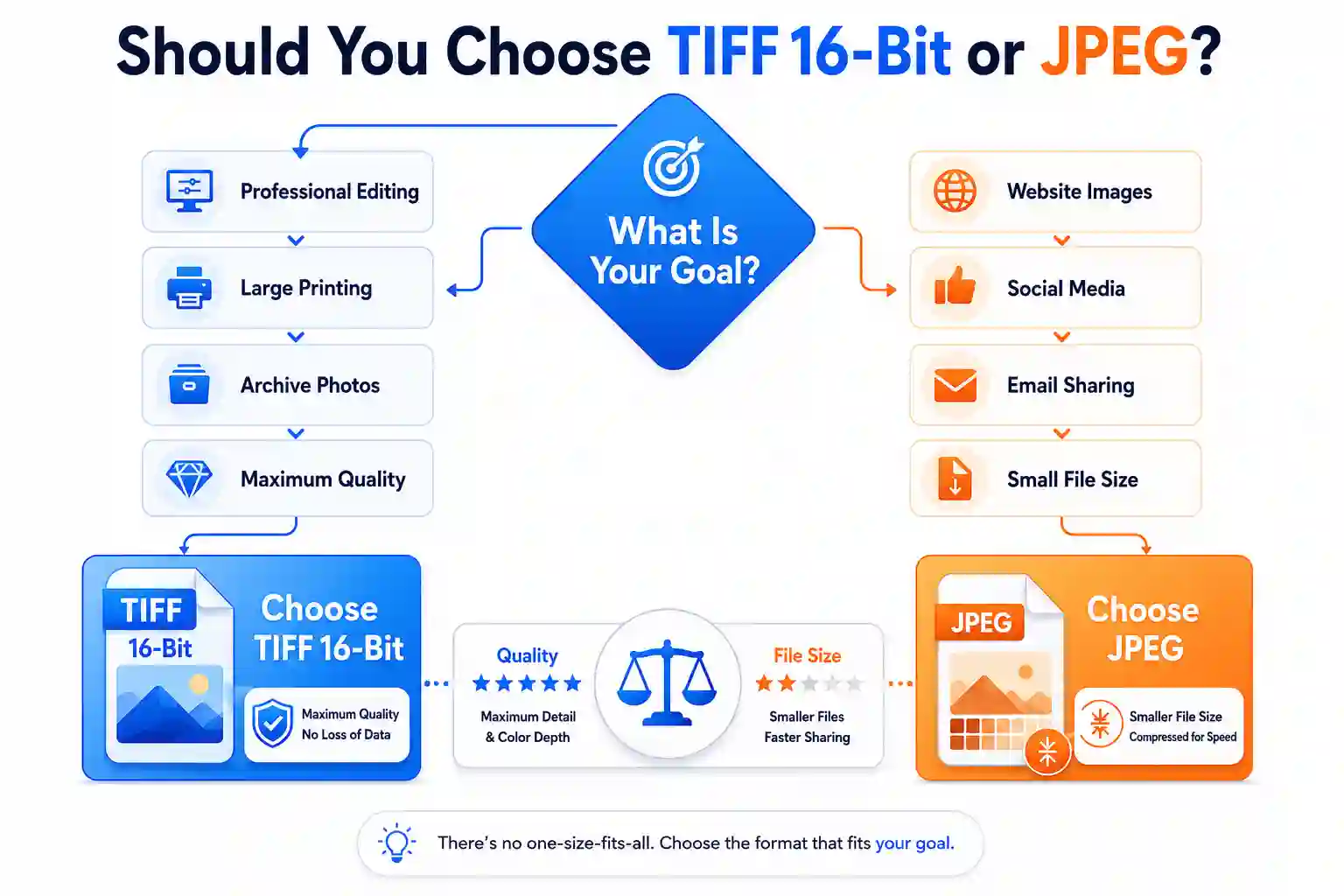
Choose TIFF 16-Bit When:
- You're editing images in Photoshop, Lightroom, or another professional editor and need to make significant adjustments.
- You're exporting final files for a print lab that requests high-quality formats.
- You're archiving master copies of your photos or artwork.
- Your image has subtle gradients (like skies or studio backgrounds) that could show banding in 8-bit.
- You need to preserve every detail for future editing or reinterpretation.
Choose JPEG When:
- You're uploading images to a website, social media, or emailing them to someone.
- Storage space or bandwidth is limited.
- You're taking casual or personal photos and don't need advanced editing capabilities.
- Your final output is a small to medium-sized print from a consumer lab.
- You need fast, efficient sharing across multiple devices and platforms.
How to Convert Between TIFF and JPEG (Including 16-Bit)
Sometimes you need to switch formats—perhaps you shot in RAW, exported to TIFF for editing, and now need a JPEG for web sharing. Or you have a JPEG that you'd like to convert to TIFF for better archiving (though this won't restore lost detail).
While professional software like Adobe Photoshop can handle these conversions, it requires a paid subscription and a learning curve. For many users, the most direct way to actually do this is to use a specialized online image converter that handles both formats natively.
We recommend using Image Converter 24 for this purpose. It's a free, browser-based tool that supports both TIFF and JPEG formats, including 16-bit TIFF conversion.
Step-by-Step Guide: Converting TIFF to JPEG (or Vice Versa)
- Open the converter: Go to Image Converter 24 in your browser. The homepage loads quickly with a clean upload area right in the center. You'll see a large button that says "Upload Your Images" with a cloud icon and a drag-and-drop zone around it.
- Upload your file: Click the upload button or drag your TIFF (or JPEG) file directly into the drop zone. The tool accepts TIFF files up to 200 MB—more than enough for most 16-bit TIFF files from professional cameras. The file appears as a thumbnail in the upload queue with its filename and size displayed. You'll see a progress indicator showing the upload status in real-time.
- Select your output format: Once the file is uploaded, you'll see a dropdown menu labeled "Convert to" with a list of available formats. Select "JPEG" if you're converting from TIFF, or "TIFF" if you're converting from JPEG. If you're converting to TIFF, the tool automatically preserves the highest bit depth available—so a 16-bit input stays 16-bit on output.
- Adjust quality settings (optional): For JPEG output, you can choose a quality level between 10% and 100% using a simple slider. The tool shows an estimated file size as you adjust the slider, so you can balance quality and size. For TIFF output, the tool uses lossless compression by default (LZW) to keep your file as small as possible without losing quality.
- Convert and download: Click the "Convert" button. The conversion usually takes 5–15 seconds depending on file size and your internet speed. The tool processes the file on its secure servers and displays a preview of your converted image. You'll then see a "Download" button appear. Click it, and your new file saves directly to your device. The entire process, from upload to download, typically takes under a minute.
The tool is specifically well-suited for this type of conversion because it handles the nuances of 16-bit data correctly—unlike some online converters that silently down-sample 16-bit TIFFs to 8-bit without telling you. With Image Converter 24, your color depth is preserved when converting from TIFF to TIFF, and when converting to JPEG, you have full control over the compression level.
Limitation to be aware of: The tool supports files up to 200 MB per upload. For most 16-bit TIFF files, this is sufficient—a 24-megapixel TIFF from a full-frame camera typically falls between 80–180 MB. For exceptionally large files (like 50+ megapixel medium format shots), you may need to split the file or use desktop software.
Troubleshooting Common Conversion Issues
Problem: Your uploaded TIFF appears to have a color shift or looks different than it did in your editing software.
Solution: This is usually because the TIFF uses a specific color profile (like Adobe RGB or ProPhoto RGB) that isn't automatically converted. Try embedding the color profile in the output JPEG, or convert to sRGB before exporting. The tool handles most common color profiles, but if you're working in a niche color space, you may want to convert to sRGB in your editing software first.
Frequently Asked Questions
Is TIFF better quality than JPEG?
Yes, TIFF is significantly better quality than JPEG. TIFF uses lossless compression (or no compression at all), meaning it preserves every pixel of image data exactly as it was captured. JPEG uses lossy compression, which discards some visual information to reduce file size. This is especially noticeable in gradients, fine detail, and areas with subtle color transitions. For professional work, printing, or archiving, TIFF is the superior choice.
Is TIF the same as JPEG?
No, TIF (often written as TIFF) and JPEG are completely different file formats. TIFF is a lossless format designed for high-quality image storage and professional workflows. JPEG is a lossy format optimized for efficient storage and sharing. TIFF files are much larger but preserve full quality, while JPEG files are much smaller but sacrifice some detail.
Is TIFF 16 bit or 8 bit?
TIFF can be either 8-bit or 16-bit—and even 32-bit in some cases. The bit depth refers to how many bits are used per color channel. 8-bit TIFF stores 256 shades per channel (like JPEG), while 16-bit TIFF stores 65,536 shades per channel. The most common professional format is 16-bit TIFF, which provides superior color depth and editing flexibility.
Is JPEG always 8 bit?
Yes, standard JPEG files are always 8-bit per color channel. There is an extension called JPEG 2000 that supports up to 16-bit, but it never gained widespread adoption and is rarely used today. The JPEG format used in cameras, web browsers, and most software is 8-bit, which means it supports up to 16.7 million colors.
Is TIFF the best quality?
For standard photography and image editing, 16-bit TIFF is indeed the highest quality widely-supported format available. It's lossless and supports deep color depth. However, for professional motion picture work or high-end scientific imaging, formats like DPX or EXR may offer even higher bit depths and dynamic ranges. For most photographers and designers, 16-bit TIFF is the gold standard.
Which photo format is the highest quality?
For consumer and professional photography, TIFF 16-bit is the highest quality commonly used format. It combines lossless compression with deep color depth, making it ideal for editing, printing, and archiving. RAW formats (like .CR2, .NEF, or .ARW) contain even more raw sensor data, but they require specialized software to view and edit. For shareable, widely-compatible formats, 16-bit TIFF is the quality champion.
What are the disadvantages of TIFF?
The main disadvantages of TIFF are its large file size, which can make storage and sharing challenging, and its lack of native support in some web browsers and email clients. TIFF files can be 10–50 times larger than JPEGs, consuming significant storage space and slowing down transfer times. Additionally, some online platforms, social media sites, and email providers don't support TIFF viewing or automatically convert them to JPEG, which can reduce quality.
For a more comprehensive look, see our guide on TIFF Advantages and Disadvantages | Pros, Cons, and Uses.
Why is my TIFF blurry?
A TIFF file shouldn't be blurry by nature, as it's a lossless format. If your TIFF looks blurry, it could be due to: (1) the original image was captured out of focus or at too low a resolution, (2) the TIFF was downscaled or resized using a low-quality resampling method, (3) you're viewing it at a magnification level that exceeds the image's native resolution, or (4) the file was saved with a problematic compression method. Try opening the file in a different viewer or checking the image dimensions against your display size.
Can you convert a TIF to a JPEG?
Yes, you can convert a TIF (TIFF) file to JPEG easily using many different tools. Professional software like Adobe Photoshop and GIMP can do this, and there are also many free online converters. The conversion involves applying JPEG compression to reduce the file size. We recommend using Image Converter 24 for fast, free, high-quality conversions that preserve as much detail as possible during compression.
For more information on multi-TIFF files and their unique characteristics, check out our guide on What Is Multi TIFF File Everything You Need to Know.
Conclusion
Choosing between TIFF 16-bit and JPEG ultimately comes down to your workflow and final use case. TIFF 16-bit offers the highest quality, deepest color depth, and lossless preservation—making it the professional's choice for editing, printing, and archiving. JPEG, on the other hand, prioritizes efficiency—smaller files, faster sharing, and universal compatibility—making it the everyday champion for web use, social media, and casual photography.
If you've been working in 16-bit TIFF and need a JPEG for sharing or web publishing, or if you have JPEGs you'd like to archive in a higher-quality format, Image Converter 24 provides a fast, free, and secure way to convert between these formats directly in your browser. The tool preserves your image quality as much as possible, giving you control over compression settings and bit-depth handling.
We hope this guide has helped you understand the differences between TIFF 16-bit and JPEG. Whether you're a professional photographer, a graphic designer, or simply someone who cares about image quality, knowing when to use each format will help you get the best results every time.