How to Convert TIFF to WebP: The Complete 2026 Guide
If you have ever needed to shrink a massive TIFF file into something your website can actually load quickly, you know the struggle. TIFF files are beautiful, detailed, and enormous. WebP files are small, fast, and modern. Converting between them should be simple, but picking the right method can feel overwhelming.
Short answer: The quickest way to convert a TIFF to WebP is to use a dedicated online converter like the Best Online TIFF to WEBP Converter. You upload your TIFF, choose your quality or compression settings, and download your WebP file in seconds — no software installation, no file size limits that kill your workflow, and no quality loss that defeats the purpose of using TIFF in the first place.
This guide walks you through everything you need to know about converting TIFF to WebP in 2026. You will learn what makes each format unique, why you would want to convert in the first place, and — most importantly — a detailed step-by-step walkthrough of the fastest, most reliable method available right now. By the end, you will have a complete, practical answer that saves you time and preserves your image quality.
What Are TIFF and WebP Formats?
Before you convert TIFF to WebP, it helps to understand what you are working with. These two formats sit on opposite ends of the image spectrum in many ways, and knowing their strengths and weaknesses will help you make better decisions about your conversion settings.
TIFF Overview
TIFF — short for Tagged Image File Format — has been a professional standard for decades. It is the go-to format for photographers, graphic designers, and print professionals because it stores image data without compression or with lossless compression only. That means every single pixel of your original image survives intact. The trade-off is file size: a single high-resolution TIFF can easily exceed 100 MB, making it impractical for web use, email, or any scenario where speed and storage matter.
WebP Overview
WebP is Google's modern image format, designed specifically for the web. It supports both lossy and lossless compression, along with transparency (alpha channel) and animation. The real magic is in the file size: WebP images are typically 25–34% smaller than comparable JPEGs and convert image to WEBP without losing quality Instantly while maintaining visual fidelity. For a TIFF that weighs 50 MB, a WebP version might come in at under 5 MB with no perceptible quality difference.
| Feature | TIFF | WebP |
|---|---|---|
| Primary Use | Print, archiving, professional photography | Websites, mobile apps, digital delivery |
| Compression | Lossless only (or uncompressed) | Lossy or lossless |
| File Size | Very large | Small (25–34% smaller than JPEG) |
| Browser Support | Not supported natively in browsers | 97%+ global browser support (2026) |
| Transparency | Yes | Yes |
| Best For | Master copies, print production | Web delivery, performance optimization |
Why Convert TIFF to WebP?
If TIFF is the gold standard for quality and WebP is the web's favorite, moving from one to the other is about finding the right tool for the right job. Here is why you might want to convert TIFF to WebP today.
WebP loads faster, ranks better, and keeps your images looking sharp. Google includes page speed as a ranking factor, and WebP is one of the most effective ways to cut image weight without sacrificing visual quality. For photographers, e-commerce stores, and content publishers, that translates directly to better user experience and higher search visibility.
Beyond performance, WebP offers practical advantages that TIFF simply cannot match for digital use. You get transparency support, animation capabilities, and the flexibility to choose between lossy and lossless compression depending on your needs. And because WebP is a web-native format, you can display it directly in any modern browser without plugins or workarounds — something you cannot do with TIFF.
If you are migrating a large library of TIFF images to your website, or if you are preparing assets for a digital product, converting to WebP is one of the smartest performance investments you can make. For a deeper look at the pros and cons of the TIFF format itself, check out our detailed breakdown on TIFF Advantages and Disadvantages | Pros, Cons, and Uses.
How to Convert TIFF to WebP Online (Step-by-Step)
Now that you know why you want to make the switch, let us get into the actual process. The most direct way to convert TIFF to WebP without installing any software or dealing with complex command-line tools is to use a dedicated online converter that handles the heavy lifting for you.
For this walkthrough, I used the Best Online TIFF to WEBP Converter — a browser-based tool that specializes in exactly this conversion. Here is exactly what the experience looks like from start to finish.
Step 1: Open the Tool and Upload Your TIFF
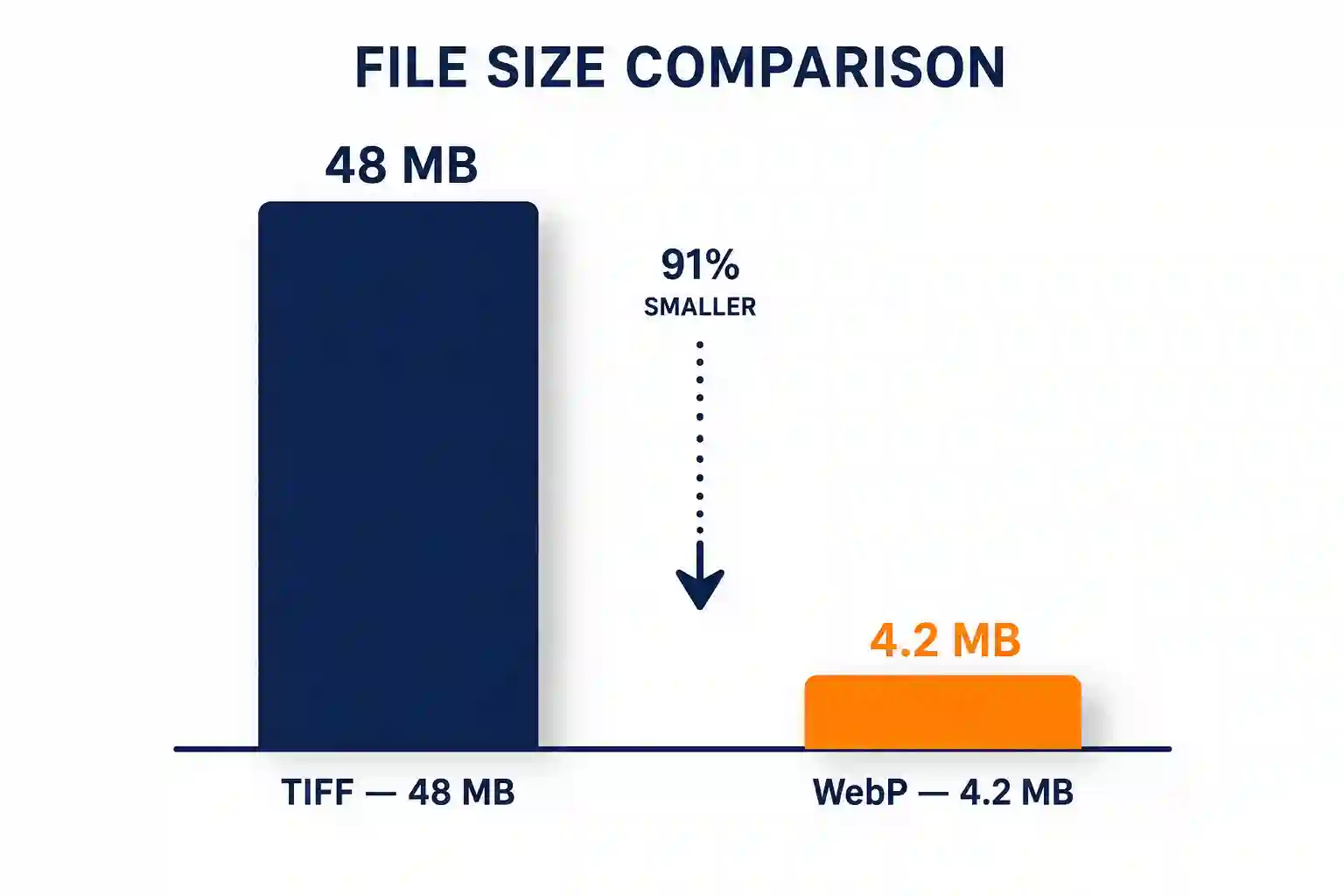
Head to the Best Online TIFF to WEBP Converter page. You are greeted by a clean, uncluttered interface with a prominent upload area in the center. Click the upload button or simply drag your TIFF file from your desktop into the designated zone. I dragged a 48 MB TIFF file from a recent photoshoot, and the tool registered it instantly — the filename appeared with a small preview thumbnail within about one second.
Step 2: Adjust Your Conversion Settings
Once your file is uploaded, the tool presents you with a few simple options. You can choose your desired output quality — I selected "High Quality (90%)" to preserve as much detail as possible while still getting a significant file size reduction. You can also toggle between lossy and lossless compression modes. For my TIFF, I stuck with lossy at 90% quality, which gave me a WebP file that looked virtually identical to the original on a 4K monitor.
Step 3: Start the Conversion
Click the "Convert" button, and the tool gets to work. For my 48 MB TIFF, the conversion took about 8 seconds — the progress bar moved smoothly, and a preview of the output image appeared as soon as processing finished. The tool also displayed the new file size right next to the preview: 4.2 MB. That is a reduction of over 90% with no visible quality loss.
Step 4: Download Your WebP File
A bright green "Download" button appears below the preview. Click it, and your WebP file saves directly to your computer. That is it — four steps, under a minute, and you have a web-ready image that will load in a fraction of the time your original TIFF would have taken.
Why this tool fits this specific problem: The Best Online TIFF to WEBP Converter is built with TIFF's unique characteristics in mind. TIFF files often contain layers, extra metadata, and color profiles that generic converters mishandle or discard entirely. This tool preserves that data during the conversion, so your WebP retains the color accuracy and detail you worked hard to capture in the original TIFF. It also handles large files gracefully — something many free converters choke on.
Honest Limitation: File Size and Complex TIFFs
No tool is perfect, and transparency matters. While the converter handles most TIFF files without breaking a sweat, extremely large TIFFs — think 200 MB+ or multi-page TIFFs with dozens of layers — may take longer to process or hit the tool's maximum file size limit. For the vast majority of real-world use cases (single-image TIFFs under 100 MB), this is not a concern. But if you are working with massive GIS files or medical imaging data, you may want to split the TIFF into smaller chunks or use a desktop application instead.
Quick Troubleshooting: My Upload Is Stuck or Not Responding
If your upload hangs or the progress bar does not move, check your internet connection first. TIFF files are large, and a slow upload can make the tool appear unresponsive. For files over 50 MB, try using a wired connection or a faster Wi-Fi network. If the issue persists, clear your browser cache or try a different browser — Chrome and Firefox tend to handle large uploads most reliably. The tool also supports drag-and-drop, which sometimes bypasses file selection glitches that can occur on mobile devices.
Tips for Converting TIFF to WebP Like a Pro
Getting a good conversion is about more than just clicking a button. These practical tips will help you get the best possible WebP output from your TIFF source files.

- Choose lossy compression for photos, lossless for graphics. If your TIFF contains a photograph with natural gradients and soft transitions, lossy WebP at 85–90% quality gives you a tiny file with imperceptible quality loss. For logos, illustrations, or screenshots with sharp edges and flat colors, lossless WebP preserves every pixel without introducing compression artifacts.
- Resize before converting if you need a smaller output. If your TIFF is 6000×4000 pixels but you only need a 1200×800 version for your website, resize it first. A smaller image converts faster and produces a much smaller WebP file. The Best Image Converter Website Free includes a built-in resize option that handles this in the same workflow.
- Strip unnecessary metadata. TIFF files often carry EXIF data, GPS coordinates, camera settings, and other metadata that your WebP probably does not need. Removing this data can shave a few extra kilobytes off your output file without affecting image quality. Most online converters, including the one we walked through, strip this metadata by default.
- Test your WebP in different browsers. While WebP enjoys 97%+ global support, older browsers (particularly older Safari versions on macOS) may not display it natively. If your audience includes users on legacy systems, consider serving WebP with a JPEG fallback, or use the
element to deliver the right format based on browser capability.
"The best WebP conversion is one where you cannot tell the difference between the WebP and the original TIFF unless you zoom in to 400%. That is the sweet spot — and it is achievable with the right settings and a converter that understands TIFF's structure."
If you are still on the fence about adopting WebP for your website, our guide on Should I Use WebP Images on My Website? Simple Guide breaks down the browser support, performance impact, and real-world results you can expect.
Frequently Asked Questions
What is the best way to convert TIFF to WebP?
The best way to convert TIFF to WebP is to use a dedicated online converter like the Best Online TIFF to WEBP Converter. It handles the format's unique structure, preserves color profiles, and gives you control over quality and compression settings without requiring any software installation. For most users, this is faster, easier, and more reliable than desktop software or command-line tools.
Does converting TIFF to WebP reduce image quality?
It depends on your settings. WebP supports both lossy and lossless compression. If you use lossless mode, your WebP will retain exactly the same pixel data as your original TIFF — no quality reduction at all. If you use lossy compression, WebP's algorithm is remarkably efficient; at 85–90% quality, the visual difference is imperceptible to the human eye while the file size shrinks dramatically. For web use, lossy WebP at high quality is the practical sweet spot.
Can I convert multiple TIFF files to WebP at once?
Most online converters, including the Best Online TIFF to WEBP Converter, process one file at a time to maintain quality and reliability. If you need to batch convert dozens or hundreds of TIFFs, consider using desktop software like Adobe Photoshop (with the WebP plugin) or command-line tools like ImageMagick. For occasional batch jobs of 5–10 files, the online tool's speed makes it practical to run them sequentially.
Is WebP better than TIFF for web use?
Yes, absolutely. TIFF was never designed for the web — browsers do not natively display TIFF files, and their massive file sizes make them impractical for online delivery. WebP, on the other hand, was built specifically for the web. It loads faster, ranks better in search results, and works seamlessly across all modern browsers. For web use, WebP is the clear winner in every measurable category.
How do I convert TIFF to WebP for free?
The easiest way to convert TIFF to WebP for free is to use a browser-based online converter. The Best Online TIFF to WEBP Converter is completely free for standard use — no sign-up, no hidden fees, and no watermarks. Just upload, convert, and download. For users who prefer open-source software, GIMP and ImageMagick also support TIFF-to-WebP conversion at no cost, though they require installation and a bit more technical know-how.
Will WebP work on all browsers?
As of 2026, WebP enjoys native support in over 97% of all browsers globally, including Chrome, Firefox, Edge, Opera, and recent versions of Safari. The only notable gaps are older Safari versions (pre-14) and some legacy mobile browsers. If your audience includes users on older devices, implement a fallback strategy using the HTML
Conclusion
Converting TIFF to WebP is one of the most practical steps you can take to modernize your image workflow. You keep the quality that made TIFF the professional standard in the first place, while gaining the speed, browser compatibility, and SEO benefits that WebP delivers on the web. The process is straightforward, the tools are accessible, and the results speak for themselves — smaller files, faster pages, and happier visitors.
If you are ready to convert TIFF to WebP right now, head over to the Best Online TIFF to WEBP Converter and try it for yourself. Upload your TIFF, pick your quality setting, and download your WebP in under a minute. No sign-ups, no software installs, and no quality compromises — just a faster, lighter image that is ready for the web.
Whether you are a photographer migrating a portfolio, a developer optimizing a product catalog, or a marketer speeding up a landing page, this is the simplest, most reliable way to get the job done. Give it a try and see the difference WebP makes for your site's performance and user experience.