What is the Difference Between Different Image Formats?
Choosing the right image format can be confusing with so many acronyms like JPEG, PNG, WebP, and AVIF. Each format is designed for a specific purpose, balancing file size, image quality, and features like transparency or animation. The best choice depends entirely on whether you're using the image for a website, printing it, or storing it for professional editing.
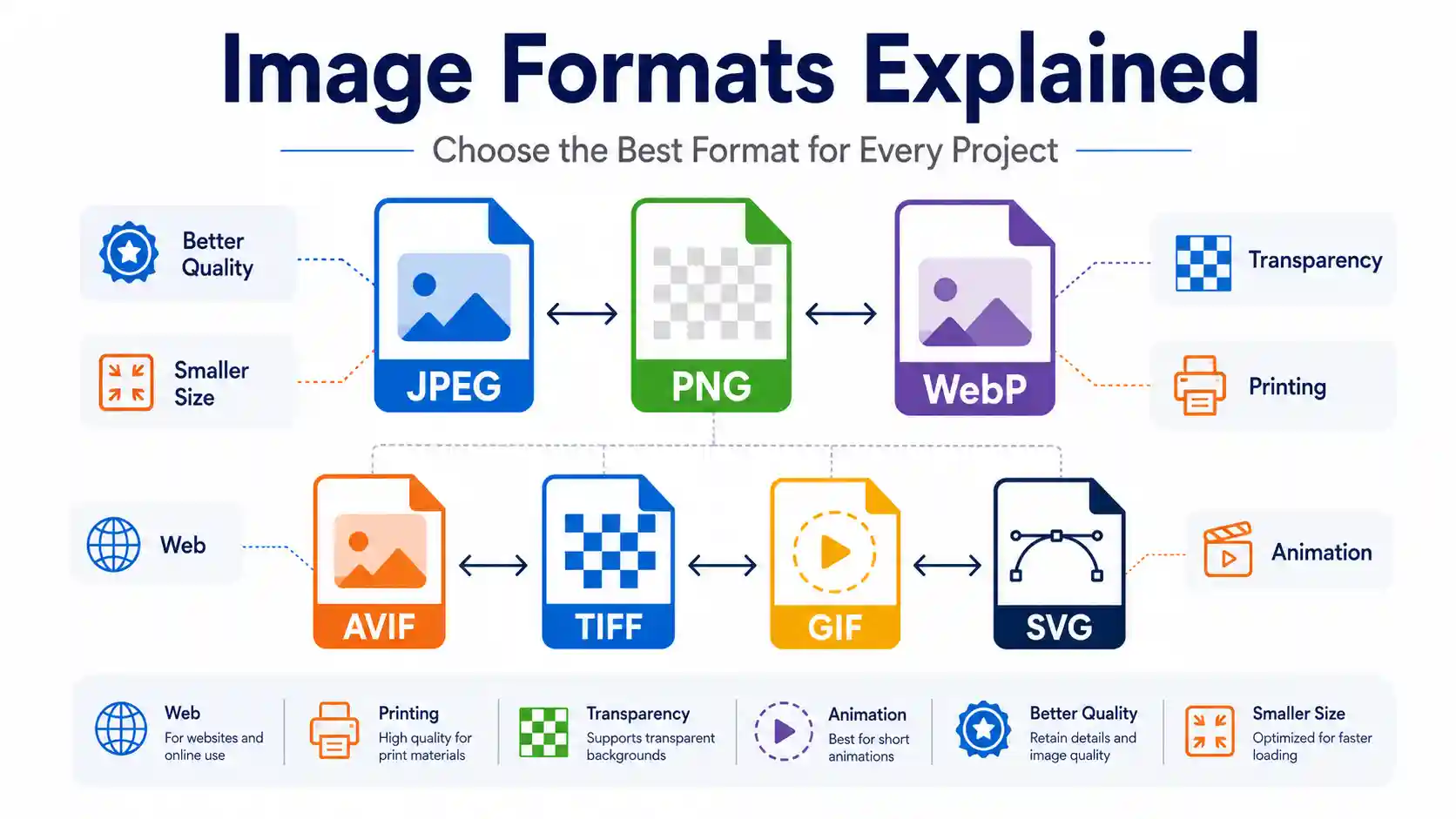
Short Answer: Image formats differ in compression (lossy vs. lossless), transparency support, animation capabilities, and color depth. The quickest way to handle any format mismatch or conversion is using a dedicated online tool like Image Converter 24 to switch between them without losing control over quality.
📥 Want the complete guide as a PDF you can keep and reference anytime? Download the full guide (free).
This guide provides a complete, practical breakdown of every major image format in use today. We will cover their technical differences, ideal use cases, and how to choose the best one for web, printing, scanning, and archiving. By the end, you will have a clear roadmap for any image format decision.
Understanding the Core Differences: Raster vs. Vector
Before diving into specific formats, it is crucial to understand the two main categories of digital images: raster and vector.
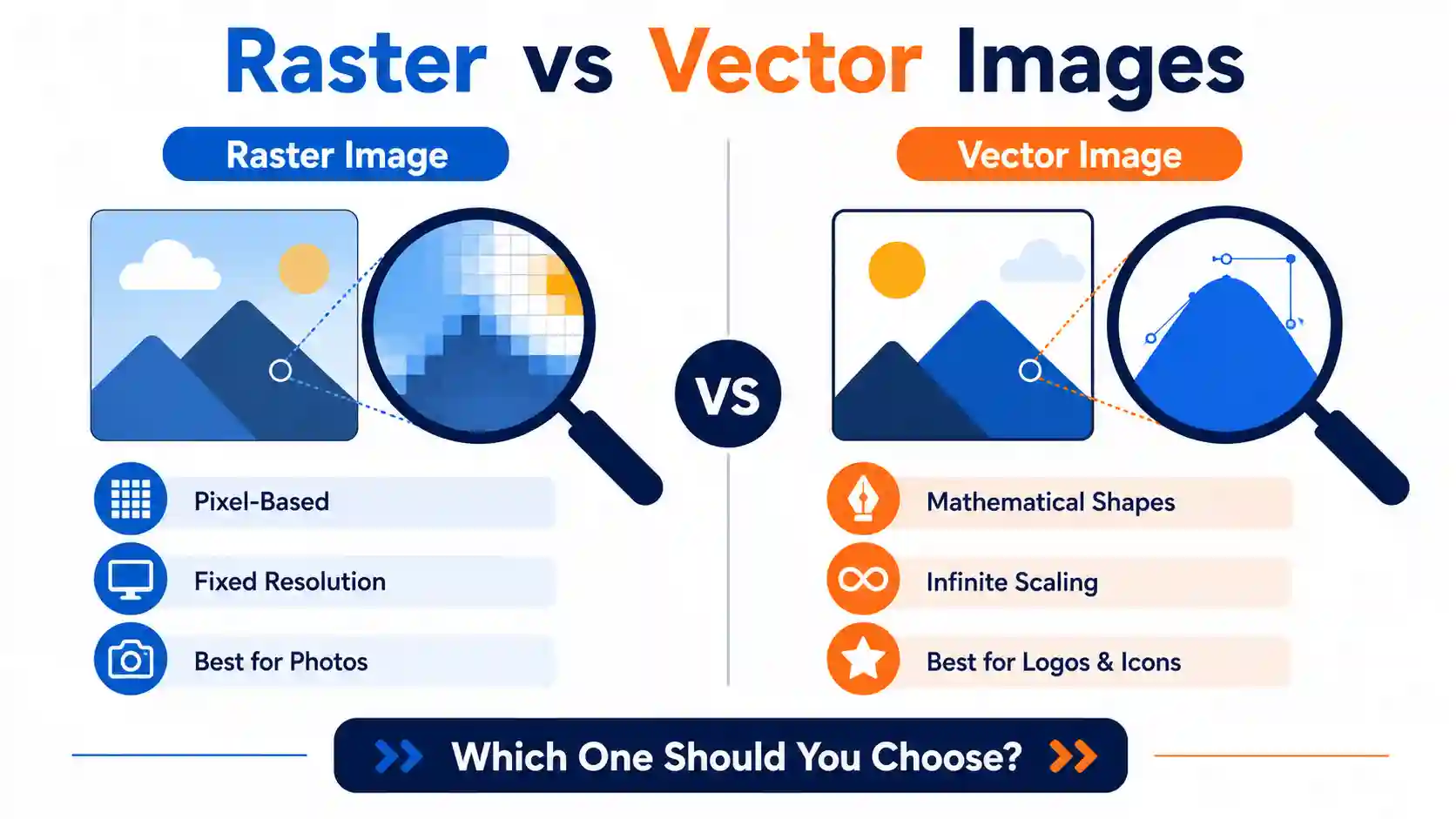
Raster Formats (Pixel-Based)
Raster images are made up of a grid of tiny colored squares called pixels. When you zoom in, you eventually see these individual pixels, which can make the image look blurry or blocky. The quality of a raster image is determined by its resolution (e.g., 1920x1080). All the formats we will discuss in detail—JPEG, PNG, GIF, WebP, AVIF, TIFF, and BMP—are raster formats.
Vector Formats (Mathematical)
Vector images, such as SVG (Scalable Vector Graphics), use mathematical equations to draw lines, curves, and shapes. They are resolution-independent, meaning they can be scaled infinitely without losing quality. Vectors are ideal for logos, icons, and illustrations. However, they cannot display complex photographs well. The format is standardized by the W3C SVG Specification.
A Comprehensive Breakdown of Major Image Formats
Let's explore the most common raster formats, their compression methods, and their practical applications. For a detailed comparison of these formats, you can check out the PNG vs JPG vs WebP Quality – Complete Comparison Guide.
JPEG / JPG (Joint Photographic Experts Group)
JPEG is the most widely used image format in the world. It was designed for photographs and realistic images with smooth color transitions. The core feature of JPEG is lossy compression, which permanently discards some data to reduce file size. You can control the compression level (usually from 0-100), balancing file size against visual quality.
Tip: JPEG does not support transparency. It is the standard format for digital photography and is the most compatible format across all devices and software. For detailed pros and cons, read the JPEG Advantages and Disadvantages Most Important Guide 2026. For the technical specification, see MDN Web Docs: Image File Type and Format Guide.
PNG (Portable Network Graphics)
PNG was created to replace GIF as a royalty-free format. It uses lossless compression, meaning it preserves every pixel perfectly. This makes it ideal for images with text, sharp edges, or logos.
- Transparency: PNG supports full alpha channel transparency, allowing for smooth edges and soft shadows on transparent backgrounds.
- Color Depth: It supports 24-bit color (millions of colors), making it excellent for web graphics.
However, the file size of a PNG is often significantly larger than an equivalent JPEG, making it less ideal for photography. For a complete overview, see PNG Advantages and Disadvantages Pros and Cons Overview. The official specification is maintained by the W3C PNG Specification.
WebP
Developed by Google, WebP is a modern format designed to be the successor to JPEG and PNG. It provides superior compression, offering both lossy and lossless modes.
- Lossy WebP: Produces images that are 25-34% smaller than equivalent JPEGs with comparable quality.
- Lossless WebP: Can be up to 26% smaller than PNGs.
- Features: Supports transparency and animation.
WebP is strongly recommended for web use as it dramatically improves page load speeds. To see how it compares to other modern formats, read Webp vs png vs avif and the JPG vs WebP | Everything you need to know. For official technical documentation, see Google's WebP Documentation.
GIF (Graphics Interchange Format)
GIF is an older format limited to 256 colors, making it unsuitable for photographs. Its main claim to fame is support for animation and transparency (though only 1-bit, meaning pixels are either fully transparent or fully opaque).
Because it uses lossless compression for indexed colors, GIFs are great for simple animations and small graphics with flat colors. However, for larger or higher-quality animations, WebP and APNG are superior. Consider the disadvantage of using GIFs for videos if you are considering them for media-heavy applications.
TIFF / TIF (Tagged Image File Format)
TIFF is a high-end format used primarily in photography, publishing, and printing. It supports both lossy and lossless compression, but it is typically used in its lossless form to maintain maximum detail. TIFF files are very large.
It is the standard for professional workflows where editing and archiving require the absolute best quality. For a deeper comparison, read about the Difference Between TIFF and PNG Which Format Is Better and BMP vs TIFF Quality Which Format Preserves Images Best. Also, review TIFF Advantages and Disadvantages | Pros, Cons, and Uses.
AVIF (AV1 Image File Format)
AVIF is the newest and most efficient format on the block. Based on the AV1 video codec, it offers extraordinary compression, often beating WebP by 30-50% in file size reduction for the same visual quality. It supports HDR, transparency, and high color depth. Browser support has now matured significantly—as of early 2026 it covers roughly 94-95% of global users—so it is considered safe to ship as a primary format with a fallback. Explore the difference between PNG and AVIF and the AVIF vs JPEG XL | Pros, Cons, and Best Use Cases. AVIF is maintained by the Alliance for Open Media, and current browser support figures can be verified on caniuse.com.
JPEG XL
JPEG XL is another promising modern format designed to be a direct upgrade to legacy JPEGs. It features lossless and lossy compression, supports high bit depths, and is known for fast decoding speeds. Its path to adoption has been unusually bumpy: Google removed it from Chrome in 2022-2023, Safari added native (partial) decoding starting with Safari 17, and Chrome only began re-introducing an experimental decoder—disabled by default behind a flag—in February 2026. This means real-world browser support remains under 1% of users today, even though the format itself is technically mature. To understand its potential, read what is jpeg xl format and the HEIC vs JPEG XL | Comprehensive comparison guide. The format is formally standardized as ISO/IEC 18181, and its browser rollout history is documented on the official JPEG.org JPEG XL page.
HEIC / HEIF (High Efficiency Image Format)
Developed by Apple, HEIC is based on the HEVC video codec. It provides excellent compression, often keeping half the file size of a JPEG while retaining superior quality. It supports 16-bit color and HDR. It is the default format for photos on iPhones but has limited compatibility with non-Apple software, as explained in Apple's official HEIF/HEIC support documentation.
Other Formats: BMP, TGA, APNG, JPEG 2000
Several other formats serve niche purposes. BMP is an uncompressed Windows bitmap format that creates massive files. TGA (Truevision Graphics Adapter) is often used in video game development. APNG is a modern replacement for GIF, offering high-color animation with better quality, as seen in the APNG vs GIF vs WebP | Comprehensive comparison guide. JPEG 2000, despite its name, is unrelated to standard JPEG and is used in specialized fields like medical imaging. Learn more via the Difference Between JPEG and JPEG2000 What You Should Know. For specific use cases like text and logos, consider TGA vs PNG Which Image Format Should You Use.
Comparison Table: Key Features at a Glance
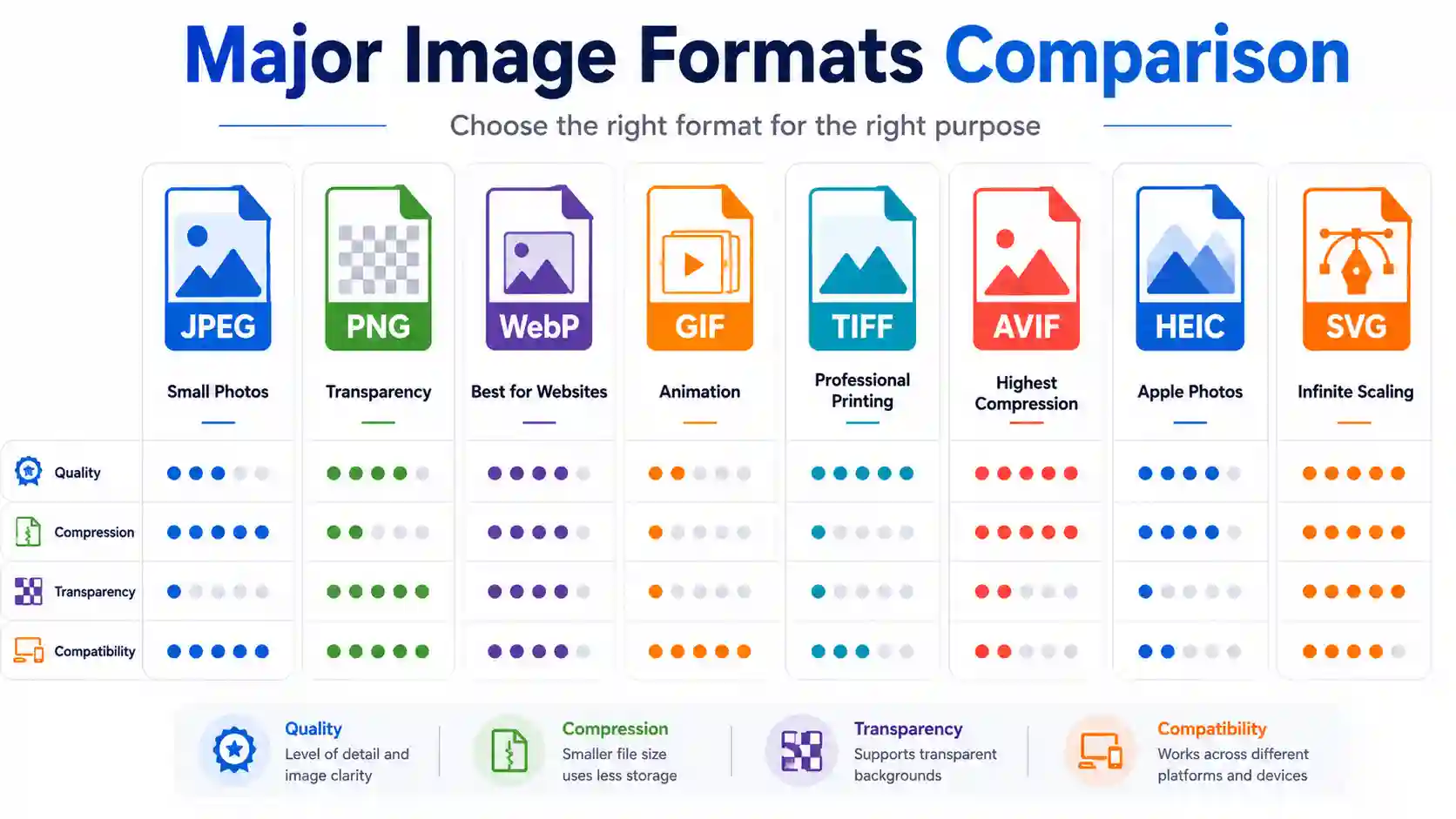
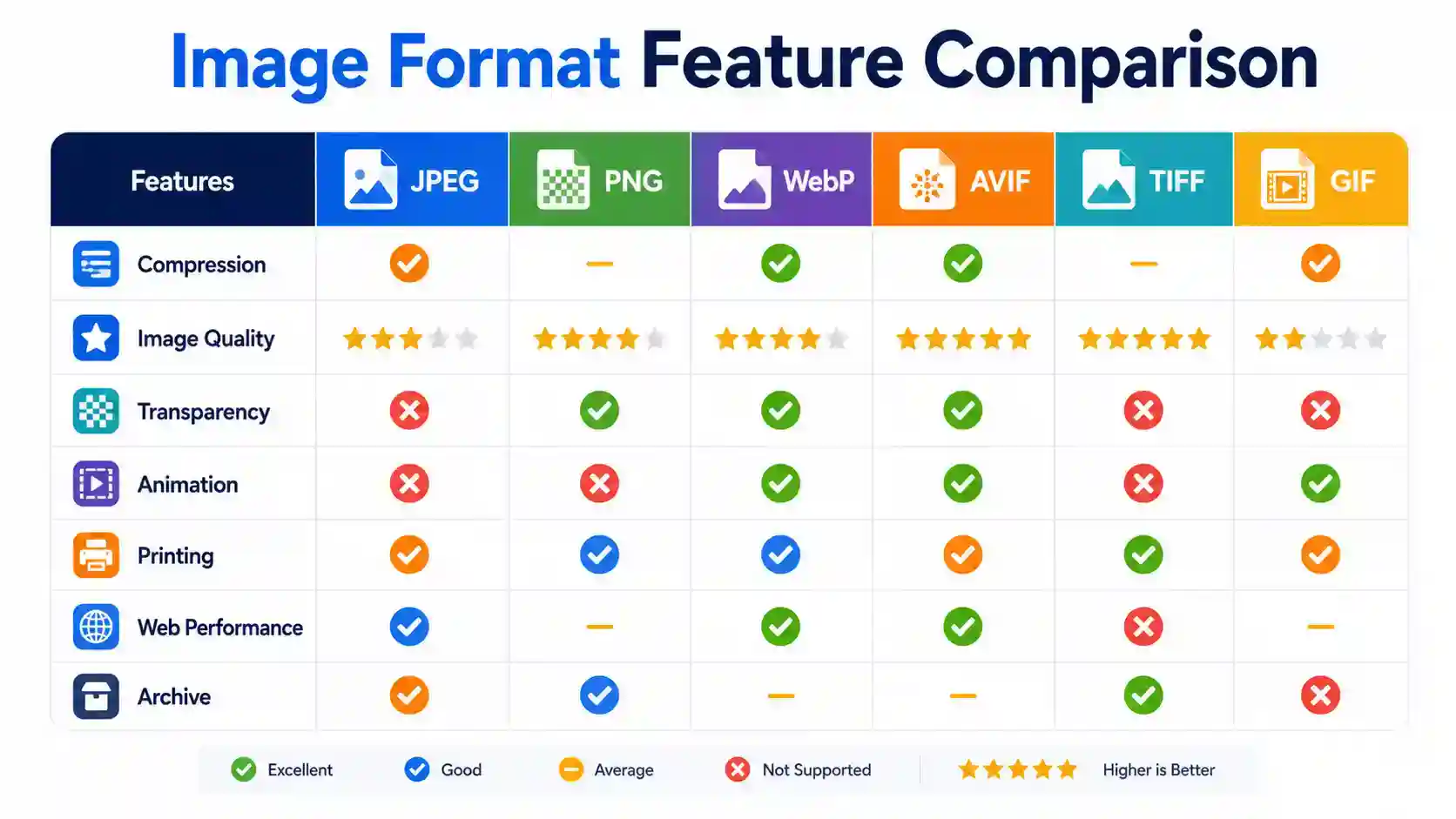
This table summarizes the critical characteristics of the most common image formats to help you compare them side-by-side.
| Format | Compression | Key Feature |
|---|---|---|
| JPEG | Lossy | Best for photographs & general sharing |
| PNG | Lossless | Best for graphics with transparency & text |
| WebP | Lossy / Lossless | Best modern format for web performance |
| GIF | Lossless | Simple animations & low-color graphics |
| TIFF | Lossless | Professional photography & printing |
| AVIF | Lossy / Lossless | Best compression efficiency (HDR) |
📥 Want more than the summary?
This table covers the essentials, but our free downloadable guide goes deeper — MIME types, format checklists, use cases in gaming and video editing, and a full glossary. Get the complete PDF guide.
Full Format-by-Format Breakdown: Origin and Technical Purpose
The table above only covers the six most common formats. For a deeper, complete picture—including legacy and specialist formats like BMP, TGA, JPEG 2000, HEIC, JPEG XL, APNG, and SVG—here is the full breakdown with release history and core technical purpose.
| Format | Release Year & Developer | Core Technical Purpose |
|---|---|---|
| JPEG | 1992 – Joint Photographic Experts Group | Adjustable lossy compression for photographic images; universal compatibility |
| PNG | 1996 – PNG Development Group (W3C-endorsed, royalty-free successor to GIF) | Lossless compression with full alpha transparency for graphics, text, and logos |
| GIF | 1987 – CompuServe | 256-color indexed palette with lossless compression and simple animation |
| TIFF | 1986 – Aldus (now maintained by Adobe) | Maximum-fidelity lossless storage for professional printing and archiving |
| WebP | 2010 – Google | Lossy & lossless compression with animation, built to replace JPEG and PNG on the web |
| AVIF | February 2019 – Alliance for Open Media (Google, Apple, Netflix, Mozilla, and others) | AV1-based codec delivering the strongest compression-to-quality ratio, with HDR support |
| JPEG XL | 2021–2022 (ISO/IEC 18181) – JPEG committee, with Google and Cloudinary | Lossless JPEG re-encoding, progressive decoding, and high bit-depth; intended long-term JPEG successor |
| HEIC / HEIF | 2017 – Apple (based on the HEVC video codec) | High-efficiency compression at roughly half the size of JPEG; default iPhone photo format |
| BMP | Early 1990s – Microsoft / IBM | Largely uncompressed Windows bitmap; simple but produces very large files |
| TGA | 1984 – Truevision | Early adopter of alpha-channel transparency; still common in game development pipelines |
| APNG | 2008 – Mozilla (informal extension of PNG) | Full-color animation with alpha transparency, as a modern replacement for GIF |
| JPEG 2000 | 2000 – JPEG committee | Wavelet-based compression (unrelated to standard JPEG); used in medical imaging and digital cinema |
| SVG | 1999–2001 (first W3C recommendation) – World Wide Web Consortium (W3C) | Vector graphics defined mathematically; infinitely scalable for logos and icons |
Sources: JPEG.org, ISO/IEC 18181, W3C PNG Specification, and Google WebP Documentation.
Performance and Compatibility Data (2026)
Technical purpose is only part of the decision—whether browsers and software actually render a format matters just as much. This table covers real-world browser support as of 2026 and the maximum color depth each format can store, both of which directly affect whether a format is safe to ship on a production website.
| Format | Global Browser Support (2026) | Maximum Color/Bit Depth |
|---|---|---|
| JPEG | ~100% (universal) | 8-bit per channel (24-bit color) |
| PNG | ~100% (universal) | 16-bit per channel (48-bit color) |
| GIF | ~100% (universal) | 8-bit indexed (256-color palette) |
| TIFF | Not natively rendered by most browsers (not a web-delivery format) | Up to 32-bit per channel |
| WebP | ~97-98% (all major browsers) | 8-bit per channel |
| AVIF | ~94-95% (Chrome, Firefox, Safari 16.4+, Edge 121+) | 12-bit per channel |
| JPEG XL | Under 1% (partial Safari support since v17; Chrome 145 added an opt-in flag in Feb 2026, off by default) | Up to 32-bit per channel |
| HEIC / HEIF | Native only on Apple platforms; most desktop browsers cannot render it directly | 16-bit per channel |
| BMP | Widely renderable but rarely used on the web due to file size | 32-bit per channel |
| TGA | Not supported natively by any major browser | 32-bit per channel |
| APNG | ~95%+ (all major modern browsers) | 8-bit per channel plus alpha |
| JPEG 2000 | Very limited (partial support in Safari only) | Up to 38-bit per channel |
| SVG | ~99% (all major browsers) | Not applicable – mathematically defined vector graphics, not pixel-based |
Note: browser support figures are global averages based on caniuse.com usage data as of early 2026 and will keep shifting as browsers update; always check your own site's analytics before relying on a single format for production.
How to Choose the Right Format for Your Use Case
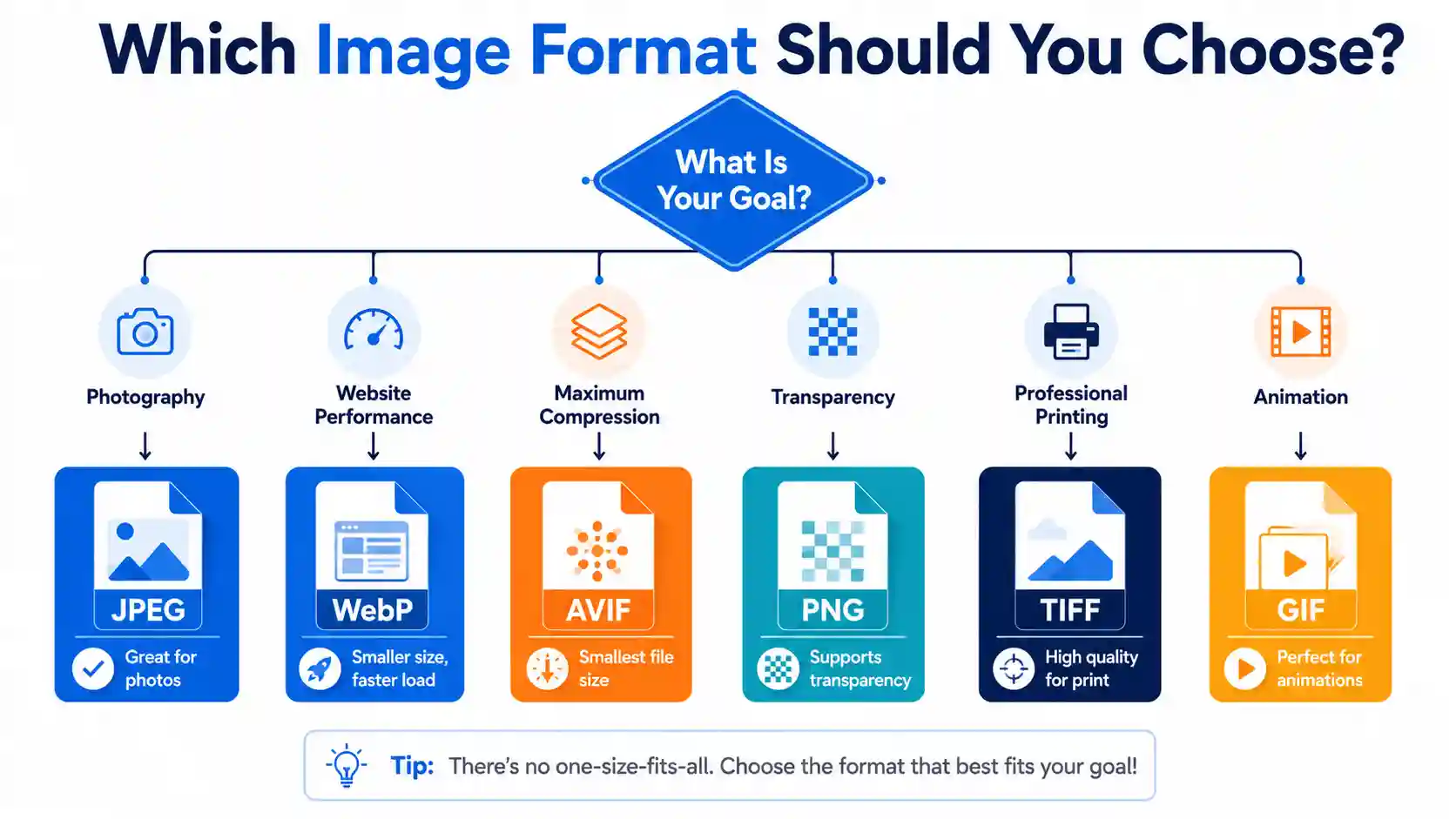
Knowing the technical differences is only half the battle. Here is how to apply that knowledge to real-world projects.
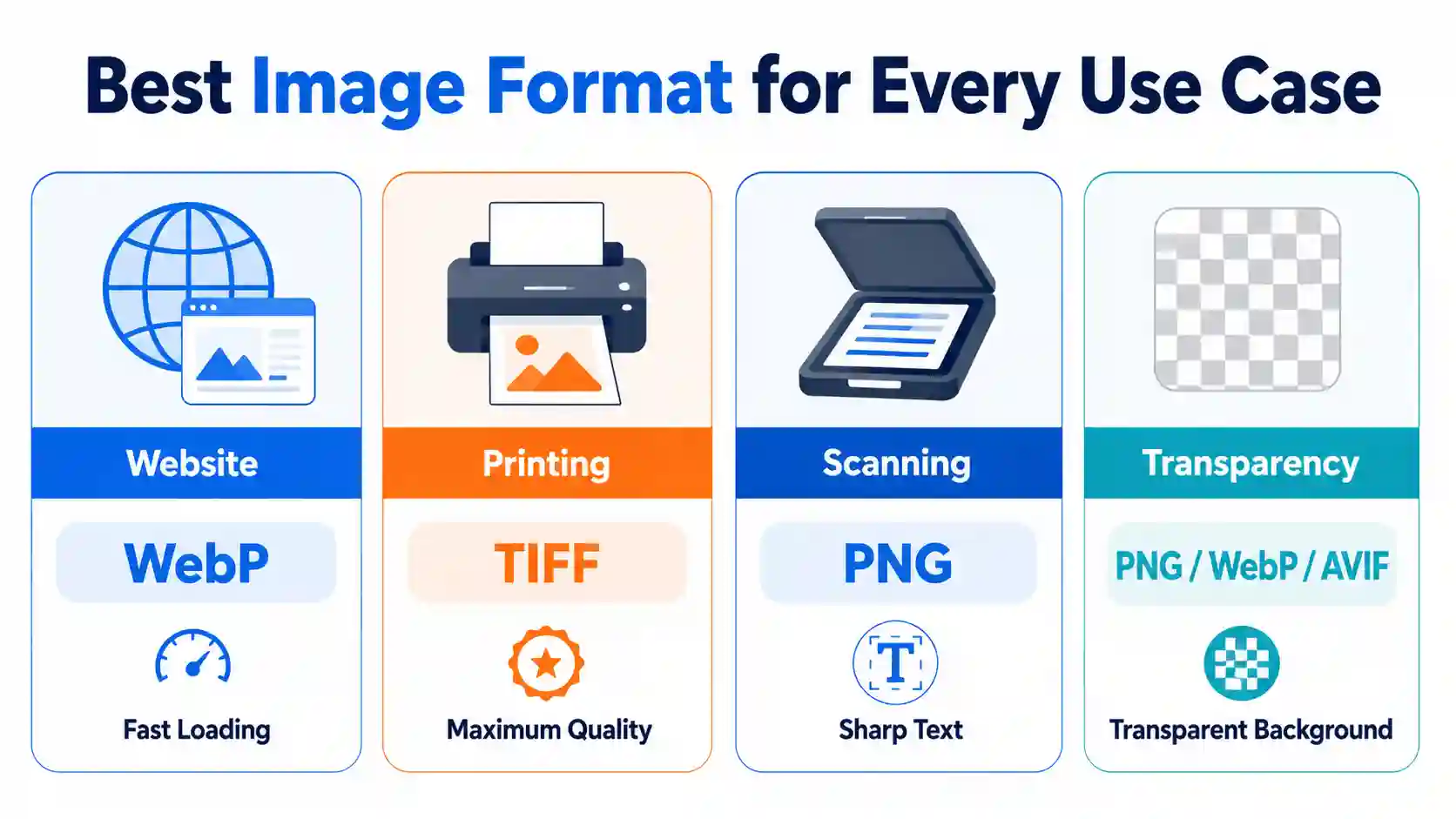
Choosing a Format for Web Performance
For images used on websites, speed is paramount. WebP is currently the best all-around choice due to its excellent compression and wide browser support. AVIF is even better if you can accept a small fallback gap, since it now covers roughly 94-95% of global users. JPEG is a safe, universal fallback. For logos and icons, use PNG if you need transparency, but consider converting them to WebP for faster loading times. For a comprehensive look, read JPEG vs PNG for Website Full Comparison Guide.
Choosing a Format for Printing
Printing requires high resolution and lossless quality. TIFF is the gold standard for professional printing because it preserves all detail. PNG is also a good option if you are printing graphics or text. JPEG is generally avoided for professional print work due to its lossy compression, though a high-quality (low compression) JPEG can be acceptable for smaller prints. To decide between them, read Is PNG or JPEG Better for Printing Expert Advice You Need and TIFF vs PDF for Printing: Best Format for High-Quality Print.
Choosing a Format for Scanning and Archiving
For document scanning, you want a format that preserves text clarity and handles high contrast well. PNG is excellent for this as it compresses text and line art without artifacts. TIFF is the archival standard for document scanning because it can be stored with lossless compression and is often required for legal or historical records. Learn more in the Which Document Scanning Format Is Best Complete Guide.
Understanding Transparency
If you need a transparent background or soft edges (like a shadow), you need a format with alpha channel support. PNG is the standard choice for this. WebP and AVIF also support alpha transparency and are modern alternatives. GIF supports transparency but only at a 1-bit level (no gradients), which results in jagged edges.
The Most Direct Way to Compare and Convert: Using a Dedicated Tool
While understanding the theory is important, the fastest and most reliable way to handle a format difference is to use a dedicated conversion tool. Whether you want to compare the file sizes of a JPEG vs. WebP, or convert a PNG to AVIF, a specialized application streamlines the process and ensures you don't lose quality.
The most direct way to actually do this is to use an online image converter. Image Converter 24 is a free browser-based tool designed for exactly this purpose. It allows you to convert between almost any format, including all those discussed in this guide.
A Documented Walkthrough: Using Image Converter 24
Here is a realistic step-by-step walkthrough of using the converter, based on a typical session.
- Uploading the File: First, navigate to Image Converter 24. You'll see a prominent upload area in the center of the page. Click the button to select a file from your computer. I uploaded a 5MB PNG file with a transparent logo, and the progress bar filled to 100% in about two seconds.
- Selecting the Output Format: Once the file is uploaded, the tool displays the current file name and size. Below, there is a dropdown menu labeled "Convert to:". I selected "WEBP" from the list. The interface is clean and requires no complex settings to begin.
- Adjusting Settings and Converting: After selecting the format, a "Quality" slider appeared. This slider is crucial as it lets you control the trade-off between file size and quality, specifically for lossy formats. I set the slider to 80% for a good balance. Clicking the blue "Convert" button started the process. The conversion took about three seconds.
- Previewing and Downloading: After the conversion, a preview of my new WebP image appeared, and the file size was displayed as 1.2MB (a dramatic reduction). There was also a "Download" button that saved the file to my computer instantly.
This tool is perfectly suited for this problem because it allows for direct comparison and conversion between multiple formats with granular control over quality. It eliminates the guesswork, especially when preparing images for different platforms.
Note on Limitations: While Image Converter 24 handles most common formats with ease, please be aware that there may be a file size limit for uploads (typically up to 50MB for free users). For extremely large TIFF or RAW files, you might need to reduce the file size or use a desktop application.
Troubleshooting: What if my file doesn't convert?
If you encounter an error, it is often due to a corrupted file or an unsupported extension. Try saving a copy of the original file from your source application and re-uploading it. The tool supports a wide range of formats, but if you have a proprietary file, you may need to export it to a standard format first.
Frequently Asked Questions
What is the difference between lossy and lossless image compression?
Lossy compression permanently removes some image data to reduce file size. This can result in a loss of quality, especially if compressed heavily. JPEG is a common lossy format. Lossless compression reduces file size without discarding any data, perfectly preserving the original quality. PNG and WebP (in lossless mode) use this method.
Which image format provides the best quality?
Lossless formats like PNG and TIFF provide the highest quality because they retain all original pixel information. For photographs, a high-quality JPEG or a lossless WebP/AVIF can also achieve virtually indistinguishable quality from the source while keeping a smaller file size.
What is the best image format for web use to ensure fast loading times?
WebP is currently the best and most widely supported format for web use, offering superior compression. AVIF is even more efficient and, with roughly 94-95% global browser support in 2026, is now considered safe as a primary format with a fallback. Using these formats can significantly reduce your page load speed and bandwidth usage.
Which formats support transparent backgrounds?
PNG, WebP, and AVIF all support full alpha transparency (soft edges and gradients). GIF supports transparency, but only in a basic on/off state, leading to poor quality for complex transparent images.
What is the best format for printing high-quality photos?
TIFF is the industry standard for high-quality photo printing due to its lossless nature and support for high color depths. PNG is also a good alternative. JPEG should only be used for casual prints if the quality setting is kept high.
How can I convert my images without losing quality?
To avoid quality loss, you should convert to another lossless format like PNG or TIFF. If you must use a lossy format like JPEG, set the quality slider to the highest possible setting (e.g., 90-100%) in your converter. Using a dedicated tool like Image Converter 24 allows you to control this setting precisely.
Is JPEG the same as JPG?
Yes, JPEG and JPG are completely the same format. The only difference is the file extension. "JPEG" was shortened to a three-letter ".jpg" in early Windows systems due to file naming limitations, and the usage stuck.
What is the smallest image format?
Currently, AVIF offers the smallest file sizes for a given level of quality. WebP is the next best option. For simpler graphics with few colors, a properly optimized GIF can also be very small, though limited in quality.
Is JPEG XL ready to use in 2026?
Not yet for production websites. Even though JPEG XL is technically finished as an ISO standard, real browser support is still under 1% of users: Safari has partial support since version 17, and Chrome only added an opt-in, disabled-by-default decoder in version 145 (February 2026). WebP or AVIF remain the practical choices today.
Conclusion
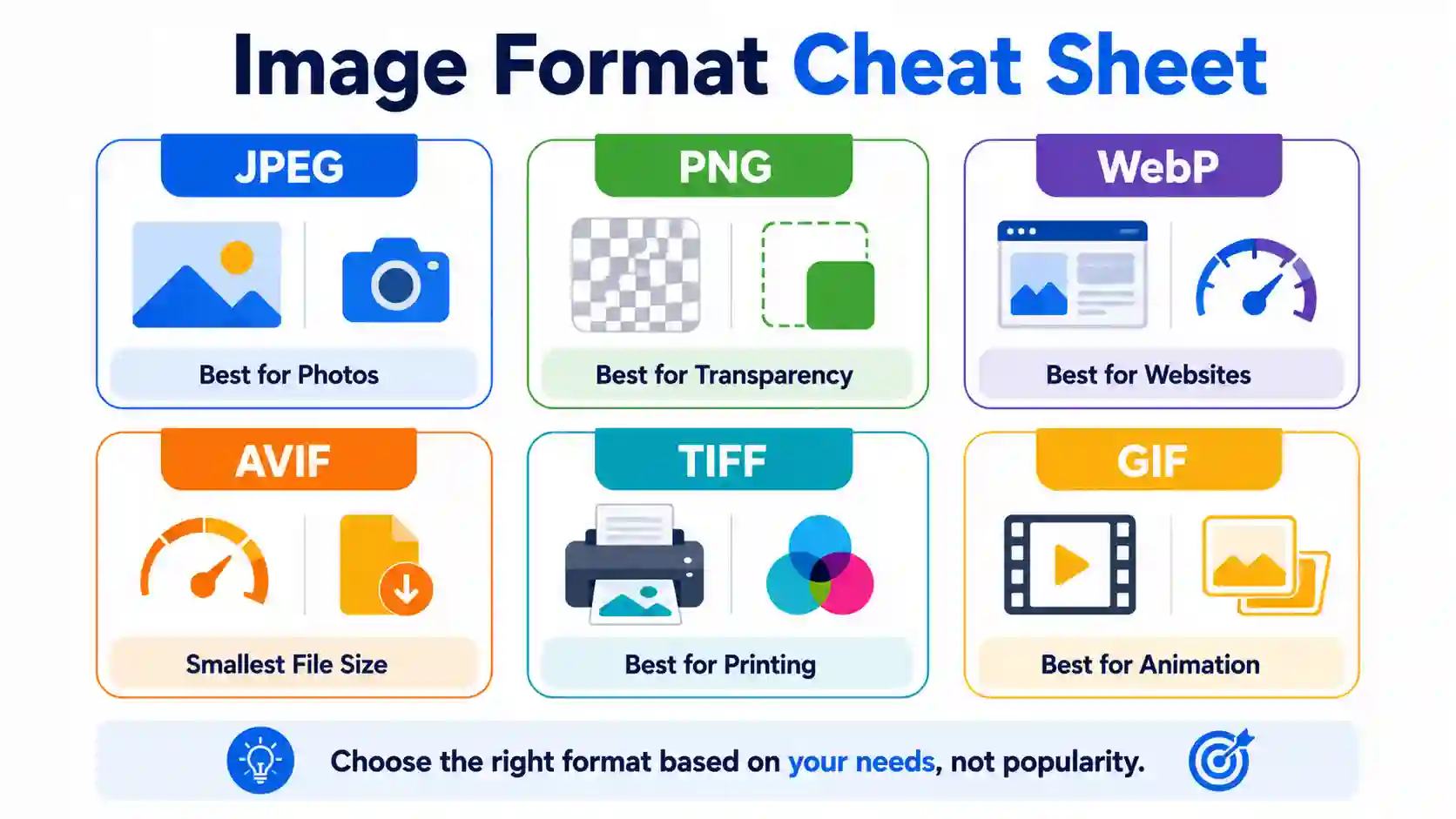
Understanding the differences between image formats is essential for anyone working with digital media. To recap: JPEG is the universal go-to for photographs. PNG is the champion for graphics needing transparency and sharp text. WebP and AVIF are the modern, efficient choices for web performance, while TIFF remains the standard for high-end printing and archiving.
The key to success is matching the format to your specific need. For optimizing images online or converting a file for a specific project, you don't need to struggle with complex software. Image Converter 24 is the most efficient way to manage your image conversions. You can quickly test different formats, adjust quality settings, and download your optimized image in seconds.
Convert your images to the perfect format now with Image Converter 24 and ensure your files are always ready for their intended use.
📘 Take This Guide With You
We covered the essentials here, but our full PDF guide includes extra chapters not in this article — common mistakes to avoid, formats for social media and email, and a complete glossary of terms. Download the free PDF guide.