How to Convert & Edit a Photo for Laser Engraving Online for Free
Laser engraving is a fantastic way to personalize items, create custom gifts, or add professional detailing to projects. At its core, it's a process where a laser beam removes the surface layer of a material to etch a permanent design. However, sending a regular photo directly to the engraver rarely works. Before you can turn a photo into an engraving, you first need to edit the photo for laser engraving—converting it into a file with high contrast and clear lines so the machine knows exactly where to burn.
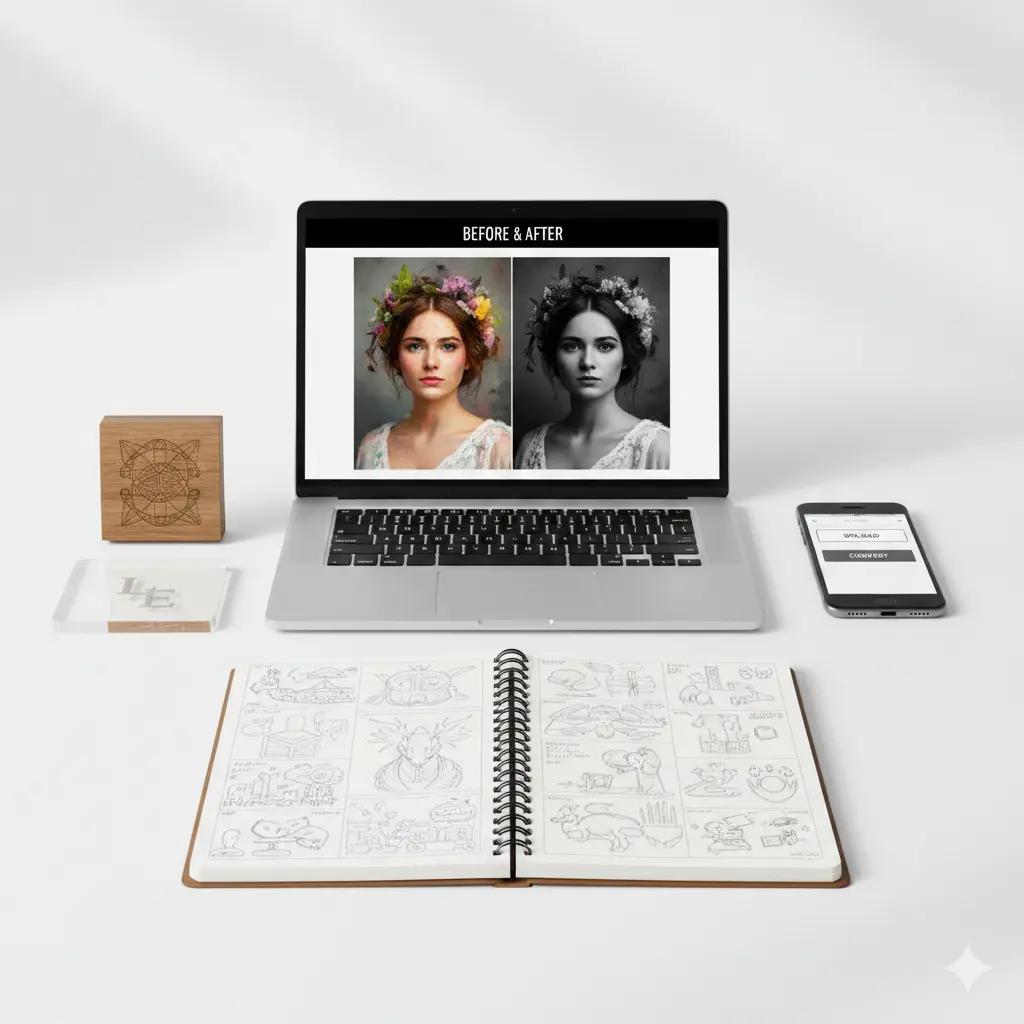
This is where free online conversion tools become invaluable. For hobbyists, small business owners, or designers, they eliminate the need for expensive, complex software. In minutes, you can convert a photo for laser engraving—transforming a sentimental picture, a company logo, or a simple sketch into a laser-ready file, saving significant time and effort while unlocking your creative potential.
Choosing the Right Photo for Laser Engraving
Success starts with choosing a suitable photo. Not all pictures engrave well. The laser interprets shades of gray as different power levels or speeds, so simplicity and contrast are your best friends when you edit a photo for laser engraving.
Here’s what to look for:
- High Contrast & Clear Edges: Images with a stark difference between the subject and background (like a black logo on a white page) yield the cleanest results.
- Simple Graphics are Ideal: Logos, icons, signatures, line art, and silhouettes are perfect candidates. They have defined boundaries that convert beautifully.
- Portraits Can Work: To turn a photo into an engraving-ready portrait, choose one with even, dramatic lighting. A close-up with strong highlights and shadows will convert better than a flat, evenly-lit group photo.
- File Format & Quality: Start with the highest resolution possible (e.g., a PNG or high-quality JPG). A pixelated or blurry source photo will only get worse after conversion.
📌 Important Note: Avoid images with subtle gradients, complex backgrounds (like busy foliage), or fine, textured details (like animal fur). These often turn into a muddy, indistinct engraving. When in doubt, simpler is always better.
How to Convert a Photo for Laser Engraving Online: A Step-by-Step Guide
Thanks to smart, free web tools, you can convert a photo for laser engraving in just a few clicks. These platforms use algorithms to analyze your photo and boost contrast, apply filters, and trace lines to create an engraving-friendly file (typically a black-and-white PNG, SVG, or BMP).
Follow these practical steps to edit your photo for laser engraving with any reputable free converter:
- Step 1: Select and Prepare Your Photo 📌 Choose your photo based on the criteria above. If possible, use basic photo editing (even on your phone) to crop in tight on the subject and adjust brightness/contrast slightly before uploading. This gives the converter a head start.
- Step 2: Upload to a Free Online Tool 📌 Go to a free conversion website (like Pixelcut.ai, Atomm Laser Prep, or ImagR). Look for a button that says "Upload," "Choose File," or drag and drop your photo directly into the browser window.
- Step 3: Adjust the Conversion Settings 📌 This is the most important step! After upload, the tool will show a preview. You will usually find sliders or options for:
- Contrast/Brightness: Crank up the contrast to make darks black and lights white.
- Threshold: This turns grayscale into pure black & white. Adjust until details are clear but not noisy.
- Detail/Simplify: Find a balance where important features are kept but background noise is removed.
- Material Preset: Some advanced tools let you select "Wood," "Acrylic," or "Metal" to optimize the output.
- Step 4: Download and Verify Your File 📌 Once satisfied with the preview, click "Convert," "Process," or "Download." Save the file (PNG is a versatile and common format). Always open the downloaded file and zoom in. Check that lines are smooth, edges are sharp, and no important parts have disappeared.
Comparing Popular Free Online Converters
| Tool Name | Key Features | Output Format |
|---|---|---|
| Pixelcut AI | Material-specific optimization, detailed prompt input. | PNG, SVG |
| Atomm Laser Prep | Fully automated, simple "upload-optimize-download" flow. | PNG |
| ImagR | Step-by-step editor, basic cropping/resizing, material selection. | PNG, JPG |
Pro-Tips for Flawless Laser Engraving Results
Converting the file is half the battle. To ensure your physical engraving turns out perfectly, follow these best practices:
- Always Run a Test Engrave: Never engrave directly onto your final, expensive material. Use a scrap piece of the same material (wood, acrylic, coated metal) to test the file's speed, power, and clarity settings on your machine.
- Simplify Backgrounds Manually: If your photo has a busy background, use the online tool's "erase" or "background removal" feature before conversion, or remove it in a basic editor. A clean background ensures the laser focuses only on your subject.
- Know Your Material: Different materials react differently. Leather and wood can handle more detail than glass or marble. Your test engrave will show you what level of detail is possible.
- Vector vs. Raster: Most free online tools create raster files (like PNG). For logos or text, a vector file (like SVG) is superior as it scales infinitely without quality loss. Some converters offer SVG output—use it for crisp, clean edges on scalable designs.
"The magic of laser engraving lies in its precision. The real skill is in preparing the digital file so that the laser has perfectly clear instructions. A few minutes spent optimizing contrast online can save you from a ruined piece of material and hours of frustration."
Troubleshooting Common Conversion Problems
Things don't always go perfectly on the first try. Here’s how to diagnose and fix common issues:
- Problem: The engraving looks "muddy" or blotchy.
Solution: Your original photo likely had too many mid-tones or gradients. Go back to the converter, increase the "contrast" and "threshold" settings significantly to force more areas to pure black or white. - Problem: Fine details disappeared in the engraving.
Solution: You may have over-simplified or used a threshold that's too high. Re-convert with a lower threshold or a "detail" slider adjusted to preserve finer lines. Remember, some details are too small to be physically engraved depending on your laser's power and spot size. - Problem: The file looks good on screen but engraves poorly.
Solution: This is almost always a machine setting issue, not a file issue. Double-check your laser's speed and power settings on a test piece. The material might also be unsuitable (e.g., trying to engrave a dark photo on dark wood without enough power contrast).
Frequently Asked Questions
How do I edit a photo for laser engraving?
Upload your photo to a free online converter, then increase the contrast and adjust the threshold until the image becomes a clean black-and-white file with sharp, clear edges. This is the format laser engravers read best.
How can I turn a photo into an engraving for free?
Yes—free online tools like Pixelcut AI, Atomm Laser Prep, and ImagR let you turn a photo into an engraving-ready file with no software download or cost, usually exporting a PNG, SVG, or BMP.
What is the best way to convert a photo to laser engraving?
Start with a high-resolution, high-contrast photo, then use a free online converter to boost contrast, apply threshold adjustments, and simplify details before exporting the final laser-ready file.
Can I convert a photo for laser engraving without special software?
Yes. Free browser-based converters handle the entire process—from uploading your photo to downloading the engraving-ready file—so you don't need Photoshop or any paid design software.
Conclusion: Unleash Your Creativity with Confidence
Converting and editing a photo for laser engraving online for free is an empowering skill that bridges the gap between digital ideas and physical creations. By starting with the right photo, leveraging intuitive online tools, and following up with a material test, you can consistently produce professional-quality engravings.
The process demystifies a high-tech craft, making it accessible to anyone with a creative vision. Remember, the key ingredients are a high-contrast source photo, patient adjustment of online tool settings, and the non-negotiable practice of test engraving. With this knowledge, you're ready to convert and turn any photo into a lasting, personalized engraving without any software cost.
Your Next Step: Choose a simple, meaningful photo—a pet silhouette, a favorite quote in a nice font, or a clean logo. Head to one of the free tools mentioned, experiment with the sliders, and create your first laser-ready file. The world of making is at your fingertips.
Need More Free Image Tools?
Besides preparing photos for laser engraving, ImageConverter24 gives you a full suite of free online image tools—no sign-up, no software installs, and no hidden fees. Use them to get your files perfectly ready for any project:
- Format Conversion: Convert between JPG, PNG, WEBP, SVG, BMP, and more.
- Batch Conversion: Convert dozens of images at once instead of one by one.
- Resize Images: Change width and height precisely, or scale proportionally.
- DPI Conversion: Adjust image resolution (DPI) for printing, engraving, or web use.
- ...and many other free tools to edit, compress, and optimize your images.