Best DPI Converter in 2026 (FREE, FAST, UNLIMITED & NO SIGN UP)
When you need to change the DPI of an image, the process should be fast, simple, and completely free. Whether you're a graphic designer preparing print files, a photographer submitting to a high-resolution publication, or someone who just needs a specific file size for an online application, understanding and modifying your image's DPI is crucial.
Quick Answer: The fastest way to convert your image's DPI to any value you need is to use a browser-based DPI converter. Simply upload your image, select your target DPI (like 300 DPI for print or 72 DPI for web), and download the updated file in seconds. No software installation, no sign-up, and no hidden costs.
In this comprehensive guide, we'll walk you through everything you need to know about DPI conversion in 2026. You'll learn what DPI actually means, why it matters, how to choose the right DPI for your project, and—most importantly—how to convert your images using the best tool available today.
What Is DPI and Why Does It Matter?
DPI stands for Dots Per Inch, a measurement that describes the number of individual dots that can be placed within a one-inch line of an image. While it is technically a printing term—referring to the density of ink dots a printer lays down on paper—it has also become a standard way to describe the digital resolution and quality of an image file.
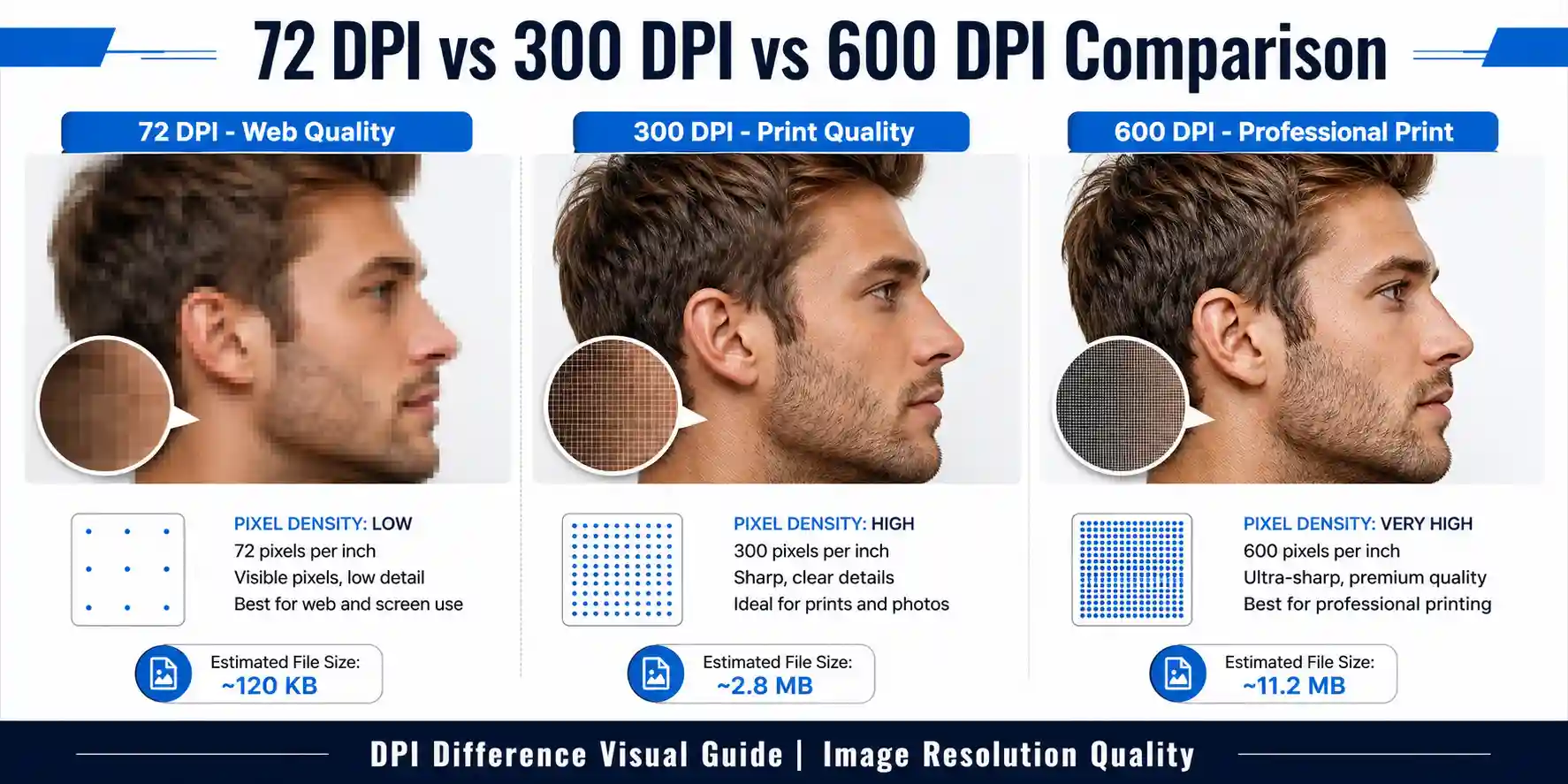
To put it simply, a higher DPI generally means more detail and better print quality. A low DPI can result in pixelated or blurry images, especially when scaled up. Here is a quick breakdown of where each DPI level is typically used:
- 72 DPI – Standard resolution for images viewed on screens, monitors, and mobile devices. This is the default for most digital photographs and web graphics.
- 150 DPI – Good for documents you might print on a standard office printer for drafts or internal use.
- 300 DPI – The industry standard for high-quality print materials, including magazines, brochures, and professional photographs.
- 600-1200 DPI – High-resolution printing for crisp text and fine details, often used in professional publications, book printing, and high-end photography.
Converting DPI: The Most Direct Way to Adjust Your Image's Resolution
Now that you understand what DPI is, the logical next step is to actually apply this knowledge to your images. Changing the DPI value of an image is not just about digital manipulation; it's about preparing your file for its intended use. For example, an image at 300 DPI is perfect for printing a high-quality photo book, while the same image at 72 DPI is ideal for sending as a quick email attachment or uploading to a website. The most direct way to change your image's DPI is to use a specialized online tool that handles this task efficiently.
Using a dedicated online DPI Converter is the smartest, easiest, and fastest way to get the exact resolution you need. This tool is built specifically to handle this technical conversion without the need for complicated software or hidden fees. Whether you need to convert a picture to 300 DPI for professional printing or adjust it to convert an image into 200 DPI for a specific project, this is the solution.
Step-by-Step Guide: How to Use the Best DPI Converter
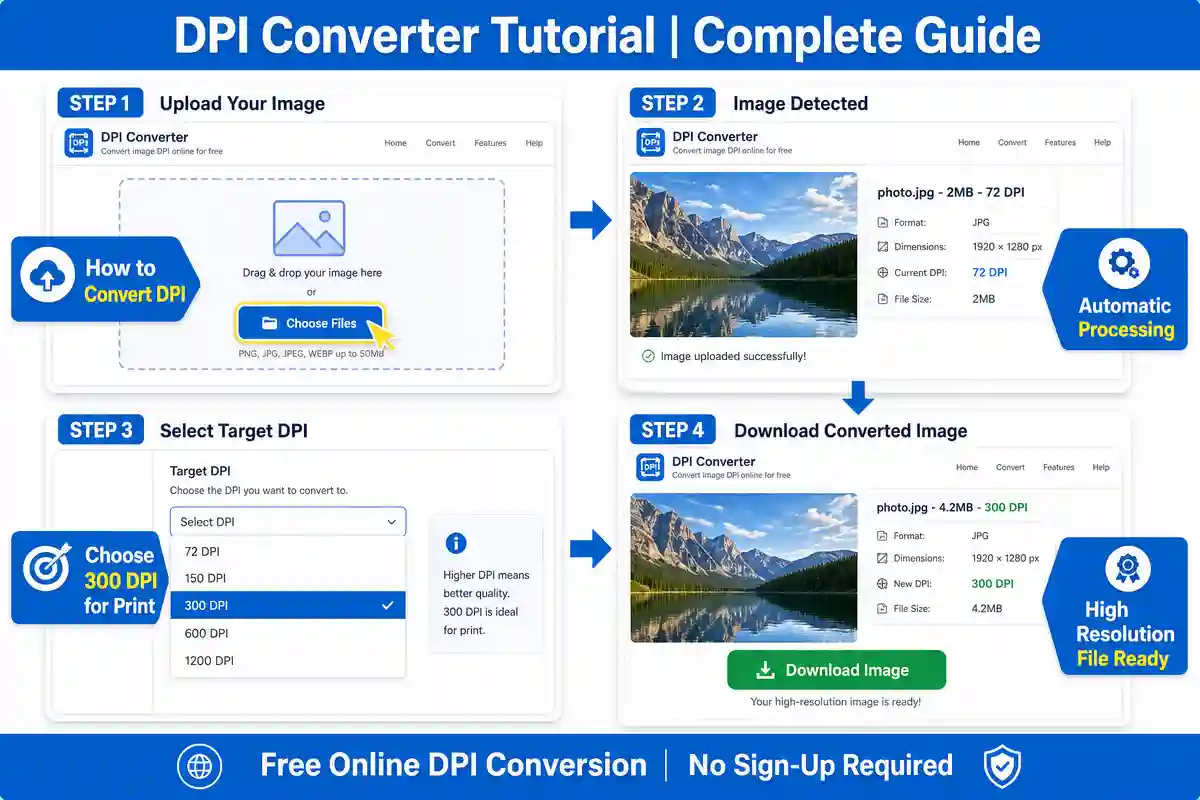
Here is a practical, step-by-step breakdown of exactly how the Best DPI Converter tool works, based on a real documented session. This process is designed to be so intuitive that you can convert your first image in under a minute.
- Start the Process: The first step is to navigate to the Best DPI Converter page. You'll see a clean, intuitive interface with a large upload area. Click on the "Choose Files" button or simply drag and drop your image directly into the designated box. The tool supports a wide range of formats, including JPG, PNG, WEBP, and BMP.
- Upload and Automatic Processing: As soon as you drop your file, the tool gets to work. It will display a preview of your image along with the current DPI details. You'll see the file name, size, and current resolution. The converter then processes the image to prepare it for the next step, which generally takes just a couple of seconds.
- Select Your Desired DPI: This is the core of the conversion. The tool offers a dropdown menu with preset DPI values (e.g., 72, 100, 150, 200, 300, 600, 1200) so you can choose the exact resolution you need. You can also enter a custom DPI value if your project requires a specific number. This is incredibly flexible and lets you target the exact resolution needed for any application.
- Preview, Adjust, and Download: After selecting your target DPI, you'll see the updated image preview along with the new resolution details. You can view the file size estimate to ensure it meets your needs. Once you're satisfied, simply click the "Download" button. Your new, high-quality image is then saved to your device, ready to be used for its intended purpose.
💡 Pro Tip: The DPI Converter for Multiple Files feature allows you to upload and convert batches of images at once, saving you even more time.
This tool stands out because it preserves the original image quality while adjusting the DPI. Many free tools will simply stretch or compress an image, leading to a loss of detail. However, this converter uses advanced algorithms to smartly adjust the resolution, ensuring your image remains crisp and clear, regardless of the target DPI. It's the perfect solution for anyone from a casual user needing to resize a family photo to a professional requiring precise specifications for a client project.
A Note on File Size and Image Complexity
While the tool can handle large files, the processing time may vary depending on your internet speed and the complexity of the image. Extremely large files (over 50MB) might take a bit longer to upload and process. For most users, however, the conversion is near-instantaneous. The tool also handles edge cases well; for example, if you upload a heavily compressed JPEG, the resulting image will still have the correct DPI metadata, even if the quality isn't pristine. This is a limitation of the original file, not the tool itself.
⚠️ Troubleshooting Tip: If your download doesn't start immediately, check to see if your browser is blocking pop-ups from the website. The download is usually automatic, but sometimes a pop-up blocker can interfere. Simply allow pop-ups for the site and try again. If the preview looks pixelated, try ensuring the original image is of sufficient quality to support the DPI increase.
A Detailed Comparison: Online DPI Converters vs. Traditional Software
To help you make an informed choice, it helps to see the differences between using a specialized online tool like the Best Image Converter Website Free and traditional desktop software. The table below breaks down these key distinctions.
| Feature | Online DPI Converter | Traditional Software (e.g., Photoshop) |
|---|---|---|
| Cost | Free (unlimited conversions) | Expensive (subscription or one-time purchase) |
| Setup & Installation | None – works in a browser instantly | Requires download, installation, and setup |
| Speed | Fast (2-5 seconds per conversion) | Slower (needs to launch and load) |
| Learning Curve | Minimal – intuitive and simple to use | Steep – requires skill and training |
| Platform | All devices with a browser (Windows, Mac, Mobile) | Limited (specific OS) |
| Unlimited Conversions | Yes (no sign-up required) | Limited only by your time/software license |
Why the Best DPI Converter Is the #1 Choice in 2026
The online Free DPI Tool is more than just a simple converter; it's a comprehensive, one-stop-shop for all your image resolution needs. Here are the core reasons why it's the leading tool of 2026:
- ✔️ It's 100% Free: No hidden costs, no credit card needed. You can convert as many images as you want, as often as you want.
- ✔️ No Sign-Up Required: Privacy is paramount. There's no email address to provide or account to create. You just use the tool and leave.
- ✔️ Blazing Fast Speeds: The converter processes images in a matter of seconds, so you're not wasting time waiting around.
- ✔️ Unlimited Conversions: Whether you need to convert one image or a thousand, the tool handles it without any limitations.
- ✔️ High-Quality Results: The advanced algorithm ensures the highest quality output. Your images maintain their sharpness, color accuracy, and overall integrity.
This tool is ideal for everyone from students needing to submit a high-resolution assignment to professionals preparing print-ready files for clients. It's an invaluable resource for any workflow that involves images.
Frequently Asked Questions
Can I convert 72 DPI to 300 DPI?
Yes, absolutely. Using the Best DPI Converter, you can effortlessly change a 72 DPI image to 300 DPI. It's one of the most common conversions performed, especially for preparing web graphics for print. The tool will intelligently upscale the image to meet the new DPI requirements while preserving as much quality as possible. For optimal results, ensure your original image has a high pixel dimension; the tool will use that to create a crisp 300 DPI version.
Is 800 or 1200 DPI faster?
The processing speed for converting to 800 DPI versus 1200 DPI is generally the same with the Free DPI Tool. The speed depends more on the original file size and your internet connection than the target DPI number. However, converting to 1200 DPI will produce a much larger file, which may take a fraction of a second longer to process and download due to the sheer volume of data. For most practical applications, 800 DPI is plenty, while 1200 DPI is reserved for ultra-high-resolution archival or professional print needs.
Which DPI quality is best?
The "best" DPI quality entirely depends on your intended use. For digital screens (websites, social media, presentations), 72 DPI is the standard and looks great. For high-quality printing (magazines, books, professional photos), 300 DPI is considered the industry best. There is no single "best" DPI for all situations; you must choose based on the output medium. The tool makes it easy to pick the right one for your specific project.
How to get 300 ppi images?
To get a 300 PPI (or DPI) image, you simply need to use a converter. Open the Image DPI Converter, upload your image, select 300 DPI from the dropdown menu or type it in, and download the processed file. The tool will automatically adjust the image's metadata and resize it to ensure it prints at 300 DPI. PPI (Pixels Per Inch) is often used interchangeably with DPI in the digital realm, but they refer to the same concept of resolution.
Is 72 DPI better than 300 DPI?
Neither is "better" in an absolute sense; they are intended for different purposes. 72 DPI is better for the web because it creates smaller file sizes that load faster on websites and are easier to share via email. 300 DPI is better for print because it ensures sharp, detailed, and professional-looking images on paper. If you tried to print a 72 DPI image, it would appear blurry. If you used a 300 DPI image on a website, it would take longer to load. The key is to use the High Resolution Converter to switch between them as needed.
Is Photoshop 300 DPI?
Photoshop itself is not 300 DPI, but you can set images to 300 DPI within the software. It's a common setting for print projects in Photoshop. However, not everyone has access to Photoshop, and it requires a learning curve. The Online DPI Converter Tool offers a simpler, faster, and free alternative for anyone who needs to convert an image's DPI without needing expensive and complex software.
Is 10,000 DPI good for gaming?
When discussing gaming, 10,000 DPI is rarely used. Most professional gamers and enthusiasts prefer a mouse DPI (which is not the same as image DPI) between 400 and 1600 for precise aim and control. A 10,000 DPI setting on a mouse would make the cursor move extremely fast, which is generally not practical. For images used in gaming, like textures or UI elements, the resolution is usually optimized for the game engine and screen resolution, not a specific DPI number.
Is 1200 DPI better quality?
Yes, 1200 DPI offers higher quality than 300 DPI in terms of potential detail. It is used for high-end professional printing where every detail matters. However, it creates extremely large file sizes and is overkill for most everyday applications. Unless you are printing massive, high-quality images or working on professional-grade publications, 300 DPI is generally considered "good enough" for excellent quality. The Image Quality Converter allows you to easily select 1200 DPI if you need that level of detail.
What is a good DPI for 1920x1080?
For a digital image displayed on a 1920x1080 screen, the DPI isn't the primary concern—the pixel dimensions are. The screen's resolution is fixed at 1920x1080 pixels. If you have an image that is smaller than those dimensions and try to display it full-screen, it will stretch and look blurry. As long as your image's pixel width is close to 1920 pixels, it will look great on that screen, regardless of the DPI setting. Typically, such images are at 72 DPI for efficient display.
Conclusion
Changing an image's DPI is an essential skill for anyone who works with digital media, from printing photos to uploading content to a website. By understanding what DPI is and how to adjust it, you can ensure your images always look their best.
The Best DPI Converter is the ultimate tool for this task. It's free, fast, unlimited, and requires no sign-up, making it the most accessible solution available. Whether you need to convert a picture to 300 DPI for a client, convert an image into 200 DPI for a specific platform, or use the DPI Converter for Multiple Files to process batches, this tool has you covered. Its speed and quality ensure you get the perfect resolution every time.
Ready to get the perfect resolution for your images? Try the #1 Best DPI Converter now and experience the simplest, most effective way to convert your images online. It's the only tool you'll ever need for all your DPI conversion needs in 2026 and beyond.