The Simple Guide to Creating Free Image Silhouettes Online
A silhouette image is a powerful and elegant form of visual art. It reduces a subject to a solid, dark shape against a lighter background, emphasizing form and outline over detail. This technique can transform ordinary photos into striking graphics perfect for logos, art projects, or personal branding. If you need to convert image to silhouette online free of charge, you’re in the right place. This guide will explain why silhouettes are useful and walk you through the simple, free process using online tools.
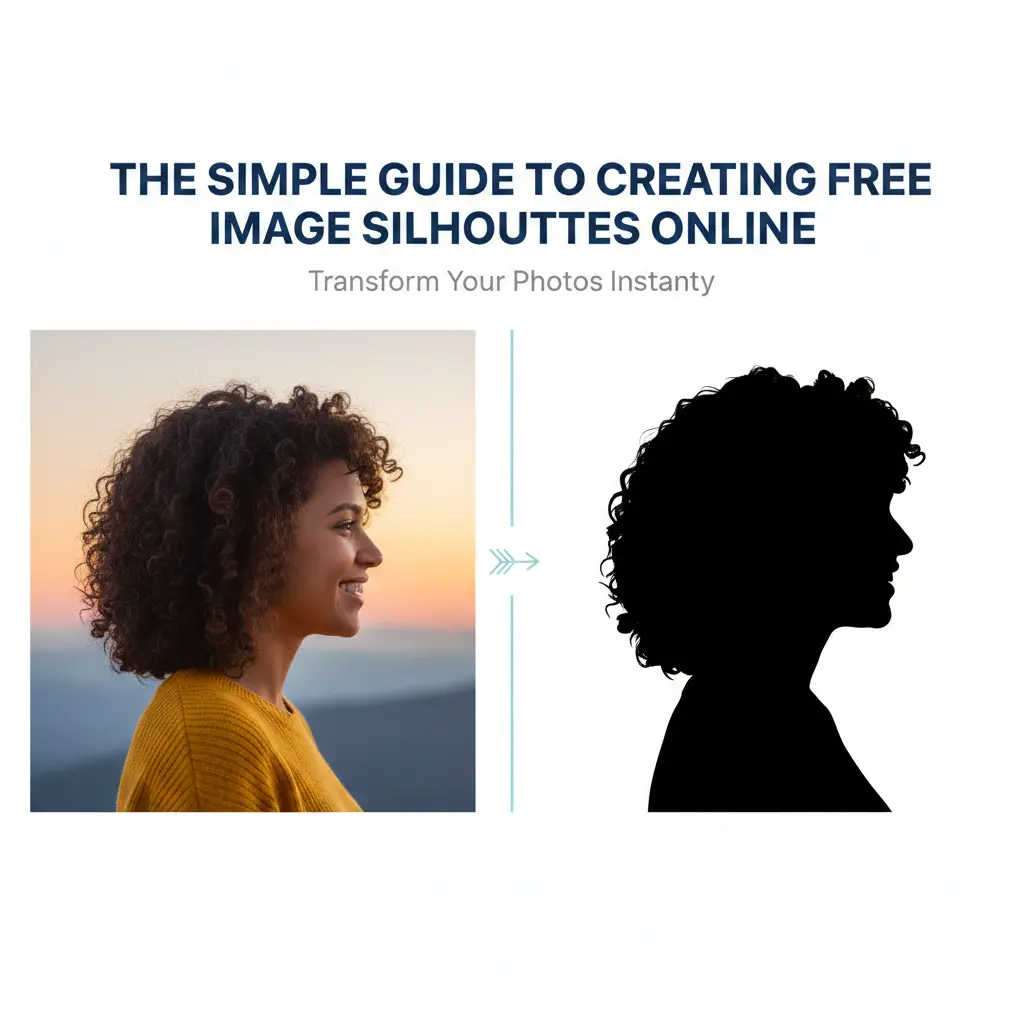
Creating a silhouette might sound technical, but modern online tools have made it incredibly accessible. You don’t need expensive software like Photoshop. Several excellent websites and free editors can help you achieve professional-looking results in minutes. The key is to start with a suitable image and follow a clear process. Let's explore how you can unlock this creative skill today.
What is a Silhouette Image?
A silhouette is a two-dimensional representation where the subject appears as a solid black shape, usually placed on a much lighter or white background. Think of the classic profile portrait cuttings from the 18th century or the dramatic figures seen against a bright sunset. This style strips away color, texture, and internal details, focusing solely on the subject's outline. This simplicity is what makes silhouettes so versatile and timeless in design.
In the digital world, a silhouette is typically a high-contrast graphic. The subject is filled with a single dark color (usually black), and the background is removed or set to a contrasting light color. This creates a bold, clean asset that can be used in countless ways without visual clutter.
Why Create a Silhouette?
You might want to turn a photo into a silhouette for many practical and creative reasons. It’s not just an artistic choice; it’s a functional one. Here are some common uses:
- Logo and Brand Design 📌 Silhouettes are a cornerstone of minimalist logo design. They are memorable, scalable, and work perfectly in single-color printing.
- Crafting and Personal Projects 📌 From custom t-shirts and vinyl decals to wedding invitations and scrapbooking, silhouettes add a personal, elegant touch.
- Graphic Design and Web Assets 📌 Web designers use silhouettes as icons, mascots, or hero image elements because they load quickly and look sharp on any screen.
- Focus on Form and Gesture 📌 Artists and photographers use this technique to emphasize posture, movement, or the emotional shape of a subject, removing distracting details.
- Overcoming Poor Photo Quality 📌 You can salvage a blurry or poorly lit photo with strong subject outlines by converting it into a crisp, intentional silhouette.
By understanding these applications, you can see how learning to create a silhouette online is a valuable addition to your digital toolkit.
Choosing the Right Image
Your success in creating a clean silhouette starts with choosing the right photo. Not every picture will work well. The ideal image has a clear, uncluttered outline and good contrast between the subject and its background.
- Strong, Clear Outline Choose a photo where the subject's edges are distinct and not merging with the background. A side profile or a person with arms spread wide works better than a complex, intertwined group.
- High Contrast The best starting point is a photo where the subject is noticeably darker or lighter than the background. A person against a bright sky is a classic example.
- Simple Background A plain, unbusy background (like a wall or sky) makes the automatic selection tools in free online editors much more effective.
- Good Lighting While you can work with various images, side lighting that creates a sharp shadow line on the subject often yields the best outline definition.
| Image Type | Good for Silhouette? | Reason |
|---|---|---|
| Portrait against a bright window | Excellent | Natural high contrast, clean outline. |
| Tree with intricate branches against sky | Moderate | Detailed outline can be challenging but rewarding. |
| Person in a crowded market | Difficult | Background is too busy, subject not isolated. |
| Pet on a solid-color blanket | Good | Solid background allows for easy subject selection. |
Selecting a suitable photo is half the battle. With a good source image, the free online conversion process becomes smooth and quick.
How to Convert Your Image for Free: A Step-by-Step Guide
The process to make a silhouette online free is straightforward. We'll use a generic process that applies to most free online image editors like Canva, Adobe Express, LunaPic, or Remove.bg. These platforms are browser-based, require no installation, and offer free tiers perfect for this task.
How to Create a Silhouette Using Pixelbin👉 (https://www.pixelbin.io/ai-tools/silhouette-maker):
- Add Your Image Upload your photo directly or paste its URL. Pixelbin supports JPG, JPEG, PNG, and WEBP formats for seamless processing.
- AI Processing The AI editor automatically detects the main subject and generates a clean silhouette—no manual editing required.
- Download Your Silhouette Preview and download your silhouette for free, with no watermarks or hidden costs.
Important Note for Readers: While these tools are free, some may have limitations on download resolution or number of images per month for their free tier. Always check the website's terms. For occasional use, the free plans are more than sufficient to convert your images to silhouettes without paying a cent.
By following these steps, you can transform any suitable photo into a clean, usable silhouette asset in under ten minutes.
Creative Tips for Better Silhouettes
Once you've mastered the basic conversion, these tips will help you create truly outstanding silhouette graphics.
- Play with Color Black on white is classic, but don't be afraid to use dark blue, purple, or even red for your shape. Try a gradient or patterned fill for a modern twist.
- Layer Multiple Silhouettes Create depth by layering several related silhouettes with slight transparency variations (e.g., a forest of trees).
- Combine with Text Place text inside your silhouette shape for a creative typography effect. Ensure the text is still readable.
- Use for Photo Composites Place your silhouette onto a new, dramatic background—like a mountain range or a colorful sunset—to tell a new story.
- Keep an Asset Library Save your created silhouettes as PNG files with transparent backgrounds. This builds a personal library of graphics you can reuse anytime.
"A great silhouette doesn't hide detail; it reveals essence. It forces the viewer to engage with the fundamental shape and emotion of the subject." – A principle of minimalist design.
Troubleshooting Common Issues
Sometimes, things don't go perfectly on the first try. Here’s how to solve common problems:
- Rough or Pixelated Edges: This often means your original image was too small. Always start with the highest resolution photo you have. Use the "Smooth" or "Feather" tool (1-2 pixels) in your editor to soften jagged edges.
- Background Won't Remove Cleanly: If the auto-tool struggles, use the manual "Brush" tool to mark areas to keep and remove. In complex cases, using a tool like Photopea for precise manual selection might be necessary.
- Holes Appear Inside the Silhouette: If your subject has gaps (e.g., between arms and body), the removal tool might see that as background. Use the "Brush" or "Fill" tool after coloring to patch these areas with black.
- Final File is Too Large/Too Small: When downloading, most tools let you choose the output size. For web use, 72-150 DPI is fine. For printing, aim for 300 DPI if the tool allows.
Beyond the Basics: Keep Learning
Your ability to create image silhouettes for free online is a fantastic starting point. The world of digital design is vast and always evolving. To grow your skills:
- Explore tutorials on vector tracing, which can turn your silhouette into an infinitely scalable SVG file.
- Learn about color theory to make your silhouette designs more impactful.
- Experiment with different graphic styles that use silhouettes, like vintage Victorian art or modern UI shadow graphics.
The free tools available today put powerful design capabilities in everyone's hands. Consistent practice and curiosity are your best assets.
Patience Leads to Perfect Results
Creating your first few silhouettes might take a little time as you learn the tools. That’s completely normal. The key is patience and iteration.
- Start Simple: Begin with an easy, high-contrast image to understand the workflow before tackling complex photos.
- Embrace the Process: Each attempt teaches you more about your chosen tool's nuances.
- Iterate and Improve: Your fifth silhouette will be much better than your first. Save your early work to track your progress.
Final Thought: The ability to transform a personal photo into a clean, graphic silhouette is a satisfying and useful skill. It bridges photography, graphic design, and personal expression. With the free resources outlined in this guide, you have everything you need to start creating. Don't wait for "perfect" software—your best tool is the willingness to try, learn, and create.
In Conclusion: Converting an image to a silhouette online for free is not only possible but also simple with today's web-based tools. By selecting a suitable photo, using a dedicated free editor, and following a clear process, you can produce elegant, versatile graphic assets for both personal and professional projects. Remember to focus on clean outlines, be patient with the learning process, and most importantly, have fun exploring this classic art form in the digital age. Your creative potential is just a few clicks away.