How to Convert PNG to AI or EPS
Yes, you can convert PNG to AI or EPS using online tools like Image Converter 24. The process takes your raster image and converts it to a vector format, making it scalable without quality loss. This guide walks you through everything you need to know.
This step-by-step guide explains how to convert PNG to AI or EPS using free online tools, when to expect good results, and the key differences between raster and vector images.
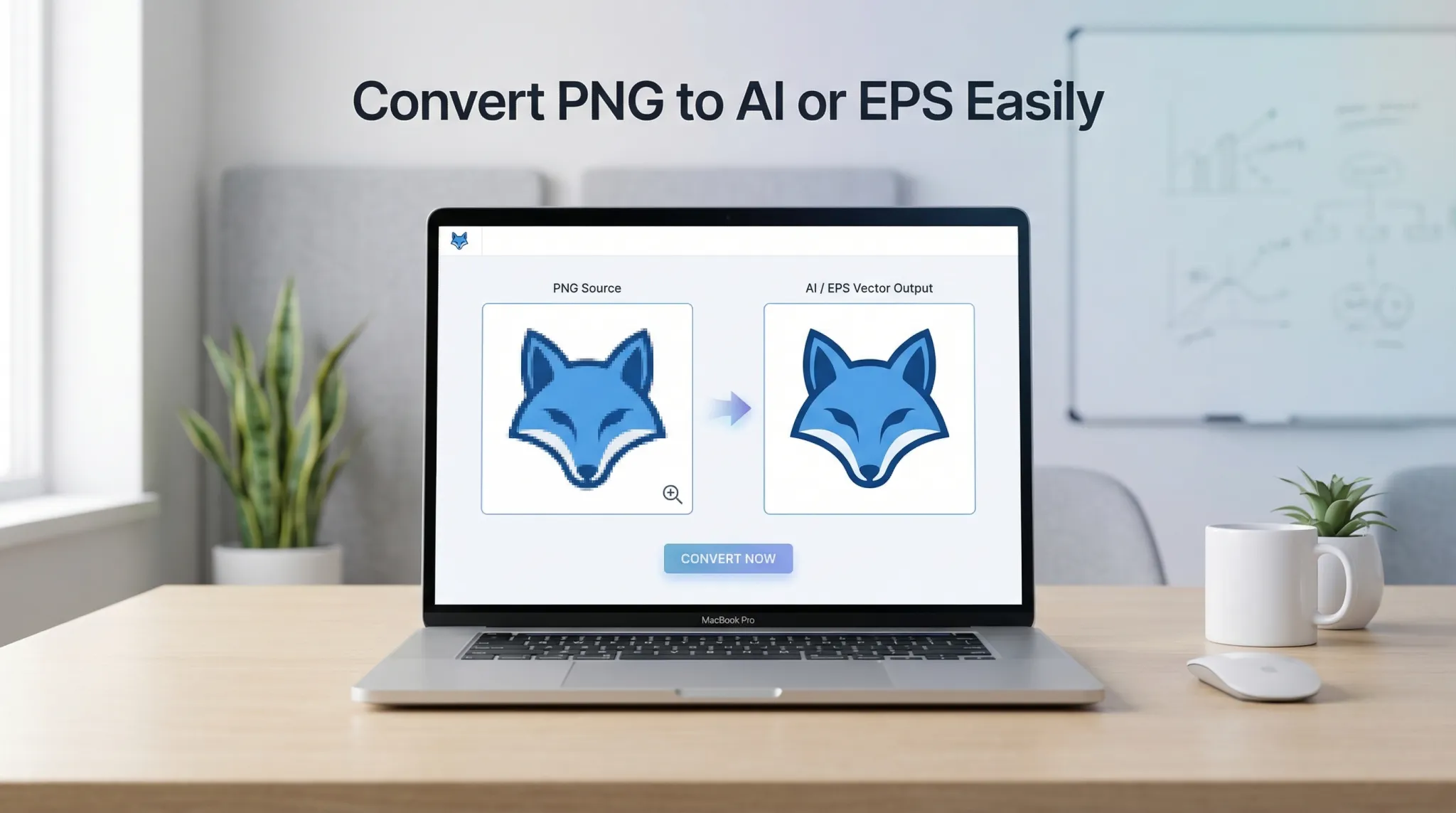 |
| Convert PNG to vector formats like AI and EPS – free, no sign up, unlimited. |
If you have ever tried to enlarge a PNG image, you know the problem: it gets blurry and pixelated. That is because PNG is a raster format. AI and EPS are vector formats that scale infinitely. Converting PNG to AI or EPS unlocks that scalability.
Let us show you how.
Let us show you how.
What is the difference between Raster and Vector images?
Understanding this difference is key to knowing when conversion works:
For a deeper look at PNG's limitations, read about the main drawback of the PNG file format and PNG advantages and disadvantages.
What is Image Tracing / Vectorization?
Converting PNG to AI or EPS is called vectorization or image tracing. The process analyzes your raster image and creates vector paths that approximate the shapes and colors.
How it works:
How it works:
- The software detects edges and shapes in your PNG
- It creates mathematical paths (vectors) that follow those shapes
- Colors are preserved as fills
- The result is a vector file that can scale infinitely
This works best for simple images with solid colors and clear edges.
How to Convert PNG to AI or EPS Online (Step by Step)
Using Image Converter 24, the process is simple:
- Go to Image Converter 24 📌 Open your browser and visit our website. No download, no installation.
- Upload your PNG file 📌 Click the upload button and select your PNG image. You can also drag and drop.
- Choose AI or EPS as output 📌 Select AI (Adobe Illustrator) or EPS (Encapsulated PostScript) from the format options.
- Adjust settings (if available) 📌 Some tools let you adjust detail level and color settings for better results.
- Convert and download 📌 Click convert and download your new vector file.
That is it. No sign up, no limits, completely free.
Try it now: Visit Image Converter 24 and convert your first PNG to AI or EPS in seconds.
Can I convert PNG to AI?
Yes, absolutely. AI (Adobe Illustrator) is a vector format that can be created from PNG images through vectorization.
The resulting AI file will contain vector paths that represent the shapes and colors from your original PNG. You can then edit these paths in Adobe Illustrator or other vector editing software.
For best results, use simple PNG images with clear shapes and limited colors.
The resulting AI file will contain vector paths that represent the shapes and colors from your original PNG. You can then edit these paths in Adobe Illustrator or other vector editing software.
For best results, use simple PNG images with clear shapes and limited colors.
Can I turn a PNG into an EPS?
Yes, you can convert PNG to EPS. EPS (Encapsulated PostScript) is a vector format widely used in print publishing and graphic design.
EPS files created from PNGs work the same way as AI files – they contain vector paths that can scale infinitely. EPS is more universally compatible across different software than AI.
Image Converter 24 supports both formats.
EPS files created from PNGs work the same way as AI files – they contain vector paths that can scale infinitely. EPS is more universally compatible across different software than AI.
Image Converter 24 supports both formats.
Can AI create EPS files?
Yes, Adobe Illustrator (AI) can save files as EPS. In fact, Illustrator is one of the primary tools for creating and editing EPS files.
If you have an AI file, you can save it as EPS directly in Illustrator. But if you have a PNG and want an EPS, you need to convert it first – that is where Image Converter 24 comes in.
If you have an AI file, you can save it as EPS directly in Illustrator. But if you have a PNG and want an EPS, you need to convert it first – that is where Image Converter 24 comes in.
Is EPS an AI file?
No, EPS and AI are different formats. AI is Adobe Illustrator's native format. EPS is a more universal format that can be opened by many different vector applications.
Key differences:
Key differences:
- AI: Native to Adobe Illustrator. Supports layers, effects, and other Illustrator-specific features.
- EPS: More universal. Can be opened by CorelDRAW, Inkscape, and many other programs.
- Compatibility: EPS is better for sharing with users who may not have Illustrator.
Both are vector formats, and you can convert between them.
Is EPS better than PNG?
EPS is better for certain purposes, while PNG is better for others:
| Use Case | Better Format | Why |
|---|---|---|
| Logos for print | EPS | Scalable, vector format works at any size |
| Photos | PNG | PNG handles continuous tones better |
| Web images | PNG or SVG | EPS not supported in browsers |
| Logos for web | SVG | Vector format that works in browsers |
| Print design | EPS or AI | Industry standard for print |
So EPS is better for print and scalable graphics. PNG is better for photos and web use.
Is PNG the same as AI?
No, PNG and AI are completely different formats. PNG is a raster format (pixels). AI is a vector format (paths).
You cannot simply rename a PNG to AI and expect it to work. Converting requires vectorization software that traces the image and creates vector paths. Image Converter 24 does this automatically.
You cannot simply rename a PNG to AI and expect it to work. Converting requires vectorization software that traces the image and creates vector paths. Image Converter 24 does this automatically.
When to expect good results from PNG to vector conversion
Vectorization works best for certain types of images. Here is a guide:
- Excellent results – Simple logos, icons, black and white graphics, text, shapes with solid colors. These convert almost perfectly.
- Good results – Illustrations with limited colors, cartoons, line art. Some minor adjustments may be needed.
- Poor results – Photographs, complex gradients, soft edges, detailed textures. These will not convert well to vector. The result will look simplified or posterized.
Important note: Converting a photograph to vector will not make it look like a photograph. The result will be stylized and simplified. For photos, stay with PNG or JPG.
What are common problems with PNG to vector conversion?
Here are issues you might encounter and how to address them:
- Complex shapes become simplified: The vectorization may lose fine details. Start with high-resolution PNG for best results.
- Color banding: Gradients may become stepped. Use limited color palettes or create gradients manually in vector software.
- Too many paths: The file may become very complex. Simplify your original PNG before converting.
- Text becomes shapes: Converted text cannot be edited as text. You will need to retype text in vector software.
For issues specific to PNG, read about common problems with PNG to PDF conversion.
Desktop software alternatives (for complex projects)
For professional work, you might want desktop software:
- Adobe Illustrator: Professional vector editor with powerful tracing tools (Image Trace). Paid subscription.
- Inkscape: Free, open-source vector editor. Excellent tracing capabilities (Path > Trace Bitmap).
- CorelDRAW: Professional vector editor with tracing tools. Paid.
- Vector Magic: Specialized vectorization software. Paid, but excellent results.
For quick conversions and simple images, online tools like Image Converter 24 are perfect. For complex, professional work, consider desktop software.
Why use Image Converter 24 for PNG to AI/EPS conversion
Image Converter 24 is the best free online option for several reasons:
- Completely free: No hidden costs, no premium tiers
- No sign up: Just use it instantly – no email, no password
- Unlimited conversions: Convert as many files as you need
- Fast processing: Results in seconds
- Secure: Files automatically deleted
- Works on any device: Computer, tablet, or phone
- No watermarks: Your files are clean
- Multiple formats: Convert to AI, EPS, SVG, and more
For a complete list of features, visit our best image converter website free guide and best free image converter online no signup.
Real-world use cases for PNG to vector conversion
People convert PNG to AI or EPS for many reasons:
- Logo design: Turning a scanned sketch into a scalable vector logo
- Print materials: Creating billboards, banners, and large-format prints
- Embroidery: Converting designs for machine embroidery
- Vinyl cutting: Creating cut files for vinyl plotters
- Sign making: Preparing graphics for professional signage
- Archiving: Preserving old artwork in scalable format
User story: "I had a client's logo as a low-resolution PNG from a website. I used Image Converter 24 to convert it to EPS, then scaled it for a huge billboard. It worked perfectly." – Mark, sign maker
Tips for better PNG to vector conversion
Follow these tips to get the best results:
- Start with high resolution 📌 Higher resolution PNGs give the vectorization software more detail to work with.
- Use simple, solid colors 📌 Avoid gradients and complex textures for best results.
- Clean up your PNG first 📌 Remove stray pixels, smooth edges, and simplify shapes before converting.
- Use high contrast 📌 Black and white images convert better than color.
- Accept the style change 📌 Vectorized images look different from originals. Accept and enjoy the vector look.
The bottom line: How to convert PNG to AI or EPS
Converting PNG to AI or EPS is simple with Image Converter 24. Just:
- Upload your PNG
- Choose AI or EPS as output
- Click convert
- Download your vector file
It works best for logos, icons, illustrations, and simple graphics. For photographs and complex images, the results will be stylized.
For designers, sign makers, and business owners, converting raster images to vector gives you the freedom to scale your graphics to any size without quality loss.
For designers, sign makers, and business owners, converting raster images to vector gives you the freedom to scale your graphics to any size without quality loss.
Ready to convert your PNG to AI or EPS?
Stop worrying about pixelated logos and blurry graphics. Convert to vector now.
Visit Image Converter 24 now and convert your first PNG to AI or EPS. It takes seconds, it is completely free, and you do not even need to sign up.
Bookmark the site, and you will always have a reliable vector converter at your fingertips.
Visit Image Converter 24 now and convert your first PNG to AI or EPS. It takes seconds, it is completely free, and you do not even need to sign up.
Bookmark the site, and you will always have a reliable vector converter at your fingertips.