What's Better PNG or JPEG for Quality? Everything You Need
If you've ever saved an image and watched it come out blurry, blocky, or oddly washed out, the format you picked is probably the reason. PNG and JPEG handle image data in completely different ways, and that difference shows up the moment quality actually matters — a product photo, a logo, a screenshot full of text, or a portrait you want to print.
This guide breaks down exactly how PNG and JPEG differ in quality, when each one actually wins, how to convert between them without wrecking your image, and how to fix the most common quality problems people run into.
Why PNG and JPEG Handle Quality So Differently
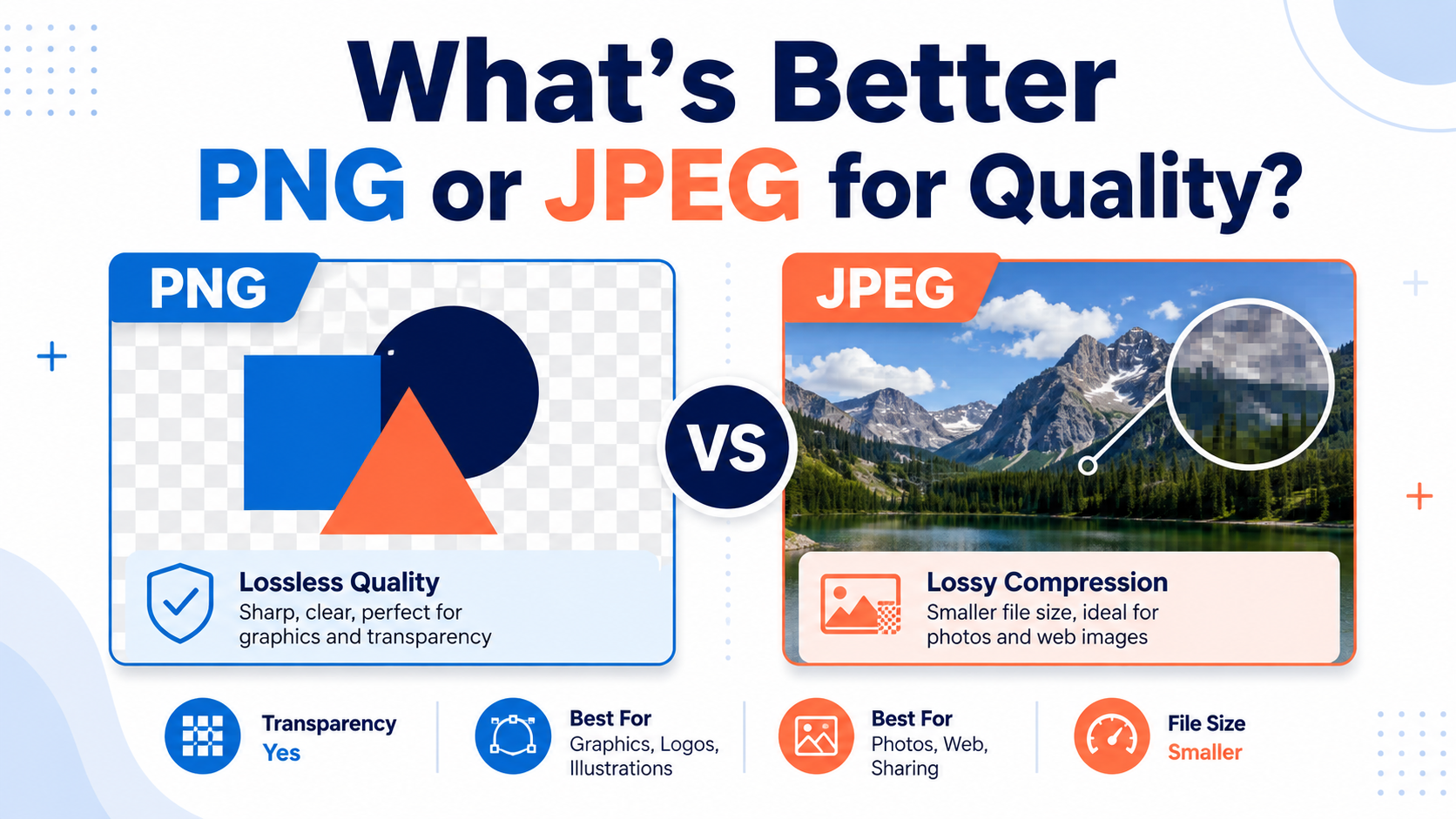
The core difference comes down to compression. PNG uses lossless compression, which means it shrinks the file size by finding smarter ways to store the same data, but it never throws any information away. Open a PNG, save it, open it again, save it again — the pixels never degrade. That's why PNG is the standard for PNG advantages and disadvantages discussions around screenshots, logos, and diagrams.
JPEG uses lossy compression instead. It analyzes the image, decides which details the human eye is least likely to notice, and discards them to save space. At high quality settings (90-100%), this loss is barely visible. At lower settings, you start to see blocky artifacts, color banding, and blurring around sharp edges — especially in areas with fine detail like text or hard lines.
A PNG re-saved 50 times looks identical to the original. A JPEG re-saved 50 times, even at high quality each time, will show visible degradation — this is called "generation loss," and it's one of the most overlooked reasons JPEG quality drops over time.
PNG vs JPEG: Quality Comparison Table
| Factor | PNG | JPEG |
|---|---|---|
| Compression type | Lossless | Lossy |
| Quality after repeated saves | Unchanged | Degrades each time |
| Best for | Graphics, text, logos, screenshots | Photos, gradients, complex scenes |
| File size | Larger | Smaller |
| Transparency support | Yes | No |
| Color depth | Up to 48-bit | 24-bit (8-bit per channel) |
When PNG Actually Wins on Quality
PNG's lossless nature makes it the obvious choice whenever an image has sharp edges, flat color areas, or text. Think of a logo with solid blue and white sections, or a screenshot of a spreadsheet. JPEG compression tends to introduce a faint "halo" or blur around hard edges like these, because its algorithm is optimized for photographic gradients, not crisp boundaries.
- Screenshots with readable text
- Logos and icons with flat colors
- Diagrams, charts, and infographics
- Any image that needs a transparent background
- Source files you plan to edit multiple times before final export
Because PNG keeps full MIME type for PNG data intact with every save, it's also the safer format for anything you'll be reopening and editing repeatedly, like a design file passed between team members.
When JPEG Is the Smarter Quality Trade-Off
For photographs, JPEG at 85-100% quality is very hard to tell apart from the original with the naked eye, and the file size savings are significant — often 70-90% smaller than an equivalent PNG. Photos are made up of smooth gradients and subtle color transitions, which is exactly the kind of data JPEG's compression algorithm handles well without visible loss.
If you're deciding based on where the image will be used rather than what's technically "better," it helps to look at it from that angle specifically — see our breakdown on what's better PNG or JPEG for web and what's better PNG or JPEG for printing, since web and print have different priorities than pure quality preservation.
Converting Between Formats Without Losing Quality
Once you understand the quality difference, the practical question becomes how to convert a file without accidentally introducing the exact degradation you're trying to avoid. Doing this manually in basic image editors often means guessing at export settings, and it's easy to end up with a JPEG that's needlessly compressed or a PNG that's unnecessarily huge. The most direct way to handle this correctly is with a dedicated conversion tool built for the job.
The Best Free Image Converter is built specifically for this kind of format switching, and it's worth understanding how the process actually works before you rely on it:
- Open the Best Free Image Converter in your browser and drag your image into the upload area, or use the file picker to select it from your device.
- Choose your target format — PNG if you need lossless quality and transparency, or JPEG if you're prioritizing smaller file size for a photo.
- If you're converting to JPEG, look for a quality slider or setting. Keeping this at 90% or higher preserves visual quality while still reducing file size meaningfully compared to PNG.
- Start the conversion and wait for the tool to process the file. Processing time depends on the image's resolution and file size — larger, high-resolution files naturally take longer than small web graphics.
- Preview the converted image before downloading, and compare it against the original if the tool allows a side-by-side view, so you can catch any visible quality loss before committing to the file.
- Download the converted file to your device once you're satisfied with the result.
This kind of tool fits this specific problem well because it removes the guesswork around export settings — you're not manually configuring compression algorithms, you're choosing a target format and, where relevant, a quality level, and letting the tool apply the correct technical settings behind the scenes.
One honest limitation worth knowing: like most browser-based converters, very large files or extremely high-resolution images (for example, large print-ready files in the hundreds of megabytes) can take noticeably longer to process, and some free tools cap the maximum file size they'll accept. If you're working with oversized files, it's worth checking the tool's stated limits first rather than assuming any file size will go through.
What's Better PNG or JPEG for Images
For general image use, the answer depends on the image's content more than a blanket rule. Images with flat colors, sharp lines, or transparency — icons, logos, UI mockups — hold up far better as PNG. Images with continuous tone, like a sunset photo or a portrait, compress well as JPEG without a noticeable quality hit. If you're unsure which category your image falls into, a simple test is to zoom into the edges of shapes or text: if they look crisp in the original, PNG will preserve that crispness better than JPEG. For a deeper look at this exact question, see what's better PNG or JPEG for images.
What's Better PNG or JPEG for Web
On the web, quality has to be balanced against load time. A PNG that looks flawless but takes three seconds longer to load can hurt user experience more than a slightly compressed JPEG that loads instantly. Modern best practice is to use JPEG for photographic content and PNG for graphics, icons, and anything needing transparency, often alongside newer formats like WebP for further savings. Page speed tools increasingly factor image weight into ranking signals, so the "better" format for web is really the smallest file that still looks acceptable at the size it's displayed.
What's Better PNG or JPEG for Quality
Strictly on quality alone, with no other constraints, PNG wins because it's mathematically lossless — there is no compression artifact to weigh against. But "better quality" only matters if you can perceive the difference. At 95-100% JPEG quality on a photograph, most people cannot reliably tell it apart from a PNG in a blind comparison, while the JPEG file might be a fraction of the size. So the honest answer is: PNG is objectively higher quality by definition, but JPEG at high settings is often visually equivalent for photographic content.
What's Better PNG or JPEG for Photos
For photos specifically, JPEG is usually the practical winner despite being lossy. Photographic images rarely have the flat colors or hard edges where JPEG artifacts are most visible, so the compression is much less noticeable. The exception is photos you plan to heavily edit — cropping, color-correcting, or compositing repeatedly — where starting from a PNG or another lossless format avoids compounding quality loss across multiple edit-and-save cycles.
Better Quality PNG or JPEG
If the question is simply which format preserves more raw quality, PNG is the answer every time, because it doesn't discard any pixel data during compression. The trade-off is file size and, in some workflows, compatibility — a few older systems and some print processes still expect JPEG. Weigh quality against those practical constraints rather than assuming higher quality is always the right choice for every situation.
Difference Between JPEG and PNG
Beyond quality, PNG and JPEG differ in a few other meaningful ways. PNG supports transparency through an alpha channel, which JPEG cannot do at all. PNG also supports higher color depths, useful for professional graphics work. JPEG, on the other hand, supports progressive loading, where a low-quality version of the image appears first and sharpens as more data loads — useful for web pages with large images. Neither format supports animation (that's GIF or APNG territory), and neither is ideal for very large uncompressed archival images, where formats like TIFF are more common.
What's Better JPEG vs PNG
Framed the other way around, JPEG is better whenever file size and load speed matter more than absolute pixel-perfect accuracy — which describes the vast majority of everyday photo sharing, blogging, and social media use. PNG is better whenever the image has flat colors, needs transparency, or will be edited and re-saved multiple times. If you regularly go back and forth, converting cleanly with the right settings at each step (rather than repeatedly re-saving the same JPEG) is what actually protects quality over time. See how do I change a JPEG to PNG for a focused walkthrough of that specific conversion direction.
Frequently Asked Questions
Is PNG or JPEG higher quality?
PNG is technically higher quality because it uses lossless compression, meaning no pixel data is discarded when the file is saved. JPEG uses lossy compression, which removes some detail to reduce file size, though at high quality settings the visible difference is often minimal.
Does PNG maintain better image quality than JPEG?
Yes, PNG maintains better image quality because it never discards image data during compression. JPEG's quality depends heavily on the compression level chosen at export, and it can degrade further each time the same file is re-saved.
Why is PNG lossless but JPEG is lossy?
PNG's compression algorithm rearranges and encodes data more efficiently without removing any of it, similar to how a ZIP file compresses without deleting content. JPEG's algorithm analyzes the image and intentionally discards detail the human eye is less likely to notice, which reduces file size but permanently loses some information.
What's the difference between PNG and JPEG quality?
PNG quality stays constant no matter how many times you save the file, since no data is lost in the process. JPEG quality is determined by a compression setting at export time, and it can decline with repeated saves, especially at lower quality percentages.
Can JPEG maintain high quality like PNG?
JPEG can look visually very close to PNG at high quality settings (90-100%), especially for photographs. It won't be mathematically identical to the original the way PNG is, but the difference is often invisible to the naked eye at those settings.
Does PNG lose quality when compressed?
No, PNG compression is lossless, so the image looks identical after compression as it did before. PNG compression only reduces file size by encoding the same data more efficiently, not by removing any of it.
Which format preserves image quality better?
PNG preserves image quality better in every case because of its lossless compression method. The trade-off is a larger file size compared to JPEG, which is why JPEG remains popular for photos where absolute lossless quality isn't necessary.
Is PNG always better for image quality?
PNG is always technically better for raw quality preservation, but "better" in practice depends on your use case. For photos meant for the web or social media, JPEG's much smaller file size often makes it the more practical choice despite the small, usually imperceptible quality trade-off.
Why does JPEG lose quality?
JPEG loses quality because its compression algorithm permanently discards some image data to shrink the file size, a process called lossy compression. Each time a JPEG is re-saved, this process can run again, compounding the quality loss over multiple edits.
Conclusion
When it's purely about quality, PNG wins because it never throws away any image data, making it the right choice for graphics, logos, screenshots, and anything you'll edit repeatedly. JPEG isn't a lesser format, though — at high quality settings it holds up remarkably well for photos, and its smaller file size is a real practical advantage for web use and everyday sharing.
The key is matching the format to what the image actually contains and where it's going, rather than assuming one format is universally correct. And when you need to move between formats without accidentally degrading the file in the process, using a proper conversion tool beats manually guessing at export settings.
The fastest way to handle this is with the Best Free Image Converter. Upload your image, choose PNG or JPEG as your target format, adjust the quality setting if you're exporting to JPEG, and download the result — no software installation required, and no guesswork about whether your export settings will hold up.