What Is Multi TIFF File? Everything You Need to Know
A Multi TIFF file is a single TIFF file that contains multiple pages or images. Think of it as a digital stack of papers—one file holds many pages. It is commonly used for scanned documents, faxes, and archival storage where keeping related pages together matters.
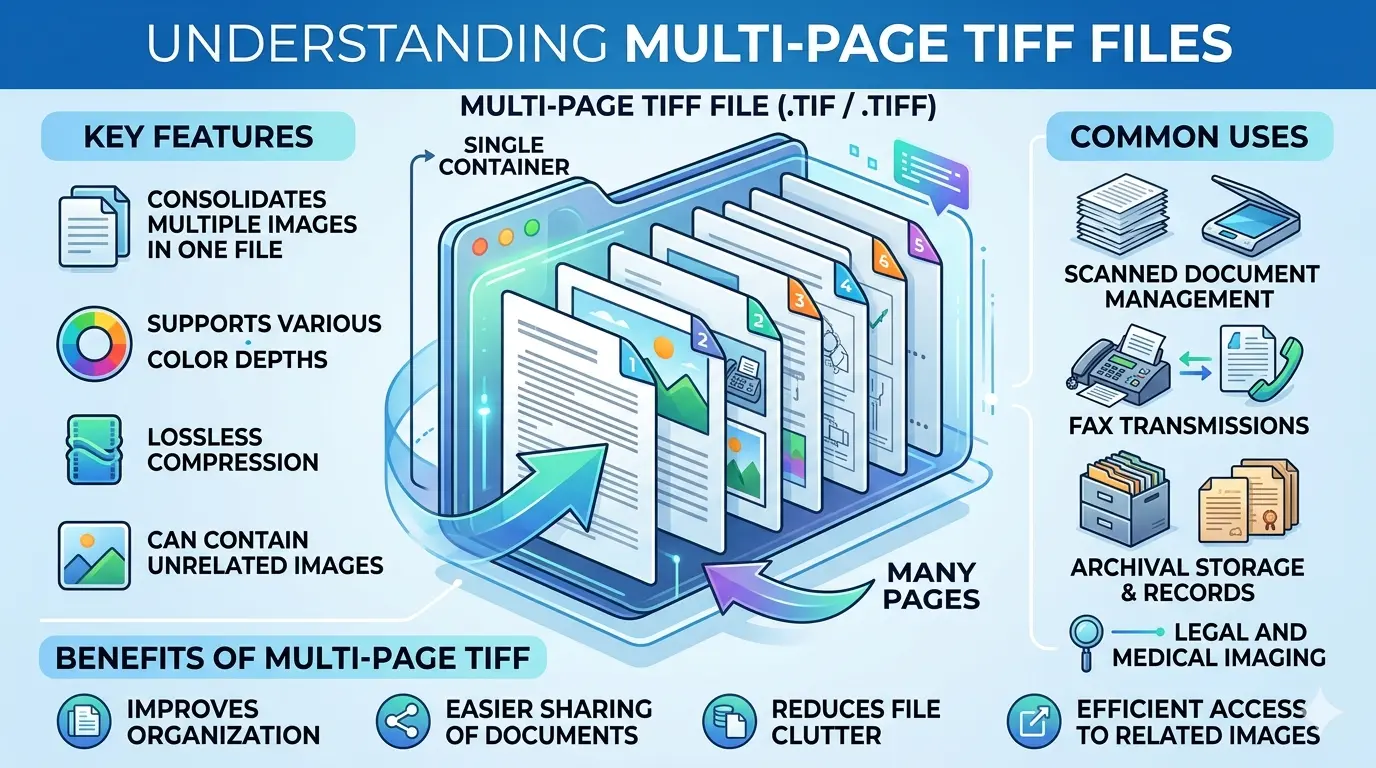
This guide explains what is multi TIFF, how it works, and why you might use it instead of separate image files or PDFs.
If you have ever scanned a multi-page document, you have faced a choice: save each page as a separate file or find a way to keep them together. Multi TIFF is one solution. It has been used for decades in document management, fax machines, and professional archiving.
Let us explore what makes Multi TIFF special.
Let us explore what makes Multi TIFF special.
What is a TIFF file?
Before understanding Multi TIFF, you need to know what a regular TIFF is.
TIFF stands for Tagged Image File Format. It was created in the 1980s as a flexible format for storing raster images. Key features include:
TIFF stands for Tagged Image File Format. It was created in the 1980s as a flexible format for storing raster images. Key features include:
- Lossless compression (LZW, ZIP) or uncompressed options
- Support for multiple color spaces (RGB, CMYK, grayscale)
- High bit depth support (8-bit, 16-bit, even 32-bit per channel)
- Layers and transparency support
- Extensive metadata support (EXIF, IPTC, XMP)
- Widely used in professional photography, printing, and archiving
For a complete overview, read about TIFF advantages and disadvantages.
What is a multi-TIFF file?
A Multi TIFF file (also called multi-page TIFF or multi-image TIFF) is an extension of the TIFF format that allows multiple images to be stored in a single file.
How it works:
How it works:
- Each page in a Multi TIFF is a complete TIFF image
- They are linked together using Image File Directories (IFDs)
- The first IFD points to the second, which points to the third, and so on
- Each page can have its own size, color mode, and compression settings
- When you open a Multi TIFF, software may show the first page or let you navigate through all pages
Think of it as a digital book where each page is a high-quality image, all bound together in one cover.
What is TIFF used for?
TIFF is used in many professional applications:
- Professional photography: Photographers use TIFF for master copies because it preserves every detail
- Printing and prepress: Print shops prefer TIFF for high-quality work, especially with CMYK color
- Scanning and archiving: Libraries and archives use TIFF for preservation
- Medical imaging: Some medical systems use TIFF for high-quality images
- Document management: Multi-page TIFF is used for scanned documents
- Fax machines: Traditional fax machines used TIFF (usually multi-page)
For a deeper dive into bit depth, read TIFF 16-bit vs 8-bit.
Single TIFF vs Multi TIFF | What's the difference?
The difference is simple but important:
For more details, see our guide on TIFF vs multi TIFF.
Why use Multi TIFF instead of separate files?
There are several good reasons to use Multi TIFF:
- Keeps related documents together 📌 A 10-page contract stays in one file. No risk of losing page 5.
- Reduces file clutter 📌 Instead of 50 files, you have one. Much easier to manage.
- Preserves page order 📌 The order is built into the file. You cannot accidentally mix up pages.
- Lossless quality 📌 Every page is preserved with perfect quality.
- Supports different page settings 📌 Each page can have its own resolution, color mode, or compression.
- Industry standard 📌 Many document management systems expect multi-page TIFF.
Multi TIFF vs PDF - Which is better for documents?
Both formats can store multiple pages. Here is how they compare:
For professional archiving where lossless quality is critical, Multi TIFF is excellent. For most other uses, PDF is more practical.
How to open multi-TIFF?
Opening a Multi TIFF file is easy. Most image viewers and professional software support multi-page TIFF:
- Windows: Windows Photos shows only the first page. Use apps like IrfanView, XnView, or Adobe Photoshop to see all pages.
- Mac: Preview shows all pages in a sidebar. You can navigate through them.
- Linux: GIMP, ImageMagick, and many viewers support multi-page TIFF.
- Professional software: Adobe Photoshop, Adobe Lightroom, and most document management systems fully support multi-page TIFF.
If your default viewer only shows one page, try opening the file in a more advanced application.
How to create multi-TIFF files
There are several ways to create multi-page TIFF files:
- Scan directly as multi-page 📌 Many scanner software options allow you to scan multiple pages into one TIFF file. Look for "multi-page TIFF" or "save as single file" in your scanner settings.
- Use image editing software 📌 Programs like Photoshop can import multiple images as layers and save as a multi-page TIFF. In Photoshop, go to File > Automate > PDF Presentation (which can also create multi-page TIFF).
- Use command-line tools 📌 ImageMagick can combine multiple TIFFs into one multi-page file:
convert page1.tif page2.tif
page3.tif multipage.tif - Use online tools 📌 Some online converters can combine multiple images into a multi-page TIFF.
Can I change multiple TIFF to JPEG?
Yes, you can convert a multi-page TIFF to JPEG, but there are important things to know:
- JPEG cannot store multiple pages. Converting a multi-page TIFF to JPEG will give you one JPEG file per page.
- You will lose quality. TIFF is lossless. JPEG is lossy. Converting introduces compression artifacts.
- You will lose any extra features. Transparency, high bit depth, and CMYK color are not supported in JPEG.
How to convert:
- Open the multi-page TIFF in image editing software
- Export or save each page as a separate JPEG
- Or use command-line tools:
convert multipage.tif page-%d.jpg - Or use online converters designed for multi-page TIFF extraction
For most purposes, you are better off keeping the multi-page TIFF for archiving and creating JPEG copies only when needed for sharing.
How to extract pages from a multi-TIFF
If you need individual pages from a multi-page TIFF:
- Use image editing software 📌 Photoshop and similar programs can open multi-page TIFFs and let you save each page separately.
- Use command-line tools 📌 ImageMagick can extract pages:
convert multipage.tif page-%d.tif
This creates page-0.tif, page-1.tif, etc. - Use online tools 📌 Some converters can extract pages from multi-page TIFF files.
What is a tiff fight?
This is a fun question! "Tiff fight" has nothing to do with image formats. It is a phrase meaning a minor argument or petty quarrel.
For example: "They had a little tiff over who left the milk out." It has no connection to TIFF files whatsoever.
So if someone asks about a "tiff fight" in the context of image formats, they are mixing up two completely different meanings of the word "tiff."
For example: "They had a little tiff over who left the milk out." It has no connection to TIFF files whatsoever.
So if someone asks about a "tiff fight" in the context of image formats, they are mixing up two completely different meanings of the word "tiff."
When to use Multi TIFF
Choose Multi TIFF when:
- You are scanning multi-page documents (contracts, books, reports) for archival purposes
- You need lossless quality for every page
- You want to keep related pages together in one file
- You are working with document management systems that expect multi-page TIFF
- You are preparing documents for long-term preservation
- You need to support different page settings (size, color mode) in one file
When to use other formats instead
Consider other formats when:
- For sharing and everyday use: PDF is more practical and universally supported
- For individual photos: Single TIFF or JPEG is simpler
- For web use: JPEG or PNG are better suited
- For text search: PDF with OCR makes documents searchable
- For smaller file sizes: PDF with compression or JPEG (for photos)
Simple rule: Use Multi TIFF for archival document scanning where quality matters most. Use PDF for sharing and everyday document use.
Real-world example: Scanning a 50-page contract
Imagine you need to scan a 50-page legal contract. You have two choices:
Option A: 50 separate TIFF files
Option A: 50 separate TIFF files
- 50 files to manage
- Risk of losing or misordering pages
- Harder to share (50 attachments?)
- One file to manage
- Pages stay in correct order
- Easier to archive and store
- Lossless quality for every page
The bottom line: What is multi TIFF?
A Multi TIFF file is a single TIFF file that contains multiple pages or images. It is like a digital book where each page is a high-quality image.
It is used primarily for:
It is used primarily for:
- Scanning multi-page documents
- Archiving and preservation
- Document management systems
- Fax machines
- Any situation where you need to keep related images together with lossless quality
Multi TIFF offers the same excellent quality as regular TIFF, but with the convenience of having all pages in one file. While PDF has become more common for everyday document sharing, Multi TIFF remains the standard for professional archiving where quality cannot be compromised.
Summary: A Multi TIFF file stores multiple images in a single file. Each page is a lossless, high-quality TIFF image. It is ideal for scanned documents, archiving, and professional use where quality matters. Use Multi TIFF for keeping related pages together. Use PDF for sharing and everyday use.