Image Formats Examples: Most 9 Types Explained (2026 Guide)
Choosing between image file types gets simple once you compare compression, color depth, and built-in features side by side. This page, Image Formats Examples: Most 9 Types Explained (2026 Guide), compares JPEG, PNG, GIF, WebP, AVIF, TIFF, BMP, SVG, and PSD using real specifications instead of generic definitions.
Below you will find a nine-format comparison table, a short walkthrough for converting between formats, and direct answers on transparency, layers, CMYK, HDR, animation, Word, photography, web use, and Instagram.
Raster vs Vector Images: The Core Split
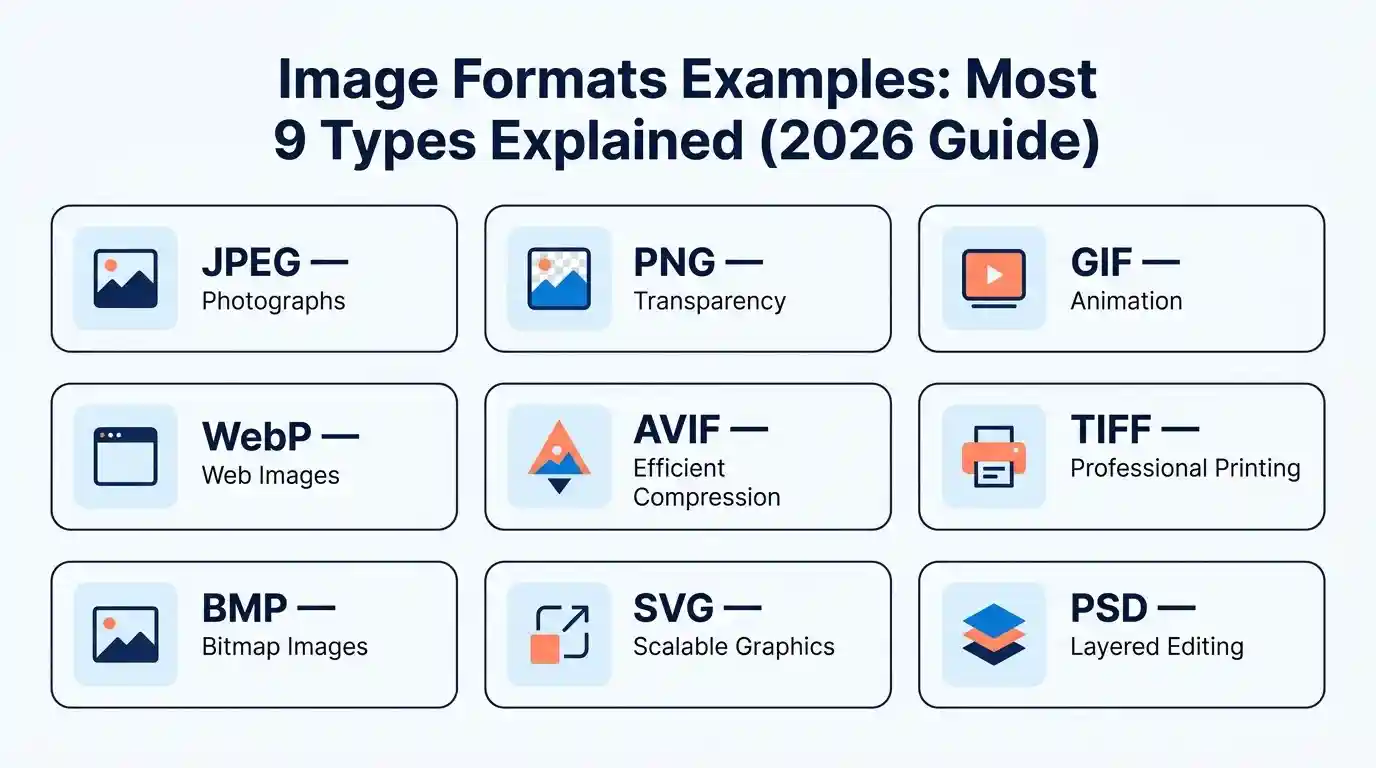
Raster images store a fixed grid of colored pixels, while vector images store shapes and curves as mathematical instructions. JPEG, PNG, GIF, WebP, AVIF, TIFF, and BMP are raster formats, so enlarging them past their native size adds blur or blocky edges. SVG is a vector format and stays sharp at any size.
Pixel math explains why file sizes differ so much. A 1920 × 1080 image holds 2,073,600 pixels, and at 24-bit color that is 6,220,800 bytes of raw pixel data. Formats like JPEG and WebP shrink that figure with compression, while BMP usually stores it almost as-is. PSD is a hybrid that can hold raster and vector layers in one file.
9 Image Format Examples Compared
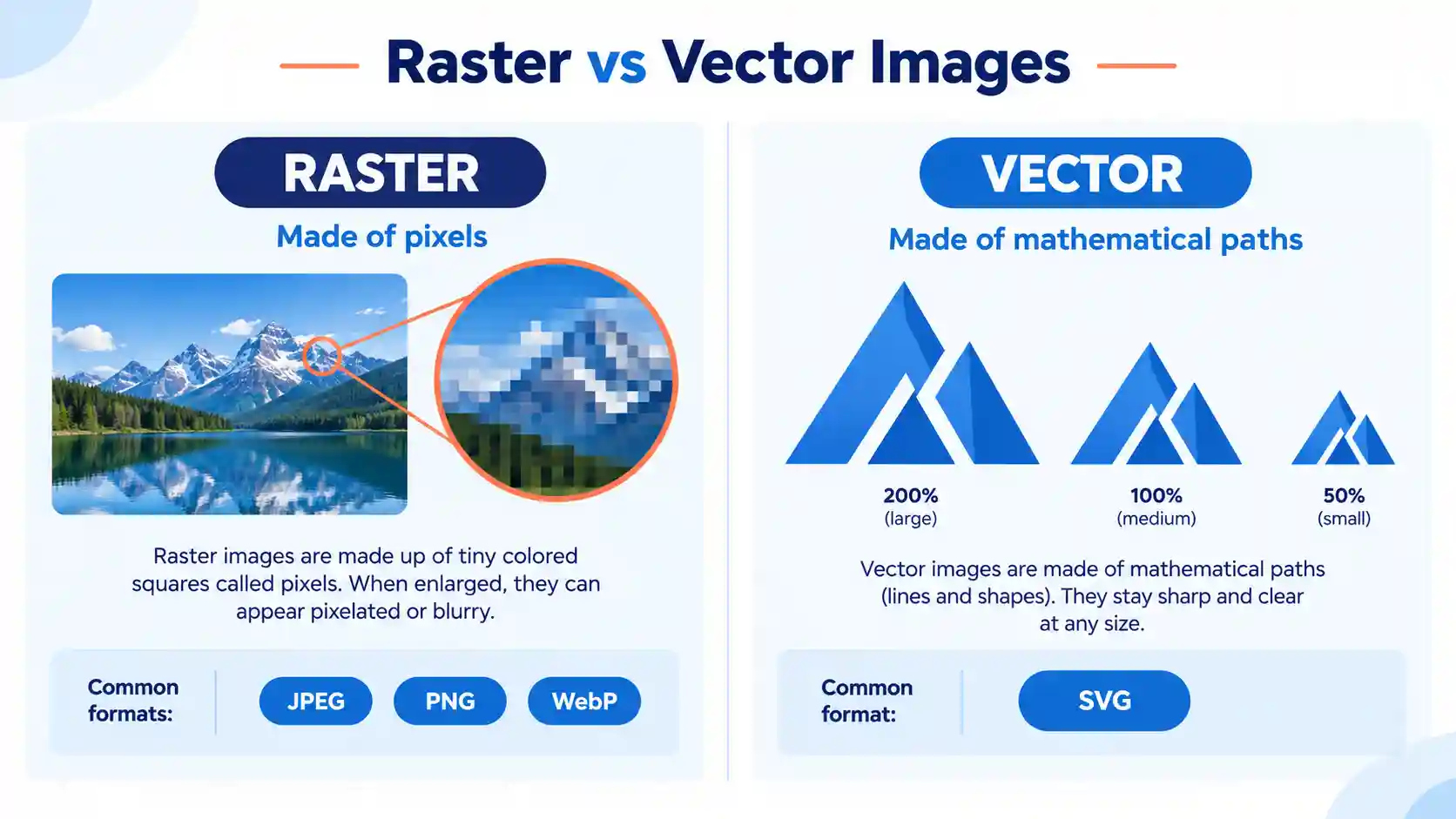
The table below lists nine widely used image file formats with their compression type, color depth, and hard limits. Other formats such as HEIC, JPEG XL, and APNG appear in the sections that follow.
| Format | Compression and color depth | Key specs and limits |
|---|---|---|
| JPEG (.jpg, .jpeg) | Lossy; 8 bits per channel (24-bit color) | No alpha channel, no animation; up to 65,535 × 65,535 px |
| PNG (.png) | Lossless; 1, 2, 4, 8, or 16 bits per channel | Optional alpha channel; indexed mode up to 256 colors; no CMYK |
| GIF (.gif) | Lossless LZW; maximum 256 colors per frame | 1-bit (on/off) transparency; supports animation |
| WebP (.webp) | Lossy and lossless; 8 bits per channel | Alpha and animation in both modes; up to 16,383 × 16,383 px |
| AVIF (.avif) | Lossy and lossless; 8, 10, or 12 bits per channel | HDR, wide color gamut, alpha; slower to encode than WebP |
| TIFF (.tif, .tiff) | Uncompressed, LZW, ZIP, or JPEG; 8, 16, or 32 bits | CMYK, multi-page, layers (Adobe extension); about 4 GB limit (32-bit offsets) unless BigTIFF |
| BMP (.bmp) | Usually uncompressed; 1 to 32 bits per pixel | A 1920 × 1080 24-bit BMP is about 6.2 MB (6,220,854 bytes) |
| SVG (.svg) | Vector XML text; no pixel grid | Scales to any size; animates with CSS; poor fit for photos |
| PSD (.psd) | Lossless layered; 8, 16, or 32 bits; RGB and CMYK | Up to 30,000 × 30,000 px and 2 GB; PSB goes to 300,000 px |
The BMP row shows why the format faded from everyday use. For a deeper look at how it stacks up against a professional format, read BMP vs TIFF.
How to Convert Between Image Formats with Image Converter 24
Knowing which format fits your job is half the work, and the most direct way to finish the other half is to convert the file with a browser-based tool such as Image Converter 24.
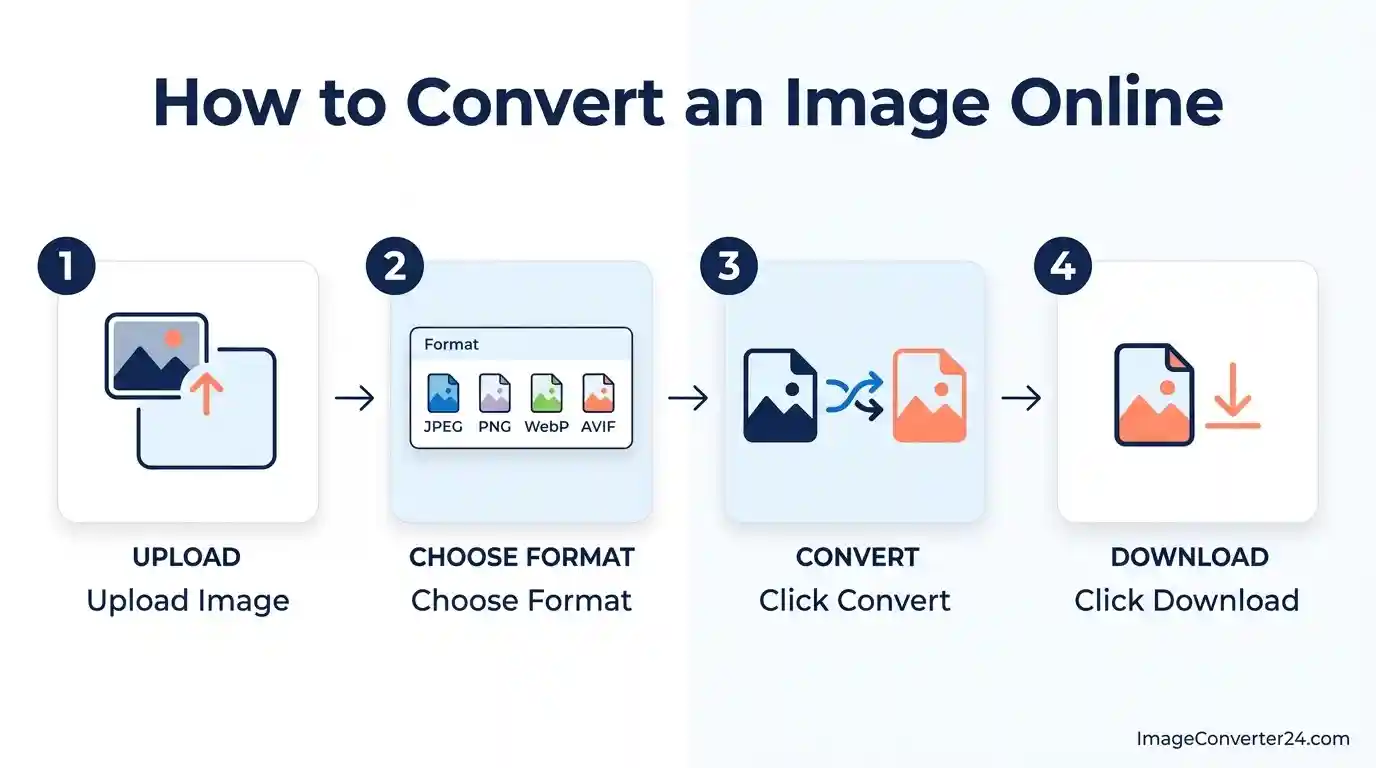
- Open Image Converter 24 in your browser.
- Upload the image you want to change.
- Choose the output format you need. Pick PNG or WebP if you need transparency, JPEG for a small photo, or TIFF for print work.
- Click Convert.
- Click Download to save the new file.
Choosing the output format yourself matters because the target format decides which features survive. A converted file can only keep what the new format supports, so a layered PSD saved as JPEG ends up flat and a transparent PNG saved as JPEG gets a solid background.
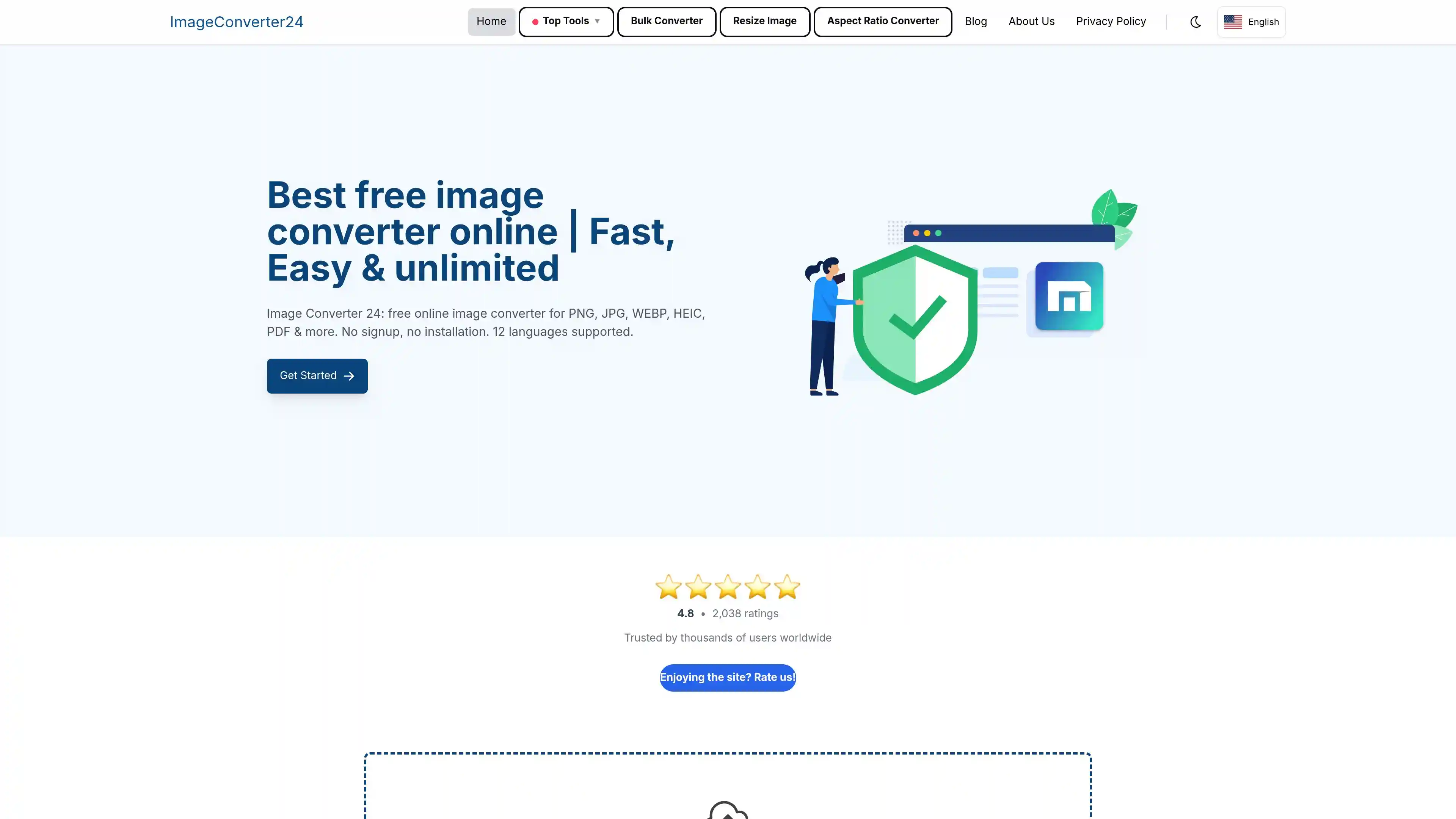
Image Converter 24 supports more than 20 image formats, so the same page handles everything in the table above and many less common types. You can also convert up to 20 files in one go, even when they are in different formats, and the site is available in 12 languages. For a batch-specific workflow, see How to Batch Convert to PNG?
Troubleshooting tip: if a logo comes out with a white or black box around it, the output format probably has no alpha channel. Run the conversion again and choose PNG, WebP, or AVIF as the output format instead of JPEG.
Image Formats That Support Transparency
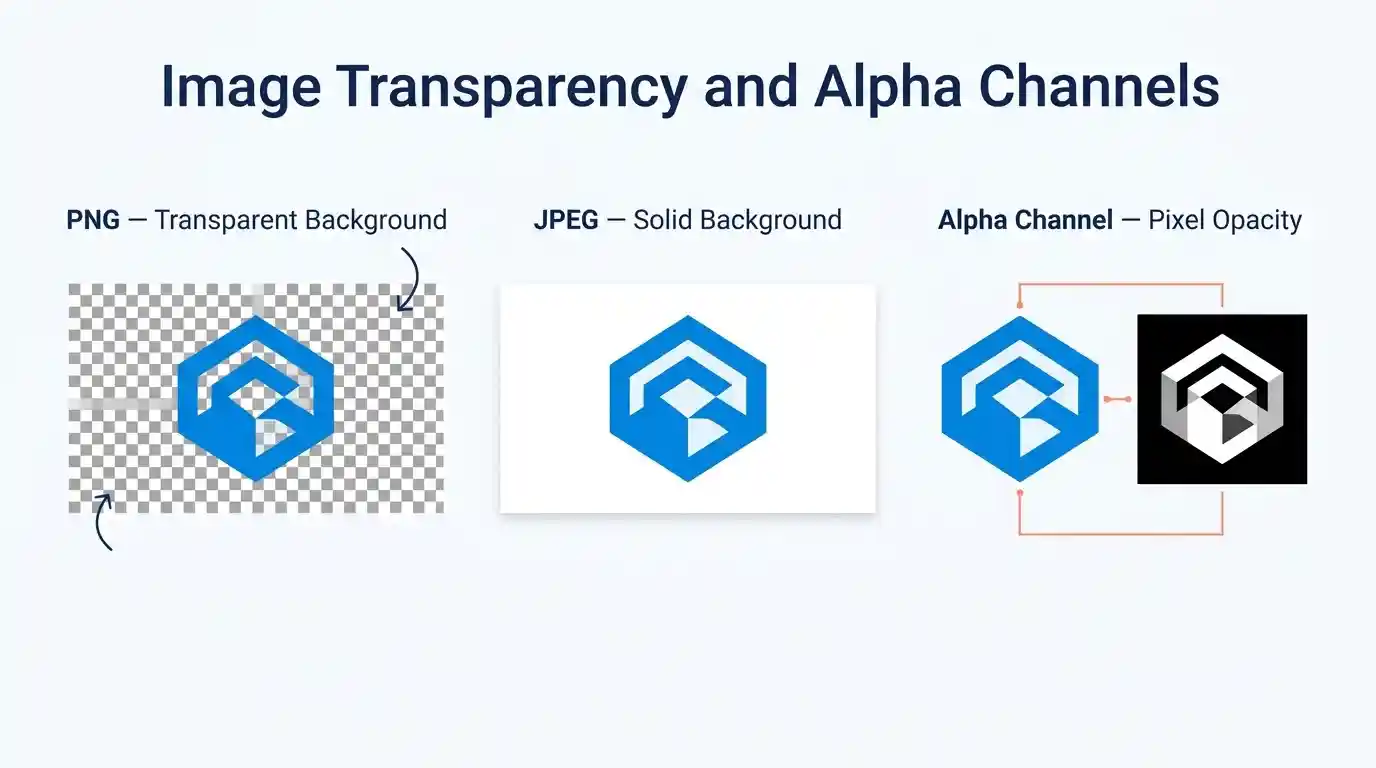
PNG, WebP, AVIF, GIF, SVG, TIFF, and PSD can store transparency, while JPEG and standard BMP files cannot. GIF only offers on/off transparency, so edges around curved shapes look jagged against colored backgrounds.
Per the W3C PNG specification, PNG also supports transparency in indexed-color images by assigning an alpha value to each palette entry, which avoids the storage cost of a full alpha channel. To compare file sizes for transparent graphics, read WebP vs PNG Quality.
Image Formats That Support Layers
PSD is the standard layered format, and TIFF can also hold layers through an Adobe extension. PNG, JPEG, GIF, WebP, and AVIF are flat formats that store a single merged image.
Layered TIFF files are a risk for sharing, because many viewers show only the flattened composite and ignore the layers. PSD has a ceiling of 30,000 pixels per side and 2 GB, and the PSB variant raises that to 300,000 pixels. The trade-offs are covered in TIFF vs PSD. Keep a layered master and export a flat PNG or JPEG for delivery.
Most Common Image File Types
JPEG, PNG, GIF, WebP, and SVG are the most common image file types on the web, while TIFF and PSD dominate print and design workflows. HEIC is also common: Apple's support documentation says iOS 11 introduced HEIF for photos, and iPhones have used it as the default camera format since.
JPEG leads because it compresses photographs well and opens almost everywhere. PNG leads for screenshots and graphics with flat color. For a broader catalog beyond these nine, see Different File Formats for Images.
Best Image Format for Quality
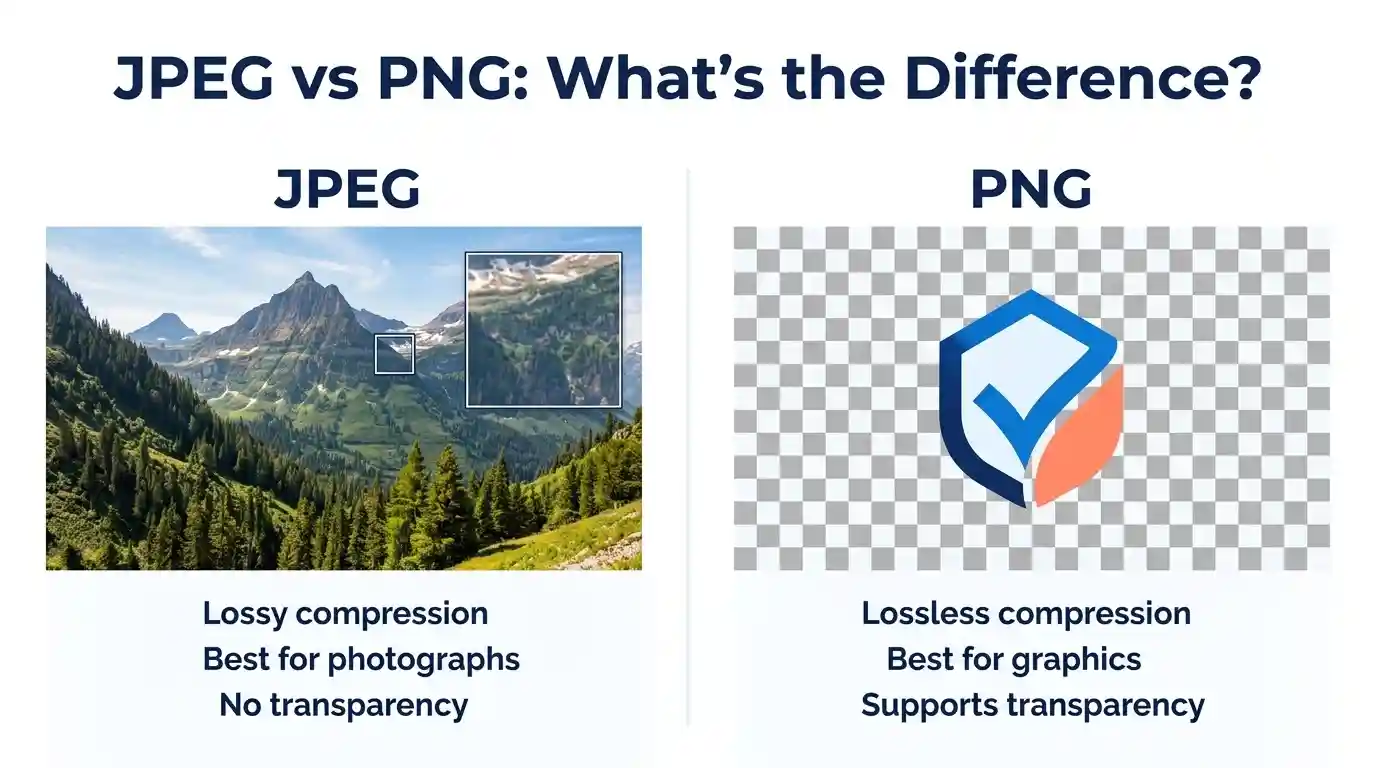
The highest-quality image formats are the lossless ones: PNG, TIFF, PSD, and lossless WebP, because they reproduce every pixel exactly. A JPEG saved at high quality looks nearly identical for photos, but each re-save adds new compression loss.
Quality also depends on bit depth. At 8 bits per channel an image can show 16,777,216 colors (256 × 256 × 256), while 16-bit TIFF or PNG stores 65,536 levels per channel and resists banding during heavy editing. A side-by-side test is in PNG vs JPG vs WebP Quality.
Image Formats That Support CMYK
TIFF and PSD are the formats that reliably support CMYK, along with PDF and EPS. PNG, GIF, WebP, AVIF, and BMP work in RGB or palette color only, and CMYK JPEG files exist but display inconsistently in browsers.
Converting CMYK to RGB shifts saturated colors, because the RGB gamut and the ink gamut do not match. Printers usually want TIFF for this reason, as explained in TIFF vs PNG for Printing and TIFF Advantages and Disadvantages.
Image Formats That Support HDR
AVIF and JPEG XL are the main web-oriented image formats built for HDR, and 32-bit TIFF and OpenEXR serve professional pipelines. The AVIF specification from AOMedia states that the format supports both High Dynamic Range and Wide Color Gamut images.
Everyday JPEG and WebP files are 8-bit, which limits their range. AVIF allows 10 and 12 bits per channel. For a direct comparison, read What is the difference between PNG and AVIF? and JPEG XL Specification.
Image Formats That Support Animation
GIF, APNG, animated WebP, animated AVIF, and SVG can all animate, while JPEG, BMP, and standard PNG cannot. GIF is limited to 256 colors per frame, which is why GIF animations of photos look grainy.
The Google WebP documentation says animated WebP supports lossy compression, lossless compression, and transparency together, which GIF cannot do. See APNG vs GIF vs WebP for size and compatibility differences.
Image Formats That Support Alpha Channel
An alpha channel stores per-pixel opacity, and PNG, WebP, AVIF, TIFF, PSD, and JPEG XL all support it. This allows soft, semi-transparent edges such as shadows and anti-aliased cutouts, which GIF's on/off transparency cannot reproduce.
The W3C PNG specification notes that alpha samples use the same bit depth as the image samples, so a 16-bit PNG carries 65,536 opacity levels. An 8-bit alpha channel carries 256 levels, which is enough for almost all web graphics.
Image Formats List
The table below sorts the formats by capability, so you can see at a glance which ones support the feature you need.
| Feature | Formats that support it | Formats that do not |
|---|---|---|
| Alpha transparency | PNG, WebP, AVIF, TIFF, PSD | JPEG, standard BMP |
| Animation | GIF, WebP, AVIF, APNG, SVG | JPEG, PNG (standard), BMP, TIFF |
| Layers | PSD, TIFF (extension) | JPEG, PNG, GIF, WebP, AVIF, BMP |
| CMYK | TIFF, PSD, JPEG (limited) | PNG, GIF, WebP, AVIF, BMP |
| 10-bit or higher HDR | AVIF, JPEG XL, 32-bit TIFF | JPEG (8-bit), GIF, WebP |
Best Image Format for Quality in Word
PNG is the best choice for screenshots and graphics in Word, JPEG works best for photos, and SVG keeps icons sharp in current Microsoft 365 versions. Word's own compression settings often matter more than the format you pick.
By default, Word compresses pictures on save to 220 ppi. To stop this, open File, then Options, then Advanced, tick "Do not compress images in file", and set the default resolution to "High fidelity", since even the higher numeric options still resample the image. Compression is a per-document setting, so repeat this for each file. For print, aim for 300 ppi, which means a picture that prints 6 inches wide needs at least 1,800 pixels across.
Best Image Format for Quality Photography
For photography, shoot in RAW, edit and archive in 16-bit TIFF or PSD, and deliver as JPEG, WebP, or AVIF. Each step trades file size for convenience, so the editing master stays lossless while the delivery copy is compressed.
JPEG remains the safest delivery format because every browser, phone, and print lab accepts it. Its main weakness is generation loss from repeated saves, which is covered in JPEG Advantages and Disadvantages.
Best Image Format for Quality and Size
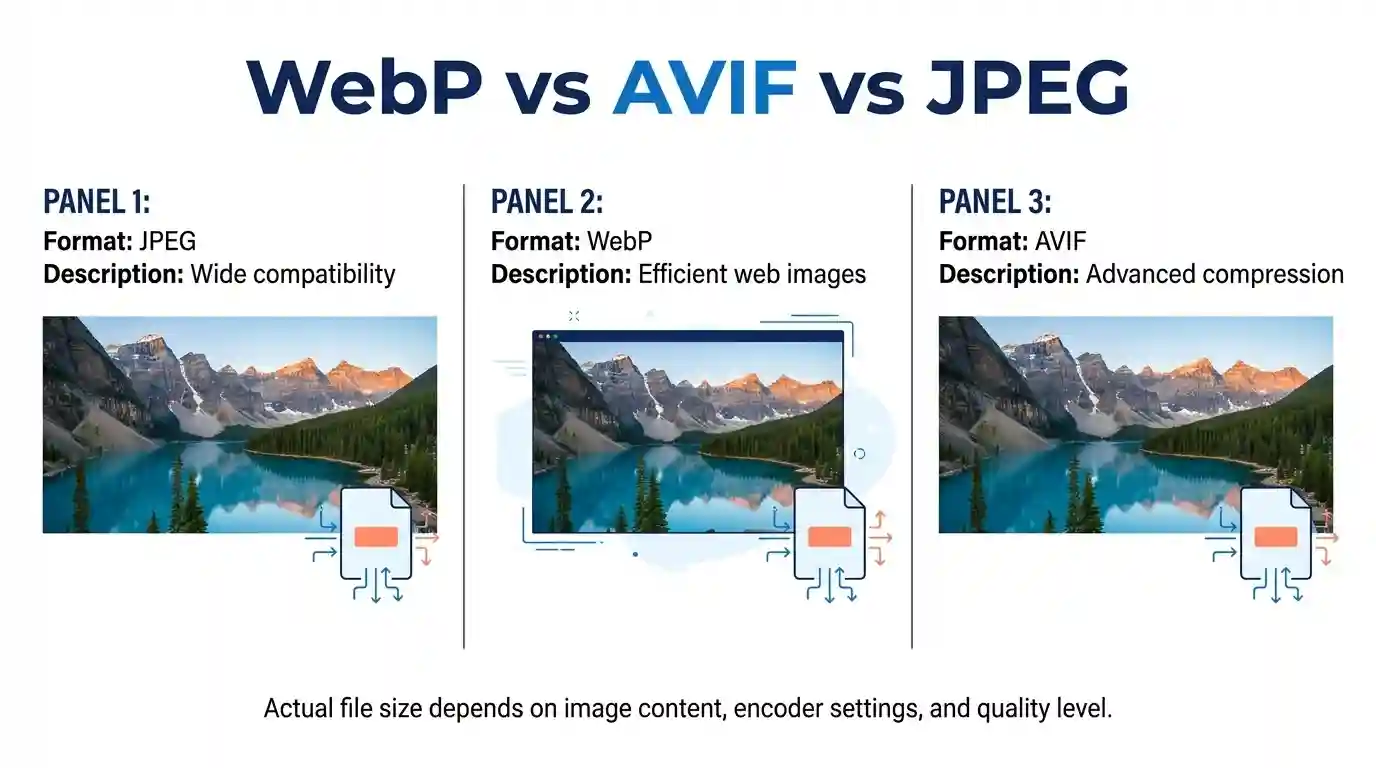
WebP and AVIF give the best balance of quality and file size. According to Google's WebP documentation, lossless WebP files are 26% smaller than PNG, and lossy WebP files are 25 to 34% smaller than comparable JPEGs at equivalent quality.
AVIF often compresses even further, but it takes longer to encode, so it suits assets you create once and serve many times. For a three-way comparison, read Webp vs png vs avif.
Common Image Formats for Web
The common web image formats are JPEG, PNG, WebP, AVIF, SVG, and GIF, and the modern default is WebP or AVIF with a JPEG or PNG fallback. Use SVG for logos and icons, and use the HTML picture element to serve newer formats to browsers that support them.
Servers identify each format by MIME type: image/jpeg, image/png, image/webp, image/avif, and image/svg+xml. A wrong type can stop an image from loading, as explained in MIME Type JPG. For a head-to-head test, see JPG vs WebP.
Best Quality Image Format for Instagram
JPEG at 1080 pixels wide is the safest format for Instagram, because most size guides report that the platform recompresses uploads regardless of the original format. Instagram does not publish one fixed rule, so treat these numbers as practical guidance. Starting from a clean, correctly sized JPEG limits how much extra quality loss the recompression adds.
For Stories and Reels covers, 1080 × 1920 pixels (9:16) is the standard size. Uploading an oversized file does not preserve more detail, since Instagram resizes it anyway. Export sharp, sRGB images and avoid heavy pre-compression.
Frequently Asked Questions
Can you give me an example of an image format?
JPEG is the most familiar example of an image format. Others include PNG, GIF, WebP, AVIF, TIFF, BMP, and SVG, each with different strengths in compression, transparency, and color depth.
What is the most commonly used image format?
JPEG is the most commonly used image format for photographs, with PNG close behind for graphics and screenshots. JPEG's lossy compression keeps photo files small, and nearly every device opens it.
What are 5 digital image formats?
Five digital image formats are JPEG, PNG, GIF, WebP, and TIFF. Together they cover photos, transparent graphics, simple animation, efficient web delivery, and print-quality archiving.
What are the four types of images?
There is no single official list, but one common four-way split is raster, vector, metafile, and animated images. Raster stores pixels, vector stores shapes, metafiles such as EMF or PDF combine both, and animated images hold multiple frames.
How do I format an image?
Formatting an image usually means changing its file type, dimensions, or compression. Resize it to the pixel size you need, choose a suitable format, and save it. To switch the file type, follow the upload, choose format, convert, and download steps in the tool section above.
What are some examples of formats?
Image format examples include JPEG, PNG, GIF, WebP, AVIF, TIFF, BMP, SVG, and PSD. Formats for other media include PDF for documents and MP3 for audio.
What are some common file formats?
Common image file formats are JPEG, PNG, GIF, and WebP. Common document formats are PDF and DOCX, and common audio formats are MP3 and WAV.
What is the format of a PIC file?
A .pic extension is not one single format. It is most often an Apple Macintosh PICT file, but other programs also used .pic for their own picture, chart, or graphics files. Open it in the original program or convert it to PNG or JPEG to use it elsewhere.
How do I choose the right file format?
Choose the format by the job: JPEG for photos, PNG for transparency and sharp edges, WebP or AVIF for small web files, SVG for logos, and TIFF for print. Scans of paper documents have their own best option, covered in Best File Type for Scanning Documents.
What are the two most common types of digital images?
The two most common types of digital images are raster and vector. Raster images are built from pixels, and vector images are built from mathematical shapes.
What are the common image formats used in Windows?
Windows opens BMP, JPEG, PNG, GIF, TIFF, and ICO files natively. Newer formats such as HEIC and AVIF typically need an extra codec from the Microsoft Store.
What are the three image formats that are usually recommended for use on a website?
The classic recommendation is JPEG, PNG, and WebP. Many sites now use WebP or AVIF as the main format, SVG for logos, and JPEG or PNG as a fallback.
What are different kinds of images?
Images can be grouped by how they are stored (raster or vector) and by what they show, such as photographs, illustrations, screenshots, diagrams, and animations. Each group tends to suit a different file format.
What are the different types of graphic images?
Graphic images are mainly raster graphics (pixel-based) and vector graphics (shape-based). Raster graphics suit photos and detailed artwork, and vector graphics suit logos, icons, and print layouts.
What are the different types of image styles?
Common image styles include photography, flat illustration, line art, pixel art, 3D rendering, and infographics. Style is a visual choice and is separate from file format, though flat styles save well as PNG or SVG and photographic styles save well as JPEG or WebP.
Does converting JPG to PNG improve image quality?
No, converting JPG to PNG does not improve quality. PNG stores the pixels losslessly from that point on, but the detail already discarded by JPEG compression cannot be recovered, and the PNG file will usually be larger.
Conclusion
The right image format depends on the job: JPEG for photos, PNG for sharp graphics and transparency, WebP and AVIF for small web files, TIFF and PSD for print and editing, and SVG for scalable logos. This guide to Image Formats Examples: Most 9 Types Explained (2026 Guide) showed that features such as alpha channels, layers, CMYK, HDR, and animation are split across formats, so no single format wins everywhere.
Match the format to the destination, keep a lossless master for anything you plan to edit again, and remember that conversion cannot restore detail that is already gone.
The fastest way to fix a file in the wrong format is Image Converter 24. Open the link, upload your image, choose the output format, click Convert, and click Download.