What's Better PNG or JPEG for Images? A Complete Guide
Choosing between PNG and JPEG can feel confusing when you don't know the technical differences. Both formats work well, but they're built differently—one preserves every pixel perfectly, while the other uses clever compression to shrink file sizes. The right choice depends entirely on what you're trying to do with your images. This guide walks you through the real differences, practical use cases, and how to convert between them if needed.
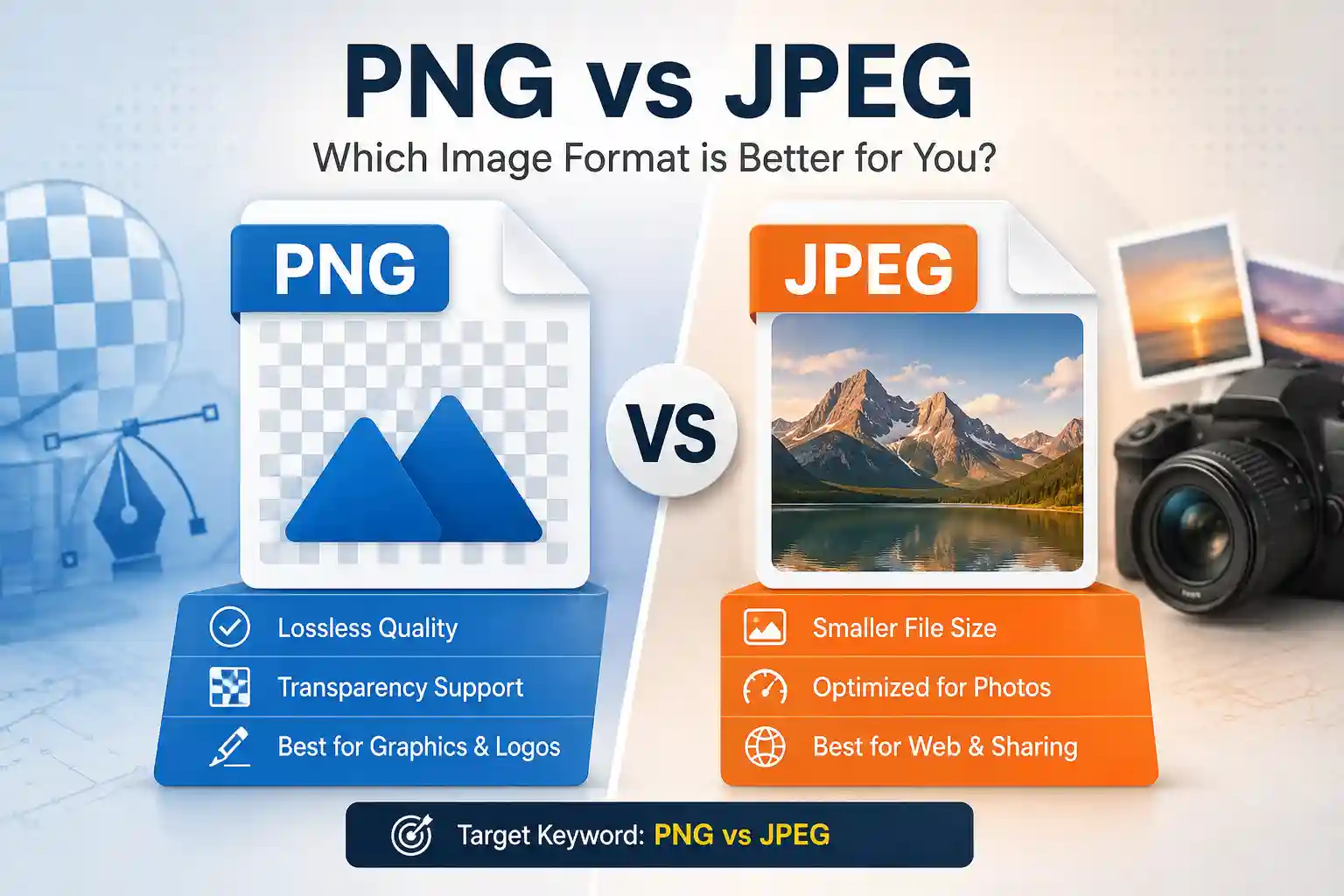
Quick Answer:
PNG is better for graphics, logos, and images where quality must stay perfect. JPEG is better for photographs and images where smaller file size matters more than perfect detail. If you need to convert between them, a specialized image converter handles the transformation in seconds.
Below, you'll find detailed breakdowns of how each format works, when to use each one, real-world examples, and a step-by-step tool recommendation that makes converting between formats effortless.
How PNG and JPEG Compression Actually Work
PNG uses lossless compression, which means no data gets thrown away. When you save an image as PNG, every color, every pixel, and every detail remains exactly as it was. This is why PNG files are often larger—the format preserves everything. Think of it like making a photocopy of a document: the copy looks identical to the original.
JPEG uses lossy compression, which deliberately removes some data to shrink the file size. It's smart about which details it removes (usually the ones your eye won't notice), but data loss is permanent. Once saved as JPEG, you can't get those details back. This is why JPEG files are much smaller than PNG files of the same image.
For visual comparison, here's how these formats stack up across key technical dimensions:
| Feature | PNG | JPEG |
|---|---|---|
| Compression Type | Lossless (no data loss) | Lossy (data removed) |
| Typical File Size | Larger | Smaller (30-80% smaller) |
| Transparency Support | Yes (alpha channel) | No |
| Best For | Graphics, logos, text, screenshots | Photographs, realistic images |
| Quality After Editing | Stays identical | Degrades with each save |
PNG vs JPEG: Transparency and Background Handling
One of the biggest practical differences is transparency. PNG supports an alpha channel, which lets you create images with transparent backgrounds. This is essential for logos, icons, and graphics that need to sit on different colored backgrounds without showing a white or colored box around them.
JPEG doesn't support transparency at all. Every pixel in a JPEG must have a color. If you try to save a logo with a transparent background as JPEG, the format automatically fills the transparent area with a solid color (usually white). This is why JPEG is rarely used for graphics or logos—it can't preserve that clean, cutout look.
If you have a PNG with transparency and need to convert it to JPEG (perhaps for a specific website requirement), you'll need to add a background first. How Do I Change a JPEG to PNG? covers the reverse process and includes tips on handling transparency during conversion.
Understanding File Size and Web Performance
File size matters when you're uploading images to a website, sending them via email, or storing thousands of them. JPEG's lossy compression wins decisively here. A JPEG photograph is typically 30% to 80% smaller than a PNG version of the same image. On a website, smaller files mean faster page load times, better SEO rankings, and less bandwidth usage.
PNG files are larger because they preserve every detail. For photography, this extra size rarely makes sense because photographs have millions of colors and gradual transitions—JPEG's smart compression removes details your eye would never miss, while PNG keeps data you don't need. For graphics with solid colors and sharp edges, PNG's larger size reflects the format's commitment to quality.
Progressive JPEG is worth mentioning here: it's a special JPEG encoding that loads a blurry version first, then sharpens it as more data arrives. This creates a better perception of speed on slower connections. Standard JPEG loads from top to bottom, which feels slower. PNG doesn't support progressive encoding at all.
For detailed guidance on format choice for web specifically, see what's better png or jpeg for web.
The Fastest Way to Convert Between PNG and JPEG
If you've decided on a format but have images in the wrong one, converting them takes just seconds. The most direct approach is to use a dedicated image converter rather than struggling with desktop software or unreliable online tools.
Best Free Image Converter handles PNG-to-JPEG and JPEG-to-PNG conversions with zero quality loss for the output format. Here's exactly how to use it:
Step 1: Open the converter in your browser and click the upload area. A file picker appears immediately—drag and drop your PNG or JPEG file, or click to browse your computer. The interface shows a preview of your image within seconds.
Step 2: Select your target format from the dropdown menu at the top of the preview. Choose "JPEG" if you're converting from PNG, or "PNG" if you're converting from JPEG. The tool detects your source format automatically, so you only need to pick the output format.
Step 3: For JPEG conversions, adjust the quality slider if needed (the default 85% quality is excellent for photographs and balances file size with detail). The preview updates in real time, so you can see exactly what your final image will look like before downloading. For PNG conversions, no additional settings are needed—lossless means the output is always identical to the input image in terms of visible quality.
Step 4: Click "Download" and your converted file appears in your downloads folder within seconds. The file size is displayed next to the download button, so you know exactly what you're getting.
This tool specifically works well for this task because it preserves the intended quality of your target format—when you convert to JPEG, you get a sharp photograph; when you convert to PNG, you keep every detail your image originally had. You're not compromising quality for the sake of conversion.
⚠ Important Limitation:
If you're converting PNG with transparency to JPEG, the tool automatically fills transparent areas with white. If you need a different background color, you'll need to add the background in an image editor before converting. For PNG files with transparency that must stay transparent, always output as PNG.
Troubleshooting tip: If your converted file looks blurry or grainy (rare, but it happens with very low-quality source files), re-upload and increase the JPEG quality slider to 95% or higher before downloading. This produces a larger file but ensures maximum detail preservation for that specific image.
What's Better PNG or JPEG for Printing
For printing, PNG is generally the safer choice, but it depends on what you're printing. PNG's lossless compression means no detail is lost, so a PNG file retains the exact colors and sharpness a professional printer needs. If you're printing photographs or detailed graphics, starting with a high-quality PNG gives you the best results.
JPEG can work fine for printing photographs—professional print shops often receive JPEG files. The key is ensuring your JPEG is saved at high quality (90% or higher) from the start. Many printers actually prefer JPEG for photographs because the format was specifically designed for photorealistic images, and a well-compressed JPEG prints beautifully. The problem arises if your JPEG has already been saved and re-saved multiple times, degrading quality with each save.
For logos, text-heavy graphics, and images with solid colors, PNG is always better for printing. The crisp, pixel-perfect output of lossless PNG ensures your logo looks sharp at any size or resolution. If you're converting a logo from JPEG to PNG for printing, see what's better png or jpeg for printing for detailed print-specific guidance.
The resolution and DPI (dots per inch) matter far more than format choice for printing. A 300-DPI PNG will print sharper than a 72-DPI PNG, regardless of the comparison to JPEG. PNG's advantage is consistency—once you save as PNG, the image never degrades, even if a printer handles it multiple times or needs to resave it.
What's Better PNG or JPEG for Web
JPEG wins for web performance, but PNG is often necessary for specific use cases. Modern websites use JPEG for photographs and realistic images because the file size is dramatically smaller—a JPEG photograph might be 50KB while the PNG equivalent is 200KB or more. On a page with dozens of photos, that difference adds up to seconds of load time.
PNG is essential on the web for images that need transparency (logos, icons, graphics with cutouts). It's also the right choice when image quality is more important than file size—for example, portfolio websites showcasing design work, fine art, or photography typically use PNG for critical images because visitors expect pristine quality.
Modern web development often uses both formats strategically. A website might serve JPEG for photograph galleries (fast loading, good enough quality) but PNG for the site logo and UI elements (perfect quality, transparency support). Some sites even use WebP, a newer format that combines JPEG's small file size with PNG's quality—but browser support varies.
For detailed recommendations on which format to use for different web scenarios, check what's better png or jpeg for web.
What's Better PNG or JPEG for Quality
This question has a nuanced answer. PNG is technically lossless—meaning it preserves every detail of your original image, making it superior for quality preservation. However, "better quality" for practical purposes depends on the image type and how you use it.
For photographs, JPEG at high quality (90% or above) looks virtually identical to PNG to the human eye. The lossy compression removes details too subtle to see, so you get the perceptual quality of PNG with a fraction of the file size. A JPEG saved once at quality 95% will look just as good as PNG when printed or displayed on a screen.
For graphics, text, and illustrations, PNG is objectively superior because there are no invisible details. A logo or infographic compressed with JPEG compression will show visible artifacts (blurriness, color banding, soft edges where sharp ones should be). PNG keeps edges razor-sharp and colors pure, which is why designers always use PNG for graphics.
If you need in-depth analysis of quality differences for your specific use case, what's better png or jpeg for quality covers quality metrics and testing methods.
What's Better PNG or JPEG for Photos
For photographs, JPEG is almost always the right choice. Photographs contain millions of colors, complex gradients, and subtle lighting details—exactly what JPEG's lossy compression was designed for. A JPEG photo compresses to a fraction of the PNG size while preserving the visual quality a human eye would expect.
The only time PNG makes sense for a photograph is if you specifically need transparency (unusual for photos) or if you plan to edit the photograph extensively and need to preserve every detail during the editing process. Professional photographers often edit in a lossless format like TIFF or PNG to avoid quality degradation, then export to JPEG for delivery. For storage and sharing, JPEG is standard.
If you have a photograph saved as PNG and want to reduce file size, converting to JPEG is the obvious choice. The conversion maintains visual quality while potentially reducing file size by 50-75%. Use the tool mentioned earlier to make this conversion in seconds.
When evaluating photo quality across formats, remember that JPEG quality setting matters enormously. A JPEG saved at 60% quality looks noticeably worse than a PNG, but a JPEG saved at 90% quality looks essentially identical to the PNG when viewed on a screen or printed. Most standard photographs are shared at 85-92% quality, which is the sweet spot between file size and perceived quality.
PNG or JPEG Higher Quality
Technically, PNG is higher quality because it's lossless—it never discards data. But this advantage only matters if you actually notice the difference, which depends entirely on the image content and how it's displayed.
For photographs, PNG and high-quality JPEG look identical to the human eye. Your monitor displays millions of colors, and JPEG's compression removes data in ways humans rarely perceive. This is why professional photographers use JPEG for delivery—it's transparent quality loss, meaning clients get essentially the same visual result as PNG but in a file 10 times smaller.
For graphics and images with sharp edges or text, PNG is noticeably higher quality. JPEG compression creates visible artifacts around sharp boundaries—slight blurriness, halos, or color shifts. This is because JPEG wasn't designed for text or solid-color graphics. For these images, PNG is the clear winner in quality.
The practical takeaway: use PNG if you need lossless quality and can afford the larger file size (graphics, logos, when editing extensively), or use high-quality JPEG (90%+) if you need smaller files and won't notice the imperceptible quality loss (photographs, web images). See PNG Advantages and Disadvantages and JPEG Advantages and Disadvantages Most Important Guide 2026 for detailed format-specific breakdowns.
Are JPEG Smaller Than PNG
Yes, JPEG files are typically 30-80% smaller than PNG files of the same image. This difference exists because JPEG uses lossy compression (removes data) while PNG uses lossless compression (keeps all data). The smaller file size is JPEG's primary advantage and why it dominates on the web and in photography workflows.
The exact size difference varies based on image complexity. A simple graphic with two or three colors might compress nearly equally in both formats, or PNG might even be smaller if the image has few colors (PNG can optimize for limited color palettes). But a photograph or image with millions of colors? JPEG will be dramatically smaller—often 1/5 to 1/10 the PNG size.
To illustrate: a typical photo saved as PNG might be 800KB, while the same photo as JPEG could be 150-250KB. Both look nearly identical on screen, but the JPEG saves 600KB of storage space and loads 3-5 times faster on a website. Multiply this across thousands of images on a large website, and the cumulative benefit is enormous.
If you have PNG files and need to reduce storage or bandwidth, converting to JPEG is the fastest solution. If you're starting fresh and don't need PNG's special features (transparency, lossless editing), JPEG is the obvious choice for smaller files without sacrificing quality.
Frequently Asked Questions
Is PNG better quality than JPEG?
PNG preserves image data losslessly, so technically yes—no information is discarded. However, for photographs, a high-quality JPEG (90%+) looks visually identical to PNG when viewed normally. The quality advantage of PNG becomes obvious with graphics, logos, and images with sharp text, where JPEG compression creates visible artifacts. For practical purposes, "better quality" depends on your content type, not the format alone.
Is PNG better than JPEG 100%?
No. PNG is better for specific purposes (graphics, logos, transparency), but JPEG is better for others (photographs, file size, web performance). Saying one is universally better than the other is like saying a hammer is better than a screwdriver—each tool excels for different jobs. The best format depends on your image content and intended use.
Is JPEG or PNG less blurry?
PNG is less blurry because it's lossless—it preserves every pixel exactly. However, a high-quality JPEG will appear sharp and clear to your eye. JPEG blur only becomes noticeable at low quality settings (below 70%) or in images with sharp boundaries like text and logos. For photographs at normal quality levels, both formats appear equally sharp.
Does PNG or JPEG lose quality?
JPEG loses quality with every save—each time you edit and re-save a JPEG, more data is discarded, degrading the image. PNG never loses quality; each save is identical to the previous version. This is why professionals edit in lossless formats and only export to JPEG at the end. If you repeatedly edit an image, PNG is definitely better.
Is JPEG high quality?
JPEG can be high quality if saved at the right quality setting (85-95%). At these levels, JPEG compression removes only details too subtle for humans to notice, resulting in sharp, vibrant photographs that look excellent on screen and in print. Lower quality settings (60-70%) produce noticeably degraded images. So yes, JPEG is high quality—when you use high quality settings.
Is a screenshot a PNG or JPEG?
Screenshots are typically PNG by default on most devices (Windows, Mac, mobile). This makes sense because screenshots contain UI elements, text, and graphics—content that benefits from PNG's lossless compression and sharp rendering. JPEG would introduce artifacts around text and buttons, making the screenshot less clear.
Does PNG reduce image quality?
No, PNG never reduces quality because it's lossless. When you save an image as PNG, every pixel remains exactly as it was. The only way PNG could "reduce quality" is if you're starting with a lower-quality source image—PNG doesn't improve quality, but it definitely doesn't degrade it.
Why is my PNG so blurry?
PNG itself doesn't cause blurriness—it's lossless, so whatever you put in comes out exactly the same. If your PNG looks blurry, the issue is likely the source image (low resolution or compressed badly before being converted to PNG), incorrect scaling or resizing, or a display issue. PNG will preserve blur if it's already present, but it won't create new blur.
What saves higher-quality, JPEG or PNG?
PNG saves losslessly, so it always preserves higher quality than JPEG, which loses data during compression. However, high-quality JPEG (90%+) looks nearly identical to PNG in practice for most content. If maximum quality is your goal with no file size constraints, PNG is the answer. If you're optimizing for a balance of quality and file size, high-quality JPEG is the practical choice.
What is the best format to save photos in?
JPEG is the standard for saving photos because it compresses photographs efficiently without visible quality loss at high settings (85-95%). If you're editing photos and plan to save multiple times, work in a lossless format like TIFF or PNG to avoid cumulative quality loss, then export to JPEG when done. For long-term storage and sharing, JPEG is the practical standard.
Is PNG 100% lossless?
Yes, PNG is 100% lossless. No data is removed or approximated during compression. What goes in comes out exactly the same, bit for bit. This is PNG's fundamental design—it trades smaller file sizes for absolute data integrity.
Does PNG have higher quality?
PNG has higher theoretical quality because it's lossless, but perceived quality depends on the image content. For a photograph, PNG and high-quality JPEG look identical. For graphics and text, PNG is noticeably sharper. PNG's quality advantage is most obvious with images that have sharp edges, solid colors, or text elements—anywhere JPEG compression creates visible artifacts.
Conclusion
PNG and JPEG each solve different problems. PNG is your answer when you need perfect quality, transparency support, or graphics that won't degrade no matter how many times you edit them. JPEG wins for photographs, web performance, and anywhere file size matters more than pixel-perfect preservation. Most professional workflows use both, choosing based on content type rather than loyalty to one format.
If you have images in the wrong format, converting is straightforward. The fastest way to solve this is with Best Free Image Converter. Upload your PNG or JPEG, select your target format, adjust quality settings if needed for JPEG output, and download within seconds. The entire process takes under 30 seconds, and the conversion preserves the quality standard of your target format—JPEG photographs stay sharp, PNG conversions stay lossless.
Understanding these differences transforms you from guessing at formats to choosing strategically. Use this guide as a reference whenever you're unsure, and bookmark it for those moments when you need a quick reminder about why PNG saved your logo beautifully but made your photo file huge, or why JPEG finally solved your storage problem without any visible quality difference.