What's Better, PNG or JPEG? All You Need to Know
If you've ever wondered what's better, PNG or JPEG, and stared at a dropdown full of file formats, you already know the PNG vs JPEG question isn't just a technical detail — it decides how sharp your logo looks, how fast your website loads, and how much space your photo library eats up. The honest answer depends on what you're doing with the image, and this guide walks through every angle of that decision in one place.
Below, we cover the technical foundation of both formats, how to convert between them in seconds, and then go section by section through every practical scenario people search for — printing, quality, images, mobile conversion, batch conversion, MIME types, advantages and disadvantages, and more. By the end, you should be able to answer the PNG vs JPEG question for your own project without needing to open a second tab.
PNG and JPEG: The Technical Foundation
PNG (Portable Network Graphics) is a lossless format. That means every time you save a PNG, the file keeps 100% of the original pixel data — nothing is thrown away to save space. It also supports a full alpha channel, which is what lets a PNG have a genuinely transparent background instead of a white or checkered one. This makes PNG the default choice for logos, icons, screenshots, and any image with sharp lines, flat colors, or text.
JPEG (Joint Photographic Experts Group) is a lossy format. When you save a JPEG, the compression algorithm discards some visual information that the human eye is less likely to notice, especially in areas of smooth color gradients like skies or skin tones. That's why a JPEG of a sunset photo can be a fraction of the size of the same photo saved as PNG, with almost no visible difference to a casual viewer. JPEG does not support transparency, and it's built specifically for photographic, gradient-heavy images rather than flat graphics.
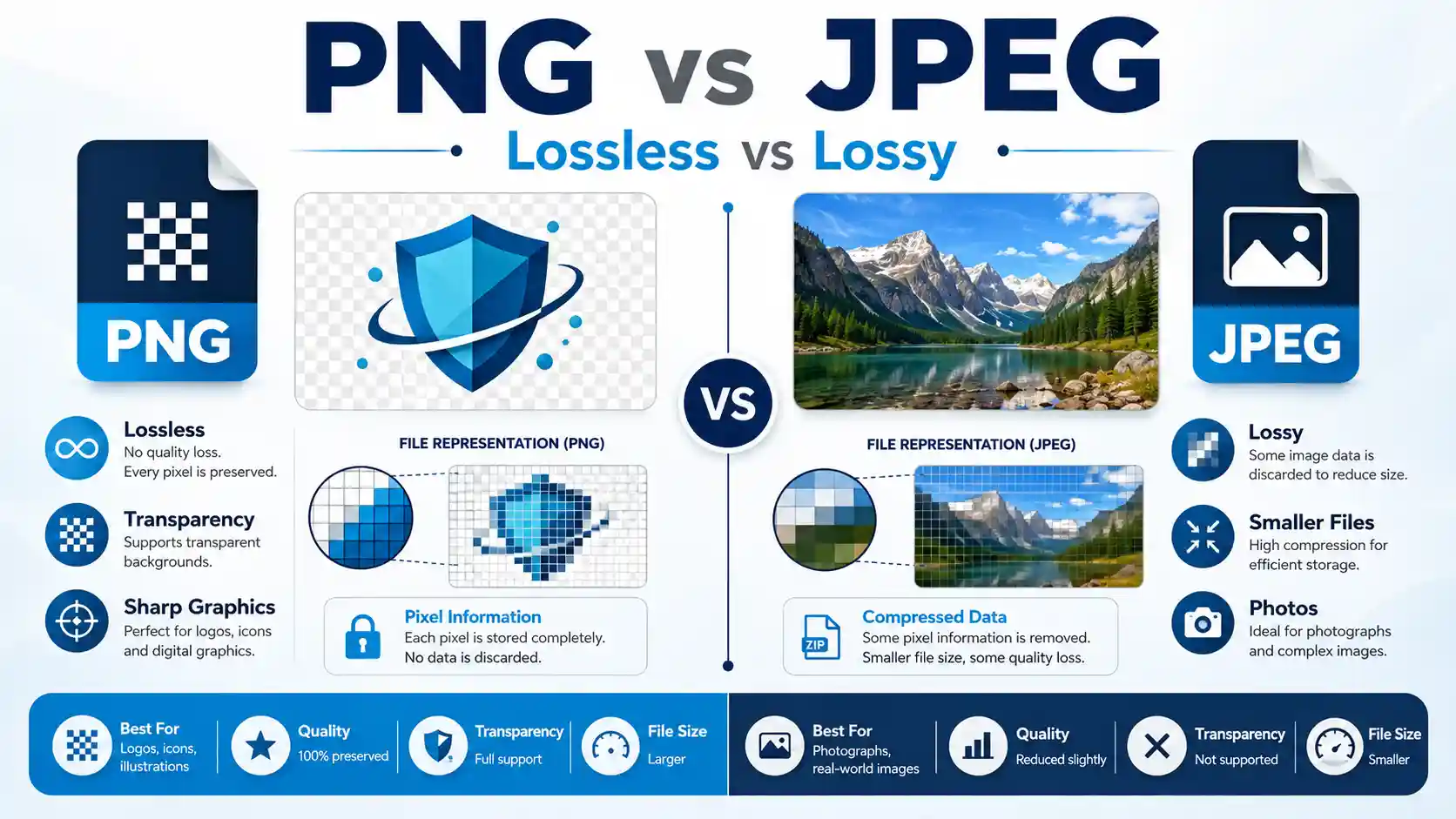
| Feature | PNG | JPEG |
|---|---|---|
| Compression type | Lossless | Lossy |
| Transparency support | Yes, full alpha channel | No |
| Typical file size | Larger | Smaller |
| Best for | Logos, graphics, screenshots | Photos, web images |
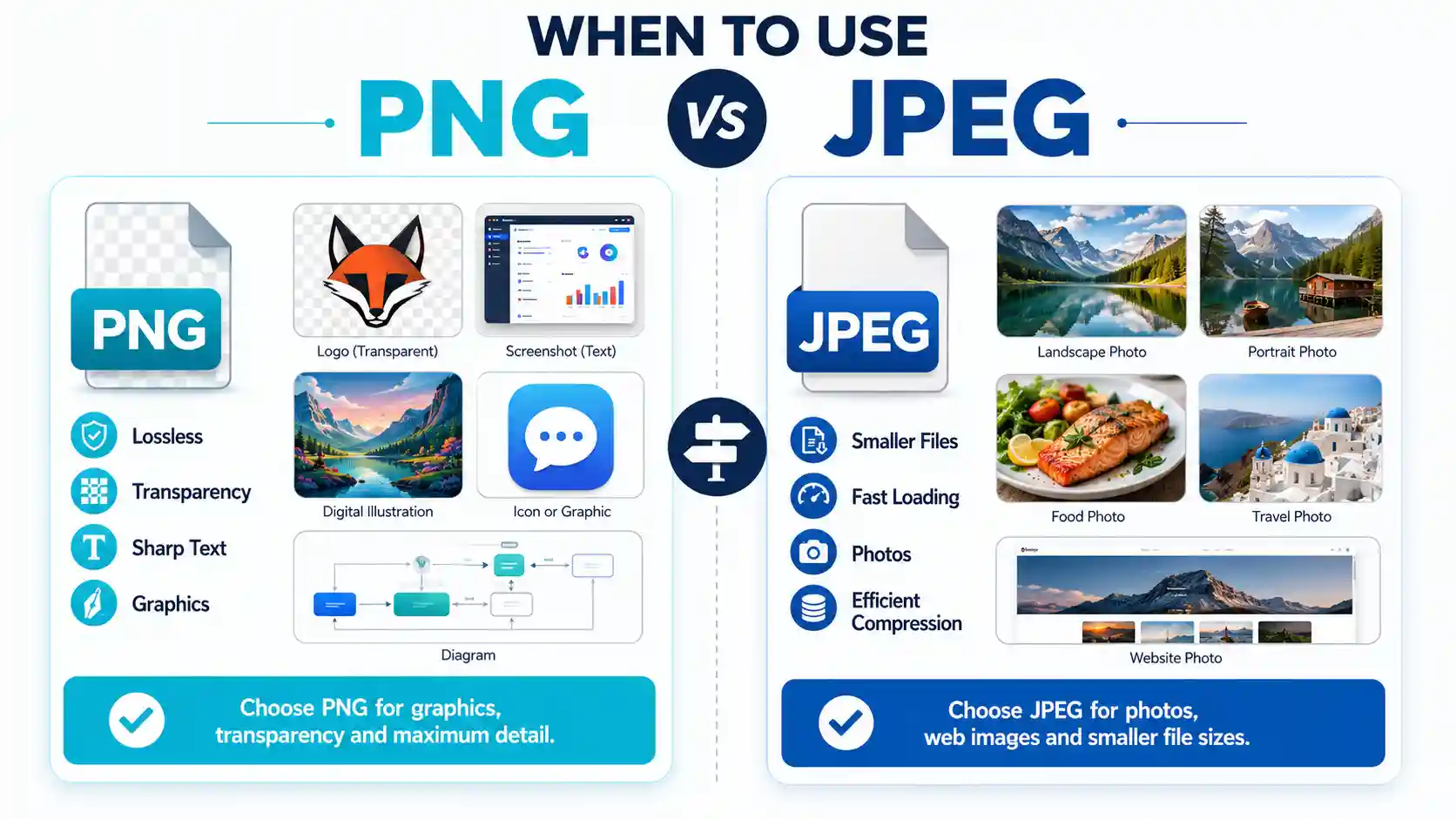
A quick rule of thumb: if the image has flat colors and text, reach for PNG. If it has natural gradients like a photograph, reach for JPEG.
The Fastest Way to Convert Between PNG and JPEG
Understanding the theory is one thing, but most people land here because they need a specific image converted right now, not because they want a compression lecture. The fastest practical route is a browser-based converter that does not require installing anything — you upload, the tool converts, and you download the result in seconds. That's exactly what Best Free Image Converter is built for.
Here's what the process actually looks like when you use it:
- Open Best Free Image Converter and drag your image into the upload drop zone, or click to browse your files.
- The tool generates a small preview thumbnail so you can confirm you uploaded the right file.
- Choose your target format (PNG or JPEG) from the dropdown, and if you're converting to JPEG, adjust the quality slider to balance sharpness against file size.
- Click convert and watch the progress bar — for most single images this takes only a couple of seconds.
- Click the download button to save the converted file directly to your device.
This tool fits the PNG vs JPEG question especially well because it lets you convert the same source image both ways and compare file size and clarity side by side, instead of guessing which format suits your use case. One honest limitation: very large batches or extremely high-resolution files can take noticeably longer to process than small single images, so plan accordingly if you're converting hundreds of files at once.
A common snag readers hit here: converting a PNG with transparency into JPEG and then wondering why the transparent areas turned solid white. That's expected — JPEG has no transparency channel, so any transparent pixels get filled with a background color during conversion. If you need to keep transparency, stay in PNG.
What's Better, PNG or JPEG for Printing?
For print work, the honest answer is: it depends more on resolution and color profile than on PNG versus JPEG alone, but there are real differences worth knowing. PNG's lossless nature means there's no compression artifacting to worry about, which matters for printed text, line art, or graphics with hard edges — a printed PNG logo will reproduce those edges cleanly because no pixel data was discarded to save space.
JPEG can absolutely be used for print, and in fact most professional photo printing labs accept high-quality JPEGs without issue, as long as the compression level was kept high (low compression) when the file was saved. A JPEG saved at 100% quality from a high-resolution source will look essentially identical to a PNG of the same image once printed, because photographic prints don't reveal lossy artifacts the way a hard-edged graphic would.
Where the two formats genuinely diverge for print is repeated editing. If you open, edit, and re-save a JPEG multiple times, each save re-compresses the file and slightly degrades quality — a phenomenon called generational loss. PNG avoids this entirely because saving a PNG never re-compresses lossy data. So if a print file is going to pass through several rounds of edits before going to press, PNG is the safer working format, even if you export a final JPEG at the end for delivery.
Color profile also matters more than most people expect: printers typically use CMYK, while both PNG and JPEG are usually saved in RGB, so professional print shops will convert color space regardless of which format you hand them. For the full deep-dive on preparing images for print, see what's better PNG or JPEG for printing.
What's Better, PNG or JPEG for Quality?
On pure quality, PNG wins by definition — it's lossless, so there is zero quality degradation no matter how many times you open, resave, or move the file. If you're archiving a master copy of an image you plan to edit repeatedly, PNG protects that quality permanently.
But "better quality" in practice isn't always the same as "lossless." A JPEG saved at 90–100% quality from a good source image is, to the naked eye, indistinguishable from a PNG in most everyday viewing conditions — on a phone screen, in a social media feed, or in a typical web gallery. The quality gap only becomes visible when JPEG compression is pushed aggressively low (to shrink file size dramatically) or when an image is re-saved as JPEG over and over.
Where the difference becomes very obvious is in images with sharp contrast, like a screenshot of text on a white background or a logo with hard color boundaries. JPEG compression introduces small blocky artifacts around those edges, sometimes called "JPEG ringing," because the algorithm wasn't designed for flat-color content. PNG has no such artifacts under any settings, since there's nothing to compress away.
A practical example: take a 1200x800 screenshot with black text on white. Saved as PNG, edges stay crisp at any zoom level. Saved as JPEG at a low quality setting, you'll start to see faint colored halos around the letters once you zoom past 200%. For everyday photos of people, landscapes, or food, most viewers won't notice a quality difference between a well-saved JPEG and a PNG at all. For the full deep-dive on quality comparisons, see what's better PNG or JPEG for quality.
What's Better, PNG or JPEG for Images?
This is really the umbrella question the rest of this guide answers piece by piece, so let's zoom out. For images in general — meaning the broad, mixed category of photos, graphics, screenshots, and web content people upload every day — there's no single winner, because "image" covers wildly different content types with different needs.
If the image is a photograph with continuous tones (a face, a landscape, a plate of food), JPEG is almost always the better default because it produces a much smaller file with a quality loss most people can't detect at normal viewing sizes. A typical smartphone photo saved as PNG might be 6–10 MB, while the same photo saved as a high-quality JPEG might be 1–2 MB, with very little perceptible difference on screen.
If the image is a graphic — a chart, an icon, a diagram, a screenshot, anything with flat color fields and defined edges — PNG is almost always the better default, because JPEG's compression actively hurts that kind of content by introducing visible artifacts around edges and text.
A useful habit: before uploading a batch of mixed images to a website or document, sort them mentally into "photo" and "graphic" piles first, then apply PNG to the graphics and JPEG to the photos rather than using one format for everything. This alone solves the majority of real-world PNG vs JPEG confusion. For the full deep-dive on choosing formats by image type, see what's better PNG or JPEG for images.
How Do I Change a JPEG to PNG?
Converting a JPEG to PNG is one of the most common conversion requests, usually because someone needs a transparent background, needs to stop further quality loss before editing, or needs a format a specific tool (like a design program) requires. The process itself is quick and doesn't require special software.
Using a browser-based tool, the steps are: upload the JPEG, select PNG as the output format, and download the result. There's no quality slider needed for this direction, since PNG doesn't use lossy compression — the tool simply re-encodes the existing pixel data losslessly. Keep in mind, though, that converting a JPEG to PNG does not restore any detail the JPEG already lost during its original compression; it just stops any further loss from that point forward.
One thing worth knowing: converting JPEG to PNG will not automatically add transparency. The image will still have whatever background it had in the JPEG (usually a solid color or scene); PNG only supports transparency if you've separately removed the background using an editing tool, since transparency has to be created, not simply enabled by changing formats.
File size will typically increase after this conversion — sometimes significantly — because PNG stores more raw data than a compressed JPEG. A 2 MB JPEG might become an 8–12 MB PNG of the same dimensions. That trade-off is expected and is the cost of moving to a lossless format. For the full deep-dive on this exact conversion, see how do I change a JPEG to PNG.
How to Batch Convert to PNG?
Batch conversion becomes relevant the moment you're dealing with more than a handful of files — a product catalog, a folder of screenshots, or an entire photo shoot that needs to move from JPEG to PNG (or the reverse) all at once. Doing this one file at a time is one of the more tedious tasks in image management, so a proper batch tool matters here more than in almost any other scenario in this guide.
A typical batch workflow with a browser-based converter looks like this: select or drag multiple files into the upload area at once (instead of one), let the tool queue and process them in sequence, then download either individually or as a single zipped folder once everything finishes. The visual cue to watch for is a progress indicator per file, or an overall batch progress bar, so you know how much longer processing will take.
For large batches, pay attention to two things: total upload size, since browser-based tools usually have a practical limit per session, and consistent naming, since converting 50 files at once can get confusing if the output files aren't clearly labeled to match their originals. Most reliable batch tools preserve the original filename and simply swap the extension, which keeps things organized automatically.
A realistic example: a small online shop with 200 product photos that all need to go from PNG (exported from a design tool) to JPEG (for faster page loading) can do this in a handful of batch uploads rather than 200 individual conversions, cutting a multi-hour task down to a few minutes. For the full deep-dive on batch conversion, see how to batch convert to PNG.
How to Convert Photo to JPEG on Mobile for Free
Most photos start on a phone now, so converting on mobile is arguably the most common real-world version of this task. The good news is you don't need a dedicated app installed to do it — a browser-based converter works the same way on a phone's mobile browser as it does on desktop, since the upload and processing happen through the site itself rather than local software.
On mobile, the flow is: open the converter site in your phone's browser, tap the upload area (this typically opens your phone's photo gallery or file picker), select the image, choose JPEG as the output format, and tap convert. Once it finishes, the download button saves the file directly to your phone's photo library or downloads folder, depending on your browser settings.
A detail that trips people up on mobile specifically: some phones save photos in newer formats like HEIC (iPhone) by default rather than JPEG or PNG. If your source photo is HEIC, a good converter tool should still accept it as input even though the final output is JPEG, since the conversion happens server-side rather than relying on your phone's native format support.
Mobile data usage is also worth a mention: uploading several large, uncompressed photos over cellular data rather than Wi-Fi can be slow and eat into your data plan, so batch conversions of many mobile photos are generally faster and cheaper over Wi-Fi. For the full deep-dive on mobile conversion specifically, see how to convert photo to JPEG on mobile for free.
Content Type JPEG
The "content type" (technically the MIME type) for JPEG is image/jpeg. This is the label a web server sends alongside a JPEG file so that browsers, apps, and other software know how to interpret and render the data correctly, rather than treating it as plain text or a different kind of binary file.
You'll run into this term most often when working with web development, file uploads, or APIs. For example, if you're building a form that only accepts photos, you might restrict uploads specifically to image/jpeg so that PNGs, GIFs, or other formats get rejected automatically. Getting the content type wrong — say, labeling a JPEG file as image/png — can cause some browsers or applications to fail to display the image correctly, even though the underlying file data is fine.
It's also worth knowing that .jpg and .jpeg file extensions are functionally identical; both map to the same image/jpeg content type. The two-letter versus four-letter extension is purely a historical naming convention from early Windows file systems that limited extensions to three characters, and it has no effect on how the file is processed today.
If you're troubleshooting a broken image on a website and suspect a content-type mismatch, most browsers let you check the response headers in developer tools to confirm what content type the server is actually sending for that file. For the full deep-dive on this topic, see content type JPEG.
MIME Type for PNG
The MIME type for PNG is image/png. Like the JPEG content type, this string tells a browser or application exactly how to interpret the file's binary data, and it's what allows a PNG to render correctly as an image rather than being downloaded as an unrecognized file or displayed as garbled text.
Developers run into this constantly when building upload forms, APIs, or content management systems that need to validate file types before accepting them. A form might explicitly check for image/png to guarantee transparency support is preserved, since accepting a broader "any image" type could let a JPEG slip through where transparency was actually required.
One nuance worth knowing: MIME type and file extension are technically separate things, even though they usually match. A file could theoretically be renamed from .png to .jpg without changing its actual internal data or its true MIME type, which is why some validation systems check the file's actual binary signature (sometimes called a "magic number") rather than trusting the extension alone.
If you're embedding a PNG directly into HTML or CSS as a data URI rather than linking to a separate file, you'll also see this MIME type spelled out explicitly, for example as the start of a base64-encoded image string — another common place this term shows up outside of pure file-upload contexts. For the full deep-dive on MIME types for PNG, see MIME type for PNG.
Most Advantages of JPEG
JPEG's biggest advantage, by a wide margin, is file size efficiency relative to visual quality. Because it was purpose-built for photographic content, JPEG can shrink a full-resolution photo down to a fraction of its uncompressed size while keeping the result visually convincing for most everyday purposes — which is exactly why it became, and remains, the dominant format for digital photography and web images.
A second major advantage is universal compatibility. Every browser, operating system, camera, phone, and image viewer built in the last two decades supports JPEG natively, with no exceptions worth worrying about. This makes it a safe default when you don't know exactly what device or software the recipient will use to open the file.
A third advantage is adjustable compression. JPEG lets you choose your own trade-off between file size and quality through a compression setting, so you can save a high-quality version for archiving and a heavily compressed version for a fast-loading web thumbnail from the very same source image, something PNG's lossless-only approach doesn't offer in the same flexible way.
Finally, JPEG supports progressive loading, where a low-resolution version of the image appears almost instantly and sharpens as more data loads — useful on slower connections, since visitors see something meaningful right away instead of a blank space. To see the disadvantages of the format as well, for full balance and context, see JPEG advantages and disadvantages, and for the full deep-dive on JPEG's strengths specifically, see most advantages of JPEG.
PNG Advantages and Disadvantages
PNG's core advantage is lossless quality: what you save is exactly what you get back, every single time, with no cumulative degradation from repeated edits. Paired with full alpha-channel transparency, this makes PNG the standard choice for logos, UI graphics, icons, and any image destined to sit on top of other content without a visible background box around it.
PNG also handles flat colors and sharp edges far better than JPEG, since there's no lossy compression to introduce artifacts around text or hard boundaries. Screenshots, diagrams, and infographics all reproduce more cleanly in PNG than they would in JPEG at any compression level.
The main disadvantage is file size. Because PNG doesn't discard data, files are frequently 3 to 10 times larger than a JPEG of the same image dimensions, especially for photographic content, which can slow down page load times if used carelessly across an entire website. PNG also isn't well suited to photographs specifically — the format's strength is precision, not the kind of natural gradient handling that a lossy codec was optimized for.
A second disadvantage is that PNG has no built-in support for animation (that's a separate, related format called APNG which most software doesn't treat interchangeably with standard PNG), so it isn't a substitute for GIF or video formats when motion is needed. For the full deep-dive on PNG's complete pros and cons list, see PNG advantages and disadvantages.
What Is the Main Drawback of the PNG File Format?
If you had to name a single biggest drawback of PNG, it's file size. Because the format is lossless by design, it cannot compress photographic or gradient-heavy content anywhere near as efficiently as JPEG, and this becomes a real, practical problem the moment PNG is used at scale — across a website with hundreds of images, in an app that needs to load quickly on mobile data, or in an email with size limits.
This drawback compounds on photography specifically. A single high-resolution PNG photo can easily be 5 to 10 times larger than the same photo saved as a well-compressed JPEG, with very little visible quality benefit for most casual viewing. Using PNG by default for every image type, rather than reserving it for graphics and transparency needs, is one of the most common and avoidable performance mistakes in web design.
A secondary drawback is slower processing on large batches. Because PNG files carry more raw data, uploading, converting, or editing large PNGs — especially in bulk — takes measurably longer than working with the equivalent JPEGs, which matters if you're managing a large media library or an e-commerce catalog with thousands of product images.
The practical takeaway is not that PNG is a "worse" format overall, but that its biggest strength (no data loss) is inseparable from its biggest weakness (larger files) — the trade-off is baked into how the format works. For the full deep-dive on this specific drawback, see what is the main drawback of the PNG file format.
Best Free Image Converter Online
After walking through every angle of PNG versus JPEG, the practical reality is that most people end up needing both formats at different times — which is why having a reliable, free, browser-based converter on hand matters more than picking one format to commit to permanently.
Best Free Image Converter covers this exact need: it handles PNG-to-JPEG and JPEG-to-PNG conversion (plus other common formats), supports single-file and batch uploads, and runs entirely in the browser with no software installation or account required. The upload drop zone, live preview thumbnail, and clear download button make the whole process fast enough to use casually, without a learning curve.
If you need broader format coverage beyond just PNG and JPEG — WebP, GIF, BMP, TIFF, and others — the same site offers a wider option worth bookmarking: see Best Free Unlimited Image Converter for All Image Formats. And if your specific need is converting PNG to JPEG while keeping the output as close to full quality as possible, there's a dedicated tool for that too: see Free PNG to JPEG Converter Without Compression.
One honest limitation to flag: free browser-based converters are generally best suited to everyday, one-off, or moderate-batch conversion needs rather than enterprise-scale automated pipelines processing thousands of files on a schedule — for that kind of workload, a dedicated API-based solution is usually a better long-term fit. For the full deep-dive on choosing the right converter for your needs, see Best Free Image Converter online.
PNG vs JPEG: Quick Verdict by Use Case
| Subtopic | Quick Verdict | Best For |
|---|---|---|
| Printing | PNG for edits, high-quality JPEG for final print | Print shops, posters |
| Quality | PNG wins on paper, JPEG close enough visually | Archiving vs everyday sharing |
| Images (general) | Depends on content type | Photos = JPEG, graphics = PNG |
| JPEG to PNG | Quick, no quality slider needed | Stopping further quality loss |
| Batch conversion | Use multi-upload, not one-by-one | Catalogs, large photo sets |
| Mobile conversion | Works fine in mobile browser | On-the-go photo sharing |
| JPEG advantages | Small size, wide support | Web, photography, sharing |
| PNG advantages | Lossless, transparency | Logos, graphics, screenshots |
| PNG main drawback | Large file size | Avoid for full photo libraries |
Frequently Asked Questions
After covering the complete PNG vs JPEG comparison, file format differences, quality considerations, and conversion methods, we know readers still have specific questions about how these image formats work in practice. Whether you're deciding between PNG and JPEG for a particular project, trying to understand what each format does best, or simply looking for clarity on transparency, compression, and real-world applications, this section addresses the most common questions people ask about both formats. Let's dive into the questions that matter most when choosing the right image format for your needs.
What is PNG used for?
PNG is used mainly for graphics that need sharp edges, flat colors, or transparency — logos, icons, screenshots, and website UI elements, where lossless quality matters more than small file size.
Is PNG or JPEG better for digital art?
PNG is generally better for digital art, especially illustrations with flat colors, line work, or transparent backgrounds, since it preserves every detail without compression artifacts.
Is PNG or JPEG better for Instagram?
JPEG is usually the more practical choice for Instagram, since the platform compresses uploaded images anyway, and a smaller JPEG uploads faster without a noticeable quality trade-off for typical photos.
What saves higher quality, JPEG or PNG?
PNG saves higher quality because it's lossless — no visual data is discarded during saving, unlike JPEG's compression process.
Is PNG the same as JPEG?
No, they are different formats with different compression methods: PNG is lossless with transparency support, while JPEG is lossy and does not support transparency.
Are JPEG files smaller than PNG?
Yes, in almost all cases a JPEG will be noticeably smaller than a PNG of the same image, especially for photographic content, because of JPEG's lossy compression.
What is the difference between PNG and JPEG?
The core difference is compression: PNG is lossless and supports transparency, making it ideal for graphics, while JPEG is lossy and produces smaller files, making it ideal for photos.
Is PNG better quality than JPEG?
Technically yes, since PNG never discards data, but in everyday viewing a well-saved JPEG often looks visually identical to a PNG, especially for photographs.
Does PNG or JPEG lose quality?
JPEG loses quality through lossy compression, especially with repeated saves. PNG does not lose quality, since it's a lossless format by design.
What is the best format to save photos in?
For everyday photos, JPEG is generally the best format because it balances small file size with quality that looks great on most screens and prints.
What's better for photos, PNG or JPEG?
JPEG is generally better for photos, since it was purpose-built for photographic, gradient-rich content and delivers much smaller files with minimal visible quality loss.
Conclusion
There's no single universal winner in the PNG vs JPEG debate, and that's really the point of this guide: PNG wins on lossless quality, transparency, and sharp-edged graphics, while JPEG wins on file size, load speed, and everyday photography. We've covered printing, quality, general image use, converting between the two formats, batch and mobile conversion, technical content types, and the honest advantages and drawbacks of each format, so you now have a complete picture rather than a single opinion.
The practical move for most people isn't picking one format forever — it's knowing which format fits which image, and having a fast way to switch between them when needed. That's where a tool like Best Free Image Converter becomes genuinely useful: upload, convert, download, no installation required, whether you're handling a single logo or a full batch of product photos.
If you take one thing away from this guide, let it be this: match the format to the content, not the other way around. Graphics and transparency go to PNG, photos and web speed go to JPEG, and when in doubt, convert both versions and compare them yourself before deciding.